Hardware Knowledge · April 12, 2026 · Hardware Expert
Computer Hardware Basics: What Are CPU, RAM, and SSD?
Always hearing about CPU, RAM, SSD but don't know the difference? This is a hardware guide for ordinary people — after reading, you'll at least know how to communicate with technicians.
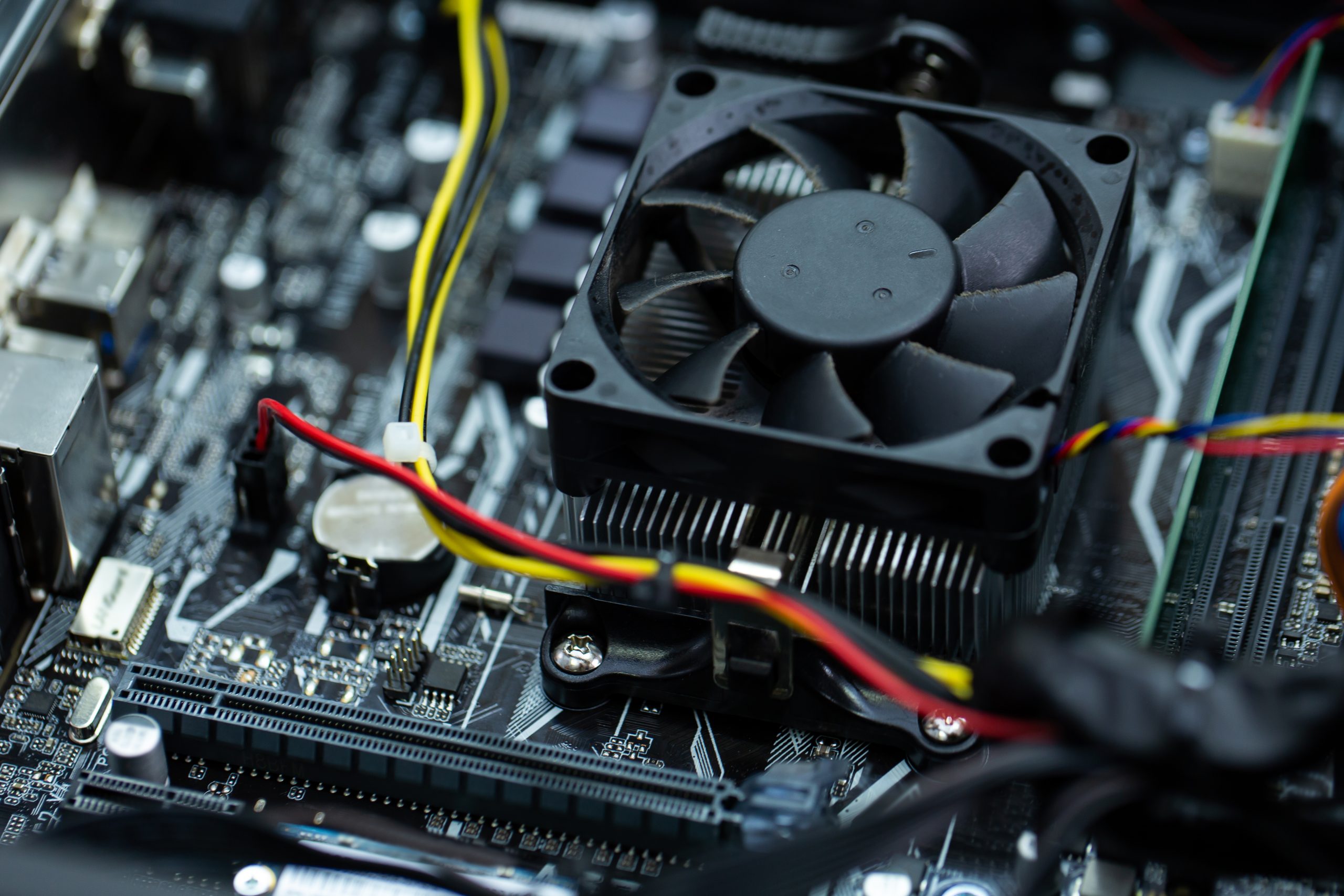
Why Learn Hardware Basics?
According to ComputerKing's in-store statistics, over 60% of customers cannot clearly identify which component is causing their computer issues when describing problems. Common conversations: "My computer is slow," "It takes forever to boot," "It keeps freezing." But "slow" can have a dozen different causes — is the CPU too old, RAM insufficient, hard drive dying, or malware infection? If you don't know the difference between CPU and RAM, communicating with a technician is like saying "my stomach hurts" without being able to pinpoint where. Learning the following core hardware concepts not only helps you diagnose problems but can also prevent you from being upsold unnecessary parts.
A Computer Is Like a Person — The Five Core Component Analogy
The simplest way to understand is to compare a computer to the human body. While simplified, this analogy works well for most non-technical users:
- CPU (Central Processing Unit) = Brain: Handles all calculations and decisions. Intel Core i3/i5/i7/i9 and AMD Ryzen 3/5/7/9 are the two main brands — higher numbers mean greater processing power. For general office work and browsing, i5/Ryzen 5 is more than enough. Gaming, video editing, and 3D rendering need i7/Ryzen 7 or above.
- RAM (Memory) = Short-Term Memory / Desk Surface: How much you can work on simultaneously depends on RAM. Think of RAM as your desk — the larger the surface, the more documents you can spread out at once. RAM contents clear when the computer shuts down, so you must save files to storage. In 2026, 8GB is basic, 16GB is comfortable, 32GB+ is professional-grade.
- SSD / HDD (Storage) = Long-Term Memory / Filing Cabinet: HDD (Hard Disk Drive) is like a giant filing cabinet — cheap, high capacity, but slow to find files. SSD (Solid State Drive) is like an instant-access digital file system — fast, silent, but slightly more expensive per GB. M.2 NVMe SSD is the newest, fastest format, capable of speeds over 30× faster than HDD.
- Motherboard = Nervous System and Skeleton: All components connect to and communicate through the motherboard. It determines what CPU, RAM, and storage you can use, so replacing the motherboard effectively means replacing half the computer.
- PSU (Power Supply Unit) = Heart: Converts wall AC power to DC power that computer components need, pumping stable electricity to everything. An aging PSU causes unstable power delivery — minor symptoms include random reboots, major ones include voltage spikes that can fry the motherboard and graphics card.
- GPU (Graphics Processing Unit) = Visual Nerve: Handles all image output. Two types: integrated (built into CPU, sufficient for office work and browsing) and dedicated graphics card (essential for gaming, video editing, AI computing).
CPU Deep Dive: Not Just i5 vs. i7
Choosing a CPU involves three metrics: core count, thread count, and generation. For example, an Intel Core i5-13600K and i5-10400 are both called "i5" but one is 13th-gen and the other 10th-gen — the performance gap can exceed 50%.
| CPU Tier | Best For | Approximate Price | Representative Models |
|---|---|---|---|
| Intel i3 / AMD Ryzen 3 | Pure browsing, office work, media | $800-$1,200 | i3-13100, Ryzen 3 5300G |
| Intel i5 / AMD Ryzen 5 | Daily multitasking, light editing, mid-range gaming | $1,500-$2,500 | i5-13600K, Ryzen 5 7600 |
| Intel i7 / AMD Ryzen 7 | Pro video editing, 3D rendering, high-end gaming | $2,500-$4,000 | i7-13700K, Ryzen 7 7800X3D |
| Intel i9 / AMD Ryzen 9 | Workstation, AI training, extreme gaming | $4,000-$7,000+ | i9-13900K, Ryzen 9 7950X |
For typical Hong Kong home users doing office work and browsing, an i5/Ryzen 5 will comfortably serve for 5 years.
RAM Guide: Capacity, Speed, and Dual Channel
RAM isn't just about capacity (GB) — speed (MHz) and dual-channel configuration matter too.
- Capacity: 8GB (basic office) → 16GB (recommended sweet spot for most users) → 32GB (heavy multitasking, VMs, professional editing) → 64GB+ (professional workstations)
- Speed: DDR4 mainstream is 3200MHz, DDR5 starts at 4800MHz. Higher speed has a mild impact on everyday use but noticeably helps gaming and video rendering.
- Dual Channel: Two identical RAM sticks (e.g., 2×8GB) are about 15-30% faster than a single stick (1×16GB) because data can travel through two channels simultaneously. When building a PC, always use matched pairs, not single sticks.
According to ComputerKing repair records, poor RAM contact is the third most common cause of no-boot situations (after PSU and motherboard). Cleaning the gold contacts with an eraser often solves the problem.
Storage Comparison: HDD vs. SATA SSD vs. NVMe SSD
| Spec | HDD | SATA SSD | NVMe SSD (M.2) |
|---|---|---|---|
| Read/Write Speed | ~150 MB/s | ~550 MB/s | 3,500-7,000 MB/s (PCIe 4.0) |
| Boot Time (Win 11) | 60-120 sec | 10-20 sec | 8-15 sec |
| Price per GB (2026) | ~$0.15/GB | ~$0.40/GB | ~$0.50/GB |
| Shock Resistance | Very low (mechanical) | Very high (no moving parts) | Very high |
| Best For | Backup, bulk file storage | Older machine upgrades, general use | System drive, gaming, professional work |
| Average Lifespan | 3-5 years | 5-10 years | 5-10 years |
Switching to an SSD is the upgrade customers most often say they "regret not doing sooner." The speed improvement from HDD to SSD is the most dramatic, most noticeable upgrade of any type.
Graphics Card: Integrated vs. Dedicated — How to Choose
- Integrated Graphics: Built into the CPU, no extra purchase needed. Intel UHD Graphics / Iris Xe and AMD Radeon Graphics handle 4K video playback, office work, and web browsing with ease.
- Dedicated GPU: NVIDIA GeForce RTX series (RTX 4060/4070/4080/4090) and AMD Radeon RX series are mainstream. Only needed for gaming (especially AAA titles), 3D modeling, video editing, and AI computing. Entry-level dedicated GPU (RTX 4060) costs approximately $2,500-$3,000.
Pro Tip: The 3 Most Common Hardware Buying Mistakes Beginners Make
ComputerKing Hardware Expert Reminder: The most common hardware purchasing errors we encounter: ①Buying DDR5 RAM when the motherboard only supports DDR4 (the slots are physically incompatible!); ②Buying an NVMe SSD when the older motherboard only has a SATA M.2 slot (speed drops to SATA levels); ③Upgrading to a high-performance graphics card without checking if the PSU has enough wattage (causes constant reboots or even hardware damage). Before buying any component, always verify motherboard specs and PSU wattage first — or WhatsApp us and we'll help you check.
Quick Upgrade Recommendations Summary
| Your Need | Recommended Upgrade | Budget Range | Expected Result |
|---|---|---|---|
| Slow boot, slow software launch | Upgrade to SSD | $300-$800 | Boot 5-10× faster |
| Lag when multitasking, Chrome slows with many tabs | Add RAM | $200-$600 | Dramatically smoother multitasking |
| Gaming lag, stuttering | Upgrade graphics card | $2,500+ | Significant FPS improvement |
| Frequent random reboots, shutdowns | Replace PSU | $400-$1,000 | System stability restored |
| Want to improve everything | Build a new PC | $5,000-$10,000+ | Complete upgrade |
To learn more about your machine's upgrade potential, check out our SSD Upgrade Guide and Upgrade or Buy New Guide.
FAQ
Q: What's the actual difference between 8GB and 16GB RAM?
A: The most noticeable difference is multitasking capability. A machine with 8GB RAM will start to slow with 10-15 Chrome tabs, with memory usage exceeding 80%. With 16GB, you can comfortably open 30-50 tabs while running other software simultaneously. If you need to run a browser, Office, and communication apps daily, 16GB is a worthwhile investment.
Q: How long do SSDs last? How do I know if mine is dying?
A: Typical SSD write endurance is 150-600 TBW (Terabytes Written), lasting 5-10 years for average users. Common signs of impending failure include: read/write speed suddenly dropping by more than half, frequent Windows "disk repair" prompts, and files becoming randomly corrupted. We recommend regularly checking health status with CrystalDiskInfo. Unlike HDDs, SSDs don't make strange sounds before they die — they fail suddenly, so backups are essential.
Q: How do I check my computer's hardware specifications?
A: Press Ctrl + Shift + Esc to open Task Manager and go to the "Performance" tab to see basic CPU, RAM, storage, and graphics card information. For more detailed data, use free software like CPU-Z or HWiNFO. If you're thinking about upgrading but unsure what your machine supports, feel free to WhatsApp us for a free compatibility check.
Want to Learn More? Get Help From Us
If after reading this beginner's guide you'd like to explore your computer's upgrade potential further, or want to buy a new machine but don't know what specs to choose, feel free to WhatsApp 2115 9219 or visit ComputerKing's Sha Tin/Wan Chai stores. We offer free hardware consultation to help you build the right computer for your needs at the most reasonable budget.
*Last updated: July 25, 2026. Written by the ComputerKing Hardware Expert Team based on 10,000+ computer repair and custom build cases.*
Frequently Asked Questions
What are CPU, RAM, SSD?
CPU = brain (computing), RAM = short-term memory (multitasking), SSD = storage (boot speed).
How to check my specs?
Windows: Settings → System → About. Mac: Apple menu → About This Mac.
Specs for office work?
i5/Ryzen 5, 8GB RAM, 256GB SSD is plenty. No need for expensive machines.
Gaming specs?
Depends on games. Baseline: i5 + 16GB RAM + RTX 4060. AAA titles need more.