Hardware Upgrade · April 22, 2026 · Hardware Expert
SSD Upgrade Cheat Sheet: What to Buy, How to Install, What to Watch Out For
SSD is the most cost-effective computer upgrade. Switching from traditional HDD to SSD makes boot 5-10x faster. This guide covers selection, installation, and data transfer.
How Big a Difference Does an SSD Upgrade Make? Let the Numbers Speak
According to ComputerKing repair center statistics, SSD upgrades are our most frequently performed and highest customer satisfaction upgrade service — over 95% of customers say they "wish they'd done it sooner." Real test data: A 2019 Dell Inspiron notebook (i5-8265U, 8GB RAM) upgraded from the original 1TB HDD to a Samsung 870 EVO SATA SSD showed Windows 11 boot time dropping from 1 minute 42 seconds to just 11 seconds, and Photoshop launch time from 38 seconds to 4 seconds. Most impressively, after the upgrade, many customers described the overall experience as "like getting a brand new computer." This isn't marketing hype — the gap between HDD and SSD truly spans an entire technology generation.
What's the Difference Between SSD and HDD? Simple Technical Explanation
Traditional hard drives (HDD) use spinning platters (5,400 or 7,200 RPM) and a mechanical arm to read/write — like a vinyl record player. SSDs use NAND flash memory, similar to USB drives but vastly faster. The absence of mechanical parts means: much faster, much quieter (completely silent), and far less susceptible to shock damage.
Actual speed numbers:
- HDD: ~120-180 MB/s (read/write)
- SATA SSD: ~500-550 MB/s (roughly 3-4× faster than HDD)
- NVMe SSD (PCIe 3.0): ~2,500-3,500 MB/s (roughly 20× faster than HDD)
- NVMe SSD (PCIe 4.0): ~5,000-7,000 MB/s (roughly 40× faster than HDD)
However, note: in everyday use (booting, opening apps, browsing), the perceived difference between SATA SSD and NVMe SSD is minimal. Both are far faster than HDD. NVMe's advantage is mainly felt with large file transfers (video editing, moving dozens of GB of files).
What Capacity to Choose? Budget Breakdown
| Capacity | Best For | SATA SSD Reference Price | NVMe SSD Reference Price | Approximate Storage |
|---|---|---|---|---|
| 256GB | Web browsing, basic office, cloud-centric | $150-$250 | $180-$300 | Windows + Office + a few files |
| 512GB | General home users (most recommended) | $250-$400 | $280-$450 | Windows + Office + thousands of photos + a few games |
| 1TB | Gaming, video editing, large file collections | $400-$700 | $450-$800 | Above + many games / video projects |
| 2TB | Professional users, video creators | $800-$1,500 | $900-$1,800 | Basically everything fits |
| 4TB+ | Servers, large-scale data storage | $2,000+ | $2,500+ | Enterprise applications |
General recommendation: Start at 512GB minimum. 256GB is genuinely tight in 2026 — Windows 11 alone consumes 30-40GB, and with Office and basic software, you'll quickly exceed 50% usage.
SATA or NVMe? How to Know What Your Machine Supports
This is the most frequently asked question. Simple assessment:
- 2015 or earlier computers: 90% only support SATA SSD (2.5-inch or mSATA). No M.2 slot.
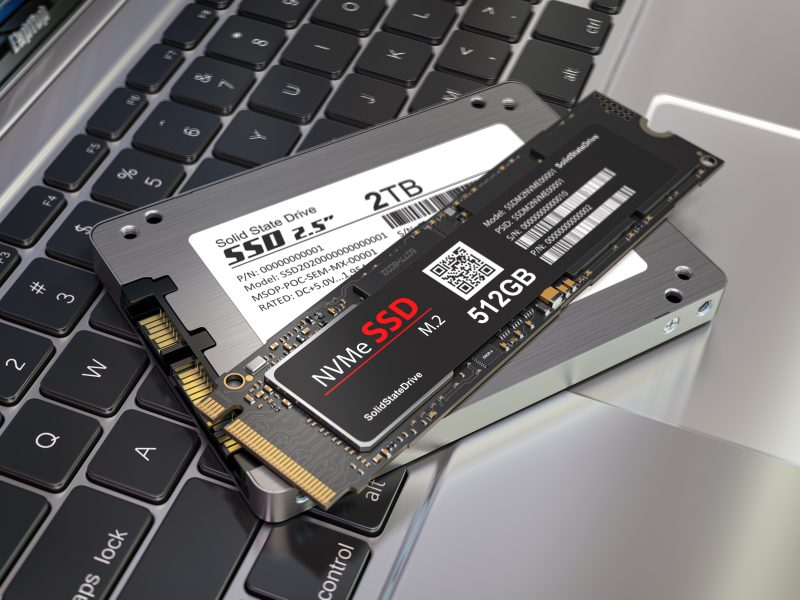
- 2016-2019 computers: Most have M.2 slots, but check whether it's SATA M.2 or NVMe M.2 (physically identical slots but different protocols!).
- 2020 or later computers: Most support NVMe M.2, with some models supporting PCIe 4.0.
Not sure what your machine supports? Three ways to check:
1. Download free software CPU-Z → Mainboard tab for model number → Google the specs
2. Open the case (desktop) / bottom cover (notebook), take a photo, and send it to us via WhatsApp
3. Visit ComputerKing for a free compatibility check (5 minutes)
Complete SSD Installation Steps (DIY Version)
If you're confident doing it yourself, here's the standard process:
1. Back up all important data — this step cannot be skipped. Any hardware operation carries risk.
2. Prepare tools — 2.5" SATA SSD needs a screwdriver (usually Phillips #0 or #1), M.2 SSD needs a smaller screwdriver. Some notebooks require specialty screwdrivers (e.g., MacBooks use Pentalobe).
3. Shut down and disconnect power — for desktops, switch off the PSU at the back; for notebooks, remove the battery if possible.
4. Discharge static — touch a metal object (door frame, metal table leg) to release static from your body.
5. Open and install the new SSD — Desktop: connect SATA cable + power cable (both must be connected). M.2: insert at a 30-degree angle, gently press down, secure with screw.
6. Clone system or reinstall Windows — use free software like Macrium Reflect or Samsung Magician to clone the old drive's system and data to the new SSD. Or do a clean Windows install.
7. Boot into BIOS — confirm the new SSD is detected and set as the first boot device.
8. After completion — for notebooks, the old hard drive can be placed in an external enclosure ($50-$100) and used as an external drive.
Clone or Clean Install? Pros and Cons
| Comparison | Clone | Clean Install |
|---|---|---|
| Time Required | 30 min – 2 hours (depends on data volume) | 1-2 hours (including drivers and software) |
| Pros | Preserves all software, settings, files — identical to original | Cleanest, fastest system — no old junk |
| Cons | If Windows was already problematic, issues carry over | Must reinstall all software and reconfigure settings |
| Best For | Healthy Windows, don't want to reconfigure | System already slow or problematic, want a fresh start |
| Difficulty | ★★☆ | ★★★ |
For beginners: If the machine runs okay (just HDD-slow), cloning is simplest. If the system already has various weird issues, take the opportunity to clean install along with the SSD upgrade.
Post-Installation Settings to Check
Windows automatically detects the SSD and enables TRIM — no special configuration needed. But a few things to note:
- Don't defragment the SSD: SSDs don't need defragging; it actually wastes write cycles. Windows 10/11 automatically recognizes SSDs and uses "Optimization" instead of defrag — no worries.
- Keep 10-20% free space: A completely full SSD experiences severe speed degradation. Maintain at least 10% free space for wear leveling.
- Regular health checks: Use CrystalDiskInfo or the SSD manufacturer's tool (e.g., Samsung Magician, WD Dashboard) to monitor SSD health and temperature.
Pro Tip: The Most Common M.2 SSD Installation Mistake
ComputerKing Hardware Expert Warning: The most common M.2 SSD installation failure is — the screw is too tiny and using the wrong screwdriver strips it. M.2 screws are M2×3mm规格, requiring a PH0 or PH00 screwdriver — never force it with a larger driver. Also, ensure the M.2 SSD is fully inserted into the slot before pressing it down and securing the screw — we've had several cases where the customer only partially inserted it before tightening, resulting in a crooked SSD that not only wasn't detected but also bent the M.2 slot pins.
FAQ
Q: Will upgrading to SSD cause me to lose my Windows license?
A: No. Windows 10/11 digital licenses are tied to the motherboard, not the hard drive. Replacing the drive doesn't affect it. After reinstalling Windows, it will automatically recognize your machine and reactivate. To be safe, link your license to your Microsoft account beforehand.
Q: My notebook only has one hard drive slot — what do I do with the old HDD after upgrading to SSD?
A: Get a USB 3.0 external hard drive enclosure ($50-$100) and turn the old HDD into an external drive. If your notebook has an optical drive, you can also replace the DVD drive with a hard drive caddy, effectively adding an extra SATA slot.
Q: NVMe SSD installed but not detected on boot — what now?
A: First, check the BIOS. If BIOS doesn't detect it either, possible causes: ①Not seated properly — power off and reseat; ②Motherboard doesn't support NVMe (only SATA M.2) — verify motherboard specs; ③M.2 slot is disabled in BIOS settings — enable it. If BIOS detects it but Windows doesn't, go to Disk Management to initialize and format the new SSD.
Q: How long do SSDs last? Does BitTorrent downloading kill SSDs?
A: Modern SSDs have very long write endurance. A 512GB SSD with 50GB written daily would last over 20 years before reaching its TBW limit. BT downloading's impact on SSD lifespan is exaggerated — unless you're downloading 24/7, normal use is completely fine. If you're genuinely concerned, set BT download paths to an external HDD.
Can't Do It Yourself?
We offer a complete SSD upgrade service: free compatibility check → help you choose the best model → installation → data transfer (clone or reinstall) → old drive disposal. Usually done in one hour — you can wait. All SSD upgrades include a 90-day warranty, using major brands like Samsung, WD, and Crucial.
📞 Ready to upgrade? WhatsApp 2115 9219 to book, or visit our Sha Tin/Wan Chai stores for a free consultation. For more upgrade options, check out our Upgrade or Buy New Guide.
*Last updated: July 25, 2026. Written by the ComputerKing Hardware Expert Team based on 5,000+ SSD upgrade cases.*
Frequently Asked Questions
SSD types — which to choose?
SATA SSD (older PCs), NVMe (modern, 5-10x faster). Depends on your machine's support.
Will I lose data upgrading to SSD?
No. We clone your system — files and settings transfer intact.
SSD lifespan? Sudden death?
Typically 5-8 years. SSDs usually degrade gradually, but back up anyway.
How long for 256GB to 1TB migration?
1-2 hours including cloning. Same-day pickup.