Computer Repair · October 29, 2026 · ComputerKing Team
NAS Full or Ageing? Expand Disks, Migrate to a New NAS, or Leave It Alone — A Decision Guide
After a few years a NAS runs out of space, slows down, or its drives age: tell apart health, capacity and performance signals first, then choose clean-up, disk-by-disk expansion, unit migration, or leaving it alone — and always secure a separate independent backup before any expansion or migration.
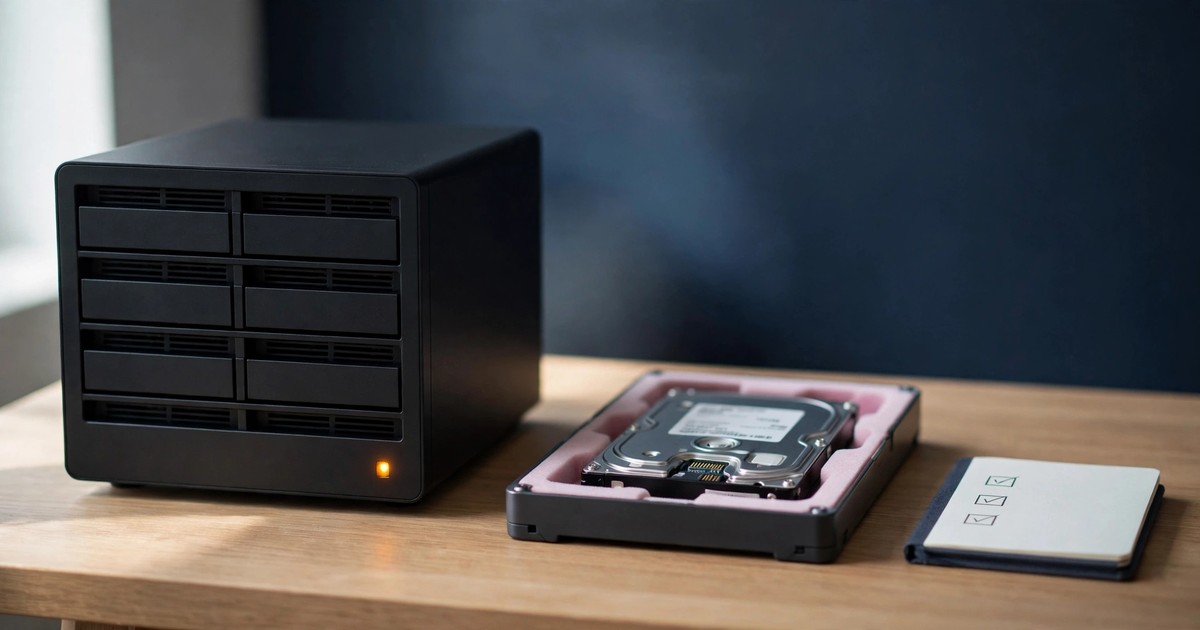
Key takeaway: After a few years, every NAS owner hits one of three situations: capacity running out, the unit getting slower, or drives starting to age. This article does not repeat how to choose a NAS. It covers what to do once you already own one: when a clean-up is enough, when to replace disks one by one to expand, when to migrate to a new unit, and when leaving it alone is the right call — plus the stop points for each route and the backup checks that must come before any migration.
Introduction: how this article differs from the earlier NAS guide
If you are buying a NAS for the first time, read the first-circle guide first: "How to Choose, Configure and Back Up a Home / Small-Office NAS". That article covers capacity planning, 2-bay versus 4-bay, RAID levels, the 3-2-1 backup rule and secure remote access — the complete from-zero guide. This article assumes you already own a NAS and will not re-teach choosing a unit or RAID levels; it only refers back to that guide where needed.
Owners of an existing NAS face a different worry: not "which unit to buy", but "is this unit still worth saving, and is it worth spending more on". The most common mistake is treating three different problems as one problem: full capacity is mistaken for a need to replace the unit (when a clean-up might be enough); slowness is mistaken for a disk problem (when it might be the network or memory); and a drive health warning is put off (when that is actually the most urgent kind). This article helps you tell the signals apart first, then choose a route.
One principle up front: before any expansion or migration, you must have a separate, independent backup. RAID is not a backup, and RAID will not protect you if something goes wrong during expansion. That principle runs through the whole article — do not skip it.
Section 1: Three signals — tell them apart first
NAS problems usually show up as one of three signals. Mistaking one for another leads to the wrong route.
| Signal | Typical signs | Check first | Usually not the problem |
|---|---|---|---|
| Capacity signal | System warns space is low; backup jobs fail because the disk is full; new files cannot be saved | Which folder uses the most space; whether there are duplicates, outdated files or over-generous version retention; whether a backup job error is filling the disk | Not necessarily a failed drive, and not necessarily a unit that lacks power |
| Performance signal | Opening files is slow, photos load slowly, especially slow when several people use it at once | Whether you are on Wi-Fi instead of a wired connection; whether the link between router and NAS is an old 100 Mbps cable; which service is using resources; whether disks are rebuilding or checking | Not necessarily full capacity; bigger disks will not necessarily make it faster |
| Health signal | A drive shows bad-sector or S.M.A.R.T. warnings; the system reports a degraded storage pool; the unit restarts for no reason or makes unusual noises | Which drive is warning, and for how long; whether other drives warn at the same time; whether there was a recent power cut or abnormal shutdown | Definitely not a "deal with it later" minor issue; this signal needs immediate action |
How to tell them apart? Simple: capacity problems are about "how much space is left", performance problems are about "which link is slow", and health problems are about "which drive is warning". Several signals can appear at once, but the order of handling matters: health signals are the most urgent, capacity signals next, performance signals can be investigated slowly. If health and capacity signals appear together, do not jump to expansion — handle the failing drive and the backup first, and think about expansion afterwards.
Section 2: Four routes — the decision table
Once the signals are clear, there are four routes. The table below is not a ranking of "which is best", but a map of "which situation suits which route".
| Route | Suits | Does not suit | Biggest risk |
|---|---|---|---|
| A. Clean up in place + adjust | Capacity signal is the main issue and some space remains; the big files are duplicates, outdated files or over-generous version retention | Already completely full; a drive already has a health warning; the unit itself is so old the vendor has stopped security updates | Deleting the wrong files; believing a clean-up equals a backup |
| B. Replace disks one by one to expand | Enough bays, the unit is healthy, and only capacity is short; you want to keep using this unit for years | The unit has been discontinued for years and vendor updates are nearly over; two drives warn at once; you want to move from 2-bay to 4-bay (bays do not multiply by themselves) | Something going wrong during rebuild; replacing two drives at once |
| C. Migrate to a new unit | The unit is ageing, vendor support is ending, you want more bays or to change brand; solves capacity + performance + support in one move | Only capacity is short and the unit is still new; no independent backup yet; clearing the old unit before verification | Power cut mid-migration; settings copied incompletely; clearing the old unit too early |
| D. Leave it alone + add a second backup layer | The unit is still healthy, capacity is still enough, performance is acceptable; you purely want to be "safer" | Capacity already in the red; a drive already warns; mistaking "not touching it" for "it will not fail" | Delay letting a health problem get worse; treating "leaving it alone" as "backing it up" |
How to use this table? Ask three questions in order:
1. Any health warning? If yes — handle the health problem first. Do not jump straight to expansion or migration. Replacing disks and migrating are only safe on healthy disks.
2. Is capacity genuinely short? After a clean-up, if a reasonable amount of space remains (as a general guide, keep at least around 15% free so the system and backups have room to operate), you may not need to spend money yet.
3. How much vendor support is left for this unit? If the vendor has stopped security updates, or the unit keeps having problems from age, buying bigger disks only puts money into a unit about to retire — replacing the unit may be better value.
On pricing, this article gives no specific model or street prices, because prices change. Whichever route you take, pricing is on individual quotation — agree up front what is included and what is not.
Section 3: Route B in practice — replacing disks one by one to expand, safely
Replacing disks one by one is the step most people know best — and the step where rushing causes the most trouble. The flow below is generic and not model-specific; before doing it, always check your own unit's official documentation, because expansion rules differ between brands and models.
Step 1: Back up first. Do not trust "RAID will protect me during the disk swap". Copy the most important data to an external drive or another device, and test-restore one file to confirm that backup genuinely opens. If the backup is not verified, do not start swapping disks.
Step 2: Replace only one drive at a time. Swap one new drive in, wait for the system to finish rebuilding, and confirm the storage pool is healthy again before swapping the next one. Never swap two at once to save time — a RAID 1 or RAID 5 array has limited protection during a rebuild, and losing another drive in that window puts the data at risk.
Step 3: Watch the rebuild time and status. The unit will be slower during a rebuild — that is normal. But if the rebuild stalls, new warnings appear, or a second drive starts warning too, stop. Do not force the next swap. At that point the priority is protecting the existing data and backup, not finishing the expansion quickly.
Step 4: New capacity only appears after all disks are replaced. Many owners swap one drive, see no capacity change, and assume something broke — in fact, traditional RAID expansion only frees the new capacity once all disks have been replaced with larger ones. Synology's SHR is more flexible here, but its rules still need to be checked against official documentation rather than guessed. After the swap, you must also complete the system's expand-storage step; it does not simply grow by itself.
Step 5: Do not discard the old disks immediately. Keep the removed disks for a while as a fallback, until the new combination has run stably and backup jobs have completed several normal cycles. Before disposing of an old disk, wipe its data thoroughly — do not hand it on or throw it away with data still on it.
Section 4: Route C in practice — migrating to a new unit, and what is easiest to miss
Migration comes in two kinds, very different in difficulty — decide which one applies before buying a unit.
Same-brand migration: Some vendors support moving a whole set of drives from the old unit to the new one, and the system recognises the original storage pool. This is the fastest method, but it has conditions — the new model must be supported, and system version and drive order matter. Always check the official migration documentation first, and never assume "it fits, so it will be recognised". Even when officially supported, back up before migrating.
Cross-brand migration or starting fresh: This means starting from zero: set up a storage pool on the new unit, then copy data from the old unit or from backup. It takes longer, but it is also a good chance to clean up old data and reorganise permissions. The easiest things to miss here are not the big files, but these:
- Accounts and folder permissions: Who can see which folder, and who can read but not change it, must be checked one by one on the new unit. Do not replace everyone with one shared account.
- Backup jobs and schedules: The old unit's automatic backup jobs must be set up again and tested on the new unit. Do not assume jobs follow the data.
- Remote access settings: As covered before, remote access should err on the strict side. After a move, VPN or vendor relay services must be set up again, with two-factor authentication, auto-block and a disabled default admin account all redone — do not carry over loose settings from the old unit.
- Version retention and snapshot settings: If the old unit had snapshots or version history, the new unit must have them switched on again, or a mistakenly deleted file will turn out to be unrecoverable to an older version.
The standard for "migration complete" is not simply "files copied". All four of these must hold: first, spot-check several folders — files open, and counts and sizes match; second, test-restore one older-version file; third, a backup job completes successfully once; fourth, family members or colleagues can log in with their own accounts and see the folders they should see. The old unit must be kept until all four pass. Before clearing it, also confirm it holds no unique file — that is, no file that exists only on the old unit and nowhere else.
Section 5: Five common mistakes
Mistake 1: Buying disks the moment capacity fills, without identifying the signal
Why it is wrong: Full capacity can be caused by over-generous version retention, too many duplicates, or a backup job error filling the disk. Buying disks before finding the cause may leave the real problem untouched.
What to do instead: First check which folder uses the most space, how version retention is set, and whether backup jobs show errors. Only expand after a clean-up still leaves too little space.
Mistake 2: Replacing two disks at once, or swapping the next disk before the rebuild finishes
Why it is wrong: The rebuild period is when the storage pool is most fragile. Removing another disk then removes the last remaining protection.
What to do instead: One drive at a time; wait for the rebuild to finish and the pool to return to healthy before the next swap. Even in a hurry, do not skip this step.
Mistake 3: Migrating without an independent backup, believing the old unit itself is the backup
Why it is wrong: During migration both units are in flux, and a problem on either side can affect the data. What is on the old unit is "the original", not a backup.
What to do instead: Before migrating, copy the most important data elsewhere and test-restore it. That backup can only be considered "retireable" after migration is complete and verified.
Mistake 4: Clearing, giving away or discarding the old unit as soon as the move finishes
Why it is wrong: Migration verification takes time — permissions, backup jobs and remote settings often only show problems after a few days. Clearing the old unit too early removes the last way back.
What to do instead: Keep the old unit for at least one backup cycle, until the new unit runs stably and all verification passes. Wipe its data thoroughly before clearing it.
Mistake 5: Carrying over loose remote settings to the new unit, or skipping two-factor authentication
Why it is wrong: A new unit is a new entry point. Weak passwords, a default admin account and a directly exposed management interface simply move the risk along with the data.
What to do instead: On migration day, redo the full security setup: a custom admin account, a long unique password, two-factor authentication and auto-block, and keep the management interface off the open internet. The detailed principles are in the remote-access section of the first-circle NAS guide.
Prevention: a checklist for keeping a NAS stable long-term
Monthly: Check drive health status and storage usage; confirm backup jobs have successful records; test-restore one file.
Quarterly: Check system updates; check version retention settings are not filling the disk; check login records for unfamiliar logins.
Yearly: Think about whether data growth has outrun expectations; how much vendor support remains for the unit; whether it is time to move from "expand" to "replace" — do not wait until the day the unit fails to think about it.
Stop points: Persistent bad-sector warnings, a degraded storage pool, repeated system abnormality alerts, or unfamiliar logins in the login record — do not try random repairs yourself. First copy the most important data elsewhere, then get someone experienced to check it. If you suspect account compromise, change the password immediately, disable remote access and check the login records.
FAQ
Q: My 2-bay NAS is full. Must I switch to 4-bay?
A: Not necessarily. First identify whether it is a capacity problem or something else: if only capacity is short and the unit is still healthy, replacing disks one by one to expand can solve it without changing units. Only consider 4-bay when you need more bays (for example, to move from RAID 1 to RAID 5, or to separate storage pools for different uses), or when the unit itself is ageing.
Q: What if the unit fails halfway through replacing disks?
A: That is exactly why an independent backup must exist before expansion or migration. During a disk swap the storage pool is fragile, and if the unit or another drive fails then, the independent backup is the only way back. If there is no backup and something fails, stop — do not keep powering on or swapping disks randomly — and get an experienced assessment first. Backing up beforehand is always cheaper than rescuing afterwards.
Q: If I move drives to a new unit of the same brand, will it always recognise them?
A: Not always. Vendor migration support has conditions on models, system versions and drive order, and not every combination is supported. Check the official migration documentation for your old and new model combination first; even when supported, back up before migrating. For unsupported combinations, use the copy-data-from-scratch method.
Q: When moving across brands, what happens to old accounts and permissions?
A: Accounts and permissions do not transfer automatically across brands; they must be recreated on the new unit. Before moving, record the old unit's account list and each folder's permissions, then check them one by one afterwards. Never replace everyone with one shared account to save time — that throws away the point of permission separation.
Q: Will expansion make the NAS faster?
A: Generally no. Expansion solves capacity, not speed. Slowness needs its own investigation: wired versus Wi-Fi, network speed, which service is using resources, and whether disks are rebuilding. If speed is unchanged after bigger disks, the problem was probably never disk capacity.
Q: Before clearing the old unit, what counts as "verification complete"?
A: Four things, all required: spot-checked files open, with counts and sizes matching; a test restore of an older-version file succeeds; a backup job on the new unit completes successfully once; and every user can log in with their own account and see the folders they should see. Also confirm the old unit holds no file that exists nowhere else. Only then may the old unit be cleared.
Q: How often should NAS drive health be checked?
A: Checking S.M.A.R.T. status and storage usage once a month is enough for most home and small-office situations. When a warning appears, do not wait until next month — act immediately. Backup job success records need the same monthly check, with failure notifications switched on.
Q: How long does assisted NAS migration take, and how is it charged?
A: It depends. Replacing disks one by one depends on disk count and capacity — rebuild time can range from hours to more than a day. A full unit migration also needs time for copying data, resetting permissions and verification. Pricing is on individual quotation, depending on model, disk count, data volume and setup scope — agree up front what is included and what is not.
Summary
1. Identify the signal before choosing a route: Health signals are most urgent, capacity next, performance slowest to investigate. Mistaking the signal means no amount of new disks will fix the problem.
2. Before expansion or migration, have an independent backup: One disk at a time, wait for the rebuild to finish; keep the old unit until verification passes.
3. The unit's remaining support life is also a cost: If vendor support is nearly over, bigger disks only put money into a unit about to retire — replacing the unit may be better value.
Stop point: Bad-sector warnings, a degraded storage pool or unfamiliar logins in the login record — do not try random repairs. Copy the most important data elsewhere first, then get someone experienced to check it.
Need help? Call +852 2115 9219. Pricing is on individual quotation, depending on model, disk count and setup scope.
Sources
1. Synology official DSM help — Expand the storage pool by replacing drives — https://www.synology.com/en-uk/knowledgebase/DSM/help/DSM/StorageManager/storage_pool_expand_replace_disk — Cited for: replace one drive at a time, repair the storage pool before the next replacement, and complete the expansion after all drives are replaced; RAID 5/6/10/F1 should replace the smallest drive first. Accessed: 2026-10-26.
2. Synology official Migration Assistant specifications — https://www.synology.com/en-ph/dsm/7.3/software_spec/migration_assistant — Cited for: migrating data, system settings and packages from one Synology NAS to another; source device DSM 6.0 or above, destination DSM 7.0 or above; some items (e.g. Synology Account settings, licences, some network settings) are not migrated together. Accessed: 2026-10-26.
3. Veeam official documentation — Backup Copy, Veeam Backup & Replication Quick Start Guide — https://helpcenter.veeam.com/docs/backup/qsg_hyperv/backup_copy.html — Cited for: the 3-2-1 rule definition (3 copies of data, 2 different media, 1 off-site copy). Accessed: 2026-10-26.
4. QNAP official support article — What is the best practice for enhancing NAS security? — https://www.qnap.com/en-me/how-to/faq/article/what-is-the-best-practice-for-enhancing-nas-security — Cited for: disabling UPnP automatic port forwarding, disabling router port forwarding, and using myQNAPcloud Link or QVPN Service for remote connection. Accessed: 2026-10-26.
5. First-circle NAS guide (this site) — Home / Small-Office NAS: Choosing, Configuration and Backup — /blog/nas-home-office — Cited for: the complete beginner content on choosing, RAID, 3-2-1 and remote access, not repeated here, only referenced for division of labour.
6. Backup strategy guide (this site) — /blog/backup-strategy-hk — Cited for: 3-2-1 implementation and test-restore practice, referenced only.
7. Hong Kong SME RAID recovery guide (this site) — /blog/raid-recovery-sme-guide — Cited for: what to do after RAID failure, referenced only; recovery steps are not repeated here.
Related articles
- Home and Small-Office NAS Setup: How to Choose, Configure RAID, Back Up with 3-2-1, and Secure Remote Access
- Hong Kong Backup Strategy Guide: The 3-2-1 Rule Done Properly — Time Machine, Windows, Cloud and Offline Drives
- RAID Recovery for Hong Kong SMEs: What Not to Do First
Frequently Asked Questions
My 2-bay NAS is full. Must I switch to 4-bay?
Not necessarily. First identify whether it is a capacity problem or something else: if only capacity is short and the unit is still healthy, replacing disks one by one to expand can solve it without changing units. Only consider 4-bay when you need more bays (for example, to move from RAID 1 to RAID 5, or to separate storage pools for different uses), or when the unit itself is ageing.
What if the unit fails halfway through replacing disks?
That is exactly why an independent backup must exist before expansion or migration. During a disk swap the storage pool is fragile, and if the unit or another drive fails then, the independent backup is the only way back. If there is no backup and something fails, stop — do not keep powering on or swapping disks randomly — and get an experienced assessment first. Backing up beforehand is always cheaper than rescuing afterwards.
If I move drives to a new unit of the same brand, will it always recognise them?
Not always. Vendor migration support has conditions on models, system versions and drive order, and not every combination is supported. Check the official migration documentation for your old and new model combination first; even when supported, back up before migrating. For unsupported combinations, use the copy-data-from-scratch method.
When moving across brands, what happens to old accounts and permissions?
Accounts and permissions do not transfer automatically across brands; they must be recreated on the new unit. Before moving, record the old unit's account list and each folder's permissions, then check them one by one afterwards. Never replace everyone with one shared account to save time — that throws away the point of permission separation.
Will expansion make the NAS faster?
Generally no. Expansion solves capacity, not speed. Slowness needs its own investigation: wired versus Wi-Fi, network speed, which service is using resources, and whether disks are rebuilding. If speed is unchanged after bigger disks, the problem was probably never disk capacity.
Before clearing the old unit, what counts as "verification complete"?
Four things, all required: spot-checked files open, with counts and sizes matching; a test restore of an older-version file succeeds; a backup job on the new unit completes successfully once; and every user can log in with their own account and see the folders they should see. Also confirm the old unit holds no file that exists nowhere else. Only then may the old unit be cleared.
How often should NAS drive health be checked?
Checking S.M.A.R.T. status and storage usage once a month is enough for most home and small-office situations. When a warning appears, do not wait until next month — act immediately. Backup job success records need the same monthly check, with failure notifications switched on.
How long does assisted NAS migration take, and how is it charged?
It depends. Replacing disks one by one depends on disk count and capacity — rebuild time can range from hours to more than a day. A full unit migration also needs time for copying data, resetting permissions and verification. Pricing is on individual quotation, depending on model, disk count, data volume and setup scope — agree up front what is included and what is not.