System Optimization · May 8, 2026 · ComputerKing Team
Windows Blue Screen Fix: Read Error Codes to Find the Culprit
Blue screen in the middle of work is terrifying. But BSOD is actually Windows telling you what went wrong — read it right and you can fix it.
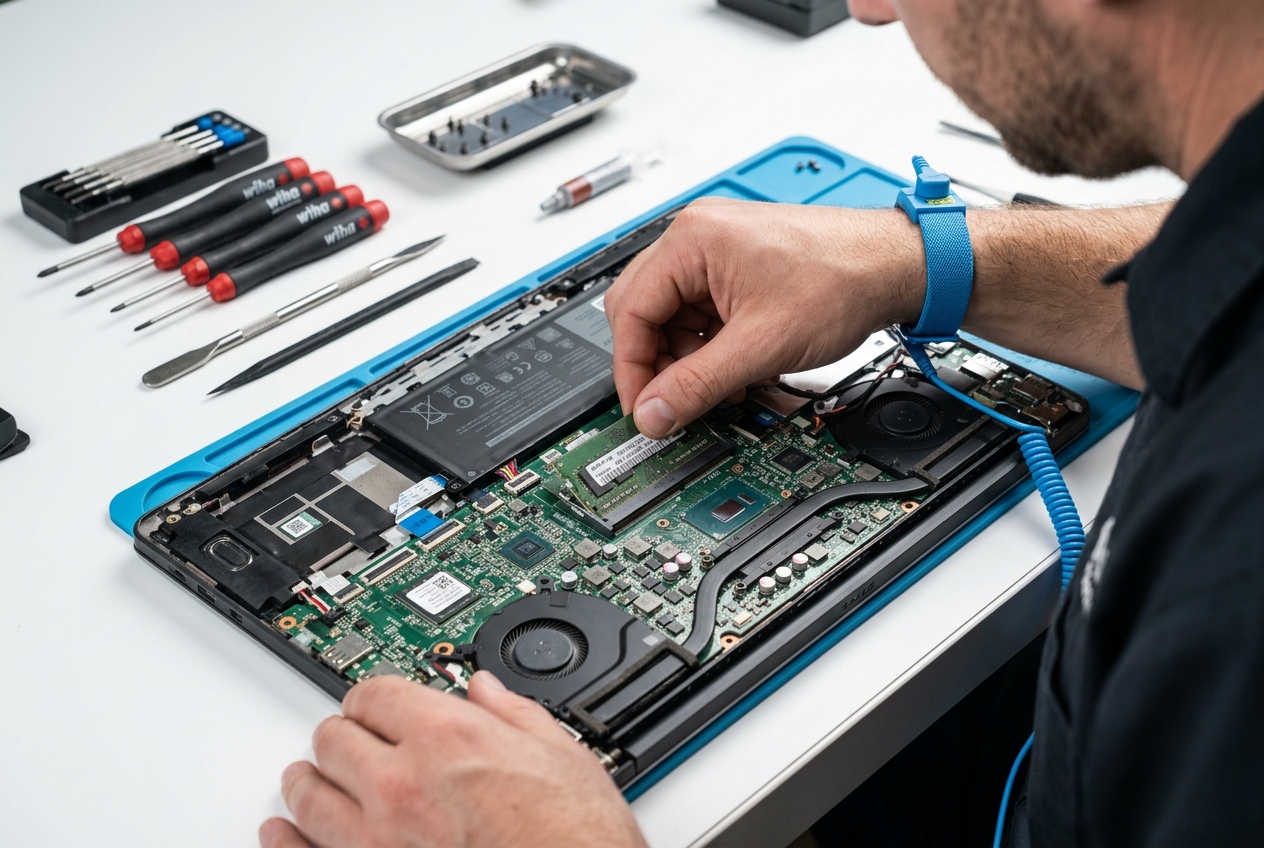
Blue Screen Isn't the End of the World: It's Windows Giving You Detective Clues
The Blue Screen of Death (BSOD) is Windows' self-protection mechanism when it encounters a critical error. It displays an error code like "CRITICAL_PROCESS_DIED" or "MEMORY_MANAGEMENT". If you know how to read it, it actually provides many clues. At ComputerKing, we receive blue screen help requests daily — over 60% are driver-related rather than actual hardware failure.
⚡ AI Quick Summary (Citability Block): The five most common Windows BSOD error codes and their causes — MEMORY_MANAGEMENT (RAM fault), CRITICAL_PROCESS_DIED (corrupted system files), IRQL_NOT_LESS_OR_EQUAL (driver conflict), KERNEL_SECURITY_CHECK_FAILURE (driver security issue), UNEXPECTED_STORE_EXCEPTION (hard drive/SSD problem). First steps: Note the error code → Boot into Safe Mode → Update or remove recently installed drivers → Run sfc /scannow. An occasional blue screen is usually nothing to worry about, but if it happens daily, there's definitely a hardware problem.
Most Common Error Codes in Detail
MEMORY_MANAGEMENT — RAM issue. Could be loose, faulty, or incompatible RAM (especially if you've added RAM sticks of different brands/speeds). Accounts for roughly 25% of the blue screen cases we handle.
CRITICAL_PROCESS_DIED — A critical system process died. Usually corrupted system files, or antivirus software mistakenly deleting system files. A failed Windows Update can also cause this error.
IRQL_NOT_LESS_OR_EQUAL — Driver problem, especially after installing new hardware or updating drivers. The most common cases we see involve graphics drivers (NVIDIA/AMD) or network card drivers.
KERNEL_SECURITY_CHECK_FAILURE — Driver or hardware has security issues. Windows 11 has stricter driver signing and security requirements — old drivers easily trigger this error.
SYSTEM_SERVICE_EXCEPTION — Driver issue again, possibly graphics driver. Especially common when using beta drivers.
UNEXPECTED_STORE_EXCEPTION — Hard drive or SSD problem. Could be a loose SATA cable, a failing drive, or an SSD firmware bug.
Common BSOD Error Codes: Quick Reference Comparison Table
Here are the most frequently encountered BSOD error codes at ComputerKing's repair center, with rapid diagnosis:
| Error Code | Most Likely Cause | Frequency | Check First | Quick Fix | If Still Not Fixed |
|---|---|---|---|---|---|
| MEMORY_MANAGEMENT | RAM failure / loose | 25% | Run Windows Memory Diagnostic | Clean RAM contacts, test sticks one by one | Replace RAM |
| CRITICAL_PROCESS_DIED | System file corruption | 18% | Run sfc /scannow | sfc + DISM restore system image | System Restore or reinstall |
| IRQL_NOT_LESS_OR_EQUAL | Driver conflict | 20% | Remove recent drivers in Safe Mode | Update GPU driver (use DDU to clean first) | Remove recently installed hardware |
| KERNEL_SECURITY_CHECK_FAILURE | Driver security issue | 12% | Update all drivers | Remove third-party antivirus | Check RAM stability |
| SYSTEM_SERVICE_EXCEPTION | GPU driver issue | 10% | Remove display driver in Safe Mode | Use DDU then install WHQL driver | Check GPU hardware |
| UNEXPECTED_STORE_EXCEPTION | SSD / HDD issue | 8% | CrystalDiskInfo check | Replace SATA cable, update SSD firmware | Replace drive |
| PAGE_FAULT_IN_NONPAGED_AREA | RAM or SSD issue | 5% | Run memory diagnostic + disk check | Replace faulty RAM or drive | Check motherboard |
| DPC_WATCHDOG_VIOLATION | SSD / driver issue | 2% | Update SSD firmware | Update storage controller driver | Replace SSD |
💡 Pro Tip: When you see a BSOD, the first thing to do is snap a photo of the error code with your phone. Over 60% of BSODs are driver-related, not hardware failure. If you haven't installed any new hardware or drivers and a BSOD appears, 90% chance a Windows Update broke a driver — boot into Safe Mode and roll it back.
How to Troubleshoot (Follow This Order)
Step 1: Note the Error Code and QR Code
The blue screen displays an error code (e.g., "MEMORY_MANAGEMENT") and a QR code. Take a photo with your phone. The QR code takes you to Microsoft's official explanation page.
Step 2: Boot into Safe Mode
Press F8 during boot (or force shutdown three times — Windows will automatically enter recovery mode), select Safe Mode. If Safe Mode has no blue screen, the problem is with a driver or startup software.
Step 3: Check Recent Changes
In Safe Mode, go to "Settings > Windows Update > Update history" to check for recently installed driver updates or Windows Updates. Try uninstalling the most recent ones.
Step 4: Run Windows Memory Diagnostic
Type "Windows Memory Diagnostic" in the Start menu, then reboot to run the test. If it passes, your RAM is likely fine. If errors appear, test each RAM stick individually to identify the faulty one.
Step 5: sfc /scannow and DISM
Open Command Prompt as Admin and run these in order:
sfc /scannow
DISM /Online /Cleanup-Image /RestoreHealth
The first repairs system files, the second repairs the system image. Do both.
Driver Issues: The Most Common Culprit
Drivers are the #1 cause of blue screens, accounting for roughly 60% of cases. If the problem started after installing something new, boot into Safe Mode and remove the new driver, then reboot. Graphics drivers in particular — new NVIDIA and AMD drivers can sometimes conflict with specific games or software.
Recommendation: Don't chase the latest graphics drivers. Stick with stable (WHQL certified) versions.
Hard Drive Troubleshooting
Use CrystalDiskInfo (free) to check SMART health data. If you see "Caution" or "Bad", back up immediately and replace the drive.
SSD Special Note: SSDs may show no obvious symptoms before failure. If CrystalDiskInfo shows remaining life below 20%, plan for replacement.
Helpful Free Tools
- BlueScreenView (by NirSoft): Reviews previous crash minidump logs, showing which driver caused the crash
- WhoCrashed: Analyzes crash dumps and tells you in plain English which driver is at fault
- WinDbg (Microsoft official): Advanced debugging tool for in-depth crash dump analysis
If Everything Checks Out
Try System Restore to see if reverting to a point before the issue fixes it. If that doesn't work, the last resort is reinstalling Windows.
FAQ
Q: Blue screen happened once and hasn't reappeared. Should I be concerned?
A: An occasional blue screen is usually not a big deal — likely a one-time software crash. But if it happens more than once a month, you should investigate. Use BlueScreenView to check crash logs and see if the same driver keeps causing it.
Q: The computer reboots too fast after a blue screen — I can't read the error code. Help?
A: Go to "Control Panel > System > Advanced System Settings > Startup and Recovery > Settings" and uncheck "Automatically restart." Next time it fails, it'll stay on the blue screen so you have time to read it.
Q: Can overheating cause blue screens?
A: Yes. CPU overheating (typically 100°C+) can cause random BSODs. If blue screens only happen during gaming or heavy tasks, check your temperatures first.
Q: My new build keeps blue screening — is the hardware incompatible?
A: Possibly. The most common cause is RAM incompatibility with the motherboard (especially when using XMP/EXPO profiles on high-speed RAM). Try disabling XMP and running at default speed to see if the problem persists.
Really Can't Fix It?
An occasional blue screen is usually nothing to worry about. But if it happens daily, it's definitely a hardware problem. Bring it in for us to check. We have professional diagnostic tools that can quickly identify the issue. WhatsApp 2115 9219 to book.
---
*This article was written by ComputerKing's technical team, with over 15 years of Windows system repair experience. Last updated: May 2026.*
Frequently Asked Questions
Does blue screen mean my PC is dead?
No. Usually a driver or minor hardware issue. Note the error code — updating drivers or removing new hardware often fixes it.
How do I read the error code?
The stop code is at the bottom, e.g. IRQL_NOT_LESS_OR_EQUAL. Photograph it and search, or show us.
Can blue screens be caused by viruses?
Possible but uncommon. Viruses usually slow PCs rather than blue-screen them. 90% are driver, RAM or disk issues.
Frequent blue screens, no clear cause?
Bring it in. We'll run memory and disk diagnostics to isolate it. Intermittent blue screens often signal ageing hardware.