System Optimization · October 11, 2026 · ComputerKing Team
Windows 11 26H2 Cuts RAM Usage: Idle Drops from ~10GB to ~7GB — 4 Pre-Update Steps
Windows 11 26H2 rolled out quietly last week. Independent tests show idle RAM dropping from ~10GB to ~7GB and snappier app launches — a free second life for older PCs. But 8GB machines should keep expectations low. A repair-shop guide to the 4 pre-update steps and whether you should update.
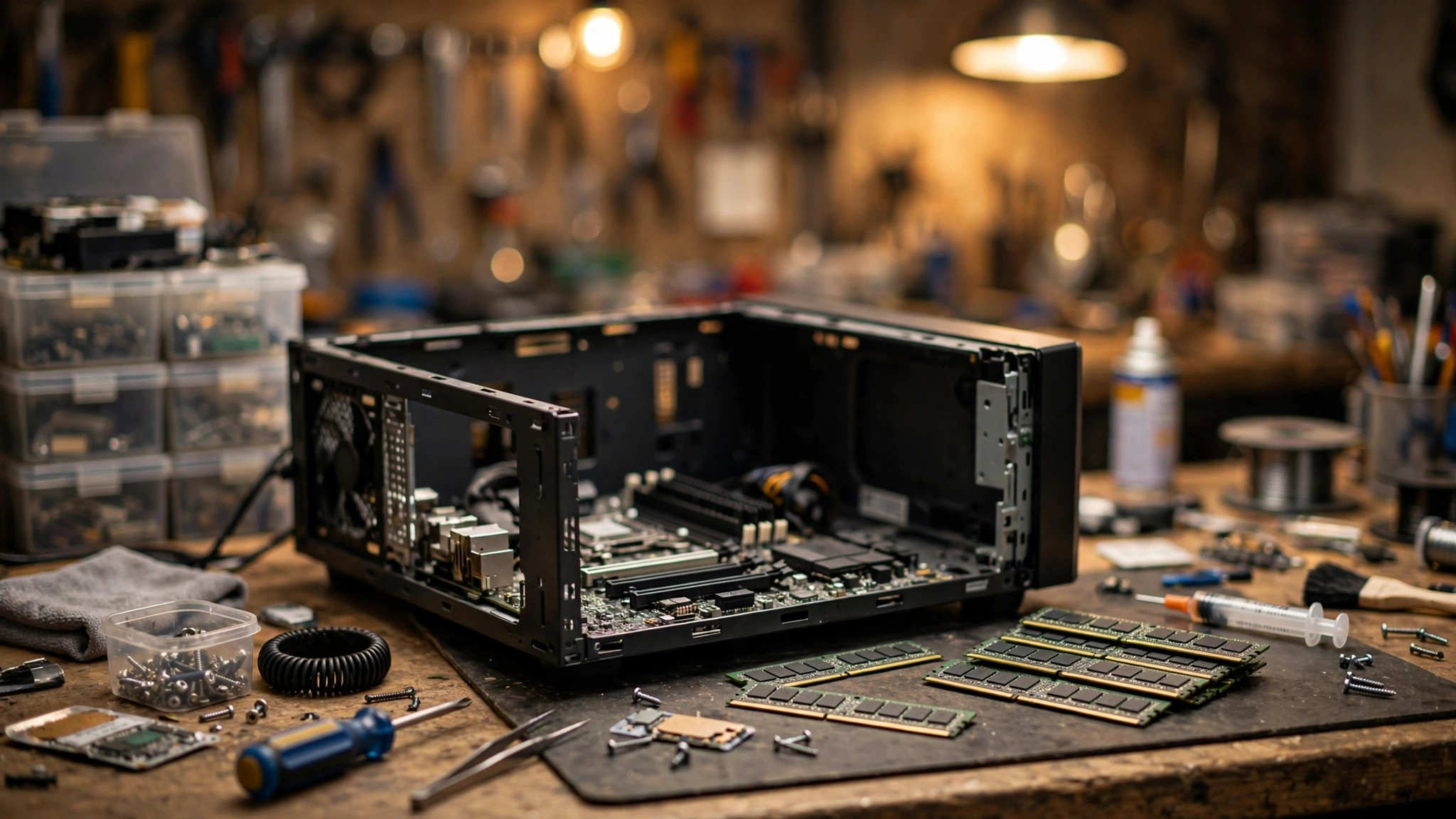
How big are the 26H2 memory gains? Tested numbers
Windows 11 26H2 started rolling out last week. Microsoft's official messaging focused on AI features and search improvements — the memory work stayed in the background. But independent tests suggest that is the most useful part of this update.
Notebookcheck tested 16GB and 32GB machines: after the update, idle memory sat around 7 to 7.5GB, versus 9 to 10GB in the same setup before. WindowsLatest found similar results: roughly 7GB at idle, with 4GB cached and nearly 9GB available. App launches also got a low-latency profile — the CPU boosts frequency for 1 to 3 seconds as an app opens, so startups feel noticeably quicker.
One caveat, from Notebookcheck itself: Microsoft has not officially confirmed these gains come directly from 26H2. Treat the numbers as reference, not an official promise.
Which machines benefit most? 8GB owners, keep expectations low
The clearest wins are on machines with 16GB or more. If you are still on 8GB, the improvement depends heavily on your startup apps and background services — it may be modest.
And a reality check: the system may sip less RAM, but your apps might not. Electron-based software (Teams, some collaboration tools) remains memory-hungry. With memory prices elevated — outlets are calling it a "RAM crisis" — saving 2 to 3GB at the OS level at least means older machines don't urgently need a paid RAM upgrade.
4 pre-update steps that save your data
Last month's September update broke USB audio and even corrupted some HP BIOSes — a reminder that big updates deserve respect. Before you hit "check for updates", do these four:
1. Back up important data: documents, desktop files, browser bookmarks — copy to an external drive or the cloud.
2. Free up space: feature updates need staging room; keep at least 20GB free or the update may fail.
3. Check drivers and key software: printers, USB devices, company VPN/ERP tools — look for known compatibility issues.
4. Create a restore point: or a full system image, so you can roll back if things go wrong.
Common post-update issues and fixes
Slow first boot and loud fans right after updating are normal — the system is indexing and optimizing in the background; give it time. If a device driver got wiped (e.g. your printer vanished), reinstall it from Device Manager or download the latest driver from the manufacturer's site.
If the update fails and Windows won't boot: hold Shift during startup to enter recovery mode, roll back with your restore point, or uninstall the feature update. Reinstalling from scratch is the last resort — your data comes first.
The repair-shop verdict: should you update?
16GB+ older machines: yes. A free performance lift, plus the support clock resets — Home/Pro get updates through October 2028, Enterprise through October 2029.
8GB machines: you can, but don't expect miracles. If it is painfully slow, a RAM upgrade or an SSD swap is the real fix — see our earlier SSD upgrade cheat sheet and slow-boot guide.
Company PCs: don't be the guinea pig. Wait until IT has tested it and confirmed business software is fine. That's SME IT rule number one.
Frequently Asked Questions
How much RAM does 26H2 actually save?
Independent tests: idle dropped from ~10GB to ~7GB on 16GB/32GB machines. Microsoft hasn't officially confirmed the gains come from 26H2, so treat the figures as reference — results vary by machine.
Will my 8GB laptop feel faster after updating?
Maybe slightly, depending on your startup apps. Electron-based apps like Teams still eat RAM, so don't expect a transformation from one update.
What should I back up before updating?
Important documents, desktop files, and browser bookmarks — copy to an external drive or the cloud. Create a system restore point too; feature updates always carry some risk.
The update failed and Windows won't boot — what now?
Try recovery mode with your restore point, or uninstall the feature update. If that fails, bring it to a repair shop rather than reinstalling blindly and losing data.