Network Repair · October 23, 2026 · ComputerKing Team
Home WiFi Dead Zones: Measure First, Then Fix
Full signal bars can still mean choppy video calls. This article teaches you to diagnose dead zones room by room using dBm, SNR, latency and packet loss, then match the fix to the layer at fault: coverage, interference, backhaul or a sticky client.
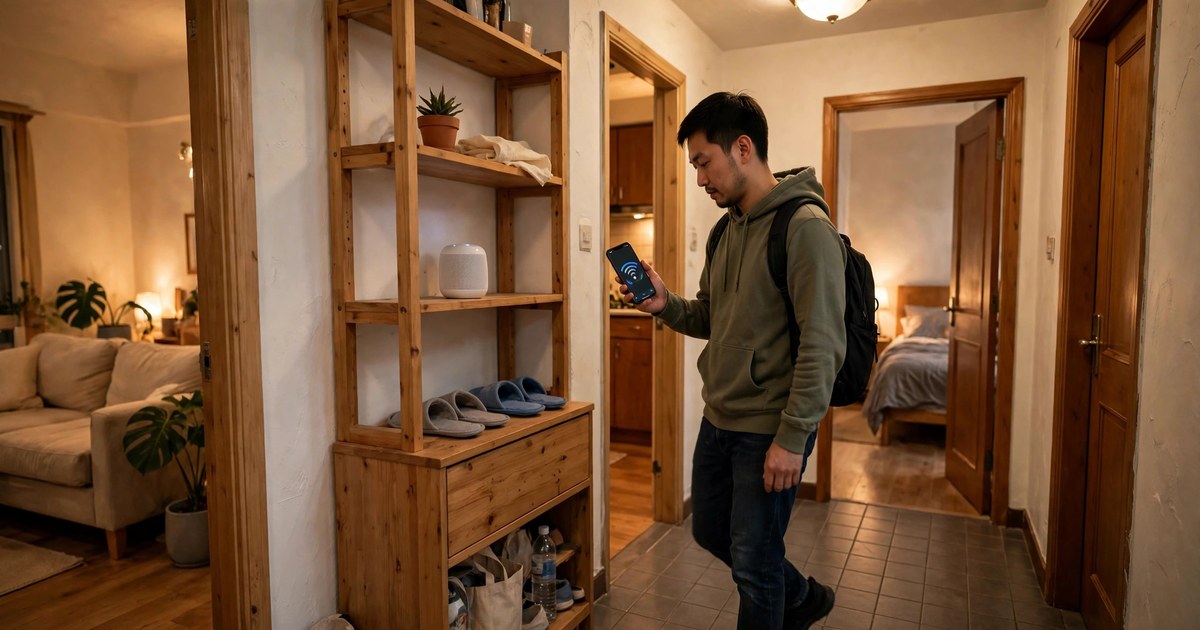
Key Summary
- Full signal bars can still mean choppy video calls. This article teaches you to diagnose dead zones room by room using dBm, SNR, latency and packet loss, then match the fix to the layer at fault: coverage, interference, backhaul or a sticky client.
Introduction: what Round 1 covered, and what is new here
Round 1 explained that home WiFi dead zones are usually not caused by a broken router, but by placement, walls blocking the signal, interference or insufficient coverage; that a router should sit centrally, high up and in the open, not inside a cabinet or behind a television; and that Mesh suits multiple dead zones while a signal extender only suits one or two dead zones and must sit between the router and the dead zone, not inside the dead zone itself.
This article does not repeat those basics. It addresses a more practical question: why can video calls still stutter and games still lag when the phone shows full bars? And why does an expensive new router sometimes leave the dead zone exactly where it was? Very often the answer is that nothing was ever measured, so nobody knows which layer is at fault.
The following is a hypothetical scenario, not a real case: Take a bedroom that feels slow. The cause could be four completely different things: first, the signal genuinely does not reach the bedroom; second, the signal arrives but is drowned out by neighbours' networks and household appliances; third, the signal reaches the bedroom's Mesh node, but the link between that node and the main router — the backhaul — is itself weak; fourth, the phone is standing next to a new node but stubbornly stays connected to a distant old node. Each case needs a different fix. Buying hardware before telling them apart easily wastes money and can make things worse.
So this article has one main thread: measure first, then treat the cause; after changing something, measure again, and only count it as fixed once it passes verification.
---
1. Signal bars lie: learn to read dBm, the language of diagnosis
The few bars in the corner of a phone screen are a very rough display. Different brands and models calculate bars differently, so one phone may show three bars and another two bars in the same spot — there is nothing to compare. Professional diagnosis uses dBm.
dBm is a negative number: the closer to zero, the stronger the signal. For example, -40 dBm is stronger than -70 dBm, and -70 dBm is stronger than -85 dBm. The advantage of dBm is that it can be compared room by room and before and after a change: if moving a node takes the same spot from -78 dBm to -62 dBm, you know the move genuinely helped; if the number does not move, the move was only psychological.
How to read dBm: reference ranges only, not a pass mark
The ranges below combine several public sources. Different sources draw their boundaries slightly differently, and different devices and apps read differently, so treat these only as references, never as an absolute home standard, and never write that falling below a given number guarantees a disconnection.
| dBm range (reference) | General reading |
|---|---|
| Around -30 to -50 dBm | Excellent, usually in the same room as the router |
| Around -50 to -67 dBm | Good, generally smooth for everyday use; some sources treat around -67 dBm as a reference boundary for reliable voice and video |
| Around -67 to -75 dBm | Marginal to fair; browsing and email are usually fine, but video calls may intermittently struggle |
| Around -75 to -80 dBm | Weak; disconnections, buffering and frozen calls become likely |
| Below -80 dBm | Extremely weak to unusable; connections are unstable |
Two points deserve emphasis. First, dBm is logarithmic, not linear: the difference between -50 and -53 sounds like only 3, but signal power has roughly halved; dropping from -50 to -56 is not "a small drop" — one source describes it as roughly equivalent to doubling the distance. Do not dismiss a fall of a few dBm.
Second, a strong signal does not mean a fast connection. Under heavy interference, a device falls back to a slower modulation scheme and the whole channel slows down. That leads to the next metric: SNR.
How to measure
A phone can use a WiFi analyser app, such as WiFi Analyzer-type tools, to see live signal graphs, channel overlap and neighbouring networks. A more advanced option is a heatmap feature: upload a floor plan, measure point by point, and draw where the signal is strong and where it is weak. On Windows, `netsh wlan show interfaces` shows a signal percentage, but percentages are less precise than dBm, so readers are advised to use an app that shows dBm.
Measurement discipline matters: use the same device, the same tool and the same test target; measure each location more than once; note the time, distinguishing busy hours from idle hours; background downloads and family members streaming will distort results. A single test is never a conclusion.
---
2. Strong does not mean clear: SNR tells you how clearly the signal is heard
RSSI (the dBm number) only says "how loud" the signal is. SNR (signal-to-noise ratio) says "how clearly" it is heard. The calculation is simple: SNR (dB) equals signal RSSI (dBm) minus the noise floor (dBm). For example, a -65 dBm signal with a -90 dBm noise floor gives an SNR of 25 dB.
Why does this number matter so much? Consider two cases with the same -60 dBm signal: if the noise floor is -65 dBm, the SNR is only 5 dB and the connection is barely usable; if the noise floor is -95 dBm, the SNR is 35 dB and the connection is very good. The same signal strength can succeed or fail entirely depending on noise. Measurement must therefore look at signal and noise/interference together, never at bars alone.
Again, the readings below combine sources and are references only, not hard standards:
| SNR reference | General reading |
|---|---|
| Around 25 dB or above | Good, suitable for high-speed data, voice and video |
| Around 20 dB | Acceptable, but occasional retransmissions may occur |
| Around 15 dB or below | Poor; expect packet loss, latency spikes and frequent disconnections; below around 10 dB the problems are more obvious |
The diagnostic meaning is direct: strong RSSI but low SNR means an interference/noise problem — check channels, neighbouring networks and non-WiFi interference sources rather than simply adding nodes; weak RSSI and low SNR means a coverage problem — move equipment, add a node, or use a wired backhaul. Failing to separate the two is how people end up spending on nodes that change nothing.
---
3. Do not look only at download speed: latency, jitter and packet loss explain "why it stutters"
Many people diagnose dead zones using only the download figure from a speed test, but stuttering video calls and lagging games often show a perfectly fine download number — what fails is stability. Four indicators must be read together, and all of them are reference ranges only:
Download/upload speed: says only "how fast", not "how stable". A good speed figure does not guarantee a smooth video call.
Latency (ping): some sources treat below around 30 ms as hard to notice for general browsing, around 30–100 ms as acceptable though competitive gaming may suffer, and above around 150 ms as clearly laggy. Enterprise references also use around 30 ms as a target. Test server distance and background programs affect results, so numbers must be read together with test conditions.
Jitter: the variation in latency. Average ping can look normal while high jitter still makes voice sound robotic and video stutter. Some sources use jitter above around 20 ms as an example of a problem. Many basic speed tests do not show this figure; an advanced speed test tool is needed.
Loaded latency: idle ping can look good yet spike as soon as the household starts streaming. Diagnose under normal household use, not only in the middle of the night when nobody is using the network.
Packet loss: some sources use above around 1% as a reference for degraded real-time services, and enterprise targets also sit around 1% or below. Causes can include interference, weak signal, wall blocking, or even a faulty Ethernet cable. Walking room by room while measuring packet loss can locate which position or appliance is involved.
---
4. Walk your own home: a five-step measurement method and a signal map
Step 1: Establish a baseline — do not test only in the dead zone
First measure next to the router, ideally once over a wired connection, to learn how fast the incoming line itself is; then measure in each problem room with the same device and the same tool. This separates "slow incoming line", "poor coverage" and "heavy interference". If the wired test next to the router is slow, the problem may be the line, the ISP or the router itself — do not rush to buy Mesh. Only when the router area is fine and distant rooms are slow is it a coverage/backhaul problem.
Step 2: Record dBm room by room
Use an analyser app to walk every room and every corner, recording dBm. Do not judge by bars alone, because different devices calculate bars differently.
Step 3: Check SNR and channels as well
At the same spot, also note the noise floor, SNR, which channels neighbours are using, and how busy the channels are. Strong signal but low SNR leads to the interference branch; weak signal leads to the coverage branch.
Step 4: Check latency, jitter and packet loss
In the problem room, notice whether latency and packet loss worsen during video calls or gaming, and test in both busy and idle hours so contention shows up in the comparison.
Step 5: Draw a signal map
No professional instrument is needed. Record dBm room by room in an app, then mark three kinds of location on a floor plan: (a) strong-signal locations, which are candidate node positions; (b) intermediate locations that still receive a signal, which are the correct node positions; (c) true dead zones, where nodes should not be placed. This map becomes the basis for placing Mesh nodes and choosing wired backhaul routes — do not place nodes by feel.
Diagnostic table: what a measurement points to
| Measurement pattern | More likely cause | Direction to try |
|---|---|---|
| Slow even next to the router, including wired | Incoming line, ISP side, or the router itself | Check the line, contact the ISP, check router firmware and ageing |
| Fast nearby, weak dBm far away | Coverage / wall attenuation | Move equipment, place a Mesh node at an intermediate point, wired backhaul |
| dBm not bad but low SNR and high packet loss | Channel congestion / neighbour interference / non-WiFi interference | Change channel, change band, narrow channel width, move the interference source away |
| Node room is slow but the node-to-main link itself is weak | Wireless backhaul bottleneck | Wired backhaul, move the node closer, tri-band dedicated backhaul |
| Device stays on a distant old node despite standing near a new node | Sticky client (see Section 8) | Check 802.11k/v, toggle device WiFi to reconnect, adjust node spacing and transmit power |
---
5. A practical troubleshooting workflow: outside-in, cheapest first, one change at a time
There is only one rule: change one thing at a time, then immediately retest at the same location with the same device, otherwise nobody knows which change worked. Do not replace the router, add Mesh and change plan all at once.
Step 0: Describe the problem clearly. Which room is affected? Which device — just one, or all of them? When — all day, or only in busy evening hours? During what activity — video meetings, streaming, gaming, or ordinary browsing? These answers decide the branch: one device only points to a device check; evenings only points to interference/contention; the whole home points back to the incoming-line check.
Step 1: Wired baseline. Test with a wired connection next to the router, then in the problem room. A slow wired result next to the router points to the line, the ISP or the router — do not rush to buy Mesh. Remember, extenders and Mesh do not increase incoming broadband speed; they only carry the existing speed to more locations. Changing ISP or upgrading a plan usually does not fix dead zones, because the ISP determines incoming speed while dead zones are mostly an in-home problem.
Step 2: Device comparison. At the same location, try another phone or computer; or take the affected device next to the router and try it there. If only one device is poor while others are fine, suspect that device's WiFi chip, driver or system version, antenna, power-saving setting, or that it is clinging to a weak band or weak node. If all devices are poor in the same room, it is that location's coverage problem.
Step 3: Measure room by room and draw a simple map. See Section 4. Mark the router location, dead-zone locations, walls (especially concrete/brick walls, fish tanks, large mirrors, metal cabinets) and microwave ovens and large appliances. After every change, compare readings in the same room.
Step 4: Time and interference comparison. Ask three questions: is it worse in the evening or when many people use the network at once? Is it worse when the microwave, Bluetooth speaker or wireless camera is on? Does restarting the router bring a short improvement? Only after this step fails to help should settings be changed; only after settings fail should hardware be bought.
Step 5: Settings check. See the Section 10 checklist, ticking items one by one and retesting after each change.
Step 6: Reduce wireless load, at no cost. Connect fixed devices — desktop computers, smart televisions, games consoles — by wire, freeing wireless capacity for mobile devices. Keep smart-home and older devices mostly on 2.4 GHz, and let phones and computers near the router use 5 GHz or 6 GHz. Do not set every device to the highest QoS priority — if everything is highest priority, nothing is prioritised.
Step 7: Add coverage, in this order: move first, change backhaul second, add nodes last. First try moving a node or the router to a more central, higher, more open position, then retest. An extender suits only one or two dead zones and must sit where it still receives a stable signal, between the router and the dead zone. Multiple dead zones, multiple floors or a large unit point to Mesh or wired access points. Only last should cabling or drilling work be considered — most suitable for owners or during renovation; tenants should read Section 11 (no-cabling compromises) and Section 13 (tenant notes).
Step 8: Acceptance testing. Retest at the same location, with the same device, at the same time of day, ideally including a busy hour: signal readings, speed test, and whether video meetings stutter. If acceptance fails, go back to Step 3 and the map — do not immediately add another node, because nodes that are too dense or too far away create new problems.
---
6. Band trade-offs: 2.4, 5 and 6 GHz — no band wins everything
Choosing a band is really a three-way choice between wall penetration, speed and cleanliness; no band wins all three. WiFi 6 and WiFi 7 themselves do not make signals penetrate walls better: penetration mainly depends on frequency, while WiFi 6 features such as OFDMA and MU-MIMO improve performance with many devices in congested environments rather than improving penetration at the same frequency. Never write or believe that "upgrading to WiFi 7 punches through concrete walls".
| 2.4 GHz | 5 GHz | 6 GHz (WiFi 6E/7) | |
|---|---|---|---|
| Wall penetration / coverage | Best, travels furthest | In between | Weakest |
| Speed potential | Lowest, narrowest channels | Higher, wider channels | Highest, widest bandwidth |
| Congestion | Highest: only channels 1, 6 and 11 are non-overlapping (at 20 MHz), and the band is shared with Bluetooth, microwave ovens, cordless phones, baby monitors and more | Medium: many more channels, fewer non-WiFi interference sources | Lowest: a new band with no legacy devices or appliances occupying it, so least interference, but fewer devices support it |
| Suits | Distant rooms, smart-home devices (many support only 2.4 GHz), low-bandwidth tasks | High-speed devices at close range, the general main band | High-speed devices at close range, in the same room or within line of sight (both device and router must support it) |
In practice, when a distant room behind several walls shows a weak 6 GHz signal, manufacturer guidance suggests switching back to 5 GHz or 2.4 GHz rather than persisting with 6 GHz. Close to the router is the home ground of 5 and 6 GHz; distant rooms are often more stable on 2.4 GHz.
Channels: reading neighbour conflicts
2.4 GHz has only channels 1, 6 and 11 that do not overlap. Each 20 MHz channel is wide but channel spacing is only 5 MHz, so middle channels such as 2, 3, 4, 5, 7, 8, 9 and 10 overlap their neighbours and cause interference. The practical advice is to pick the least-used of 1, 6 and 11; if all three are equally crowded, some sources suggest it is better to share a channel with the strongest neighbour (devices take turns under the shared-channel rules) than to use a partially overlapping middle channel, which becomes noise and collisions. Note this as "suggested by some sources", not as an iron rule.
5 GHz has more channels, but default channels are crowded too. Many routers default to non-DFS channels such as 36, 40, 44 and 48, so neighbours crowd together there. DFS channels must share spectrum with radar and follow a DFS mechanism, so most home routers do not default to them, which usually leaves them cleaner. But DFS is not a free lunch: when a router detects radar it must switch channels, which can cause a brief interruption; areas near airports and weather radar are more affected; and for voice calls where continuity matters, some sources advise caution with DFS, because scanning DFS channels takes longer and a mid-call switch may drop packets.
Automatic channel selection is not foolproof. Some sources give examples of automatic selection sitting on a crowded channel for a long time. Diagnosis should include checking which channels neighbours use and how strong they are in an analyser, trying a channel change, then comparing dBm, SNR and speed — do not change a channel and assume the job is done.
Wider is not always better. A 160 MHz channel in a crowded environment consumes the whole band segment and collides with neighbours more easily; some sources recommend 20/40 MHz for stability in crowded environments and 80 MHz only in cleaner ones. Opening 40 MHz on 2.4 GHz will almost certainly overlap neighbours and is generally not recommended. Remember: a wide channel is a trade-off, not "widest is fastest".
---
7. Hong Kong 6 GHz footnote: check the regional version before buying
This section is where Hong Kong readers are most likely to be caught out, so it is stated separately and explicitly.
According to guidance from the Office of the Communications Authority (OFCA), the 6 GHz range used by WiFi in Hong Kong is 5.925–6.425 GHz, about 500 MHz in total; 6.425–7.125 GHz does not apply to WiFi in Hong Kong. The 5.925–5.945 GHz slice is a guard band; usable WiFi channels start at 5.945 GHz. Many overseas articles write about "1200 MHz of 6 GHz spectrum", referring to the 5.925–7.125 GHz range in places such as the United States — do not copy that as if it applied to Hong Kong. The upper part of Hong Kong's 6 GHz band has been assigned to other uses; readers and writers must not confuse mobile-service spectrum with WiFi spectrum.
OFCA also warns against bringing WiFi 6E/7 access points for 6.425–7.125 GHz back to Hong Kong from overseas (for example the United States or Canada), and notes that under the Telecommunications Ordinance, unauthorised equipment may attract a maximum penalty of HK$50,000 and 2 years' imprisonment. This is the maximum penalty mentioned in OFCA's public material, not legal advice in this article; readers with questions should consult OFCA's original text or a professional.
The practical conclusion is simple: when buying WiFi 6E/7 equipment, confirm it is the Hong Kong version suitable for Hong Kong use; do not change regional settings to unlock overseas bands, as that carries compliance risk and this article does not recommend it. When 6 GHz is weak in a distant room, the correct response is to switch back to 5 GHz or 2.4 GHz, not to find a way to open more spectrum.
---
8. Advanced Mesh: success usually depends on placement and backhaul, not brand
What backhaul is, and why it is the bottleneck
Backhaul is the connection between the main router and a node. A device's traffic travels twice: device to node, then node to main router. Wireless backhaul competes with devices for the same wireless spectrum, and each wireless hop takes turns transmitting and receiving, so speed per hop can fall noticeably.
Backhaul comparison
| Option | How it works | Advantages | Disadvantages / costs | Suits |
|---|---|---|---|---|
| Wired backhaul (Ethernet) | Nodes connect by cable to the main router or a switch | Best speed, latency and stability; unaffected by walls and interference; a node becomes close to a wired access point | Requires cabling or existing network points; a finished home may need trunking or surface runs, which tenants may not be able to do; count ports before buying — the main unit needs one port for the modem and one for the cable to the next node, so a two-port unit leaves no room once other devices are connected | High-demand rooms such as studies, media rooms and gaming rooms; homes where cabling is possible |
| Wireless backhaul (dual-band shared) | Nodes communicate over WiFi, sharing a band with devices | No cabling, plug in and go | Backhaul competes with devices for bandwidth, so distant rooms suffer worse speed and latency; multi-hop problems compound | Tenants, short-term use, light use |
| Wireless backhaul (tri-band dedicated band) | A second 5 GHz or 6 GHz band is dedicated to node-to-node traffic, not shared with devices | Better than dual-band sharing, since device bandwidth is not split with backhaul | The backhaul itself is still affected by walls, distance and interference; a dedicated band does not mean immunity to walls | A no-cabling compromise where more stable whole-home coverage is wanted |
| Powerline backhaul | Data travels over household wiring, one adapter near the router and one near the distant node | No new cabling; can serve as a node's "wired" backhaul | Highly dependent on wiring quality, circuits and appliance noise; cross-circuit, old wiring, power strips and filtered sockets can all degrade it; measure the powerline link's latency and packet loss first, and do not assume it beats wireless backhaul | A transitional option where there is no coaxial cable, no Ethernet run is possible, and only one distant room needs rescuing |
| MoCA backhaul | Data travels over existing coaxial television cable, with an adapter at each end | Close to wired stability and low latency | Requires coaxial sockets; coaxial quality, splitters and other television signals can affect it; there is no public statistic supporting that Hong Kong homes universally have coaxial sockets in every room, so this article does not claim that | Tenants or owners with coaxial sockets who want low-latency wired backhaul |
Hybrid backhaul: one Mesh system can mix wired and wireless nodes. If only one cable can be run, prioritise the furthest or most important node, or run it between the two furthest nodes, freeing wireless spectrum for other devices.
WiFi 7 MLO (Multi-Link Operation): WiFi 7 devices can use more than one band simultaneously for backhaul, and one review example reported multi-gigabit backhaul rates between two nodes, but the same source also noted unstable MLO performance on some models and configuration limits. This article therefore says only "depends on model, distance and environment" and does not present an individual review figure as a general guarantee.
Wired access points versus wired Mesh: if every Mesh node uses wired backhaul, the system is in practice close to a traditional wired access-point system, differing mainly in Mesh software managing roaming and handover. The two should not be written as complete opposites.
Advanced node placement: the midpoint principle
Placing a node inside the dead zone is the most common mistake: the node itself receives a poor signal and only rebroadcasts a weak signal. The correct approach is to place it between the main router and the dead zone, where it still receives a stable signal — for example a corridor, stairwell landing, or open space between the living room and a bedroom. The test is not "looks central" but the link signal shown in an app or the Mesh app: some sources suggest a node-to-node link target of around -55 to -65 dBm, and around -67 dBm or better for key rooms, for reference only — different brands' apps display this differently.
Other placement points: put nodes on an open shelf at waist-to-chest height, not on the floor, inside a cabinet, behind a television or between two large pieces of furniture; leave clearance around them where possible to avoid immediate reflections. In multi-storey homes, stagger nodes rather than stacking upper and lower nodes on the same vertical line, because the floor slab itself is already an obstacle; each floor needs a node, using stairwells and corridors as signal paths. Nodes that are too dense are also a problem: excessive overlap makes devices bounce between two nodes and wastes money. Start with the fewest nodes, measure, and only then decide whether to add one.
Transmit power should not simply be set to maximum: some sources note that maximum power can let a device hear the access point while the access point cannot hear the device's weak return, creating an asymmetric link that worsens roaming. Balanced power plus good placement is the right approach.
Sticky clients: why a phone standing next to a new node still clings to a distant one
Whether to switch nodes is ultimately decided by the device (phone or computer), not the router. Many phones, seeking a stable connection, wait until the signal falls to around -70 to -75 dBm before looking for a new node, so a phone standing next to a new node may still drag a weak old connection, with poor performance, more retransmissions and possibly higher battery use.
What are 802.11k/r/v? k is a neighbour list, telling the device which nearby nodes exist so it does not search blindly; r is fast-switch authentication, so switching nodes authenticates faster and video calls are less likely to drop; v lets the network suggest that a device move to a better node (BSS Transition Management), but the device may ignore the suggestion. A suggestion is not a command — never write that "turning on k/v guarantees switching".
Practical handling: first check the Mesh app to see which node the device is actually connected to and its signal; try toggling the device's WiFi off and on to force a reconnection, which usually picks the nearest node; check whether the Mesh system has fast roaming, band steering or non-stick features switched on (brand names differ); fixed devices such as televisions and printers can sometimes be pinned to a particular node on brands that support it; if a device keeps bouncing at the boundary between two nodes, do not add nodes at random — adjust spacing and power first.
Two misconceptions to dismantle: "a nearer new node means the device will definitely connect to it" is wrong; "showing connected to WiFi means connected to the best node" is also wrong.
---
9. Hong Kong home interference: mechanisms only, no invented figures
Everything below describes direction and mechanism only. No statistics on Hong Kong wall thickness, concrete composition or flat sizes are stated, because there is no reliable public source. This article does not compare Hong Kong walls with walls elsewhere, and does not give dedicated figures or guaranteed outcomes for subdivided flats, tong lau, village houses or any other specific building type.
| Interference source | Mechanism | Diagnosis / response |
|---|---|---|
| Reinforced concrete walls / floor slabs | High density absorbs signal; the steel mesh inside reflects signal, acting like partial shielding | Do not try to punch through: use corridors and doorways as signal paths, place nodes on the same side of the wall at intermediate points; wired backhaul bypasses the wall |
| Brick walls | High density, significant blocking, second only to concrete-type walls | As above; brick plus render plus tiles stacked together worsen it further |
| Metal doors, gates, cabinets, refrigerators, steel furniture | Metal reflects signal; signal struggles to pass through, leaving a shadow zone behind | Do not place routers or nodes against large metal items; keep signal paths away from metal doors |
| Mirrors, mirrored walls, Low-E energy-saving glass | The metallic backing of mirrors reflects signal; Low-E glass coatings are designed to reflect heat but also reflect radio waves | Do not expect reception through a mirror into the room behind it; devices by balconies and windows should allow for coated-glass effects |
| Fish tanks, large bodies of water, bathroom pipe walls | Water absorbs radio waves; the 2.4 GHz band also shares frequencies with microwave ovens, so interference is more noticeable there; a large fish tank in the signal path creates a shadow | Keep routers and nodes away from fish tanks; do not let signal paths cross a fish tank; rooms next to bathrooms deserve attention |
| Tiles plus render plus stone finishes | A single layer may not matter much, but tiles are usually laid over concrete or brick, so stacked layers increase loss; kitchens and bathrooms are especially noticeable | For dead zones near kitchens and bathrooms, check whether multi-layer construction is stacked before blaming the router |
| Timber, plasterboard, ordinary glass | Relatively smaller effect, but many walls and layers accumulate loss | Do not rule out coverage problems just because "timber should let signal through" — measure first |
| Microwave ovens, cordless phones, baby monitors, Bluetooth devices | They share the 2.4 GHz spectrum; leakage from a running microwave oven can cause clear interference at 2.4 GHz | When interference is suspected, compare measurements with the microwave on and off; move affected devices to 5 or 6 GHz |
| Human bodies, crowds | The human body contains much water and absorbs radio waves; people standing in the signal path have an effect | Note whether anyone was standing in the way during testing; do not present this as a main dead-zone cause |
| Neighbour networks above and below | In high-density housing, a whole building's routers and smart devices compete in the same spectrum, raising channel utilisation and the noise floor | Use an analyser to see neighbours' channel distribution, switch to less-used channels or bands, and narrow channel width for stability |
Hong Kong-specific reminder: Hong Kong flats are small, layouts are dense and neighbours are numerous, so 2.4 GHz congestion deserves priority checking before assuming the router is underpowered.
---
10. Settings checklist: tick each item, retest after changing it
| No. | Item | How to check / change | How to verify after changing | Notes |
|---|---|---|---|---|
| S-1 | Firmware update | Check the manufacturer's website or app for the latest firmware; keep power stable during the update and back up settings first | Retest the dead-zone location after restarting; watch for new problems | A power cut during an update can cause trouble; do not interrupt it. A model whose firmware support has ended is a security risk |
| S-2 | Channel (2.4 GHz) | Switch to manual and use an analyser to find the quietest channel; use only the three non-overlapping channels 1, 6 and 11 on 2.4 GHz | Retest during busy hours to see whether there is improvement | An automatic channel may look good at switch-on and worsen later; buildings with many neighbours especially need manual trials |
| S-3 | Channel (5 GHz) | Pick a less-used channel; note that DFS channels may switch automatically on radar detection | Retest and watch for unexplained channel switches | 5 GHz has more channels, but neighbours must still be avoided |
| S-4 | Channel width | Use 20 MHz on 2.4 GHz; use 40 or 80 MHz on 5 GHz depending on congestion; do not simply open the widest setting | After narrowing, check whether stability improved more than peak speed | Wider means higher theoretical speed but also more noise and neighbour interference; 40 MHz on 2.4 GHz almost certainly overlaps neighbours and is generally not recommended |
| S-5 | Band steering | Everyday use: one SSID and one password, letting the router push dual-band devices to 5/6 GHz; troubleshooting: temporarily split 2.4G and 5G SSIDs for comparison, then restore afterwards | Check whether distant devices fall back to 2.4 GHz automatically and whether devices near the router use 5 GHz | Both approaches appear in sources and are not contradictory: a unified SSID suits everyday automatic band switching, while split SSIDs suit manually assigning distant devices to 2.4 GHz. State this as "unified for everyday use, split for troubleshooting" |
| S-6 | Roaming trio 802.11k/v/r | Switch on "fast roaming / seamless roaming" in Mesh or access-point settings; after changing, toggle device WiFi off and on so it reconnects under the new settings | Walk between two rooms on a video or voice call and check for drops; check whether the device still clings to a distant node (sticky client) | The device ultimately decides whether to switch, not the router. Older devices may not support these features, and strict modes may prevent older devices connecting — use a compatible/mixed mode or a separate SSID. Brand names differ |
| S-7 | Minimum RSSI (Min RSSI, if available) | Only set this if the option exists; a starting reference of around -70 dBm can be fine-tuned against actual measurements | Check whether node switching is smoother, and whether devices flap in and out frequently | Setting it too aggressively makes devices disconnect and reconnect repeatedly; do not guess if the option does not exist |
| S-8 | QoS / traffic priority | Give video meetings and gaming high priority and background downloads low priority; use automatic QoS if available; manual speed limits must be based on busy-hour measured speeds, never set above actual speeds | During busy hours, run a meeting while someone downloads and check whether the meeting improves; QoS alone does not make an idle connection faster | QoS means "who goes first when contending", not higher maximum speed, and it does not solve ISP-side congestion. Do not prioritise too many devices — everything highest means nothing is prioritised. Some routers need a restart for QoS to take full effect |
| S-9 | Double NAT / double DHCP check | Only one device in the home should perform NAT and hand out IP addresses; an old router used as an access point must run in access-point mode or have DHCP and NAT switched off | Check whether printers and casting can be found, whether gaming and VPN behave abnormally, and whether device IPs are on the same subnet | Two routers performing NAT at once break port forwarding, remote access and some games |
| S-10 | Transmit power | Generally keep the default/high setting; only consider lowering it in dense buildings to reduce mutual interference with neighbours | Retest dead zones after lowering; do not sacrifice your own dead zones for neighbours | Lowering power usually worsens dead zones, so home users generally should not adjust it casually |
| S-11 | Guest / IoT separation | Open a Guest SSID for visitors; with many IoT devices, consider a separate SSID or VLAN if the router supports it, reducing contention on the main band | Check whether main devices are more stable during busy hours | This is an advanced option, not a requirement; WPA3, automatic updates and isolating untrusted devices are basic security practice |
| S-12 | Overlapping dual routers | If the ISP modem itself has WiFi, do not run it together with Mesh or a new router's WiFi; switch the ISP box to bridge/modem mode (if the ISP allows) so one system is in charge | Check for two same-named or overlapping networks interfering with each other | Two overlapping routers cause random disconnections that look like "bad WiFi" on the surface |
---
11. No-cabling compromises: every option has a cost, and the cost must be stated
For tenants and anyone who cannot drill, there are still routes — but every compromise has a cost, and it must be stated rather than written as equivalent to cabling.
| Option | New cabling needed? | Main cost | Confirm first |
|---|---|---|---|
| Wireless tri-band Mesh | No | Backhaul affected by walls and distance | Whether the node-to-main link signal is good enough |
| Powerline | No (uses wiring) | Affected by wiring quality, circuits and appliance noise; must plug directly into a wall socket, not a power strip or surge-protected strip | Whether both sockets are on the same circuit; measured latency and packet loss |
| MoCA | No (uses coaxial cable) | Requires coaxial sockets; old splitters, amplifiers, entry filters, encryption settings and shared-coaxial isolation can each affect performance | Whether the home has coaxial sockets in each room, and where the coaxial runs go |
| Short cable to a fixed device | Only a short cable | Only helps nearby devices | Whether the device is near the router |
Additional points: with modern WiFi Mesh widespread, some sources position powerline as a "last resort" type of option — do not write it as equal to Ethernet; buyers must accept that "it has to be tested to know whether it works" and no speed should be guaranteed; headline theoretical speeds do not equal real-world speeds. For MoCA, old splitters rated only to 1000 MHz are insufficient and need replacing with 5–1675 MHz or better; amplifiers may block the MoCA band; an entry filter is needed to prevent data leakage and strengthen the signal; encryption may not be on by default and MoCA privacy must be switched on manually; shared building coaxial cable requires confirmation of isolation with the building management or operator first — never use it without permission.
Other no-cabling approaches: desktop computers, televisions and games consoles near the router can be connected directly with a short Ethernet cable, reducing the WiFi load and indirectly helping wireless devices — this does not solve a dead zone, but it reduces load. Also, move, change band and change channel first, and buy later: many dead zones improve after measurement, relocation and channel changes alone, so do not start by buying a full Mesh set.
5G home broadband needs a clear division of labour: some sources list a 5G home gateway as a "depends on coverage" situational option, for example where there is no fibre or for temporary setups. But it must be stated that 5G solves the incoming line, not in-home WiFi dead zones; in-home dead zones still need the methods above. Do not write 5G as a dead-zone cure.
Reusing an old router as an access point: cheaper, but only if done correctly
Using an old router as a wired access point is a money-saving, environmentally friendly option worth considering. Benefits: no new purchase is needed; a dual-band WiFi 5 machine with gigabit Ethernet ports and continuing firmware support is already a reasonable candidate; under wired backhaul, the old machine's WiFi bandwidth is entirely available to devices instead of being split with backhaul as on a wireless Mesh node; it can relieve the main router, for example by taking over smart devices in half the home.
Drawbacks and risks must be written alongside: not every old machine supports access-point mode, and not every one supports a fixed IP or switching off DHCP; handover between different brands is stiffer, so walking between rooms may briefly stutter — this can be eased with the same SSID and password plus different non-overlapping channels, but it is not Mesh-grade seamless roaming; a machine whose firmware support has ended has security gaps; an ageing power adapter or overheating can make the access point restart under load, and such machines should be retired rather than built around; one more always-on old machine adds standby power consumption; a 100 Mbps Fast Ethernet port caps the whole run at 100 Mbps (typically below 100 Mbps in practice) no matter how fast the incoming line is.
The correct procedure, where order matters — the wrong order can break the whole network: first, factory-reset the old machine to clear old settings; second, do not connect it to the main router yet — connect a computer directly to the old machine's LAN port to reach its settings page; third, switch on access-point mode if available, or manually do three things if not: switch off DHCP (so the main router hands out IP addresses), switch off NAT, and change the old machine's LAN IP to an unused address within the same subnet but outside the main router's DHCP range, for future management; fourth, connect LAN to LAN (main router LAN to old machine LAN — do not plug into the old machine's WAN port, or it becomes a second network); fifth, use the same SSID and password as the main router, but stagger the 2.4 GHz channel, picking a different one of 1, 6 and 11; sixth, use at least WPA2 for security, or WPA2/WPA3 mixed mode if supported, to accommodate older devices; seventh, record the model, management address, firmware version, WiFi settings and cable runs as part of routine checks.
Common fault patterns: can get online but cannot find printers or casting — the old machine is probably still running a second network and is not truly an access point; occasionally gets strange IP addresses or randomly disconnects — two DHCP servers are probably handing out addresses at once; cannot reach the old machine's settings page — the management address has probably changed, so look in the main router's client list; a phone clings to weak WiFi and will not switch — roaming between standalone routers is weaker, so try reducing overlap, adjusting power, or using separate SSID names during testing.
Third-party firmware warning, which must be written and must not be framed as encouragement: only models named on a support list should even be considered for third-party firmware as a client/repeater bridge, and a recovery image must be kept in advance; flashing the wrong firmware risks bricking the device. General users are advised not to flash, and to use access-point mode or replace the machine instead.
---
12. Large units, duplexes and village houses
Start with one node per floor: a multi-storey home needs at least one node per floor, adding more for large areas or concrete/brick construction — this is a reference approach, not a hard rule. Node placement must consider vertical paths: stairwell and corridor openings are where signals pass between floors more easily; some guides suggest aligning nodes vertically near stairs, but antenna radiation patterns are roughly horizontal, so stacking nodes directly above one another may not be most effective — the safer approach is one node per floor with overlap between floors. Both statements should be written together, not one side alone as the only truth.
Concrete is the biggest enemy: concrete and brick walls attenuate 5 GHz particularly noticeably, so do not expect one router to penetrate two concrete floors — nodes must sit on both sides of major walls. Metal and large mirrors must be avoided: metal cabinets, the backs of refrigerators, the backs of televisions, floor-to-ceiling mirrors and tinted glass with metallic content all weaken signals significantly. Renovation is the golden window: run cables, reserve access-point positions, and reserve ventilation and sockets in the low-voltage cabinet during renovation — sorting it out afterwards is far more expensive and troublesome; and during renovation, do not seal the router inside a closed wooden cabinet.
Village houses and detached houses have their own points: more floors, thick walls and long horizontal distances, plus possibly outdoor areas such as rooftops, gardens and garages needing coverage. Outdoor nodes need separate consideration of waterproofing and power supply — do not place an indoor unit outdoors. Outdoor solutions are priced on individual quotation.
Manufacturer coverage figures should be discounted: they mostly describe best-case open-plan conditions, so a multi-storey, multi-wall home should choose a system rated above its actual area.
---
13. Tenants versus owners: write them separately, do not mix them
Tenants (the no-drilling route)
Before drilling walls, running surface cables into walls or altering fixed wiring, tenants must first ask the landlord or building management; drilling without permission may later require restoration or even compensation — this reflects general tenancy articles, and this article does not present it as a Hong Kong statute; individual tenancy agreements govern. No-drilling routes exist: surface runs along skirting boards to fixed devices, using existing cable routes, powerline, MoCA (only where coaxial cable exists), and wireless Mesh. Before signing a broadband contract, confirm whether the unit or building has the corresponding line, plus the contract term and early-termination charges. Moving house matters too: Mesh systems, powerline adapters and MoCA adapters can be taken along; drilled cabling cannot, so the remaining tenancy should be factored in before investing. Never touch shared building facilities without permission: shared building coaxial cable, risers and common-area cabling all require building management consent.
Surface trunking along skirting boards and door frames (if the landlord and tenancy agreement allow) is a no-drilling approach that can be removed when moving out. This article only says "ask the landlord and check the tenancy agreement first" — never "tenants can always do this".
Owners (the long-term planning route)
Plan everything at once during renovation: reserve an access-point position on each floor, a low-voltage cabinet, ventilation and sockets; reserve network points to television walls, study desks and stairwell landings. Do not hide the router inside a closed cabinet, behind a television or on the floor just for appearance. In the long term, wired backhaul can be reused by any future Mesh or access-point system. For let units, think separately: separate guest and tenant networks, do not hand the router management password to tenants, and record settings at handover — these are practical suggestions, not legal requirements.
---
14. When DIY is fine, and when to call a professional for on-site measurement
DIY is fine (if most of the following apply)
There are only one or two dead zones, and the troubleshooting workflow has already found the cause — for example channel congestion, a misplaced node, or double NAT. You know how to reach the router settings page, back up settings, and restore them after a change. The solution needs no drilling, no shared building facilities, and no work at height or outdoors.
Consider a professional (if any of the following applies)
The full troubleshooting workflow, settings changes and node moves have all failed, especially where many parts of the home are dead zones. Large units, duplexes, village houses or pre-renovation planning: measuring beforehand helps avoid buying the wrong hardware and trying items one by one. Suspected severe interference — very many neighbours, a home full of metal and concrete, or strong signal but slow speed — where professional instruments can perform spectrum analysis and noise and channel-utilisation analysis that ordinary phone apps cannot reach. Video meetings, gaming or working from home are a livelihood, so disconnections carry real losses; or the home has elderly residents or medical-related devices needing stable connections — this is a judgement suggestion, not a medical guarantee. Cabling, drilling, outdoor work, low-voltage cabinet changes, or coordination with building management or an ISP is needed.
What professional on-site measurement usually does (stated as-is, with no service promises added)
There are three kinds: predictive surveys (modelling from floor plans and wall materials), passive measurement (listening to the whole environment without connecting to the network), and active measurement (actually connecting and testing real performance). The usual flow is: enter the floor plan, walk the whole home measuring point by point, produce heatmaps (signal, noise and interference distribution), and recommend access-point positions, channels and power settings. After the work, verify: compare old and new heatmaps and measured speeds — do not accept a single diagram as the whole job. Re-measure after major changes (layout, furniture, access-point firmware, a large increase in device count) and review periodically. On pricing, Hong Kong on-site measurement, heatmap and cabling work are all on individual quotation — this research found no Hong Kong public source for these prices, and this article states no Hong Kong price.
---
15. Common misconceptions, dismantled one by one
1. "Full signal bars mean fast." — Wrong. Bars reflect only signal strength, not noise, channel congestion or backhaul strength; a strong signal on a jammed channel is still slow.
2. "Changing ISP or upgrading the plan fixes dead zones." — Wrong. The ISP determines incoming speed; dead zones are an in-home coverage problem. Upgrading only makes the area next to the router faster; the dead zone stays dead.
3. "WiFi 7 / a new router penetrates walls better." — Wrong. WiFi 7 improves speed and latency performance, not wall penetration; it uses the same bands, and walls and placement decide the outcome.
4. "The widest channel is always fastest." — Wrong. In a crowded environment, 160 MHz absorbs more noise and neighbour interference, and repeated retransmissions can make real-world speed more volatile; streaming needs stability, not peak figures.
5. "An extender or Mesh node inside the dead zone is the most direct fix." — Wrong. An extender or node that receives a poor signal only rebroadcasts a weak signal; it must sit at an intermediate point.
6. "More nodes are always better." — Wrong. Nodes that are too dense interfere with each other; nodes that are too far away, with weak backhaul, slow the whole network; retest after every added node.
7. "Switching on QoS makes things faster." — Wrong. QoS only orders contention; it makes no difference when idle and does not solve ISP-side congestion.
8. "Just plug an old router in and it works." — Wrong. Failing to switch off DHCP and NAT creates double NAT and double DHCP, so printers cannot be found and gaming and VPN fail for reasons nobody can trace.
9. "5 GHz is always better than 2.4 GHz." — Wrong. In distant rooms behind many walls, 2.4 GHz is often more stable; 5/6 GHz is the home ground near the router.
10. "Buying Mesh means seamless roaming." — Wrong. Roaming is ultimately decided by the device; 802.11k/v/r must all be switched on and the device must support them, and older devices may not benefit.
11. "A powerline box runs at the speed printed on the box." — Wrong. The box figure is theoretical; real-world performance depends heavily on wiring and circuits, and cross-circuit or old wiring can fall far short — any purchase must be tested after arrival.
12. "MoCA works plug-and-play wherever there is a coaxial socket." — Wrong. Old splitters, amplifiers, entry filters, encryption settings and shared-coaxial isolation can each affect performance.
13. "An expensive router solves everything." — Wrong. If placement, walls, interference and backhaul are not solved, an expensive machine faces the same physical limits; measure and separate the layers first.
14. "Maximum transmit power gives the best coverage." — Wrong. It can create an asymmetric link and worsen roaming; balanced power plus good placement is correct.
15. "One speed test is enough to diagnose." — Wrong. Speed tests are affected by servers, background programs, time of day and devices; test across rooms, across times of day, and against baselines.
---
16. Closing: measure, treat, measure again to verify
The whole workflow, in the end, is a loop: measure to find which layer is at fault; treat the cause by changing one thing; measure again to verify the change worked. A change that is never verified is equivalent to no change at all. Many dead zones do not need a full equipment set at the start — measurement, relocation, channel changes and load reduction alone can separate setting problems from coverage problems, and show which cases genuinely need added hardware or cabling.
If the full troubleshooting workflow, settings changes and node moves still do not solve the problem, or the home is a large unit, duplex or pre-renovation plan, or cabling, drilling or outdoor work is needed, consider professional on-site measurement — priced on individual quotation.
Need help? Contact ComputerKing on +852 2115 9219 — we can help diagnose home WiFi dead-zone problems. Charges are on individual quotation.
---
FAQ
Q1: Why do video calls still stutter when my phone shows full bars?
Bars reflect only signal strength, not noise, interference, backhaul strength or packet loss. A strong signal with low SNR, a Mesh node with a weak backhaul, or a device clinging to a distant node can all make video calls stutter. dBm, SNR, latency and packet loss must be read together to tell which layer is at fault.
Q2: What dBm counts as acceptable?
There is no single home hard standard. The reference ranges in this article are: around -30 to -50 dBm excellent, around -50 to -67 dBm good, around -67 to -75 dBm marginal to fair, around -75 to -80 dBm weak, and below -80 dBm extremely weak to unusable. Different sources draw boundaries slightly differently and different devices read differently, so no single figure should be treated as a pass mark.
Q3: What is SNR, and why can a strong signal still be unusable?
SNR is the signal minus the noise floor, and it describes "how clearly" the signal is heard. The same -60 dBm signal can have a single-digit SNR when the noise floor is high — barely usable — or an SNR in the 30s when the noise floor is low — very good. Strong RSSI with low SNR is an interference problem: check channels and interference sources rather than simply adding nodes.
Q4: How should I choose between 2.4 GHz, 5 GHz and 6 GHz?
Distant rooms, rooms behind many walls and smart-home devices usually suit 2.4 GHz better; high-speed devices near the router suit 5 GHz or 6 GHz; 6 GHz penetrates walls least, so when its signal is too weak in a distant room, switch back to 5 GHz or 2.4 GHz rather than persisting. No band wins everything — choose by location and device.
Q5: How does Hong Kong 6 GHz differ from overseas?
The WiFi 6 GHz range in Hong Kong is 5.925–6.425 GHz; 6.425–7.125 GHz does not apply to WiFi in Hong Kong. The 1200 MHz figure in overseas articles refers to ranges in places such as the United States — do not copy it as if it applied to Hong Kong. When buying WiFi 6E/7 equipment, confirm it is the Hong Kong version; OFCA warns against bringing 6.425–7.125 GHz access points back to Hong Kong from overseas. The 5.925–5.945 GHz slice is a guard band; usable channels start at 5.945 GHz.
Q6: Where should a Mesh node go?
Between the main router and the dead zone, where it still receives a stable signal — for example a corridor, stairwell landing, or open space between the living room and a bedroom — not in the centre of the dead zone itself. Judge by the node-to-main link signal shown in an app, not by "looks central". After placing it, retest, and move it closer if the link is poor.
Q7: How far apart are wired and wireless backhaul?
Wired backhaul gives the best speed, latency and stability and is unaffected by walls and interference; wireless backhaul competes with devices for spectrum and speed per hop may fall noticeably; tri-band dedicated backhaul is better than dual-band sharing, but the backhaul itself is still affected by walls, distance and interference. If only one cable can be run, prioritise the furthest or most important node.
Q8: Why does my device stay on a distant node when I am standing next to a new one?
This is a sticky client: the device ultimately decides whether to switch, not the router. Many phones wait until the signal falls to around -70 to -75 dBm before looking for a new node. Remedies include checking the Mesh app for the actual connected node, toggling device WiFi off and on to force reconnection, and checking that 802.11k/v/r roaming settings are all switched on — but remember, a network suggestion does not force a device to move.
Q9: I cannot run cables — what compromises exist for tenants?
Consider wireless tri-band Mesh, powerline, MoCA (only where coaxial sockets exist), and short cables to fixed devices to reduce load. Powerline performance depends heavily on wiring quality, circuits and appliance noise and must be tested in practice; MoCA requires checking splitters, amplifiers, entry filters, encryption settings and shared-coaxial isolation, with building management confirmation for shared coaxial cable. Before drilling walls, running surface cables into walls or altering fixed wiring, tenants must first ask the landlord and building management, and individual tenancy agreements govern.
Q10: How should channels be chosen? Is automatic channel selection enough?
On 2.4 GHz use only the three non-overlapping channels 1, 6 and 11, picking the least-used one; on 5 GHz there are more channels, but default channels are crowded too, and DFS channels are usually cleaner but carry radar fallback risk. Automatic channel selection can sit on a crowded channel for a long time, so compare measurements after changing channels rather than assuming the job is done. On channel width, narrowing the channel in a crowded environment can be more stable — do not simply open the widest setting.
Q11: Can an old router be reused as an access point?
Yes, but only with the correct steps: factory-reset it first, connect a computer directly to its LAN port to reach its settings page, switch on access-point mode or manually switch off DHCP and NAT and change its management IP, connect LAN to LAN, use the same SSID and password as the main router but stagger the 2.4 GHz channel, and use at least WPA2 security. Machines whose firmware support has ended, with ageing power adapters, overheating, or only 100 Mbps ports should be retired rather than built around. General users are advised not to flash third-party firmware — flashing the wrong firmware risks bricking the device.
Q12: When should I call a professional for on-site measurement instead of trying more myself?
When the full troubleshooting workflow, settings changes and node moves still do not solve the problem, especially where many parts of the home are dead zones; for large units, duplexes, village houses or pre-renovation planning; when interference is suspected to be severe, with strong signal but slow speed; when video meetings, gaming or working from home are a livelihood and disconnections carry real losses; or when cabling, drilling, outdoor work, low-voltage cabinet changes, or coordination with building management or an ISP is needed. Professional measurement generally includes floor-plan prediction, point-by-point measurement, heatmaps, and access-point position and channel recommendations, followed by before-and-after verification. Charges are on individual quotation.
---
Sources
- https://accessagility.com/blog/wifi-signal-strength-explained — dBm logarithmic behaviour, the around -67 dBm design boundary, and strong RSSI with low SNR still being unusable.
- https://robots.net/tech/how-to-check-wifi-strength/ — dBm reference table, with action suggested below around -70 dBm.
- https://calculatorhub.com/tools/wifi-signal-strength-calculator/ — dBm reference table and wall-loss estimates.
- https://www.purple.ai/en-gb/blogs/wifi-signal-strength — dBm interpretation, Windows `netsh` signal display, and the around -67 dBm voice/video reference.
- https://scienceinsights.org/what-is-rssi-in-wifi-signal-strength-explained/ — RSSI concept, and the roughly 6 dBm per doubling-of-distance description.
- https://www.nc-expert.com/riding-the-wifi-waves-understanding-signal-to-noise-ratio — SNR calculation example (-65 minus -90 equals 25 dB); above around 25 dB good, below around 20 dB problems begin.
- https://digital.nhs.uk/services/networks-and-connectivity-centre-of-excellence/knowledge-products-and-artefacts/advice-and-guidance/wi-fi-metrics-and-measures/assessing-wi-fi-performance-metrics/ — Enterprise WiFi metrics reference table.
- https://www.purple.ai/en-gb/guides/measuring-wifi-network-performance-key-metrics-for-it-teams — Enterprise target examples, for reference only.
- https://www.reference.com/world-view/internet-signal-test-measuring-latency-throughput-wi-fi-quality — Latency grading reference, packet loss above around 1% affecting real-time services, and single tests being unreliable.
- https://www.xda-developers.com/stop-troubleshooting-wi-fi-speed-tests-using-tool-nobody-mentions/ — Why jitter and loaded latency matter and why basic speed tests miss them.
- https://www.asus.com/ch-en/support/faq/1044838/ — ASUS official 2.4/5/6 GHz comparison: 6 GHz penetrates walls least, has least interference, and distant rooms should fall back to 5/2.4 GHz.
- https://routerhax.com/2-4ghz-vs-5ghz-vs-6ghz-wifi/ — Three-band comparison table, for directional reference only.
- https://orbispatches.com/gaming-faq/does-wi-fi-6-go-through-walls-better — WiFi 6 does not improve wall penetration; penetration mainly depends on frequency.
- https://www.purple.ai/en-gb/blogs/best-wifi-channels-5-ghz — 5 GHz non-DFS channels 36–48, DFS channels 52–64 and 100–144, and 20/40 MHz in crowded environments.
- https://www.purple.ai/en-gb/guides/the-ultimate-guide-to-wifi-channel-selection-optimizing-performance-and-avoiding-interference — Only 1, 6 and 11 are non-overlapping on 2.4 GHz; middle channels cause overlapping interference.
- https://mundobytes.com/en/Map-WiFi-interference-and-choose-channels-with-free-tools/ — Picking the least-used of 1/6/11 on 2.4 GHz, 5 GHz width trade-offs, and 6 GHz having many channels but short wall penetration.
- https://www.makeuseof.com/use-fastest-wi-fi-channels-with-dfs-router/ — Why DFS channels are cleaner, and why 160 MHz often needs DFS spectrum.
- https://blog.iptel.com.au/reduce-wifi-congestion-with-dfs — DFS radar fallback risk, and caution with DFS where voice continuity matters.
- https://www.data-alliance.net/blog/wifi-channels-guide — 2.4 GHz 1/6/11, the wider 5 GHz channel set, and the roles of automatic channel selection and analysers.
- https://eero.com/blog/articles/ethernet-backhaul-mesh-wifi — eero official: wired backhaul is more stable in speed and latency; wireless backhaul competes with devices for bandwidth.
- https://www.makeuseof.com/made-mesh-wifi-less-wireless-got-faster/ — Per-hop wireless backhaul speed loss and half-duplex turn-taking.
- https://lluminet.com/blog/mesh-vs-wired-access-points — Wired access points versus wireless Mesh comparison; overseas prices in this source are not used here — all charges are on individual quotation.
- https://rational.co.in/mesh-vs-wired-access-points-which-works-better-in-indian-concrete-homes/ — In concrete homes, wired access-point backhaul is unaffected by walls while wireless Mesh degrades hop by hop.
- https://ebyteiot.com/blogs/ebyte-iot-blog/mesh-networking-wired-backhaul-vs-wireless-backhaul — Manufacturer claims on wired backhaul retention and latency, for directional reference only; figures are not copied as guarantees.
- https://www.bestproductranking.com/en/rankings/best-wifi-7-mesh-systems.html — WiFi 7 MLO backhaul review example and port-speed ceiling reminder; an individual review, not a guarantee.
- https://geekblog.net/how-to-guides/the-mesh-router-placement-strategy-that-finally-gave-me-full-home-coverage/ — Placing a node in the dead zone is the most common mistake; the midpoint principle.
- https://www.rsinc.com/how-to-set-up-mesh-wi-fi-weve-found-these-are-the-locations.php — Node spacing reference and linear placement for long units.
- https://www.routerhaus.com/assets/blog/why-range-matters-dead-zones — Node link target around -55 to -65 dBm, prioritising the furthest node for a single cable run, and maximum power harming roaming.
- https://www.xda-developers.com/i-moved-one-mesh-node-and-my-wi-fi-got-faster-everywhere/ — Node link verification at around -60 dBm and clearance around nodes.
- https://wppluginsify.com/blog/how-to-boost-weak-wifi-signals-in-large-homes-using-mesh-networks-repeaters-and-router-placement/ — Nodes as stepping stones at intermediate points, corridor/stairwell placement, one node per floor.
- https://cisco.com/c/en/us/support/docs/wireless/catalyst-9800-series-wireless-controllers/221671-understand-802-11r-11k-11v-fast-roams-on.html — Cisco official sticky-client definition; 802.11v suggests moves but devices may ignore them.
- https://www.purple.ai/en-gb/guides/wifi-roaming-and-handoff-802-11r-and-802-11k-explained — Roaming threshold around -70 to -72 dBm and access-point overlap around 15–20%, for reference.
- https://www.tp-link.com/hu/support/faq/4107/ — TP-Link Omada roaming troubleshooting: non-stick, ping-pong suppression, band steering.
- http://www.tp-link.com/my/support/faq/3038/ — TP-Link Deco roaming notes: the device decides whether to switch; nearness does not equal signal strength; no switch before the threshold.
- https://gofibre.co.uk/the-scoop/what-materials-block-wi-fi-signals-and-how-to-fix-it/ — Metal reflection, concrete/brick absorption, mirror/Low-E glass reflection, water absorbing 2.4 GHz, and stacked tile effects.
- https://maketecheasier.com/why-wifi-struggles-through-walls/ — Wall water absorption, steel reinforcement reflection, microwave power comparison, and human-body absorption mechanisms.
- https://en.thamhiemmekong.com/technology/what-blocks-the-wifi-signal-the-most.html — Routing around concrete walls via doorways and corridors, fish-tank shadows, and microwave same-frequency interference.
- https://www.techedubyte.com/diagnose-wi-fi-issues-android-free-app/ — Measuring a full circuit with WiFi Analyzer, below around -70 dBm flagged as a potential dead zone, and checking neighbour channels.
- https://askanydifference.com/how-to-connect-ethernet-in-every-room-without-drilling/ — No-drilling approaches: powerline and MoCA principles and limits.
- https://bufferspeed.com/blog/best-powerline-adapters-gaming — Powerline real-world results depend on wiring quality; cross-circuit runs fall short; check latency, jitter and packet loss, not speed alone.
- https://pbxscience.com/the-quiet-death-of-the-powerline-adapter/ — 2026 home networking comparison: powerline positioned as a last resort, MoCA low latency, Ethernet as the gold standard — directional reference only.
- https://techreviewadvisor.com/coax-vs-ethernet/ — MoCA for tenants without drilling; MoCA latency only slightly above direct Ethernet, as stated by that source.
- https://www.ofca.gov.hk/en/consumer_focus/guide/general/smart_choice_of_wi_fi_devices/index.html — OFCA official: do not bring 6.425–7.125 GHz WiFi 6E/7 access points back to Hong Kong from overseas; unauthorised equipment penalties.
- https://www.csagroup.org/global-certification-regulatory-update/ofca-updates-specifications-for-6-ghz-wlan-and-5g-nr-user-equipment/ — OFCA August 2025 HKCA 1081 Issue 2: Hong Kong 6 GHz WLAN operating band 5.945–6.425 GHz, guard band 5.925–5.945 GHz.
- https://www.tp-link.com/hk/wifi-6e/ — TP-Link Hong Kong: Hong Kong 6 GHz opened at 500 MHz (5.925–6.425 GHz), unlike the US 1200 MHz.
- https://www.gsma.com/connectivity-for-good/spectrum/hong-kongs-6-ghz-spectrum-auction-a-new-era-for-mobile-communications/ — Hong Kong's upper 6 GHz auctioned for mobile services, a different use from WiFi; this article does not confuse the two.
- https://lovefortechnology.net/en/2026/04/wifi-dead-zones-how-to-eliminate-them-permanently.html — Step-by-step dead-zone optimisation guide, including measurement, placement, channels and unified SSID band steering.
- https://www.positioniseverything.net/what-is-a-wireless-dead-zone-heres-how-to-spot-and-fix-them/ — Manual channel selection, 20/40/80 MHz width trade-offs, transmit power and band selection guidance.
- https://www.broadbandfreedom.co.uk/fix-wifi-dead-zones-2025-mesh-powerline-extenders/ — FTTP solves capacity and latency, not coverage; powerline must use wall sockets and fluctuates across circuits.
- https://blog.newdaytech.net/best-mesh-wifi-for-rural-properties-2026-guide — Large-area backhaul choices, the roaming trio, and Min RSSI starting around -70 dBm.
- https://www.rsinc.com/how-i-got-wired-home-internet-without-running-ethernet-cable.php — Powerline, MoCA and Mesh wired backhaul concept comparison.
- https://ifeeltech.com/blog/moca-adapter-ethernet-over-coax-guide — MoCA versus Ethernet, powerline and Mesh use cases; shared coaxial isolation confirmation and no power strips for powerline.
- https://www.xda-developers.com/moca-adapters-beat-powerline-ethernet-for-one-specific-reason/ — MoCA practical essentials: entry filters, 5–1675 MHz splitters, amplifier blocking, MoCA privacy encryption, and measured reference values.
- https://helpdeskgeek.com/wifi-extenders-vs-powerline-adapters-which-is-the-best/ — Extender, powerline, Mesh and MoCA comparison and acceptance testing; 100 Mbps port bottleneck warning.
- https://www.howtogeek.com/your-phone-and-laptop-are-connecting-to-the-wrong-mesh-wi-fi-node/ — Devices clinging to distant nodes; Deco, eero and ASUS roaming setting names; toggle WiFi once after changes.
- https://www.purple.ai/en-gb/wifi-rf-engineering-guide — Roaming explained: the device decides first, what k/v/r each solve, and mixed modes for older devices.
- https://techsith.com/can-i-use-an-old-router-to-extend-my-wifi/ — Three ways to reuse an old router, with double NAT and security warnings.
- https://www.xda-developers.com/dont-throw-out-old-router-makes-better-access-point-than-you-can-buy/ — Old-router access-point conditions and switching off DHCP to avoid double NAT.
- https://digitech-media.com/blogs/how-to-reuse-an-old-router-as-a-wired-access-point-before-buying-mesh-wifi.html — Old-router access-point fault table, retirement conditions and power-consumption warning.
- https://www.xda-developers.com/thought-needed-new-router-but-old-one-into-access-point-fixed-more/ — Old-router access-point setup order.
- https://www.routerhaus.com/assets/blog/work-from-home-network — Home networking guide: wired first, QoS protecting video meetings, WPA3, firmware updates, multi-storey node layout.
- https://thenetworkinstallers.com/blog/wifi-site-survey/ — Professional site survey types and equipment.
- https://www.netspotapp.com/wifi-site-survey/what-is-a-site-survey.html — Site survey five-step process and when to do one.
- https://www.wirelessdesignpros.com/blog/wifi-heatmap-tools — Free heatmap tools suit initial home diagnosis; paid/professional tools suit multi-storey, multi-access-point design.
- https://www.qanvast.com/amp/sg/articles/renovation-tips-for-a-strong-wifi-connection-throughout-your-home-3017 — Renovation angle: do not seal routers in wooden cabinetry; tinted glass and large mirrors with metallic content block signal; concrete walls are the main cause of weak distant rooms.
- https://mirumu.jp/en/blogs/media/chintai-internet — Tenants must ask landlords and management before cabling; unauthorised drilling may require restoration; contract term and termination-charge reminders — a general tenancy article, not Hong Kong statute.
- https://everthreadz.com/home-networking-broadband-troubleshooting-renters-535636/ — Tenant guide: skirting-board surface runs without drilling, regular restarts, WPA3 and firmware updates.
- https://vintagevinylnews.com/best-mesh-wifi-for-apartments-with-thick-walls/ — Thick-wall units need nodes on both sides of major walls; WiFi 7 does not improve wall penetration — a content site, directional reference only.
- https://www.markongroup.com.au/ethernet-everywhere-future-proofing-your-home-for-high-speed-internet-why-ethernet-still-matters-in-the-wi-fi-age — Two-storey wired access-point strategy example.
- https://jamiegprice.substack.com/p/the-four-wi-fi-health-numbers-and — The four WiFi health numbers: RSSI, SNR, channel utilisation and retry rate; strong signal with heavy noise is still slow.
---
Related articles
- Home WiFi Dead Zones: Test First, Reposition Second, Then Choose an Extender, Mesh or Wired Access Point
- Why Your Computer Keeps Getting Slower: SSD, RAM, Malware, or System Problems? A Step-by-Step Diagnosis — and When Upgrading Beats Buying New
- Home and Small-Office NAS Setup: How to Choose, Configure RAID, Back Up with 3-2-1, and Secure Remote Access
Frequently Asked Questions
Why do video calls still stutter when my phone shows full bars?
Bars reflect only signal strength, not noise, interference, backhaul strength or packet loss. A strong signal with low SNR, a Mesh node with a weak backhaul, or a device clinging to a distant node can all make video calls stutter. dBm, SNR, latency and packet loss must be read together to tell which layer is at fault.
What dBm counts as acceptable?
There is no single home hard standard. The reference ranges in this article are: around -30 to -50 dBm excellent, around -50 to -67 dBm good, around -67 to -75 dBm marginal to fair, around -75 to -80 dBm weak, and below -80 dBm extremely weak to unusable. Different sources draw boundaries slightly differently and different devices read differently, so no single figure should be treated as a pass mark.
What is SNR, and why can a strong signal still be unusable?
SNR is the signal minus the noise floor, and it describes "how clearly" the signal is heard. The same -60 dBm signal can have a single-digit SNR when the noise floor is high — barely usable — or an SNR in the 30s when the noise floor is low — very good. Strong RSSI with low SNR is an interference problem: check channels and interference sources rather than simply adding nodes.
How should I choose between 2.4 GHz, 5 GHz and 6 GHz?
Distant rooms, rooms behind many walls and smart-home devices usually suit 2.4 GHz better; high-speed devices near the router suit 5 GHz or 6 GHz; 6 GHz penetrates walls least, so when its signal is too weak in a distant room, switch back to 5 GHz or 2.4 GHz rather than persisting. No band wins everything — choose by location and device.
How does Hong Kong 6 GHz differ from overseas?
The WiFi 6 GHz range in Hong Kong is 5.925–6.425 GHz; 6.425–7.125 GHz does not apply to WiFi in Hong Kong. The 1200 MHz figure in overseas articles refers to ranges in places such as the United States — do not copy it as if it applied to Hong Kong. When buying WiFi 6E/7 equipment, confirm it is the Hong Kong version; OFCA warns against bringing 6.425–7.125 GHz access points back to Hong Kong from overseas. The 5.925–5.945 GHz slice is a guard band; usable channels start at 5.945 GHz.
Where should a Mesh node go?
Between the main router and the dead zone, where it still receives a stable signal — for example a corridor, stairwell landing, or open space between the living room and a bedroom — not in the centre of the dead zone itself. Judge by the node-to-main link signal shown in an app, not by "looks central". After placing it, retest, and move it closer if the link is poor.
How far apart are wired and wireless backhaul?
Wired backhaul gives the best speed, latency and stability and is unaffected by walls and interference; wireless backhaul competes with devices for spectrum and speed per hop may fall noticeably; tri-band dedicated backhaul is better than dual-band sharing, but the backhaul itself is still affected by walls, distance and interference. If only one cable can be run, prioritise the furthest or most important node.
Why does my device stay on a distant node when I am standing next to a new one?
This is a sticky client: the device ultimately decides whether to switch, not the router. Many phones wait until the signal falls to around -70 to -75 dBm before looking for a new node. Remedies include checking the Mesh app for the actual connected node, toggling device WiFi off and on to force reconnection, and checking that 802.11k/v/r roaming settings are all switched on — but remember, a network suggestion does not force a device to move.
I cannot run cables — what compromises exist for tenants?
Consider wireless tri-band Mesh, powerline, MoCA (only where coaxial sockets exist), and short cables to fixed devices to reduce load. Powerline performance depends heavily on wiring quality, circuits and appliance noise and must be tested in practice; MoCA requires checking splitters, amplifiers, entry filters, encryption settings and shared-coaxial isolation, with building management confirmation for shared coaxial cable. Before drilling walls, running surface cables into walls or altering fixed wiring, tenants must first ask the landlord and building management, and individual tenancy agreements govern.
How should channels be chosen? Is automatic channel selection enough?
On 2.4 GHz use only the three non-overlapping channels 1, 6 and 11, picking the least-used one; on 5 GHz there are more channels, but default channels are crowded too, and DFS channels are usually cleaner but carry radar fallback risk. Automatic channel selection can sit on a crowded channel for a long time, so compare measurements after changing channels rather than assuming the job is done. On channel width, narrowing the channel in a crowded environment can be more stable — do not simply open the widest setting.
Can an old router be reused as an access point?
Yes, but only with the correct steps: factory-reset it first, connect a computer directly to its LAN port to reach its settings page, switch on access-point mode or manually switch off DHCP and NAT and change its management IP, connect LAN to LAN, use the same SSID and password as the main router but stagger the 2.4 GHz channel, and use at least WPA2 security. Machines whose firmware support has ended, with ageing power adapters, overheating, or only 100 Mbps ports should be retired rather than built around. General users are advised not to flash third-party firmware — flashing the wrong firmware risks bricking the device.
When should I call a professional for on-site measurement instead of trying more myself?
When the full troubleshooting workflow, settings changes and node moves still do not solve the problem, especially where many parts of the home are dead zones; for large units, duplexes, village houses or pre-renovation planning; when interference is suspected to be severe, with strong signal but slow speed; when video meetings, gaming or working from home are a livelihood and disconnections carry real losses; or when cabling, drilling, outdoor work, low-voltage cabinet changes, or coordination with building management or an ISP is needed. Professional measurement generally includes floor-plan prediction, point-by-point measurement, heatmaps, and access-point position and channel recommendations, followed by before-and-after verification. Charges are on individual quotation. ---