Computer Maintenance · October 27, 2026 · ComputerKing Team
USB Drive Recognised but Keeps Disconnecting? Five Disconnect Patterns during Transfers, and a Fixed Test — Stop Experimenting on the Same Drive
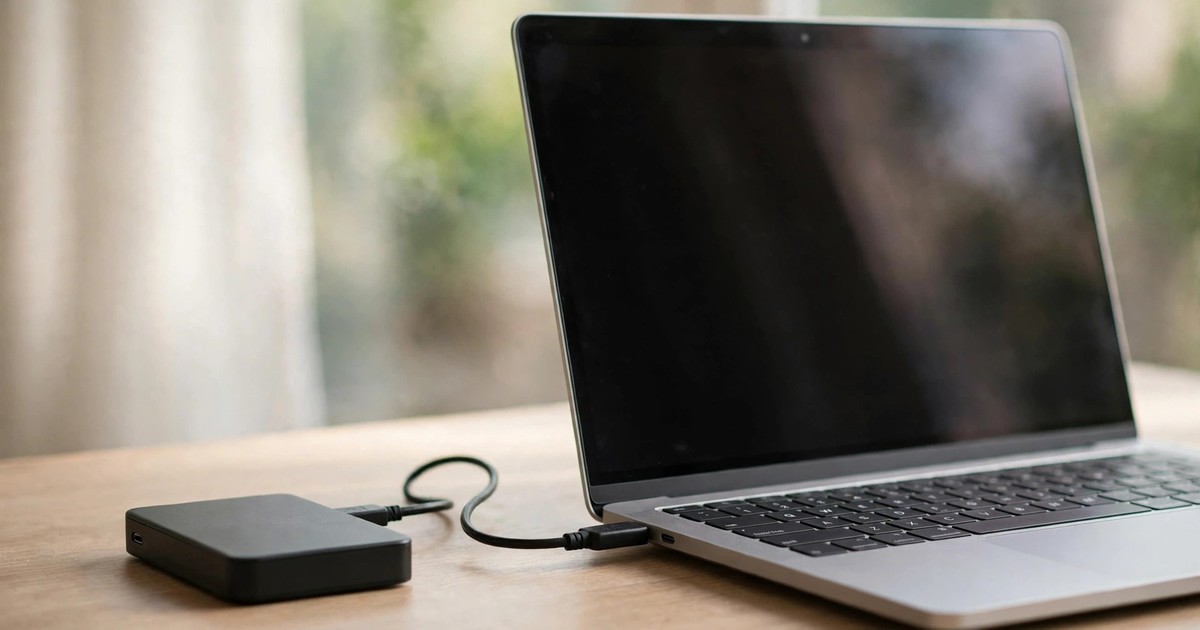
A USB drive that appears when plugged in but disconnects halfway through a large copy is not the same problem as a drive that is never recognised. This article covers five disconnect patterns, six causes, and a fixed test that changes one variable at a time — plus how to copy important data off safely before running any repair on the original drive.
Key Summary
A USB stick or external hard drive that appears as soon as you plug it in, but disconnects halfway through copying a large file, is a different problem from a drive that is never recognised at all. This article shows how to record where the disconnect happens, then change one variable at a time in a fixed test, so you can tell whether the cause is power, cable, hub, power management, or a drive that is starting to fail — and why you must not run a repair on the original drive before your important data is copied off.
Introduction: recognised does not mean stable
Have you had this experience? You plug in a USB stick or an external hard drive, File Explorer shows it immediately, and the files inside open normally, so you assume everything is fine. Then, halfway through copying a large file, the system reports that the device has been removed, or the drive disappears from the list, only to reappear a moment later. You try again, and it disconnects at roughly the same point.
That is the most frustrating kind of failure, because it is not completely broken — it is broken unreliably. You cannot tell whether the cable is loose, the hub cannot supply enough power, the computer is saving power by cutting the drive off, or the drive itself is starting to fail. More seriously, if the disconnect happens in the middle of a write, the file at the destination may be left half-written, and the file system on the original drive may also be affected. One disconnect may show no immediate consequence; repeated disconnects make the problem larger.
This article has a clear division of labour with article number 76 on this site, "USB Drive Not Recognised". Article 76 covers the case where the drive is never recognised at all, with a seven-step elimination method working from power, drivers and partitions to hardware. This article does not repeat those seven steps. It covers only what happens after recognition: the patterns of disconnecting, six causes, how to run a fixed test, how to copy important data off safely before the drive disconnects again, and the mistakes you must not make. If your drive is never recognised from the start, read article 76 first; if it is recognised but keeps disconnecting, this sequel is the one you need.
Every test below can be done by an ordinary user without opening anything up. If the external enclosure has to be opened, if the drive itself has to be replaced, or if the data on it is important and not backed up, stop and have it checked by a professional first. Do not keep experimenting on a drive that holds your only copy of important data.
Section 1: First record where the disconnect happens
Disconnecting is not one phenomenon; it is several. Before changing cables or ports, record three things: which action the disconnect happens during, how long it takes before it disconnects, and whether the drive reappears on its own afterwards. Those three facts are the most important clues for everything that follows.
Five disconnect patterns
The first pattern is disconnecting after sitting idle. The drive is plugged in and unused, then disappears after a while, and only returns when you unplug and plug it back in. This often points to power management: the computer puts the idle drive to sleep to save power, but the drive or hub fails to wake cleanly, so the result looks like a disconnect.
The second pattern is disconnecting halfway through a large copy. Small files copy fine, but a large file, many files, or a copy past a certain size always disconnects. This points to a power boundary or a failing drive: a light load is manageable, but a heavy load draws more current or reaches a problem area, and the drive cannot keep going.
The third pattern is disconnecting only on one particular port. The back-panel port works, the front-panel port disconnects; this computer works, that computer disconnects. This points to the port, the cable, or the power capability of that port — not to the drive itself.
The fourth pattern is disconnecting after sleep or restart. After the computer sleeps or restarts, the drive is gone, and you have to unplug and plug it back in manually. This is most closely related to sleep, waking, and power management, and it can also involve the state of the driver after waking.
The fifth pattern is disconnecting more and more often. It starts as once a week, then becomes several times a day, with shorter and shorter gaps in between. This is the pattern to take most seriously: it probably means the drive itself is starting to fail, or the bridge board in the external enclosure is becoming unstable. Do not treat it as a coincidence.
Record the pattern before you start swapping things. Without a pattern, you can change ten things and still not know which one was the real cause.
Table 1: Disconnect pattern table — where it disconnects, and what it points to
| Disconnect pattern you see | Most likely direction | Next step |
|---|---|---|
| Disappears after sitting idle, returns only after replugging | Power management, sleep settings | Run an idle test first, then test a power management setting (as a test only, then restore it) |
| Small files fine, large files disconnect halfway | Power boundary, drive itself failing | Run a fixed large-file test, then retry directly on a back-panel port with a data cable |
| Only one particular port disconnects, other ports fine | Port, cable, power capability of that port | Keep everything else fixed, change only the port for comparison |
| Gone after sleep or restart | Sleep and waking, driver state | Record the state before and after sleep, try another port and the behaviour after restart |
| More and more often, gaps getting shorter | Drive itself failing, bridge board unstable | Back up whatever can still be read immediately, do not delay, do not run repairs on the original drive |
Section 2: Six causes of disconnecting, and how to tell them apart
1. Power at the boundary: light loads survive, heavy loads do not
An external hard drive, especially a mechanical one, draws current that changes with read and write load. Idle draws little; copying a large file draws more. If the power supply is just at the boundary, idle is fine, but a large copy is not enough, and the drive disconnects and reconnects. That is also why "small files fine, large files disconnect" is so common.
The way to test is a reduced-load comparison: run a large-file test directly on a back-panel port, without a hub, using the original power arrangement. If direct connection becomes stable, power is the likely direction; if it disconnects at the same point even when connected directly, think about the drive itself.
2. Cable and port contact: move it slightly and it disconnects
An ageing cable, a loose port, or poor contact between plug and port can be very erratic: move the cable slightly and it disconnects, place the drive at the edge of the desk and it disconnects when nudged, or it only works at a certain angle. This kind of disconnect usually has no fixed time pattern, and it is related to whether the cable was moved.
The way to test is to fix everything in place: put the drive and cable somewhere they will not be moved at all, then run the test again. If fixing them in place stops the disconnects, contact is the likely problem; if they still disconnect on a schedule, contact is not the problem.
3. Hub power budget: one hub's power is shared by everything on it
An unpowered hub — one with no independent power supply, drawing only from the computer — shares its power among everything plugged into it. One device alone is fine; add a second and a third, and once total current passes the limit, one device will drop out. This kind of disconnect usually starts only after you add another device to the hub.
The way to test is subtraction: unplug everything else from the hub, leave only the drive, and try again. If leaving only the drive makes it stable, it is a power-budget problem; if it still disconnects with only the drive attached, the hub's shared power is not the problem.
4. Power management and sleep: the computer saves power, the drive fails to wake
Windows has a USB selective suspend setting that can suspend an idle device to save power; Device Manager also has a "Allow the computer to turn off this device to save power" option on USB root hubs. Most devices wake up fine; some devices or hubs fail to wake cleanly, and the result looks like a disconnect. On a Mac, the "Disk Not Ejected Properly" message after sleep is another form of the same kind of phenomenon.
This setting should only be used as a test: change it once, and see whether the disconnects stop. If they stop, the direction is confirmed, but you should then look for the underlying cause — for example, updating the driver, or replacing a hub that fails to wake — rather than leaving power-saving features disabled permanently. Leaving them disabled permanently only hides the problem; it does not repair it.
5. Driver and firmware state: wrong after waking
A damaged driver, a driver that no longer matches after a system update, or an abnormal firmware state on the device can make the drive behave abnormally after waking or reconnecting. The distinguishing feature is that the disconnect is tied to a system event: it started after an update, it happens after sleep, or it happens on one port but not others.
Testing at this layer should follow the driver method in article 76: use the system's built-in method to re-detect the device, and do not download drivers of unknown origin from the internet. Driver problems and hardware failure are easy to confuse. The key distinction is the pattern: if the disconnect is tightly tied to a system event, the driver direction is more likely; if it gets more frequent regardless of system events, the hardware direction is more likely.
6. The drive itself failing, or overheating: more frequent is the warning
Failing flash memory or a failing mechanical drive, an unstable bridge board in an external enclosure, or a drive running for a long time in an enclosed, hot space can all show up as disconnects that get more frequent. A mechanical drive that also makes clicking sounds must be powered off immediately — see our guide on hard drive clicking sounds on this site, slug hdd-clicking-sounds — and must not be powered on again for testing.
The test for this layer is simple: if direct connection, a different cable, a different port, a different computer, a reduced hub load, and a power management test have all been tried, and the gaps between disconnects are still getting shorter, treat it as a problem with the drive itself. At that point, the most important thing is not to find the cause, but to back up whatever can still be read immediately.
Section 3: How to run a fixed test? Change only one variable at a time
The problem with random swapping is that you never know which change made things better. A fixed test starts by fixing four elements, then changing only one at a time.
The four fixed elements are: the same cable, the same port, the same computer, and the same test action. The test action must be specific — for example, copying the same large file, or copying the same set of files — and you should record how long it takes and where it disconnects. Run it three times, record each result, and do not draw a conclusion from a single run.
Then change one variable at a time: first the cable, nothing else; then the port, nothing else; then the computer; then direct connection without a hub; then a power management setting. After each change, repeat the same test action and record the result. Whichever variable, when changed, makes things stable, points to the most likely cause.
How to copy important data off safely?
If the drive holds important data that is not backed up, think about the backup order before testing, so the test itself does not become a second source of damage.
First, copy in small batches, not all at once. Copy one small batch, then check that the batch at the destination is complete: file names, count, and sizes should match, and a few files should open normally. Only then copy the next batch. That way, even if a disconnect happens halfway, it only affects that batch.
Second, do not run a write repair on the original drive. Running a write repair, formatting, or initialising on a disconnecting drive can rewrite data structures and make data that could still be recovered harder to recover. Copy the important data off first; only then think about repair.
Third, after a disconnect, do not immediately overwrite with the same file. First check whether the destination already has a half-written file; if it does, rename it or move it away before copying again, so a half-written file is not confused with a complete one. After copying, check count and size again; do not judge only by whether a file exists at the destination.
Fourth, if the drive is already disconnecting more and more often, do not use it for further testing. Testing itself involves reading and writing, and reading and writing are themselves a load. At that point, go straight into backup mode: copy the most important files first, stop as soon as they are copied, and only then have the drive checked.
Table 2: Fixed test record table — change only one variable at a time
| Test order | Variable changed | Other three elements | What it tells you |
|---|---|---|---|
| Baseline test | None changed | Original cable, original port, original computer, same set of files | Record where it disconnects and how often |
| Test 1 | Cable | Port, computer, files unchanged | Whether it is a cable problem |
| Test 2 | Port (direct back-panel port) | Cable, computer, files unchanged | Whether it is a port or hub problem |
| Test 3 | Computer | Cable, port, files unchanged | Whether it is a computer setting or driver problem |
| Test 4 | Direct connection, no hub | Cable, computer, files unchanged | Whether it is a hub power-budget problem |
| Test 5 | Power management setting (test only) | Cable, port, computer, files unchanged | Whether it is a power management direction; restore the setting afterwards |
Section 4: What must you never do?
Mistake 1: Repeatedly unplugging and replugging, hoping for luck
Disconnect, replug, disconnect again, replug again — dozens of times in one afternoon. Each replug is a power-on and power-off cycle, and for a drive that is already unstable, that is itself a load. The correct approach is to stop, record the pattern, and run a fixed test. Do not substitute repetition for method.
Mistake 2: Running a write repair or formatting on a disconnecting drive
Seeing a prompt to repair or format and pressing it immediately is dangerous. The file system on a disconnecting drive may already be in an incomplete state because of the disconnects, and a write repair can rewrite structures that could still have been recovered. Before your data is backed up, do neither of these. This principle is exactly the same as in article 76.
Mistake 3: Buying a longer cable or a cheaper hub to "try it out"
The longer the cable, the greater the chance of power and signal loss; the cheaper the unpowered hub, the weaker its power distribution. Trying a longer cable and a cheaper hub on a drive that already disconnects only adds more confusion. For testing, use the shortest, most direct combination: an original or known-good short data cable, directly into a back-panel port, without a hub.
Mistake 4: Treating a disconnect as a system problem and changing every setting at once
Disabling all power-saving settings at once, uninstalling all USB drivers at once, changing all power options at once — even if things improve afterwards, you will not know which change was the cause, and if the problem returns, you will not know which setting was responsible. Change only one thing at a time, and record each change. This principle applies at every layer.
Mistake 5: Ignoring the warning sign of increasing frequency
Once a week at first, you think it does not matter; several times a day later, you still think "an occasional disconnect is normal". Increasing frequency is itself the most important signal: it means the situation is getting worse. When that signal appears, the correct action is not more testing, but immediate backup, followed by checking.
Mistake 6: Pulling the drive out during a disconnect without checking whether anything is being written
When the drive disappears, pulling the cable straight out is risky, because the system may still think the drive is there, or a write operation may not have finished. The correct approach is to wait until the system state is stable, confirm no write is in progress, and only then eject safely or unplug. Mac users who see the "Disk Not Ejected Properly" message should check first, not dismiss it as an ordinary notification.
Section 5: How to prevent it happening again?
Habits you can adopt immediately: Always eject safely before unplugging a device. Unplugging during a write is one of the most common causes of file system damage, as article 76 already explains, and it matters even more on a disconnecting drive. Also, place the drive and cable somewhere they will not be constantly moved, to reduce poor-contact problems.
Buying and using habits: Plug external drives directly into back-panel ports as much as possible, and do not run them long-term through unpowered hubs. If a hub is necessary, use one with its own independent power supply, and do not fill every port on it. For cables, distinguish charge-only cables from data cables, and use a known-good short data cable for testing.
Regular habits: Follow the 3-2-1 backup rule for important data — at least three copies, on two different media, with one copy offsite. See our backup strategy article on this site, slug backup-strategy-hk. A disconnect is not frightening in itself; what is frightening is when the disconnecting drive is the only place your data lives. With a backup, a disconnect is an inconvenience; without one, it can be a loss.
Habits for watching failure signals: Record how often disconnects happen. If they go from occasional to daily, that is a failure signal: back up immediately, and do not wait until the drive is not recognised at all. For what to do after a drive is no longer recognised at all, see article 76, slug usb-drive-not-recognised.
Frequently Asked Questions
Q: How do I tell whether it is a power problem or the drive itself failing?
A: Use a fixed test. Connect directly to a back-panel port, without a hub, with a known-good short data cable. If that makes it stable, power or hub is the likely direction; if direct connection, a different cable, and a different computer all disconnect at the same point, and the gaps are getting shorter, the drive itself failing is much more likely. Remember to change only one variable at a time, or you cannot tell.
Q: After a disconnect, how do I check whether the file at the destination is complete?
A: Do not judge only by whether the file exists. Check file name, count, and size, and open a few files to see whether they open normally. If the destination has a half-written file, rename it or move it away before copying again, so a half-written file is not confused with a complete one. Copy one batch at a time, and check each batch before moving on.
Q: Will switching to a powered hub help?
A: It depends on the disconnect pattern. If the disconnect is caused by an unpowered hub not supplying enough power, a hub with its own independent power supply may help; but before buying anything, first try connecting directly to a back-panel port and confirm that direct connection is stable, so you know the direction is right. If direct connection still disconnects, changing the hub may not help.
Q: Can I leave Windows power management settings disabled permanently?
A: It is not recommended as a long-term solution. Power management settings are suitable as a test: change them once, and see whether the disconnects stop. If they stop, the direction is confirmed, and you should then look for the underlying cause, such as updating the driver or replacing a hub that fails to wake, rather than leaving power-saving features disabled permanently. Leaving them disabled only hides the problem; it does not repair it.
Q: My Mac keeps showing "Disk Not Ejected Properly". Does that mean the drive is broken?
A: Not necessarily. The message means the drive was disconnected before macOS finished the ejection process. The cause can be the cable, the port, power, sleep settings, or the drive itself. Follow the fixed test in this article: change the cable, change the port, connect directly, and check whether it only happens after sleep. Only if it gets more frequent, and changing everything still does not help, should you think about the drive itself.
Q: Why do small files copy fine, but large files disconnect?
A: Because the load is different. Idle and small files draw little power and impose a small read and write load, so they survive; large files draw more power and take longer to read and write, so they reach a power boundary or a problem area on the drive and fail. That pattern is itself a clue, pointing to a power boundary or a failing drive — do not dismiss it as a coincidence.
Q: How long does checking or repair take, and how is it charged?
A: It depends on the situation, and this article does not give a fixed price. In general, a problem with only the cable, port, hub, or power management setting takes relatively little time to check; a problem involving the drive itself failing or file system damage can only be assessed after checking. Charges are always on an individual quotation basis; before checking, ask about the checking process and how quotations work.
Q: Can I open the external drive enclosure myself and connect the drive directly to a computer?
A: It is not recommended for ordinary users. Opening the enclosure may affect the warranty, and incorrect handling can damage the drive through static or wrong connections; moreover, on some external drives the USB interface is soldered directly onto the drive board, so it cannot be removed at all. Record the results of the fixed tests you have already run, and take those records with you when you have the drive checked — that will be much more efficient.
Conclusion
For a USB drive that is recognised but keeps disconnecting, remember three things. First, record the disconnect pattern first: idle disconnects, large-file disconnects, one-port-only disconnects, after-sleep disconnects, or getting more frequent — each pattern points in a different direction, and you should not start swapping things before recording it. Second, run a fixed test, changing only one variable at a time; whichever variable, when changed, makes things stable, is the answer. Third, before important data is copied off, do not run a write repair or format on the original drive, and when disconnects are getting more frequent, back up immediately instead of delaying. Follow this order, and many disconnect problems can be found without spending money; when you reach the point where you should stop, stopping itself is the cheapest decision.
Sources
- Microsoft Support (support.microsoft.com): Windows external hard drive "not recognised" support document, mentioning that an external drive may enter selective suspend, and that an unpowered hub may not supply enough power (https://support.microsoft.com/en-us/help/314634/why-doesn-t-my-computer-detect-my-new-usb-device-when-i-m-running-wind)
- Seagate Support (seagate.com): Mac "Disk Not Ejected Properly" support document, mentioning cable, power supply, port, sleep and drive failure as causes of random ejection (https://www.seagate.com/in/en/support/kb/disk-not-ejected-properly-on-mac/)
- Related articles on this site: usb-drive-not-recognised (article 76, seven-step elimination for drives never recognised), backup-strategy-hk (backup strategy), hdd-clicking-sounds (stop-use principle for clicking drives)
Related Articles
- "USB Drive Not Recognised? A Step-by-Step Guide: Power, Drivers, and Partitions — Before You Format Anything" — article 76 on this site, seven-step elimination for drives never recognised
- "Hong Kong User Backup Strategy: The 3-2-1 Backup Rule" — backup strategy guide on this site
- "Hard Drive Clicking Sounds: What They Mean and What to Do First" — hard drive noise guide on this site
Frequently Asked Questions
How do I tell whether it is a power problem or the drive itself failing?
Use a fixed test. Connect directly to a back-panel port, without a hub, with a known-good short data cable. If that makes it stable, power or hub is the likely direction; if direct connection, a different cable, and a different computer all disconnect at the same point, and the gaps are getting shorter, the drive itself failing is much more likely. Remember to change only one variable at a time, or you cannot tell.
After a disconnect, how do I check whether the file at the destination is complete?
Do not judge only by whether the file exists. Check file name, count, and size, and open a few files to see whether they open normally. If the destination has a half-written file, rename it or move it away before copying again, so a half-written file is not confused with a complete one. Copy one batch at a time, and check each batch before moving on.
Will switching to a powered hub help?
It depends on the disconnect pattern. If the disconnect is caused by an unpowered hub not supplying enough power, a hub with its own independent power supply may help; but before buying anything, first try connecting directly to a back-panel port and confirm that direct connection is stable, so you know the direction is right. If direct connection still disconnects, changing the hub may not help.
Can I leave Windows power management settings disabled permanently?
It is not recommended as a long-term solution. Power management settings are suitable as a test: change them once, and see whether the disconnects stop. If they stop, the direction is confirmed, and you should then look for the underlying cause, such as updating the driver or replacing a hub that fails to wake, rather than leaving power-saving features disabled permanently. Leaving them disabled only hides the problem; it does not repair it.
My Mac keeps showing "Disk Not Ejected Properly". Does that mean the drive is broken?
Not necessarily. The message means the drive was disconnected before macOS finished the ejection process. The cause can be the cable, the port, power, sleep settings, or the drive itself. Follow the fixed test in this article: change the cable, change the port, connect directly, and check whether it only happens after sleep. Only if it gets more frequent, and changing everything still does not help, should you think about the drive itself.
Why do small files copy fine, but large files disconnect?
Because the load is different. Idle and small files draw little power and impose a small read and write load, so they survive; large files draw more power and take longer to read and write, so they reach a power boundary or a problem area on the drive and fail. That pattern is itself a clue, pointing to a power boundary or a failing drive — do not dismiss it as a coincidence.
How long does checking or repair take, and how is it charged?
It depends on the situation, and this article does not give a fixed price. In general, a problem with only the cable, port, hub, or power management setting takes relatively little time to check; a problem involving the drive itself failing or file system damage can only be assessed after checking. Charges are always on an individual quotation basis; before checking, ask about the checking process and how quotations work.
Can I open the external drive enclosure myself and connect the drive directly to a computer?
It is not recommended for ordinary users. Opening the enclosure may affect the warranty, and incorrect handling can damage the drive through static or wrong connections; moreover, on some external drives the USB interface is soldered directly onto the drive board, so it cannot be removed at all. Record the results of the fixed tests you have already run, and take those records with you when you have the drive checked — that will be much more efficient.