Computer Repair · October 25, 2026 · ComputerKing Team
Second-Hand Laptop After Purchase: Keep or Replace?
Bought a second-hand laptop? Check soldered RAM, SSD slots, Windows 11 threshold, upgrade and battery costs — then decide: keep or replace.
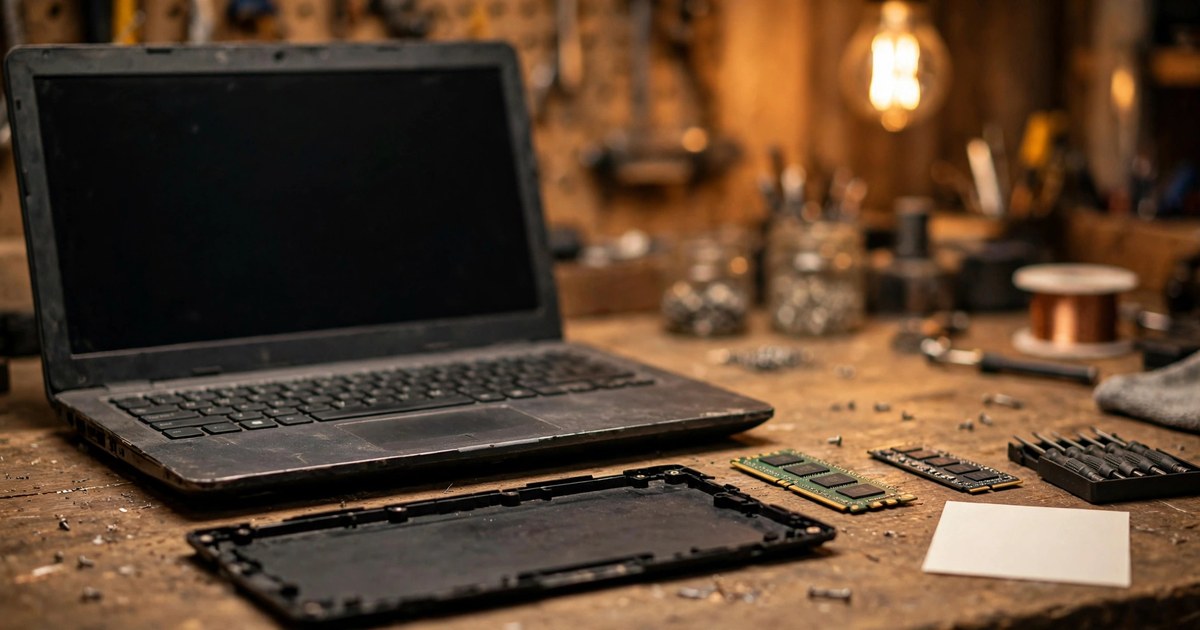
<a id="summary"></a>Key Summary
Count the true cost after purchase: soldered RAM cannot be added, SSD slot count is fixed, and a CPU that fails the Windows 11 threshold cannot be kept going. Add upgrade and battery costs to get total cost of ownership; for an older machine whose CPU is off the support list, ESU only buys time, it does not restore support. Before selling, giving away or recycling, wipe data according to the storage medium: deleting and formatting are not wiping clean, and handing a machine to WEEE recycling does not mean its data is wiped. Use the decision tree — upgrade ceiling, system support and itemised quotations — to decide keep or replace, not the purchase price alone.
<a id="s1"></a>1. After purchase is when it starts: four locked-in items
Many second-hand laptops only turn out to be a bad deal after purchase, not because a scratch was missed at handover, but because four things were already locked in at the moment of purchase and cannot be changed afterwards, however hard you try.
First, the RAM structure is locked in. Soldered means soldered: what you buy is what you use, with no later addition. Second, the CPU generation is locked in. The CPU itself is soldered to the mainboard and cannot be upgraded on its own; whether the CPU is on the Windows 11 support list was also decided at purchase. Third, the storage structure is locked in. On a machine with only one M.2 slot, moving to a larger capacity is a "replacement", not an "addition": the old SSD has to be migrated, and its resale value should not be assumed. Fourth, the system support status is locked in. Windows 10 support has ended, and a machine that does not meet the Windows 11 requirements will cost more and more to keep going over time, as explained in Section 4.
So the order of thinking in this article is different from Second-Hand Laptop: Price Checks, Support Life, 7-Day Tests. That article was about how to price a machine before buying and how to check its support life; this article assumes you have already bought it, or are about to, and teaches you how to move from "purchase price" to "total cost of ownership", and then decide how much more it is worth investing in this machine, or whether to stop and replace it. Every model detail below must be checked model by model using "brand, series, generation, Intel or AMD, and exact model number" against the manufacturer's specification sheet. Do not infer from the series name alone. Different generations of the same series, and even the Intel and AMD versions of the same generation, can have completely different structures.
Further reading: How to Inspect a Second-Hand Laptop Before You Buy: A Pre-Purchase Checklist.
<a id="s2"></a>2. Upgrade structure: soldered or slotted, model by model
ThinkPad: from the most flexible to the most locked-down
| Model | RAM | SSD | Battery and Wi-Fi notes |
|---|---|---|---|
| T480 (around 2018, Intel 8th generation) | 2 SO-DIMM slots, official limit 32GB DDR4-2400; other sources report user reports of up to 64GB, which is not an official guarantee and must not be treated as the official limit | M.2 NVMe plus a 2.5-inch SATA bay; plus a WWAN slot M.2 2242 option | Power Bridge dual battery, internal 24Wh plus an externally hot-swappable 24/72Wh battery; the external battery can be replaced without shutting down, a rare advantage in this class |
| T14 Gen 2 (Intel) | 1 soldered module plus 1 DIMM, limit 48GB DDR4-3200 | M.2 SSD replaceable | Internal battery, replaceable by a technician, not the T480-style externally hot-swappable design |
| T14 Gen 4 Intel version | 1 soldered DDR5 module plus 1 SO-DIMM, limit 32GB (one configuration sheet shows 16GB soldered plus 16GB slotted) | 1 M.2 2280 PCIe 4.0 slot, limit 2TB | Wi-Fi 6E AX211, M.2 card; limits vary by configuration, so check the factory configuration of the exact machine before buying |
| T14 Gen 4 AMD version | Fully soldered, not upgradeable, limit 32GB LPDDR5X | M.2 SSD replaceable (check before buying) | The classic "same generation, different structure" example: the Intel version of the same generation has a slot, the AMD version is fully soldered |
| T14 Gen 7 | LPCAMM2 or SO-DIMM depending on configuration; the Intel version is the first in the T series to introduce LPCAMM2, which can be upgraded later, unlike soldered memory | Standard M.2 SSD | Battery is almost tool-free to replace, but the Wi-Fi module is not modular and is impractical to repair or upgrade; different SKUs in the same generation can differ, so check model by model |
| X1 Carbon (Gen 6 to Gen 14, all models) | Fully soldered throughout, not upgradeable; the Gen 14 specification sheet lists 16/24/32/64GB, no slots, no upgrade path | Usually 1 M.2 2280 slot, replaceable, replacement rather than addition, only one slot; Gen 14 supports up to 2TB | Gen 14 sources say the Wi-Fi module is accessible, but the RAM remains soldered; a second-hand 8GB X1 Carbon has no upgrade path |
The X1 Carbon is the classic example of "the RAM capacity you buy is the capacity for life". When buying a second-hand X1 Carbon, do not think "I will add RAM later", because that option does not exist.
Dell Latitude and XPS: the 5000 series and the 7000 series are two different worlds
The Latitude 5420 (11th generation Intel) has 2 SO-DIMM slots, an official limit of 64GB DDR4 (2 x 32GB), and a replaceable M.2 NVMe drive. The Latitude 5430 (11th/12th generation Intel) likewise has 2 SO-DIMM DDR4-3200 slots with a 64GB limit; this figure comes from the official service manual specification sheet, one of the more reliable sources in this section. In the newer Latitude 7000 series (7340/7440/7450 and similar), most models have soldered LPDDR5/LPDDR5x with no upgrade slots, so the purchase capacity is the lifetime capacity, although the M.2 2280 NVMe drive is usually still replaceable, mostly supporting PCIe Gen4.
The XPS 13 (each generation from 2020 to the 2026 models) has soldered memory throughout that cannot be upgraded: 2020–2021 models use soldered LPDDR4X-3733, and models from 2022 (9320 onwards) use soldered LPDDR5 / LPDDR5X; the 2026 entry model has 8GB soldered, and the 16GB version costs US$200 more. That is a Dell official configuration price difference quoted via reporting; it is an "original configuration price difference", not a retail SO-DIMM price, and the two must not be compared directly. The XPS 14 is likewise soldered LPDDR5x-7467 (16/32/64GB in three tiers) and cannot be upgraded. With an XPS, 8GB or 16GB is a one-time decision at purchase, not a later upgrade option.
HP EliteBook: the 840 has slots, the 830 is soldered, and G11 onwards must be checked model by model
The EliteBook 840 G9/G10 has 2 SO-DIMM DDR5 slots with a 64GB limit; the G9 uses DDR5-4800; for the G10, sources differ: HP's official G10 datasheet writes DDR5-4800 while a comparison table writes DDR5-5200, so check the exact machine's official specification sheet before buying and do not rely on a single figure. The 840 G10 has 1 M.2 PCIe Gen4 NVMe slot, replaceable. There is, however, a wording trap: the HP official G10 datasheet lists both "2 SODIMM" and "Slots are non customer accessible/upgradeable", meaning that technically there are slots, but HP positions them as not user-upgradeable. The correct wording is therefore "replaceable by a technician", not "the user can swap it by hand".
The EliteBook 830 G10, by contrast, has 16GB soldered and not upgradeable, with a replaceable M.2 NVMe drive. Same generation, same brand, different models, opposite structures: the 830 is soldered and the 840 has slots, proving that "G10 means upgradeable" is a false inference. For the EliteBook 840 G11 / EliteBook 6 G1a / 8 G1i / Ultra G1q and other 2025 models, several reviews describe them as soldered, but apart from the EliteBook X G1a, which has a more reliable source supporting "soldered RAM, replaceable SSD", the other new-model review sources are of lower reliability and must not be written as settled fact until checked against HP's official specification sheets. New EliteBooks are moving towards soldered memory; buyers who value the upgrade flexibility of the 840 G9/G10 should not assume the G11 and later models have the same slots.
The ThinkPad T14 Gen 5 Intel version has the same problem: some sources describe dual memory slots, but the source reliability is low, and until it is verified against Lenovo's official specification sheets, the text should only say "varies by generation and configuration, check before buying", and must not state Gen 5 details as fact.
MacBook: Apple Silicon follows a completely different upgrade logic
Apple Silicon uses unified memory, with the CPU, GPU and Neural Engine sharing the same memory pool; on M-series models both RAM and SSD are soldered to the mainboard and cannot in practice be upgraded or replaced by ordinary repair methods; SSD data is further bound by encryption to the SoC / Touch ID, so simply moving the flash chips cannot read the data. The only practical "upgrade" path is external storage: expand capacity with an external USB / Thunderbolt SSD; RAM has no external path at all. The battery is one of the major components most commonly replaced; screens, keyboards and similar parts can also be replaced through repair routes, but RAM and SSD still have no upgrade path, and battery replacement is far from tool-free.
Older Intel MacBooks are not the focus of this section and must not be confused with Apple Silicon: some older models use proprietary-interface SSDs, not standard M.2, and must be checked by model before buying; if older models are mentioned, the year and model must be stated, otherwise the mention should be deleted. The bargaining logic for a second-hand MacBook is therefore completely different from that for a Windows business machine: RAM and SSD capacity are locked in at purchase, and an 8GB model has no "add RAM later" option; buyers should price directly on a "enough for life" capacity, or accept the external SSD solution.
Wi-Fi cards and batteries: the two most easily overlooked items
Older business machines mostly use M.2 2230 (Key E) Wi-Fi cards that can be replaced: for example Intel AX210 (Wi-Fi 6E), AX211 (Wi-Fi 6E, requiring a CNVio2 interface and a 12th generation or newer Intel CPU), BE200 (Wi-Fi 7); when replacing, check the CNVio / CNVio2 interface, BIOS allowlist (some models restrict which cards can be used), and antenna connector order. Newer ultra-thin machines show a trend towards soldered Wi-Fi: even on the ThinkPad T14 Gen 7, which scores extremely highly for repairability, the Wi-Fi module is still soldered to the mainboard and is not modular. The correct wording is: Wi-Fi upgrades should not be written as "always replaceable" or "always not replaceable"; write "older business machines can mostly swap cards, newer ultra-thin machines must be checked model by model, and if the card cannot be swapped, a USB Wi-Fi adapter can be used as a substitute". Wi-Fi card prices: this research round obtained no reliable public quotation, so write "obtain an individual quotation" throughout.
On batteries, apart from the T480, almost all are internal. The T480 is the exception: its external battery is hot-swappable and its internal battery is also replaceable. On all other models the battery is internal and requires disassembly to replace; second-hand buyers should check battery health before purchase and count "battery replacement cost" in the total cost of ownership, rather than assuming the battery is as good as new. Original / third-party battery prices: this research round obtained no verifiable Hong Kong public quotation, so write "obtain an individual quotation" throughout.
How to recognise soldered memory: read the specification wording
Check the "memory" column of the official specification sheet for soldered / onboard / built-in / non-removable / no memory slots; seeing these words means soldered or no slots. Check whether the official service manual has RAM / SSD removal steps, which is another method. Note one warning: an HP discussion case shows the official specification sheet and the service manual have contradicted each other (the specification said onboard, while the manual had memory slot steps), and the conclusion is "an actual power-on check is the most accurate". Compatibility tools are for reference only; the official manual takes precedence.
CPUs and graphics chips on laptops are generally soldered to the mainboard and cannot be upgraded individually; to change CPU / graphics performance is in practice to change the mainboard or the machine. On some entry-level machines the eMMC storage is soldered to the mainboard and cannot be upgraded internally; only external drives or microSD cards can expand storage.
Further reading: How to Inspect a Second-Hand Laptop Before You Buy: A Pre-Purchase Checklist, Why Your MacBook Battery Health Number Misleads You.
<a id="s3"></a>3. Upgrade cost anchors: only sourced prices, everything else by individual quotation
Before any prices, a major precondition must be stated: public quotations in October 2026 show memory and SSD prices in a sharp upward phase, and any anchor is only a "snapshot of overseas public quotations on the collection date", not a Hong Kong retail price and not a quotation commitment. Every US dollar price below must be accompanied by currency, date and geographic limitation: October 2026 overseas public quotations, not Hong Kong prices, re-check before purchase. If any one of those three elements is missing, the price should be deleted and replaced with "obtain an individual quotation". This research round verified no Hong Kong retail prices, so the text must not state any unverified Hong Kong dollar price, and must not convert US dollar prices into Hong Kong dollars and present them as Hong Kong prices.
DDR5 SO-DIMM (for laptops, 262-pin)
| Item | Public quotation snapshot (October 2026 overseas public quotations, not Hong Kong prices) |
|---|---|
| TEAMGROUP Elite SO-DIMM 32GB (2 x 16GB) DDR5-5600 CL46 | About US$460–520 (2026-10-20 quotation roundup; the roundup states prices change weekly) |
| Crucial 32GB DDR5-5600 SO-DIMM (single 32GB module) | About US$579–599.99 (individual seller price roundup) |
| Crucial 32GB (2 x 16GB) DDR5-5600 kit | One seller listed US$375 but showed out of stock; an out-of-stock listing must not be written as an available in-stock price |
| Dell XPS 13 original configuration difference: 8GB to 16GB | US$200 (Dell official configuration price difference quoted via reporting; not a retail SO-DIMM price, and the two must not be compared directly) |
| 8GB SO-DIMM retail reference | Reporting quotes "the cheapest reputable 8GB memory at about US$175" (October 2026, quoted via reporting from a seller price); use only as background for "even a loose 8GB module is no longer cheap", not as a Hong Kong price |
For DDR4 SO-DIMM, this research round obtained no reliable October 2026 retail price snapshot, so write "obtain an individual quotation" throughout. Generations also cannot be interchanged: DDR4 is 260-pin and DDR5 is 262-pin, with different key notch positions, so buying the wrong generation will not fit; the T480 / Latitude 5420 / 5430 use DDR4, while the EliteBook 840 G9/G10 / T14 Gen 4 onwards use DDR5, and the two cannot be interchanged. Buying memory faster than the model supports will run at a reduced speed in practice; do not imply that "buying the fastest means running the fastest".
NVMe SSD (M.2 2280)
| Item | Public quotation snapshot (October 2026 overseas public quotations, not Hong Kong prices) |
|---|---|
| 1TB Gen4 NVMe SSD average price (mid-October 2026) | About US$144 (market average price quoted in industry reporting) |
| Samsung 990 Evo Plus 1TB | About US$237, compared with a previous low of about US$59; the rise itself is evidence for "re-quote before buying an SSD upgrade" |
| WD Green SN3000 1TB Gen4 | US$149.99 (originally listed US$179.99, Best Buy product page) |
| Samsung 990 1TB | US$189.99 (originally listed US$229.99, Best Buy product page) |
| Samsung 990 Pro 1TB | US$130–185 varying (different suppliers, different minimum order quantities; wholesale prices must not be written as retail prices) |
When writing SSD upgrade costs, do not write a single SSD price and call it the "upgrade cost"; write "the SSD itself plus fitting labour plus data migration time", with labour and Hong Kong prices always "obtain an individual quotation". Older machines' M.2 slots may only support PCIe Gen3, so even a Gen4/Gen5 SSD will be limited in practice by the slot and CPU; buying the most expensive SSD does not mean running at the labelled speed. Back up before replacing an SSD; data recovery from a failed SSD differs in difficulty from HDD recovery, so do not talk only about speed.
Batteries, Wi-Fi cards, labour: all by individual quotation
Original batteries: obtain an individual quotation. Third-party batteries: obtain an individual quotation; third-party must not be written as "equivalent to original", as explained in Section 9. Wi-Fi cards (AX210 / AX211 / BE200): obtain an individual quotation. Labour for replacing RAM / SSD / batteries: obtain an individual quotation. Hong Kong retail prices: this research round verified no Hong Kong retail prices, so the text must not state any unverified Hong Kong dollar price.
<a id="s4"></a>4. The Windows 11 threshold and the end of Windows 10 support
The official threshold: all four must be met
On CPUs: Intel 8th generation or newer, or AMD Ryzen 2000 series or newer (some roundups also write Ryzen 3000 onwards; the difference comes from different roundup scopes; the text should use "Intel 8th generation / AMD Ryzen 2000 onwards" as the main wording and note "subject to Microsoft's official support list"). On TPM: TPM 2.0 is required, which can be a discrete chip or the CPU's built-in Intel PTT / AMD fTPM, which must be enabled in the BIOS. On Secure Boot: UEFI plus Secure Boot must be enabled. On minimum memory / storage: 4GB RAM and 64GB storage are required. Checking methods: the Microsoft PC Health Check app; or run `tpm.msc` in Windows to check the TPM version.
A common misjudgement is: having TPM 2.0 does not equal being supported. Many machines shipped after 2019 already have TPM 2.0 hardware, but the BIOS defaults to Intel PTT / AMD fTPM or Secure Boot switched off; switching them back on lets them pass the check, and such machines should not be misjudged as "unsupported". Conversely, Intel 7th generation or earlier, and AMD Zen 1 or earlier, will be officially refused because the CPU is not on the support list, even if they have TPM.
Windows 10 support has ended: the real consequences for older machines
Windows 10 support ended on 14 October 2025: after that date there are no more free security updates, feature updates or technical support (unless ESU is registered, see below). On the risk of bypassing the checks to install Windows 11, Microsoft states that bypass-installed devices are not guaranteed updates, and annual feature updates may not be received; several roundups point out that bypassing amounts to "replacing one unsupported system with another unsupported system", which is not recommended for a main machine or a business machine. This article does not teach bypass steps, and readers should not equate "it installs Windows 11" with "it supports Windows 11".
On business / compliance risk, one roundup notes that under the UK Cyber Essentials framework and similar compliance frameworks, unpatched Windows 10 business computers automatically fail; Hong Kong readers should understand this as "security risk and compliance risk of an unsupported system", not write the UK framework up as Hong Kong law.
ESU: buying time, not restoring support
ESU (Extended Security Updates) covers only critical and important security updates, not new features, non-security fixes or general technical support. ESU is "buying time", not "restoring support".
| Option | Price / period | Notes |
|---|---|---|
| Consumer ESU (personal Windows 10 computers) | One-off US$30; or free registration by syncing settings to OneDrive with Windows Backup; or redemption with 1,000 Microsoft Rewards points; originally covering until 13 October 2026 | A 2026 report also says consumer ESU has been extended to 12 October 2027, and the two accounts differ; the text must write "originally until 13 October 2026, with a 2026 report saying it was extended to 12 October 2027, check Microsoft's official ESU page before purchase", and must not present only one date as settled |
| Business ESU (Year 1) | US$61 / device | Year 1 cannot be skipped |
| Business ESU (Year 2) | US$122 / device (cumulative US$183) | Price rises year by year |
| Business ESU (Year 3) | US$244 / device (cumulative US$427) | Business ESU lasts at most 3 years, until October 2028 |
| Microsoft 365 Apps security updates on Windows 10 | Until 10 October 2028 (feature updates stop first) | This is "Office continues to receive security updates", not "Windows 10 itself continues to be supported"; the text must distinguish the two |
The decision branches for older machines can be split as follows: first, if the CPU is on the support list and only the BIOS has TPM / Secure Boot switched off, switching the BIOS settings back on allows a free upgrade to Windows 11, which is the most worthwhile keep-going case. Second, if the CPU is not on the list but the machine is only for non-primary / offline / non-sensitive use, ESU can be considered to buy time, or another supported system can be used, but the security risk must be stated, and bypass installation as a main machine must not be encouraged. Third, if the CPU is not on the list and the machine is a main machine / handles sensitive data / needs compliance, the ESU cost doubles year by year, and replacing the machine is usually more sensible.
<a id="s5"></a>5. Before selling or recycling: what counts as properly wiped data
Sooner or later, after purchase, you will sell, give away or recycle this machine. If data wiping is done badly, the money saved on purchase can be paid for with privacy. Principles first, then the limits of Windows and macOS respectively.
First distinguish the storage medium, then choose the method
The same method does not apply to all drives. The NIST framework has three levels: Clear (using logical methods to address all user-accessible locations, protecting against simple, non-invasive recovery via the same interface), Purge (difficult to recover even with the most advanced laboratory techniques, while the medium remains reusable), and Destroy (physical destruction, the medium cannot be reused). NIST SP 800-88 Rev. 2 (published September 2025) recommends, apart from cryptographic erase, following recognised standards such as IEEE 2883 for technical details; Purge should be preferred over Clear. It must be stated clearly: "deleting" and "formatting" must not be written as equal to "secure erasure".
Why overwriting an SSD does not work / is unreliable
An SSD controller performs wear levelling: it spreads writes across different NAND blocks to avoid premature wear of individual cells; when the operating system says "overwrite the same logical address", the controller may in fact write to a brand-new physical page, with the old page merely marked invalid until garbage collection deals with it. On over-provisioning, the actual NAND capacity of an SSD is larger than the labelled capacity, and the reserved portion is used internally by the controller, inaccessible to the operating system and unreachable by software overwriting tools; a third-party roundup puts this at generally about 7–28%, and any quotation of this figure must note that it is not an official specification. On bad-block remapping, failed pages are remapped to spare capacity, invisible to the host, and likewise unreachable by overwriting tools.
Therefore traditional HDD-era multi-pass overwriting tools (for example DBAN, cipher /w, shred, not recommended for SSDs) on an SSD cannot be regarded as reliable Clear, still less as Purge, and cannot guarantee covering every location that ever held data; multi-pass overwriting gives an SSD no extra benefit and only adds wear. TRIM only tells the controller that certain blocks are no longer in use and can be cleared during garbage collection; it is not an erase command; it does not guarantee immediate or complete erasure, nor does it cover the reserved space. TRIM itself is not an erasure command and cannot on its own be treated as erasure; even after TRIM, data may remain until garbage collection deals with it, and it is definitely not enough for Purge. Degaussing is completely ineffective on SSDs, because SSDs store data as charge, not as magnetic domains; if a recycler says "degaussed to erase data", that method only applies to magnetic media, not to SSDs.
Windows: reset is not secure erasure
Windows "Reset this PC" has two options: "Keep my files" (reinstall Windows, keep personal files, remove apps and settings) and "Remove everything" (reinstall Windows, remove personal files, apps and settings). Under "Remove everything" there is a "Clean data" option: Microsoft's Surface guidance says this option takes longer (possibly one to two hours) and makes it harder for others to recover removed files; but a roundup notes Microsoft also states this erasure does not meet government or industry standards. In other words: acceptable for ordinary personal handover, but must not be written as "meets NIST Purge" or "absolutely unrecoverable".
If the machine was fully encrypted from the start (for example BitLocker enabled from the beginning), and all key copies (including hosted / recovery keys) are destroyed or disabled, cryptographic erase only then has Purge meaning; the precondition is "never written in plaintext" — if encryption was switched on midway, old plaintext residue may still exist. Do not write "switching on BitLocker and then resetting equals absolute safety"; the above precondition must be stated. Before selling, besides resetting, remove the device from your Microsoft account and sign out of related services; after reset, stop at the initial setup screen and do not sign in with your own account. These are process suggestions, not erasure guarantees.
macOS: Erase All Content and Settings
Conditions: Apple Silicon or a Mac with an Apple T2 security chip, running macOS Monterey 12 or later. Path: on macOS Ventura or later, Apple menu, System Settings, General, Transfer or Reset, Erase All Content and Settings; on Monterey, the same function in System Preferences. Mechanism: this function erases by destroying the encryption keys of the data volume, quickly, without adding many erase write cycles to the SSD; it also signs out of Apple services and switches off "Find My" and Activation Lock. Apple's official guidance also states: if you can use this function, you do not need to do the other steps in the guidance.
Limits and exceptions: older models, models without T2, or Macs on macOS older than Monterey do not have this function and must follow the old process: sign out of the corresponding services for your system version (iTunes on older systems; Music / TV and similar apps on newer systems), iCloud and iMessage, unpair Bluetooth devices, then use Disk Utility in Recovery mode to erase the startup disk and reinstall macOS. FileVault is not a single-file erasure tool: it encrypts the whole startup disk so that it is difficult to read without credentials, but it does not selectively erase individual files, nor does it clear cloud, backup, email attachment or already-synced device copies. Do not write "switching on FileVault" as equal to "erased". For a Mac that cannot be erased / cannot be powered on: if it contains sensitive data, do not dismantle it yourself; ask Apple, an authorised repairer or a qualified data destruction company how to handle it; on modern Macs storage is mostly soldered to the mainboard, unlike a traditional hard drive that can be removed.
SSD secure erasure: ATA and NVMe distinguished
For SATA SSDs, ATA Secure Erase / the device's own sanitize command is executed by the controller, and manufacturers claim it can handle internal areas, but implementation varies and it must not be guaranteed to cover all reserved / remapped blocks; for sensitive data, prefer a manufacturer-verified Sanitize or physical destruction. For NVMe SSDs, NVMe Sanitize (Block Erase or Crypto Erase) is Purge level; NVMe Format (user data erase) is only Clear level; Crypto Erase (discarding the encryption key with `nvme format --ses=2` or `nvme sanitize --sanact=4`) on a self-encrypting drive can complete in seconds and is Purge, but only on the precondition that the hardware encryption itself is correctly implemented and the key has not leaked. Before running any destructive command, check the model and serial number with `nvme list`; targeting the wrong drive will destroy the wrong disk.
A practical checklist (a checklist only, not a guarantee): first, back up, sign out of accounts, and remove Activation Lock / Find My device; second, choose the manufacturer tool, BIOS Secure Erase, or NVMe Sanitize / Format according to drive type; third, verify after completion: after restarting, the drive shows as empty, with no old partitions and no old accounts; fourth, for extremely sensitive data: do not rely on any software erasure, use physical destruction (Destroy) — NIST lists dismantling, incineration, melting and shredding, while drilling or bending is only partial damage and is not enough.
The buyer angle matters equally: when buying a second-hand laptop, do not assume the seller has wiped it clean; the first thing to do should be another full wipe plus reinstall, and check for residual accounts, Activation Lock, and MDM / company management settings. This can be written as a suggestion, but must not be written as "one check guarantees there is no problem".
| Claim | Truth |
|---|---|
| Deleting a file / emptying the recycle bin equals erasure | It only removes the reference; the data remains until overwritten; recovery software may find it again |
| Formatting equals secure erasure | Ordinary formatting only removes file system pointers; the underlying data remains and can be found with recovery software within minutes |
| Multi-pass overwriting an SSD is safest | It gives an SSD no extra benefit, cannot reach wear levelling / reserved space, and only wears the SSD |
| Windows "Clean data" equals meeting government standards | Microsoft's guidance states this erasure does not meet government / industry standards; it is only suitable for ordinary personal handover |
| Degaussing can wipe an SSD | Ineffective; SSDs do not store magnetically |
| Switching on FileVault equals erasing individual files | No; FileVault is whole-disk encryption, does not selectively erase, and does not clear cloud / backup copies |
Further reading: Backup Restored — But the Wrong Version.
<a id="s6"></a>6. Hong Kong WEEE and data responsibility
WEEE definitely covers computers
"WEEE" is the Waste Electrical and Electronic Equipment Producer Responsibility Scheme (WPRS); regulated electrical equipment includes air conditioners, refrigerators, washing machines, televisions, computers, printers, scanners and monitors; from 1 July 2024 the scope expanded to 900-litre refrigerators, 15kg washing machines, standalone clothes dryers and dehumidifiers. In other words, laptop computers, desktop computers and tablet computers are all within the "computer" scope, and this can be stated with certainty.
There are three free recycling routes: first, the statutory free take-back service: when buying the same type of new regulated electrical equipment, the seller must arrange free door-to-door removal of the same type of old equipment, and you can ask for delivery of the new item and collection of the old item on the same day, with no extra charge; second, even without buying a new machine, you can book the government operator (WEEE·PARK) for free door-to-door recycling, hotline 2676 8888, WhatsApp 6081 5096; third, the "GREEN@COMMUNITY" community recycling network also accepts regulated electrical equipment.
On the recycling levy, the government press release states: computers, printers and scanners HK$15 each, monitors HK$45 each, air conditioners and washing machines HK$125 each, refrigerators and televisions HK$165 each; the levy is paid by suppliers directly to the Environmental Protection Department, not an extra fee paid by consumers in the shop at the time. It must not be written as "recycling costs HK$15" or "buying second-hand incurs a levy".
Recycling does not automatically erase data
Before recycling, owners must first erase data by the methods in Section 5; if the machine cannot be powered on or erased and contains sensitive data, ask a qualified destruction route first, and do not hand it over directly as ordinary waste electrical equipment. Some recycling programme introductions say recycled computers are "degaussed to erase data"; as stated in Section 5, degaussing is ineffective on SSDs; readers who mention a recycler's handling must write "ask the recycler about its actual handling method for SSDs, and do not assume from the word 'degaussed' alone that data has been erased", rather than copying the recycler's promotional wording as fact.
Legal paragraphs: this article is not legal advice
The following legal content is general information only. This article is not legal advice; consult a professional for specific cases.
The Trade Descriptions Ordinance (Cap. 362) fair trading provisions prohibit traders from making false trade descriptions to consumers, misleading omissions, aggressive commercial practices, bait advertising and similar conduct; offenders face a maximum fine of HK$500,000 and imprisonment for 5 years; Customs is the principal enforcement authority. The provisions target trader conduct "in the course of trade"; the application to occasional private resale differs from trader sales, and it must not be asserted that a private seller is necessarily regulated by the same provisions.
Under section 26(1) of Hong Kong's Personal Data (Privacy) Ordinance and Data Protection Principle 2 (DPP2), personal data must, when no longer required for the purpose for which it was used, be erased by taking all practicable steps; DPP4 requires taking all practicable steps to protect personal data against unauthorised or accidental access, processing or erasure. The Ordinance does not grant data subjects a general "right to demand erasure", but data users have the above erasure duties. When quoting this, add "this article is not legal advice", and do not directly apply corporate compliance duties to every private seller.
A research gap must also be stated honestly: this research round found no Consumer Council or Customs public statistics or thematic reminders specifically about "second-hand laptop" trading. Only verifiable general frameworks are listed below; general cases must not be rewritten as "second-hand laptop dispute cases", and dispute figures must not be invented. Customs has long reminded consumers: understand product specifications before buying, compare more, patronise reputable shops, check total prices and unit prices carefully before paying, and keep transaction receipts and related records for follow-up complaints. These principles can be applied directly to second-hand handover: ask the seller for model, serial number, specification screenshots, repair / part-replacement records and warranty documents, and keep promises in writing (not verbal). The Consumer Council's online complaint handling platform has an "online dispute resolution" dedicated chatroom where buyers and sellers can exchange documents and messages directly; if a trader does not respond properly in the chatroom within 7 days, Consumer Council mediation staff will intervene. This mechanism targets trader complaints; private transactions may not be covered, and it must not be written as "private second-hand transactions can also be resolved through the Consumer Council chatroom".
<a id="s7"></a>7. Total cost of ownership framework: do not compare purchase prices alone
The formula for the total cost of ownership (TCO) of a second-hand laptop over a holding period can be used directly by writers, with amounts left blank for readers to fill in:
```
Second-hand laptop total cost of ownership (TCO, over a holding period)
= Purchase price
+ Upgrade spending (RAM, SSD, Wi-Fi card, etc., if upgradeable)
+ Battery replacement spending (if needed)
+ Potential repair spending (keyboard, screen, hinges, charging port, cooling, etc.)
+ Software / system costs (if licences must be purchased, or systems changed)
- End-of-period residual value (re-sale / recycling proceeds, if any)
```
Comparison targets must be calculated on the same basis; do not compare "purchase price" alone:
| Comparison target | Items to include (framework) | Reminder |
|---|---|---|
| Second-hand laptop (private / shop) | Purchase price plus upgrades plus battery plus potential repairs; warranty is usually shorter or absent, risk is borne by the buyer | For a soldered machine the RAM cost is not zero; the cost is "the purchase capacity is already locked in" |
| Official refurbished | Official refurbished price plus possibly purchasing an extended warranty plan; new battery / casing policies vary by product line | Apple Certified Refurbished Macs carry a one-year limited warranty, the same as new machines, and AppleCare+ can be purchased; but the "brand-new battery plus brand-new casing" guarantee applies only to refurbished iOS devices (iPhone / iPad / iPod), not to Macs — for Macs the battery is tested and replaced with original parts only if it fails; do not write "official refurbished Macs definitely have brand-new batteries" |
| Brand-new machine | Purchase price plus one year of warranty (varies by brand); upgrade room is usually larger (newer models) | Supplement by the specific model's official specifications; do not infer from this article |
This article provides no second-hand prices, battery prices or repair prices; upgrade prices are limited to the sourced October 2026 overseas public quotation snapshots in Section 3 (not Hong Kong prices), and everything else is by individual quotation. Third-party roundups have mentioned refurbished and private second-hand price ranges relative to new machines, but these are third-party roundup ranges, not official prices, and they vary by model, year and condition; this article does not quote percentages, and only writes "official refurbished machines are usually cheaper than new machines, but the range varies by model, and the official store's price on the day should be used". Those percentages must absolutely not be written as Hong Kong market prices.
Hidden items that push up total cost of ownership (framework, not amounts): first, operating system support period: Windows 10 support has ended; before buying a second-hand Windows machine, use PC Health Check to verify whether it can be upgraded to Windows 11; relying on bypassing checks to install is a non-official route, and the risk should be flagged, not taught as bypass steps. Second, batteries: batteries are consumables, and low health directly affects mobile use; replacement spending should be counted in total cost of ownership, not just the purchase price. Third, chargers / accessories: whether original chargers, batteries, keyboards and similar are complete; buying missing items is also a cost; check accessories are complete at handover, and do not estimate prices. Fourth, software licences: whether bundled software licences can be transferred varies by brand and licence terms; do not assume "bundled software can definitely continue to be used".
The judgement phrasing is as follows: if the "total cost of ownership" is already close to the purchase price of a comparable upgradeable new machine or a newer upgradeable second-hand machine, the economic case for keeping the machine going disappears; conversely, if the body, screen and keyboard are in good condition and the CPU is still on the support list, upgrading is usually cheaper than replacing — but "usually" must be verified by itemised quotations, and must not be written as a guarantee.
<a id="s8"></a>8. Keep or replace: the decision tree
The decision tree below does not write an amount threshold such as "if repair costs exceed a certain amount it is not worth it", because this research round has no repair quotation sources. The correct wording is "compare the repair quotation plus remaining usable years with comparable official refurbished / new machine prices".
```
Buying / considering buying a second-hand laptop
├─ Safety red line? (swollen battery / overheating / smoke / deformed casing)
│ └─ Yes → Stop using immediately, send for inspection / replacement, do not keep going
├─ Mainboard / CPU / graphics chip broken?
│ └─ Yes → Get a repair quotation and compare with official refurbished / new machine prices; usually leans towards replacing
├─ Upgrade ceiling already reached? (soldered RAM plus insufficient capacity / soldered storage / CPU cannot keep up with required software)
│ └─ Yes → Upgrading cannot solve it, consider replacing
├─ Can the system be officially supported? (Windows 11 / current macOS)
│ └─ No → Count the risk and system-change cost, seriously consider replacing
├─ Is the bottleneck upgradeable? (replace SSD / add RAM / replace battery)
│ └─ Yes → Calculate total cost of ownership (Section 7 formula) and compare with official refurbished / new machines
└─ Comparison result: total keep-going cost clearly lower than replacement, and warranty / risk acceptable → Keep;
Otherwise → Replace / officially refurbished
```
| Situation | Leaning | Reason (check model by model) |
|---|---|---|
| Dual SO-DIMM plus replaceable M.2 plus CPU on the Windows 11 support list plus replaceable battery plus screen / keyboard / body in good condition | Keep | Upgrades are possible, the system is supported, battery replacement can restore battery life |
| Soldered RAM but capacity already enough (16GB or more, depending on workload) plus replaceable SSD plus CPU on the support list | Keep (replace SSD / battery only) | RAM is locked in but already enough; SSD and battery can still improve the experience |
| Soldered 8GB RAM plus workload already exceeding 8GB plus no upgrade path | Replace | No upgrade path; load-reduction methods are only stopgaps |
| CPU Intel 7th generation or earlier plus main machine / sensitive data / compliance needs | Replace | Windows 10 support has ended; ESU is only a year-by-year increasingly expensive time-buying scheme |
| CPU Intel 7th generation or earlier plus non-primary / offline use plus ESU registered or risk accepted | Can defer replacing | Risk and time limit must be stated; bypass installation as a main machine must not be encouraged |
| Swollen battery / deformed body / screen or mainboard already faulty | Assess repair first; if repair price is high, replace | A swollen battery is a safety issue; stop using and send for inspection immediately, do not just count upgrade costs |
| Total upgrade cost (RAM plus SSD plus battery plus labour) already close to the purchase price of a newer upgradeable second-hand / new machine | Replace | The economic case disappears; but "close" must be calculated from itemised quotations, not by feeling |
The safety red line must be stated in full: on swollen batteries, Dell's official manual states that swelling of lithium batteries is an inherent potential phenomenon of this technology; a swollen battery may affect laptop performance, and to prevent further damage to the casing or internal parts, at the user level stop normal use and charging immediately, unplug the charger and send the machine for inspection at once — do not keep using the machine in order to drain the battery; 'allowing the battery to drain naturally' is only a step repair personnel take before disassembly, not an instruction for users to keep using the machine; if heating, smoke or worsening deformation appears, move away immediately and seek professional handling, and do not drain or dismantle it yourself. A swollen battery should not continue to be used, should be replaced and properly disposed of, and contacting original manufacturer support or authorised repair personnel is recommended; do not squeeze, puncture, bend, heat, or try to prise out a battery stuck because of swelling. Do not write "a little swelling is still usable". Other red lines: abnormal heating while charging, burning smell, smoke, deformed casing, screen leakage, loose charging port with sparks. If any appears, stop using immediately and send for inspection; do not continue charging or using. Data safety red line: if at handover the seller's account has not been signed out, Activation Lock has not been removed, or company MDM has not been removed, do not buy just because it is cheap, because the new buyer may not be able to set up and use it normally; buyers should ask the seller to remove these on the spot, otherwise abandon the transaction.
Wording to avoid: "this machine is definitely worth keeping / definitely must be replaced" — without checking battery, screen, CPU generation and RAM structure model by model, no conclusion can be drawn; the end of the article should provide a checklist, not a single answer.
Further reading: Why Your MacBook Battery Health Number Misleads You, Laptop Screen Still Flickering? Third-Layer Causes Explained.
<a id="s9"></a>9. Common misconceptions, dismantled
| Misconception | Truth |
|---|---|
| Adding RAM always makes it faster | Adding RAM only clearly helps when "insufficient memory capacity" itself is the bottleneck; if the bottleneck is the CPU, integrated graphics, thermal throttling, an old HDD or background programs, extra capacity after adding RAM will simply sit idle. Check Task Manager / resource monitor first: if memory is chronically near full and the system frequently writes to the page file, adding RAM is targeted; if the CPU is chronically full, or the disk is chronically at 100%, adding RAM cannot solve the problem |
| Dual channel equals double speed | Single channel (1 module) versus dual channel (2 modules) is a bandwidth issue, not a capacity issue; dual channel can increase transfer bandwidth between CPU and memory, with a particularly large effect on integrated graphics, but it does not mean "double bandwidth equals double speed" — in most desktop work the CPU can only use part of the bandwidth, so overall speed gains are limited |
| Replacing the SSD always fixes slowness | Moving from HDD to SSD usually most obviously improves boot, program launch and file reading and writing; but if slowness comes from a full CPU, insufficient memory, thermal throttling, malware / out-of-control background programs, or a slow network, daily operation may still lag after the SSD swap even though booting is faster. First distinguish "slow boot / slow file opening" from "slow computation / slow multitasking" as two kinds of slowness; the SSD helps a lot with the former, while the latter requires checking CPU / RAM / cooling |
| Third-party batteries are equivalent to originals | Third-party batteries are not a homogeneous category — ranging from "branded third-party batteries with certification, a BMS (battery management system) and Grade A cells" to "cheap third-party batteries without certification and with inflated labelled capacity", the quality spectrum is extremely wide, and they cannot be lumped together as "equivalent" or "definitely worse". Cheap third-party batteries may label a capacity that does not match actual capacity; BMS / communication chip differences can cause battery level jumps (for example suddenly dropping from 40% to 5%), unstable charging, or poor communication with the laptop's power management; safety certifications (UL / CE / RoHS) and overcharge protection may be missing on cheap third-party batteries; the risk of lithium battery thermal runaway is low, but the consequences are serious. On lifespan differences, several second-hand roundups compare "originals at about 500–1000 cycles, high-quality third-party at about 400–800 cycles, cheap third-party at about 100–300 cycles" — these figures are second-hand roundup compilations, not laboratory test results, and any quotation must note "different roundups give different figures, for order-of-magnitude reference only", and must not be written as measured data. Correct wording: third-party batteries must be checked brand by brand and model by model: model number, voltage, capacity (Wh), certification marks, seller warranty; batteries without certification, without warranty, or with abnormally low prices should not be treated as equivalent to originals; swollen, overheating or battery-level-jumping batteries should be stopped immediately and handled via electronic waste routes. Third-party battery prices: obtain an individual quotation; do not write sourceless ratios such as "third-party is half the price" |
| For second-hand purchases the cheapest price matters most; upgrades can wait | Soldered RAM capacity, CPU generation and Windows support status are locked in at purchase; "waiting to think about it later" equals "no way to think about it"; a cheap purchase price that forces a replacement costs more overall. Correct order: before buying, check "can RAM be added, how many SSD slots are there, is the CPU on the Windows 11 support list, what is battery health", then price; total cost of ownership should be calculated before purchase, not discovered after purchase |
| Deleting and formatting equals wiping clean | Deleting only removes references, formatting only removes file system pointers, and the underlying data remains; SSD overwriting is even less able to reach all locations because of wear levelling and reserved space. See Section 5 |
| A Windows reset equals standards-compliant erasure | Windows "Clean data" is only suitable for ordinary personal handover; Microsoft's guidance states this erasure does not meet government / industry standards; do not write it as "meets NIST Purge" |
| Switching on BitLocker / FileVault equals erased | BitLocker cryptographic erase requires the precondition of "fully encrypted from the start with all key copies destroyed"; FileVault is whole-disk encryption, does not selectively erase individual files, and does not clear cloud / backup copies |
| Degaussing can wipe SSDs, and recycling equals data erased | Degaussing is completely ineffective on SSDs; before recycling, owners must erase data themselves, and must not assume from a recycler's word "degaussed" that data has been erased |
| 16GB is definitely enough | Roundups in 2026 generally treat 16GB as the practical floor for Windows ultra-thin machines (8GB entry models are considered by several reviews to slow everyday multitasking), but "16GB is enough" is for document plus browsing plus video conferencing workloads; virtual machines, large spreadsheets, professional video editing and similar workloads need 32GB or more, and should be written by workload tier, not as a single rule |
| Official refurbished Macs definitely have brand-new batteries | No; the "brand-new battery plus brand-new casing" guarantee applies only to refurbished iOS devices; for Macs the battery is tested and replaced with original parts only if it fails |
| It is still worth keeping going even when total upgrade cost is close to a new machine price | The economic case has already disappeared; "close" must be calculated from itemised quotations, not by feeling; comparisons must include warranty period differences on the same basis |
Further reading: Slow Computer? Measure First, Then Decide — Upgrade or Replace.
<a id="s10"></a>10. After-purchase total cost checklist
1. Using the model number, check the official specification sheet: is RAM soldered, semi-soldered (1 soldered plus 1 slot), or dual-slot? What is the limit? DDR4 or DDR5?
2. How many SSD slots are there? M.2 2280 or 2242? PCIe Gen3 or Gen4? Is there only one slot (replacement rather than addition)?
3. Is the CPU generation on the Windows 11 support list? Is TPM 2.0 / Secure Boot already enabled in the BIOS?
4. What is battery health? Is it swollen? Is battery replacement externally hot-swappable (T480) or internal disassembly?
5. Is the Wi-Fi card M.2 replaceable or soldered? If Wi-Fi 7 is needed, is it limited by CNVio / BIOS?
6. Are the screen, keyboard, touchpad, ports, cooling fan, speakers and camera all working normally?
7. Has the total upgrade cost (RAM plus SSD plus battery plus labour) been calculated? Has an individual quotation been obtained for each item?
8. Which parts does the seller warranty cover? Is battery warranty separate from body warranty?
9. Before selling or recycling, has a data erasure method been chosen according to storage medium? For a machine that cannot be powered on and contains sensitive data, has a qualified destruction route been considered, rather than handing it over directly as ordinary waste electrical equipment?
10. If the total upgrade cost is already close to the purchase price of a comparable upgradeable machine, should you stop and compare official refurbished / new machines instead of investing further?
---
Further reading: How to Inspect a Second-Hand Laptop Before You Buy: A Pre-Purchase Checklist, Laptop Screen Still Flickering? Third-Layer Causes Explained.
<a id="faq"></a>FAQ
Q: How can I tell at a glance whether a machine has soldered RAM?
A: Look at the "memory" column of the official specification sheet for soldered / onboard / built-in / non-removable / no memory slots; seeing these words means soldered or no slots. Also check Intel or AMD, generation and exact model number, because cases such as the same generation's Intel version having a slot while the AMD version is fully soldered really exist. Compatibility tools are for reference only; the official manual and an actual power-on check take precedence.
Q: Why is the T480 so often cited for upgrade flexibility?
A: Because the T480 has 2 SO-DIMM slots, M.2 plus a 2.5-inch bay, and a Power Bridge dual battery with an externally hot-swappable external battery, a combination rarely seen in later business machines. Its official RAM limit is, however, 32GB; 64GB is a user report, not an official guarantee, and must not be treated as the official limit.
Q: With only one SSD slot, what should I plan before moving to a larger capacity?
A: Plan three things: first, it is a "replacement" not an "addition", and the old SSD data must be migrated; second, do not assume the old SSD will definitely sell, and do not pre-count residual value in the budget; third, back up before replacing, because data recovery from a failed SSD differs in difficulty from HDD recovery. Fitting labour and Hong Kong prices are always by individual quotation.
Q: Can DDR4 and DDR5 memory be interchanged?
A: No. DDR4 is 260-pin and DDR5 is 262-pin, with different key notch positions, so buying the wrong generation will not fit. The T480 / Latitude 5420 / 5430 use DDR4, while the EliteBook 840 G9/G10 / T14 Gen 4 onwards use DDR5. Memory faster than the model supports will run at a reduced speed in practice.
Q: In October 2026, roughly how much do RAM and SSD upgrades cost?
A: This article quotes only overseas public quotation snapshots with sources from the research reports, and they must be labelled "October 2026 overseas public quotations, not Hong Kong prices, re-check before purchase". For example, TEAMGROUP Elite SO-DIMM 32GB (2 x 16GB) DDR5-5600 at about US$460–520, a 1TB Gen4 NVMe SSD average at about US$144, and a Samsung 990 Evo Plus 1TB at about US$237. Prices are in a sharp upward phase and change weekly; DDR4, batteries, Wi-Fi cards and labour are all by individual quotation; this article has no Hong Kong retail prices.
Q: If the CPU does not pass the Windows 11 threshold, must I replace the machine immediately?
A: Not necessarily immediately, but it depends on the case. If the CPU is on the support list and only the BIOS has TPM / Secure Boot switched off, switching them back on allows a free upgrade, which is the most worthwhile keep-going case. If the CPU is not on the list and the machine is a main machine / handles sensitive data / needs compliance, ESU costs rise year by year, and replacing is usually more sensible. If the CPU is not on the list but the machine is only for non-primary / offline use with ESU registered or risk accepted, replacing can be deferred, but risk and time limit must be stated, and bypass installation as a main machine must not be encouraged. Consumer ESU was originally until 13 October 2026, with a report of extension to 12 October 2027; check Microsoft's official ESU page before purchase.
Q: Before selling a machine, is one Windows reset enough?
A: For ordinary personal handover it is acceptable, but it must not be written as standards-compliant erasure. The "Clean data" option under Windows "Remove everything" takes longer and makes recovery harder, but Microsoft's guidance states this erasure does not meet government / industry standards. For SSDs, traditional multi-pass overwriting cannot reach all locations because of wear levelling and reserved space; for extremely sensitive data, use NVMe Sanitize / manufacturer tools, or physical destruction. Before selling, also remove the device from your Microsoft account and sign out of related services, and after reset stop at the initial setup screen.
Q: What are the limits of Erase All Content and Settings on a Mac?
A: It applies only to Apple Silicon or Macs with an Apple T2 security chip running macOS Monterey 12 or later. Older models, models without T2, or Macs on macOS older than Monterey do not have this function and must follow the old process: sign out of services one by one, unpair devices, then use Disk Utility in Recovery mode to erase the startup disk and reinstall macOS. FileVault is whole-disk encryption, does not selectively erase individual files, and does not clear cloud / backup copies. For a Mac that cannot be erased / powered on and contains sensitive data, do not dismantle it yourself; ask Apple, an authorised repairer or a qualified data destruction company.
Q: If I take an old laptop to WEEE recycling, does that mean the data is wiped?
A: No. Recycling does not automatically erase data; before handing over for recycling, owners must first erase data according to storage medium. Laptop computers definitely fall within WEEE's "computer" scope; free routes include the statutory free take-back service, booking WEEE·PARK free door-to-door recycling (hotline 2676 8888, WhatsApp 6081 5096), and the "GREEN@COMMUNITY" community recycling network. The recycling levy of HK$15 per computer is paid by suppliers directly to the Environmental Protection Department, not an extra fee paid by consumers in the shop at the time. A recycler saying "degaussed" must not be taken as proof an SSD has been wiped, because degaussing is completely ineffective on SSDs.
Q: Legally, what is the difference between a private seller and a trader selling second-hand laptops?
A: This article is not legal advice; consult a professional for specific cases. The Trade Descriptions Ordinance's fair trading provisions target trader conduct "in the course of trade", with a maximum fine of HK$500,000 and imprisonment for 5 years, and Customs is the principal enforcement authority; the application to occasional private resale differs from trader sales, and it must not be asserted that a private seller is necessarily regulated by the same provisions. Under the Personal Data (Privacy) Ordinance, data users must, when personal data is no longer required for its original purpose, take all practicable steps to erase it, and take all practicable steps to protect personal data security; the Ordinance does not grant data subjects a general "right to demand erasure", and corporate compliance duties must not be directly applied to every private seller.
Q: For keep or replace, is there an amount threshold I can follow directly?
A: No. This research round has no repair quotation sources, so this article does not write "if repair costs exceed a certain amount it is not worth it". The correct approach is to calculate the total keep-going cost using the Section 7 formula, then compare it on the same basis with comparable official refurbished / new machine prices, including warranty period differences. If total upgrade cost is already close to the purchase price of a newer upgradeable machine, the economic case for keeping going disappears; if the body, screen and keyboard are in good condition and the CPU is still on the support list, upgrading is usually cheaper than replacing, but "usually" must be verified by itemised quotations and must not be written as a guarantee. When a safety red line appears (swollen battery, overheating, smoke, deformed casing), do not keep counting costs; stop using immediately and send for inspection.
---
<a id="sources"></a>Sources
ThinkPad
- https://www.notebookcheck.net/Lenovo-ThinkPad-T14-G4-AMD-needs-upgradable-RAM.787542.0.html
- https://www.adorama.com/le21hd0077us.html
- https://invgate.com/itdb/thinkpad-t480
- https://reboot-it.com.au/products/lenovo-thinkpad-t480-laptop-14-i5-8250u-16gb-240gb-ssd-win-11-pro-wty
- https://windowsforum.com/news/lenovo-thinkpad-t14-gen-7-review-ifixit-10-10-repairability-comes-at-a-premium.449773/
- https://umatechnology.org/can-i-upgrade-the-ram-storage-on-the-lenovo-thinkpad-x1-carbon/
- https://windowsforum.com/news/lenovo-thinkpad-x1-carbon-gen-14-aura-space-frame-repairs-soldered-ram-and-parts-caveats.447074/
- https://www.notebookchat.com/index.php?topic=124685.0
Dell
- https://theinventory.com/dell-latitude-5420-2021-14-i5-1135g7-8gb-ram-256gb-ssd-win11pro-refurbished-f7a94b3e
- https://www.scribd.com/document/835623331/latitude-5430-ss-en-us
- https://xtra.co.ke/news/dell-latitude-7000-series-review-in-kenya-models-prices-and-specifications
- https://www.thebrief.news/en/standard/article/25399/skip-the-700-xps-13-get-the-16gb-model
- https://the-gadgeteer.com/2026/08/02/dell-xps-13-699-8gb-ram-2026/
- https://shopsavvy.com/answers/dell-xps-14-ram-upgrade
HP
- https://refurbo.in/blogs/hp-elitebook-840-g5-to-g11-which-generation-is-worth-your-money
- https://nanoreview.net/en/laptop-compare/hp-elitebook-840-g9-vs-hp-elitebook-840-g10
- https://cdn.competec.ch/documents2/6/5/1/280650156/280650156.pdf
- https://reboot-it.com.au/products/hp-elitebook-830-13-g10-notebook-pc-laptop-13-3-i5-1335-16gb-256gb-ssd-1
- https://www.storagereview.com/review/hp-elitebook-x-g1a-review-ai-powered-business-laptop-with-oled-brilliance?amp
MacBook / Apple Silicon
- https://www.ifixit.com/News/54122/macbook-pro-2021-teardown
- https://www.ifixit.com/Answers/View/813558/Is+it+possible+to+change+ssd+and+other
- https://teckhustlers.com/unified-memory-vs-ssd-storage/
Wi-Fi cards
- https://community.intel.com/t5/Wireless/Upgrading-wifi-card-AX210NGW/m-p/1415683/highlight/true
- https://www.ifixit.com/News/115995/how-apple-used-to-design-its-laptops-for-repairability
Upgrade price anchors (October 2026 overseas public quotations, not Hong Kong prices)
- https://computingforgeeks.com/best-ddr5-ram-homelab-workstation/
- https://pangoly.com/en/product/crucial-32gb-ddr5-5600mhz-sodimm
- https://www.engadget.com/2271030/the-midrange-dell-xps-13-is-the-one-you-actually-want/
- https://mezha.net/eng/news/mezha-cda7196865c51c339138cc5e_ssd_contract_prices/
- https://www.bestbuy.com/product/sandisk-western-digital-green-sn3000-1-tb-m-2-nvme-ssd-2280-pcie-4-0-x4/JXTHCCJJSX
Windows 11 / Windows 10 ESU
- https://laurentiu-niculescu.co.uk/writing/windows-10-end-of-support-what-to-do-uk
- https://www.le-vpn.com/windows-10-end-of-support-options/
- https://windowsforum.com/news/windows-10-end-of-servicing-2025-esu-options-and-windows-11-upgrade-path.378124/?amp=1
- https://windowsforum.com/news/smb-it-checklist-for-2026-windows-10-esu-costs-mfa-session-hijacking-and-ai-rework.448270/
- https://hmjournal.com/en/post/microsoft-details-windows-10-extended-security-updates-pricing-and-options
Misconceptions / batteries
- https://www.howtogeek.com/172680/danger-why-you-shouldnt-buy-cheap-third-party-batteries-for-laptops-or-smartphones/
- https://www.alibaba.com/product-insights/is-it-safe-to-charge-third-party-batteries-in-branded-devices.html
- https://forums.tomshardware.com/threads/dual-channel-or-single.3243161/
- https://www.wiredlabz.com/article/how-to-pick-the-right-ram-for-your-gaming-pc
Data erasure (NIST, Windows, macOS)
- https://lifetips.alibaba.com/tech-efficiency/secure-erase-methods-probably-wont-work-on-your-solid-state-drive
- https://safeguard.sh/resources/blog/deep-clean-and-secure-delete-on-windows
- https://copyprogramming.com/howto/triming-as-alternative-to-securely-erasing-a-ssd
- https://www.ambeteco.com/article/Offigneum/how-to-safely-wipe-ssd-guide-to-secure-data-erasure
- https://www.lovelltec.com/post/factory-reset-vs-secure-erase-how-to-wipe-a-windows-pc-safely
- https://safeguard.sh/resources/blog/nvme-and-ata-sanitize-commands-explained-crypto-erase-block-erase-and-overwrite
- https://jetico.com/blog/nist-sp-800-88-guidelines-media-sanitization-explained/
- https://inventivehq.com/blog/nist-800-88-media-sanitization-complete-guide
- https://dev.to/nishu_singh_25ab0a99927a3/how-to-securely-wipe-a-hard-drive-before-selling-nist-800-88-explained-46jg
- https://safeguard.sh/resources/blog/should-you-periodically-clean-or-reset-your-computer
- https://support.microsoft.com/en-us/surface/restore-or-reset-surface-for-windows-e1fd649a-6396-a7de-2e87-7ba3b45e0fb1
- https://support.apple.com/en-us/102773
- https://www.which.co.uk/news/article/how-to-wipe-a-mac-aKRxg7i7vuDg
- https://www.futurescope.co/how-to-securely-delete-files-on-a-mac/
- https://origin.intego.com/mac-security-blog/how-to-securely-dispose-of-your-old-mac/
Hong Kong related
(Note: the following two Consumer Council-related links are research background only; the main text cites none of their complaint figures; they may be deleted before publication if background links are not needed.)
- https://www.stheadline.com/society/3626289/%E6%B6%88%E5%A7%94%E6%9C%83%E5%AE%A2%E6%9C%8D%E6%8A%95%E8%A8%B4%E9%80%90%E5%B9%B4%E6%94%80%E5%8D%87-%E7%B6%B2%E8%B3%BC5500%E9%9B%BB%E8%85%A6%E8%B5%B0%E9%9B%BB%E8%85%A6-%E7%AB%9F%E8%A6%81%E6%B1%82%E9%87%8D%E6%96%B0%E4%BB%98%E6%AC%BE
- https://www.pcmarket.com.hk/consumer-council-said-complaints-related-to-ai-customer-service-surge-143-percent/
- https://www.coms-auth.hk/en/policies_regulations/other/unfair_trade_practices/index.html
- https://www.customs.gov.hk/en/customs-announcement/press-release/index_id_4177.html
- https://www.epd.gov.hk/epd/english/application_for_licences/guidance/facilities_e-waste.html
- http://www.wastereduction.gov.hk/en-hk/waste-reduction-programme/weee-hk
- https://gia.info.gov.hk/general/201807/27/P2018072700440_288924_1_1532681261277.pdf
- https://www.clic.org.hk/en/topics/personalDataPrivacy/6_data_protection_principles/delete_data
- https://www.eduhk.hk/ocio/personal-data-protection-eduhk
- https://hk.ulifestyle.com.hk/topic/detail/20052414/%E9%9B%BB%E5%99%A8%E5%9B%9E%E6%94%B6-%E5%85%A8%E6%B8%AF7%E5%A4%A7%E5%85%8D%E8%B2%BB%E8%88%8A%E9%9B%BB%E5%99%A8%E5%9B%9E%E6%94%B6%E6%8D%90%E8%B4%88%E5%B9%B3%E5%8F%B0-%E4%B8%80%E6%8F%9B%E4%B8%80-%E5%9B%9E%E6%94%B6%E9%9B%BB%E5%99%A8-24%E5%B0%8F%E6%99%82%E8%87%AA%E5%8A%A9%E5%9B%9E%E6%94%B6-%E5%A4%9A%E9%81%8E5%E8%A2%8B%E5%85%8D%E8%B2%BB%E4%B8%8A%E9%96%80
- https://www.refurb.me/blog/are-refurbished-macbooks-good-pros-cons
- https://www.reference.com/science-technology/apple-computers-practical-guide-buying-refurbished-models
- https://www.pconelab.co.il/en/upgrade.html
- https://memoryshop.ca/soldered-vs-upgradeable-ram/
- https://www.ifixit.com/Answers/View/468160/How+do+I+upgrade+memory.
- https://www.ifixit.com/Answers/View/678306/Am+I+able+to+upgrade+the+RAM+on+this+laptop
- https://h30434.www3.hp.com/t5/Notebook-Hardware-and-Upgrade-Questions/Yet-another-quation-about-RAM/m-p/7616553/highlight/true
- https://windowsforum.com/news/windows-10-end-of-support-2025-should-you-upgrade-to-windows-11-now.401328/
- https://www.dell.com/support/manuals/en-si/precision-15-3520-laptop/precision_3520_om/handling-swollen-lithium-ion-batteries?guid=guid-e3342b2e-3097-42e7-a605-284fd4d652a4&lang=en-us
- https://www.macworld.com/article/673929/why-you-should-buy-a-refurbished-mac.html
Frequently Asked Questions
How can I tell at a glance whether a machine has soldered RAM?
Look at the "memory" column of the official specification sheet for soldered / onboard / built-in / non-removable / no memory slots; seeing these words means soldered or no slots. Also check Intel or AMD, generation and exact model number, because cases such as the same generation's Intel version having a slot while the AMD version is fully soldered really exist. Compatibility tools are for reference only; the official manual and an actual power-on check take precedence.
Why is the T480 so often cited for upgrade flexibility?
Because the T480 has 2 SO-DIMM slots, M.2 plus a 2.5-inch bay, and a Power Bridge dual battery with an externally hot-swappable external battery, a combination rarely seen in later business machines. Its official RAM limit is, however, 32GB; 64GB is a user report, not an official guarantee, and must not be treated as the official limit.
With only one SSD slot, what should I plan before moving to a larger capacity?
Plan three things: first, it is a "replacement" not an "addition", and the old SSD data must be migrated; second, do not assume the old SSD will definitely sell, and do not pre-count residual value in the budget; third, back up before replacing, because data recovery from a failed SSD differs in difficulty from HDD recovery. Fitting labour and Hong Kong prices are always by individual quotation.
Can DDR4 and DDR5 memory be interchanged?
No. DDR4 is 260-pin and DDR5 is 262-pin, with different key notch positions, so buying the wrong generation will not fit. The T480 / Latitude 5420 / 5430 use DDR4, while the EliteBook 840 G9/G10 / T14 Gen 4 onwards use DDR5. Memory faster than the model supports will run at a reduced speed in practice.
In October 2026, roughly how much do RAM and SSD upgrades cost?
This article quotes only overseas public quotation snapshots with sources from the research reports, and they must be labelled "October 2026 overseas public quotations, not Hong Kong prices, re-check before purchase". For example, TEAMGROUP Elite SO-DIMM 32GB (2 x 16GB) DDR5-5600 at about US$460–520, a 1TB Gen4 NVMe SSD average at about US$144, and a Samsung 990 Evo Plus 1TB at about US$237. Prices are in a sharp upward phase and change weekly; DDR4, batteries, Wi-Fi cards and labour are all by individual quotation; this article has no Hong Kong retail prices.
If the CPU does not pass the Windows 11 threshold, must I replace the machine immediately?
Not necessarily immediately, but it depends on the case. If the CPU is on the support list and only the BIOS has TPM / Secure Boot switched off, switching them back on allows a free upgrade, which is the most worthwhile keep-going case. If the CPU is not on the list and the machine is a main machine / handles sensitive data / needs compliance, ESU costs rise year by year, and replacing is usually more sensible. If the CPU is not on the list but the machine is only for non-primary / offline use with ESU registered or risk accepted, replacing can be deferred, but risk and time limit must be stated, and bypass installation as a main machine must not be encouraged. Consumer ESU was originally until 13 October 2026, with a report of extension to 12 October 2027; check Microsoft's official ESU page before purchase.
Before selling a machine, is one Windows reset enough?
For ordinary personal handover it is acceptable, but it must not be written as standards-compliant erasure. The "Clean data" option under Windows "Remove everything" takes longer and makes recovery harder, but Microsoft's guidance states this erasure does not meet government / industry standards. For SSDs, traditional multi-pass overwriting cannot reach all locations because of wear levelling and reserved space; for extremely sensitive data, use NVMe Sanitize / manufacturer tools, or physical destruction. Before selling, also remove the device from your Microsoft account and sign out of related services, and after reset stop at the initial setup screen.
What are the limits of Erase All Content and Settings on a Mac?
It applies only to Apple Silicon or Macs with an Apple T2 security chip running macOS Monterey 12 or later. Older models, models without T2, or Macs on macOS older than Monterey do not have this function and must follow the old process: sign out of services one by one, unpair devices, then use Disk Utility in Recovery mode to erase the startup disk and reinstall macOS. FileVault is whole-disk encryption, does not selectively erase individual files, and does not clear cloud / backup copies. For a Mac that cannot be erased / powered on and contains sensitive data, do not dismantle it yourself; ask Apple, an authorised repairer or a qualified data destruction company.
If I take an old laptop to WEEE recycling, does that mean the data is wiped?
No. Recycling does not automatically erase data; before handing over for recycling, owners must first erase data according to storage medium. Laptop computers definitely fall within WEEE's "computer" scope; free routes include the statutory free take-back service, booking WEEE·PARK free door-to-door recycling (hotline 2676 8888, WhatsApp 6081 5096), and the "GREEN@COMMUNITY" community recycling network. The recycling levy of HK$15 per computer is paid by suppliers directly to the Environmental Protection Department, not an extra fee paid by consumers in the shop at the time. A recycler saying "degaussed" must not be taken as proof an SSD has been wiped, because degaussing is completely ineffective on SSDs.
Legally, what is the difference between a private seller and a trader selling second-hand laptops?
This article is not legal advice; consult a professional for specific cases. The Trade Descriptions Ordinance's fair trading provisions target trader conduct "in the course of trade", with a maximum fine of HK$500,000 and imprisonment for 5 years, and Customs is the principal enforcement authority; the application to occasional private resale differs from trader sales, and it must not be asserted that a private seller is necessarily regulated by the same provisions. Under the Personal Data (Privacy) Ordinance, data users must, when personal data is no longer required for its original purpose, take all practicable steps to erase it, and take all practicable steps to protect personal data security; the Ordinance does not grant data subjects a general "right to demand erasure", and corporate compliance duties must not be directly applied to every private seller.
For keep or replace, is there an amount threshold I can follow directly?
No. This research round has no repair quotation sources, so this article does not write "if repair costs exceed a certain amount it is not worth it". The correct approach is to calculate the total keep-going cost using the Section 7 formula, then compare it on the same basis with comparable official refurbished / new machine prices, including warranty period differences. If total upgrade cost is already close to the purchase price of a newer upgradeable machine, the economic case for keeping going disappears; if the body, screen and keyboard are in good condition and the CPU is still on the support list, upgrading is usually cheaper than replacing, but "usually" must be verified by itemised quotations and must not be written as a guarantee. When a safety red line appears (swollen battery, overheating, smoke, deformed casing), do not keep counting costs; stop using immediately and send for inspection.