Data Recovery · October 23, 2026 · ComputerKing Team
Hong Kong SME RAID: Stop Before You Rebuild
NAS degraded warning? Do not press rebuild yet. Separate saving data from restoring the array, and check the stop list and drive-swap steps first.
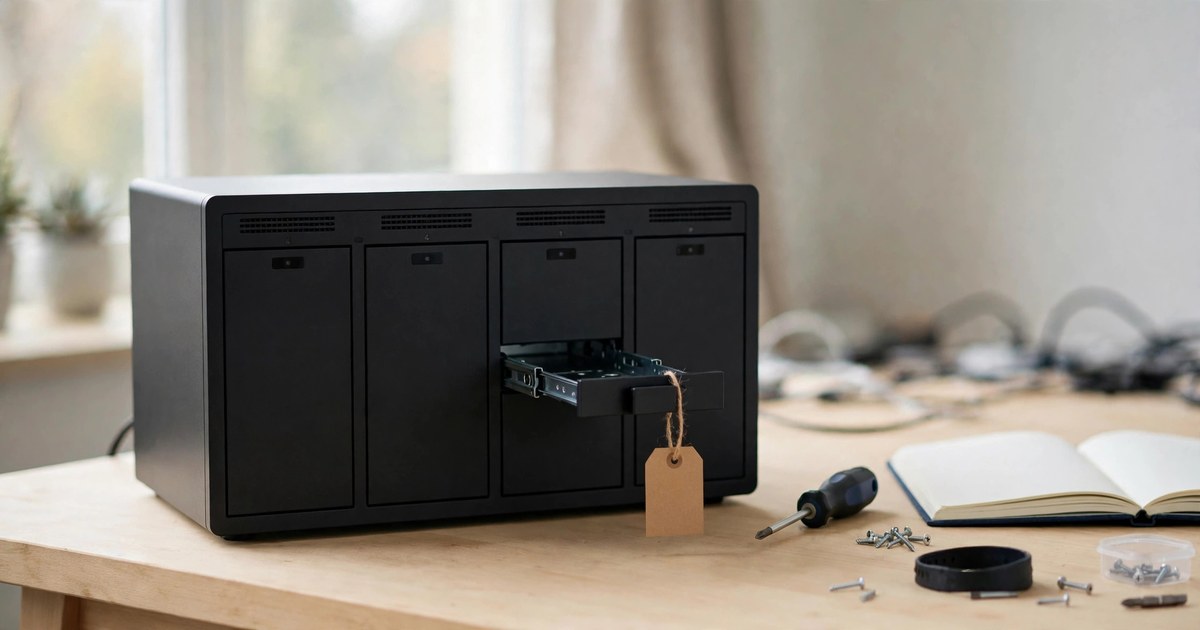
Key summary
When a NAS shows a degraded warning, that is the most dangerous moment: stop, find out what failed, and then decide whether to save data or rebuild the array, because a careless rebuild can make company data harder to recover.
Section 1: The moment a degraded warning pops up at night, the most important thing is to stop
Imagine this hypothetical scene: on a Friday night, a company NAS shows a degraded warning saying one drive has a problem. The boss thinks the company still has deliveries to make on Saturday, so fixing it tonight would be best. The colleague on duty is in a hurry and wants to press rebuild straight away so the array fixes itself. That urge is completely normal, but it is exactly the point of this article: pressing buttons in a hurry at that moment is often how a small problem becomes a big one.
This hypothetical scene is not a real case. It is only used to introduce a choice many Hong Kong SMEs face. Company data often has no second complete backup, or the backup has not had a restore tested for a long time, so when the array has a problem the whole business seems to hang on a thin line. At that point, the order of decisions matters more than speed.
The core decision sentence is simple and belongs at the start: are you trying to save the data, or are you trying to bring the array back online? The two goals need completely different actions. If you want to save data, do not change the original drives before you understand the cause of the failure. If you already hold a verified backup that has been restore-tested, and your goal is only to bring the array back online, then it is appropriate to think about a rebuild. Many disasters happen because the two goals get mixed up: someone wants to save data, but takes an action that is only suitable for bringing an array back online, and the rebuild itself writes over the data.
The golden rule recommended consistently by several recovery companies is: the less you do, the more options you keep. That sounds conservative, but it has a very practical reason. Every write to a RAID array can overwrite data that could otherwise still be recovered. By contrast, stopping, taking photos, recording the configuration and reading the logs do not rewrite the drives, so whichever path you choose afterwards is still open. Once you press the wrong button and take a wrong step, there is often no way back.
The industry agrees that operator error, not the original hardware failure, is the main cause of permanent RAID data loss. Removing the wrong drive, re-initialising an array, and repeatedly forcing an array online are the most common errors. In short, one failed drive can often still be handled, but several panicked decisions in a row can easily turn a manageable single-drive failure into an unrecoverable situation. So this article does not teach you which button is fastest. It teaches you how to stop, separate the issues, and decide before you press anything.
Section 2: Decision version of fault-tolerance limits by RAID level
The previous round covered the basic fault-tolerance table. This round repeats it in decision form, where the point is not memorising numbers but knowing where the dividing line sits. The table below describes the limits of a normal controller rebuild, not the limits of professional offline recovery. Going past the limit does not mean the data is certainly all gone, but it does mean a normal rebuild cannot save it. You must move to offline virtual rebuild or professional assessment, and some stripes may not be recoverable.
Table 1: Normal rebuild fault-tolerance limits by RAID level
| RAID level | Minimum drives | What a normal rebuild can tolerate | What happens past the limit |
|---|---|---|---|
| RAID 0 | 2 | 0 drives: if any drive fails, all data spans every stripe and there is no parity to help | A normal rebuild has nothing to work from. Offline recovery must infer stripe order, chunk size and rotation, which is extremely difficult |
| RAID 1 | 2 | 1 drive out of a 2-drive mirror; the array keeps running as long as at least one good mirror remains | If both drives of the same mirror fail, the normal mirror is gone. Deletion or damage is also synced to all mirrors immediately, see Section 10 |
| RAID 5 | 3 | Exactly 1 drive | A second failure, or a URE or second drive dropping out during rebuild, generally makes standard parity rebuild fail and the array becomes inaccessible. The missing data block and its parity block are gone at the same time |
| RAID 6 | 4 | Any 2 drives | A third failure beats even dual parity, but if one URE appears during a RAID 6 rebuild, the second parity can still rebuild that stripe, which is better than RAID 5 |
| RAID 10 | 4 | 1 drive from each mirror pair; for example a 4-drive group can lose at most 2 drives, but they must be spread across different pairs. An 8-drive group can in theory lose 4 drives, again spread across pairs | If both drives of the same pair fail, that pair's data is lost. RAID 10 rebuild copies from the surviving mirror and does not need to calculate parity across the whole array, so rebuild is faster and puts less pressure on the remaining drives |
| SHR-1 / SHR-2 (Synology Hybrid RAID) | SHR-1 minimum 2 drives, SHR-2 minimum 4 drives | SHR-1 tolerates 1 drive, SHR-2 tolerates 2 drives, counted per RAID group | SHR-1 losing 2 drives or SHR-2 losing 3 drives is past normal tolerance. The SHR layer may use mirroring or parity depending on drive count and capacity mix, so do not write that SHR is always the same as RAID 5 |
| RAID 50 / RAID 60 | RAID 50 minimum 6 drives, RAID 60 minimum 8 drives | RAID 50 tolerates 1 drive per RAID 5 subgroup, RAID 60 tolerates 2 drives per RAID 6 subgroup | If one subgroup goes past its limit, that subgroup is lost and the whole stripe is affected |
Three decision points must be remembered. First, after RAID 5 goes degraded, the array is effectively running with zero redundancy until the rebuild finishes. Degraded does not mean fixed; it only means still running. Many SMEs see degraded, find the array still reads and writes, and then leave it for weeks. That period is the most dangerous window. Second, although RAID 6 tolerates 2 drives, its rebuild takes longer than RAID 5 because there is an extra parity calculation, so the window is longer. Do not write that RAID 6 is automatically safe. Third, the SUSE official documentation states clearly that RAID 5 cannot have more than one hard drive fail at the same time, and that RAID 6 can keep running without data loss even if two more hard drives fail during data recovery. That statement refers to within the dual-parity design limit, not unlimited protection.
Choosing a level also needs trade-offs, not a blanket rule. One source suggests considering RAID 6 or RAID-Z2 when drives are about 8TB or larger, or when the array has more than 6 drives, because rebuilds take longer and the chance of a second drive failing during rebuild grows. Another source suggests moving to RAID 6 when individual drives cross roughly 12TB, or when the array grows past four or five bays. On the other hand, a small array with small drives and a complete backup can still reasonably use RAID 5. The point is not which level is strongest in the abstract, but how array size, drive capacity, backup status and the length of zero-redundancy window you are willing to accept fit together.
Section 3: Pre-rebuild stop list, with the reasons why
This section is the main thread of this round. It does not only list actions; it explains why each action is dangerous. Everything below is a stop item, meaning if the situation applies, do not do these things. This list does not include the step of copying readable data first, because that step only applies in the triage situation in Section 4. The two must be kept apart, not mixed together.
Table 2: Pre-rebuild stop list
| Do not do this | Why it is dangerous |
|---|---|
| Rebuild directly on the original drives before making an image or copying the most important files under Section 4 | A rebuild reads every surviving drive in full and writes new data and new parity to the replacement drive. If the array parameters are wrong, for example the drive order changed after a controller swap, the rebuild will faithfully write the wrong parity across every sector. It can look successful while the data is actually gone |
| Run a second rebuild immediately after the first one fails | The first failure is already a signal that the array is unstable. Trying again only writes once more and overwrites more data that might still have been recoverable. Stop immediately and treat it as a professional recovery situation |
| Power-cycle repeatedly to see if it works | Every spin-up adds mechanical stress to drives that are already under pressure. Trying many times kills the drive faster |
| Initialise a drive, recreate an array, or press clear configuration | Windows or NAS interfaces often prompt for initialise or format. Accepting overwrites metadata and can make recovery impossible. Recreating a RAID set or letting a controller initialise it can overwrite configuration and data layout, and once that is lost it is very hard to rebuild |
| Run CHKDSK, fsck, or btrfs check --repair | These tools write to the volume and can destroy the file-system structures that recovery tools rely on. CHKDSK fixes the file system at the cost of damaging the data inside it. For Synology specifically, do not run btrfs check --repair on an unmounted SHR volume; assemble mdadm, LVM and Btrfs read-only first and then copy data |
| Swap drives one by one to find the bad one, shuffle drive order, or pull a drive without confirming | A RAID array depends on a specific physical drive position. One drive in the wrong position completely confuses rebuild logic. Pulling a drive by feel can turn a 1-drive failure into a 2-drive situation |
| Write new data to the failed array, install recovery software on it, or reinstall an OS on it | Every write adds overwrite risk. Installing recovery software on the affected array, or saving recovered files back to the original array, destroys your own rescue. Most general free recovery software is not designed for complex RAID structures, so do not scan RAID member drives with it directly |
| Remove other drives during rebuild, cut power, or press Repair or initialise at random | The array is most fragile during rebuild. Any extra change can interrupt the rebuild, and a power cut can also trigger the write-hole problem in Section 8 |
Beyond the table, several non-writing actions must be done before a rebuild. First, take photos, label and record the configuration. Before removing anything, label each drive by bay position, photograph the bays and the current drive order, and record each drive's model and serial number, the NAS or controller model, the RAID level, the member drive count, drive capacities, stripe size (if known), which drives failed, were replaced or acted as hot spare, and recent rebuild, migration, expansion and drive-swap records. Second, read the logs to characterise the failure: which drive dropped out, when it dropped out, and whether it dropped out during a rebuild. Logs are evidence, not an instruction to try rebuilding again immediately. Third, confirm the replacement drive has capacity equal to or greater than the failed drive, with a matching interface (SATA or SAS); hot-spare drives must meet the same requirement, with capacity at least equal to the failed drive they would replace (in a mixed-capacity array, the largest drive). Fourth, confirm stable power and normal cooling. A rebuild is full-speed continuous reading and writing, and overheating and power loss are common contributors to rebuild failure. The role of a UPS is covered in Section 11.
Three easily confused actions must also be separated. The first is initialising a drive, which writes a new partition table or metadata and damages the original layout. The second is recreating an array, which opens a new RAID with old drives, so new metadata overwrites old metadata. The third is a normal drive-swap rebuild, which uses a brand-new or already-cleared replacement drive and has the controller write rebuilt data to that drive. That is a legitimate operation in itself, but only on the condition that the failed drive and the remaining drives have been confirmed healthy. The detailed dividing line is in Section 5. Confusing these three actions makes it easy to press the wrong button in the interface.
Section 4: Triage — copying readable data first only applies in one situation
This section must be stated especially clearly, because mixing two things together was a problem in the previous round. Stopping and copying readable data first are two different things, for completely different situations, and they must not be reversed.
First, the stop signals. If you see any of the following, stop immediately and do not think about copying data first. Any drive making clicking, grinding or scraping sounds; a drive that does not spin; a drive completely unrecognised by BIOS or UEFI; SMART completely unreadable; failure after flooding, fire, impact or power surge; several drives with complete mechanical failure at the same time; recovery software unable to read any drive at all; a rebuild that has already failed once; a second drive that has already dropped out; a controller that no longer recognises the array; a volume showing RAW, 0 bytes or Foreign Configuration; an array that no longer mounts; errors during rebuild; several drives suddenly dropping out at once. All of these are immediate stop signals, not triggers for doing your own backup. A dropped drive, strange noises, an unrecognised drive, or a second drive dropping out are absolutely not triggers for copying data yourself. They are signals to stop immediately and send the drives for professional assessment, keeping the original drives and their original order.
So when can copying readable data first be considered? Only when all of the following conditions hold at the same time; if any one is missing, do not do it. The array has only entered degraded mode and has not failed completely. It has been confirmed that only one drive failed and the remaining drives are healthy. All drives are recognised in BIOS or UEFI with no abnormal sounds. SMART data is readable, and the cause of failure looks like a controller error, metadata damage or file-system damage rather than physical damage. Only in that situation can you consider, before rebuilding, copying the most important files to another healthy device to reduce the loss if the later rebuild fails. The condition for this step is that the drives can still be read, and copying data is a read operation, not a write to the failed array.
One more point must be stated: copying data is not a backup restore, and it certainly does not mean you are already safe. Copying the most important files only reduces loss. You still face the decision of how to handle the array afterwards. If files stop halfway through copying, or copying is extremely slow, or errors keep popping up, those are signs the drive condition is worsening. Stop immediately and do not force the copy through. Forcing a copy is like repeated power-cycling: it adds pressure to drives that are already stressed.
So the whole logic runs like this. Step one: check for stop signals; if any are present, stop and do no copying or rebuilding. Step two: if there are no stop signals, and the array is only in degraded single-drive failure with drives still readable, then consider copying the most important files first. Step three: after copying, decide what to do using the drive-swap process in Section 5. Writing step two into the stop list, or treating stop signals as triggers for copying data, are both wrong. This article deliberately puts them in separate sections to avoid that confusion. If the cause points to the controller, power supply, backplane or cabling, do not enter the Section 5 drive-swap process; go to Section 8 and professional assessment instead. Section 5 only applies where a drive itself has been confirmed faulty and needs swapping.
Section 5: Drive-swap process and rebuild risk — one step out of order makes a big difference
If you have passed the triage in Section 4, confirming only a degraded single-drive failure, with drives still readable and no stop signals, only then can you think about the drive-swap process. The gate condition is the same as in Section 3: before making an image or copying the most important files under Section 4, do not press rebuild on the original array. If the cause points to the controller, power supply, backplane or cabling, do not enter the Section 5 drive-swap process; go to Section 8 and professional assessment instead. Section 5 only applies where a drive itself has been confirmed faulty and needs swapping. The point of the process is order and confirmation, not speed. The steps below combine Synology and QNAP official guidance. Actual interface wording may differ slightly by model, so check your own machine's interface before acting.
Table 3: Drive-swap process and the rebuild risk at each step
| Step | What to do | Risk if done wrong |
|---|---|---|
| 1. Copy the most important files first | Only applies in the Section 4 triage situation. Copy to another healthy device, never back to the original array | Copying by force under stop-signal conditions adds pressure to stressed drives. A copy that stalls halfway is a worsening signal, so stop immediately |
| 2. Confirm which drive failed | Check the management interface, check the logs, and use the Locate function to make the correct bay's LED blink — triple confirmation before touching anything | Removing the wrong drive can turn a 1-drive failure into a 2-drive failure, and the array can go from degraded to inaccessible at once |
| 3. Prepare the replacement drive | Capacity equal to or greater than the failed drive, matching interface, and check the exact model for CMR versus SMR, see Section 11. Before swapping, you can run a SMART test to confirm the new drive itself has no problem | A new drive smaller than the original cannot be used for rebuild. An SMR drive can drag a rebuild out for days or even get thrown out by the array |
| 4. Remove the failed drive and insert the new drive into the same slot | Synology process: select the drive under HDD or SSD, choose Action, then Deactivate Drive, confirm the correct drive, then remove it and insert the new drive into the same slot. QNAP process: confirm with Locate, remove the failed drive, and insert the new drive into the same slot | Removing a drive without deactivating or confirming, or inserting into the wrong slot, confuses the array's judgement of drive order |
| 5. Start the rebuild | Synology: after the new drive shows as Not Initialized, choose Repair in Storage Pool, select the new drive, confirm and Apply. QNAP: after inserting the new drive, the RAID group normally starts rebuilding automatically and status changes to Rebuilding. If it does not start automatically, set the new drive as a spare disk and then start | Pressing initialise or recreating an array overwrites old metadata, see Section 3. That is completely different from a normal drive-swap rebuild |
| 6. Reduce load during rebuild and do not touch other drives | Pause non-essential work, do not reboot, and do not run large backups or transcoding at the same time. During rebuild, absolutely do not remove any other drive, cut power, or press Repair or initialise at random | During rebuild the surviving drives are already near full load. Extra load lengthens rebuild time, raises temperature, and increases the chance of a second drive failing |
| 7. Wait for the first rebuild to fully finish before swapping a second drive | When two drives show Warning at the same time, QNAP's guidance updated 2025-10-16 states: back up first, swap the first Warning drive, wait for rebuild to fully finish, then swap the second drive, wait again, then verify normal status | Swapping both at once, or swapping the second before the first finishes, means taking another risk while already at zero redundancy |
| 8. Verify after rebuild finishes | Confirm array status returns to Healthy or Ready, run a consistency check, check logs for corrected errors, and spot-check that key files open | A successful rebuild does not automatically mean healthy data. Corrected errors in logs may hint another drive is deteriorating. Treating it as fine without verification makes the next failure more sudden |
A few points need special emphasis. First, QNAP states that when two drives are in warning state at the same time, there is a higher risk that a drive may fail during the replacement and rebuild process, potentially resulting in data loss. If a rebuild cannot finish successfully, QNAP guidance is to contact QNAP support, not to retry initialisation or forced repair yourself. Second, a hot spare's value is shortening the degraded window, because human discovery plus buying a drive plus swapping often takes days, while a hot spare can start rebuilding immediately. But a hot spare is not a backup, and the hot spare itself needs regular health checks. Discovering on the day of failure that the spare drive is also bad is the same as having no spare. Third, some administrators point out that the pressure a rebuild itself puts on an already critical array can be greater than the pressure of backing up first, and an automatic rebuild can kill the array before you get a chance to make a fresh backup. So the triage order in Section 4 is not a redundant step; it is a life-saving step.
Rebuild time also needs realistic expectations. One source describes rebuilds on 16TB or 20TB drives as a sustained full-surface read that can run anywhere from 12 hours to a couple of days, with every remaining drive pinned at nearly 100% the whole time. Another guide estimates multi-TB array rebuilds at 7 to 24+ hours, depending on drive speed, controller efficiency and load. A RAID 5 rebuild often takes 12 to 24 hours according to one guide; that figure is from that guide, not a manufacturer promise for every array. The longer the time, the longer the window, which is why large-drive arrays need extra care, see Section 6.
Section 6: Why rebuild time is the most dangerous time — three risks kept separate
Many people think rebuild time is most dangerous because a second drive might die completely. In fact three different mechanisms must be kept separate, or readers will think nothing is wrong as long as the second drive has not fully died.
The first risk is a second physical drive failure. RAID 5 or SHR-1 can only tolerate one drive failure; if a second fails during rebuild, the array immediately loses the data needed for rebuilding. One source puts it directly: during rebuild the array is running with zero redundancy, and if a second drive has a latent bad sector (URE), the rebuild fails and data is lost. RAID 6 or SHR-2 can tolerate two, and RAID 10 depends on whether the second failure is the other half of the same mirror pair. RAID 10 rebuild reads from the surviving disk in the affected mirror pair instead of forcing every disk through a full parity rebuild, so its rebuild load is completely different from RAID 5.
The second risk is URE, unrecoverable read error, also called latent sector errors (LSE). A rebuild must read every surviving drive from start to finish; if even one stripe cannot be read, parity cannot restore that stripe. The threshold figures below carry qualifiers from individual sources; they are not definite statistics. Figures suggested by individual sources as specifications are: consumer SATA roughly one URE per 10^14 bits, about once per 12.5TB, and enterprise SATA or SAS roughly one per 10^15 bits, about once per 125TB. Wikipedia's wording on URE is that enterprise drives usually guarantee an unrecoverable bit error rate below one bit per 10^15 bits, and desktop drives below one bit per 10^14 bits. These figures are specification ceilings, not timetables.
Why stress the difference between ceiling and field reality? Because different sources use different assumptions and produce very different numbers, and picking one as fact would mislead. For example, DS Security's calculation says a single 14TB drive has 112 trillion bits, a 7-drive RAID 5 rebuild must read about 84TB, and using the 10^14 specification the chance of hitting a read error is about 19%. DS Security describes it as its own inference that 1 in 5 RAID 5 rebuilds fails because of URE; this is DS Security's calculation, not measured statistics. Rossmann Group says a full rebuild of a 4-drive RAID 5 with 12TB drives, against the worst-case specification, has a ceiling probability of about 62%, but at the same time stresses that most drives in the field read far past the specification, and the real dominant factor is correlated mechanical failure of surviving drives from the same batch under sustained read load. An older example from Attingo says a 10^-14 URE rate means about one unrecoverable error per 12TB read, and a 3-drive 500GB RAID 5 had a statistical rebuild failure of about 8%. That example's era and assumptions are outdated and must not be applied directly to today's large drives. Three numbers differing so much is not a case of one being right and the others wrong; it shows that a single probability figure cannot be treated as your own array's fate.
Controllers also react to URE differently, so do not write that one URE means total loss. Legacy controllers and some HP Smart Array models abort the rebuild, modern Dell PERC and LSI/Broadcom MegaRAID mark (puncture) the affected stripe and continue, and Linux mdadm logs the bad block and continues. The result may be only individual stripe damage rather than the whole array going offline. That distinction matters a lot, because rebuild failure and individual file damage are different levels of consequence and need different handling. For prevention, there is sourced support for regular scrubbing: background scans can find bad sectors early and rebuild them using redundancy, reducing the risk of hitting a URE only during rebuild. Details are in Section 11.
The third risk is the load and time of the rebuild itself. A rebuild is the highest-stress operation an array performs: it must read every sector of every surviving drive to recalculate the lost data. Three mechanisms cause a second drive to fail during rebuild: URE, mechanical stress on already-aged drives under sustained load, and ERC/TLER timeout mismatch causing a healthy consumer drive to be kicked out of the array. Drives in an array are usually bought at the same time, from the same production batch, with similar loads, and tend to fail around similar times. After the first drive fails, the remaining drives have already accumulated the same power-on hours, and under the continuous sequential load of a rebuild, a barely working head assembly can fail. That is the correlated failure discussed again in Section 7, not a coincidence.
Section 7: Multi-drive failure — telling real failure, kicked-out drives and controller problems apart
This section is the core of this round's new angle. It uses a classify-first, decide-second structure. Do not write every two-red-light situation as the same thing.
Case A: two drives with real physical failure. Reference symptoms include a drive making clicking, grinding or scraping sounds, not spinning, completely unrecognised by BIOS or UEFI, SMART completely unreadable, or a history of flooding, fire or impact. The decision is clear: stop immediately and do not power on again to try. Multi-drive physical failure needs professional handling, and DIY power-on only worsens platter damage. This case matches the Section 4 stop signals exactly: when you see it, stop and do not think about copying data.
Case B: the second drive can still be read, but was kicked out by the controller during rebuild. The mechanism is that consumer drives without ERC or TLER retry a bad sector for a long time, and the controller, unwilling to wait, marks the drive as failed and kicks it out. NAS drives such as Seagate IronWolf and WD Red Plus or Pro support ERC or TLER, so they can report errors faster and let the array handle them with parity instead of throwing out the whole drive. The key point is that being kicked out does not mean the drive is dead. But forcing it back in and rebuilding again before making an image is a gamble, because the controller may overwrite parity using the wrong state. One source's description of offline recovery for RAID 5 or SHR-1 double-drive failure is: first image each drive individually with write-blocked connections, then rebuild offline using parity from stripes the rebuild had not yet reached. Stripes part-way through rebuild can have mixed old and new parity states and need forensic analysis to separate. The partial recovery concept for Synology SHR-1 double-drive failure must be described as partial, never as fully recovered. Stripes that both failed drives contributed to cannot be rebuilt with parity, and the corresponding files are marked inaccessible. Only stripes that one failed drive contributed to can be rebuilt from the remaining members and parity.
Case C: two drives show failure at the same time, but the root cause is the controller, power supply, backplane or cabling. A controller failure can make several healthy drives show as failed at once, confusing troubleshooting, and many people at this stage try random rebuilds, causing irreversible damage. The checklist is simple: first check whether the whole group dropped out at once, or dropped out one after another. The whole group at once points to controller, power or backplane; one after another points to drive ageing or URE. Read the log timestamps; do not guess from the number of red lights. Controller issues are covered in detail in Section 8.
Case D: an SSD or NVMe cache drive fails and drags down the whole NAS volume. When a Synology NAS uses M.2 NVMe for read-write cache, the cache drive holds uncommitted dirty data and Btrfs metadata. During the sustained I/O of an SHR-1 rebuild, a consumer NVMe can overheat or exceed its TBW life and go offline. Once the cache drive disappears, uncommitted dirty data and Btrfs metadata held in the cache are lost, which can corrupt the volume or make it inaccessible. The rebuild stalls permanently and the volume becomes inaccessible. The reminder is clear: do not only watch the HDD lights on a NAS. Cache drives and SSD pools are also failure points, and SMART and temperature must be checked together before rebuilding.
Section 8: Controller, write cache and write hole — handled completely differently from drive failure
When a controller dies, the drives may be completely healthy. The nature of a controller failure is that the operating system no longer knows how to assemble the array. The drives themselves are healthy, but the array is gone. Swapping in a same-model replacement controller does not necessarily solve it, because the new controller may try to initialise the array instead of reading the existing configuration on the drives. This is where the virtual rebuild concept applies: when the controller is broken but the member drives are intact, software can virtually assemble the array, read the existing data, and write nothing to the original drives. The difference from a controller rebuild is read versus write: one extracts data, the other rewrites the array. One company's self-described professional approach is that the lab only needs the bare drives, not the controller, server bays or enclosure. They analyse each drive at sector level, infer drive order, stripe size and RAID type, and rebuild virtually, even if the customer does not know what RAID they were using.
Write cache plus battery backup failure is the quietest data loss. The mechanism is that data in write cache, before it is written to disk, exists only in controller memory. If the controller uses write-back cache without a valid backup power source, a power cut loses the writes in cache, even though applications already received a "written" confirmation. This is called a lost write. A single-controller array has no reliable cache recovery mechanism against controller failure. A dual-controller array uses mirrored caching: writes go to both controllers' caches first, and only after confirmation is completion reported, so if one controller fails the other can write the buffered data to disk. Intel's official support document states that after a power cut, a message saying "controller cache was lost, volumes may be inconsistent, check-consistency required" usually occurs when a virtual drive's write policy is set to Always Write Back (AWB) with no backup unit attached, or with a failed backup unit. Intel states plainly that "lost data cannot be recovered"; the steps afterwards only acknowledge the message and continue booting, and do not recover the lost cache data. Dell PERC documentation states that a TBBU can provide up to 72 hours of uninterrupted power to the memory module during an unexpected power cut. When swapping a failed controller, first power off and remove all physical drives, move the TBBU to the new controller (the new controller must have no old configuration), and after power-on the controller writes the cached data to the virtual disk. The decision point is clear: on seeing a "cache lost" or "battery failed" warning, do not immediately press continue as if nothing happened. First understand which writes may have been lost and which volumes need a consistency check. A consistency check itself also writes, so important data should first be assessed for backup or offline copying before running the check.
The RAID write hole only explodes when a power cut and a drive failure arrive together. Its definition is that some stripe updates are not atomic operations. If the host loses power between a data write and a parity write, the parity block on disk no longer matches the data block. Later, when a drive fails and a rebuild reads the outdated parity, it permanently writes wrong data to the rebuilt drive. During normal operation this may go unnoticed, because the controller reads directly from the data drives. The damage only surfaces when a degraded array must rely on outdated parity for rebuilding. Mitigations include: hardware RAID using battery-backed cache to write back data after a power cut; Broadcom MegaRAID switching its Write Back with BBU policy to Write Through while the battery is low, failed, missing or relearning; using a UPS so the server shuts down cleanly before the battery runs out; Linux mdadm using a bitmap by default to guard against the write hole; and ZFS RAIDZ avoiding the traditional write hole by writing to a log first before writing to the array. To be clear, the write hole does not happen on every power cut, and it is not a daily RAID 5-only failure. Write it as a combined risk of power cut plus a later drive failure.
Foreign configuration is another common trap. Reference symptoms include a volume showing 0 bytes, corrupted or missing files, drives marked as Foreign Configuration, or a file system showing RAW or unconfigured, after a failed rebuild. The decision is to power off immediately on seeing any of these and write nothing more. Every extra attempt increases the chance of overwriting recoverable data. Also do not confuse "import foreign configuration" with "clear foreign configuration": the first tries to read the old configuration, the second clears it. Before making an image, do not press either button at random. Photograph the screen first and record the original configuration.
Section 9: Human errors compared — accidental deletion, accidental format and accidental rebuild have very different consequences
Many people describe every lost file as the same thing, but technically they are completely different, and the recovery direction differs too. The comparison table below must be read separately by row.
Table 4: Human-error comparison
| Human error | What technically happened | Recovery direction | Key prohibition |
|---|---|---|---|
| Accidental deletion of a file or folder | The system usually only marks the space as available and does not immediately erase the data, but RAID immediately syncs the deletion to all mirrors or parity, so there is no undo inside the array | If nothing is written afterwards, there is still a chance of finding it on a drive image. Once new data overwrites it, the chance drops sharply | Do not keep using that volume to write, install software or download files |
| Accidental format, OS-level quick format | An OS quick format rebuilds the logical volume, but the old data is physically still on the drive, although it depends on the format method | After a quick format, if no large amount of new data is written, recovery is still possible, but do not present it as a guarantee | Do not keep writing, installing an OS or running a full write scan after formatting |
| Controller-level format | Depending on the controller and tool, a quick format may only overwrite array information with old data still present, while a low-level or full format overwrites every drive block by block, takes an extremely long time, and leaves old data essentially gone | A quick format still has a chance; after a full low-level format you must write "extremely difficult or essentially impossible" and give no false hope | Do not write anything more before confirming the format type |
| Accidental rebuild or accidental array initialisation | New RAID metadata overwrites old metadata, and the controller may then overwrite the data area with new parity. Even if the drives are physically intact, the layout is wrong | Recovery must rely on leftover old metadata, parity analysis and virtual rebuild to infer the original layout, with difficulty and cost far higher than simple accidental deletion | See Section 3: do not rebuild a second time and do not initialise again |
| Opening a new RAID with a drive that holds data | Creating a RAID itself formats the drives. A forum case notes that opening RAID 5 in BIOS cleared existing data, and even quitting midway without saving may already have lost data on some drives | A forum case can only illustrate the lesson that you must back up before opening any new RAID; do not cite a forum case as a general rule | Before opening any new RAID or changing SATA mode, back up first and triple-check which drives hold data |
| Overwriting after accidental deletion | New data replaces old data, so recovery is essentially impossible except through backup or forensic reconstruction of fragments | Overwritten data should not be given false hope of full recovery. At most, fragments or partial files may be found, depending on the overwrite extent | Do not write more, defragment, or run a full format |
One more supplement: deleting a partition usually only erases the identifier, the "map", not the data itself. Only opening a new volume, formatting the space or continuing to write data overwrites the files you want to save. The Section 1 distinction must be repeated: rebuild restores redundancy by writing, while recovery extracts data read-only. Automatic rebuild in an unstable situation can overwrite some readable sectors and permanently destroy data that could have been saved. The correct recovery-software process, as a text flow, is: stop writing, then power off safely, then label drives, then clone each drive, then confirm RAID parameters (level, stripe size, parity rotation, drive order, which drive is missing), then virtual rebuild, then scan the file system, then copy files to another healthy storage device. No step in that order involves random trials on the original array.
Section 10: RAID versus backup — backup restore and professional recovery are two different paths
The role of RAID is availability, not recoverability. Several sources draw the line with the same sentence: RAID keeps the array running after one drive dies, while backup restores data after deletion, encryption, burning or flooding. Put more directly, RAID protects you from a single drive failure while the device keeps running. It does nothing against accidental deletion, ransomware, or a power surge that takes out the whole machine. RAID keeps a disk failure from causing downtime, but it replicates deletions and corruption instantly, so it is one copy with better uptime rather than two copies.
Table 5: RAID versus backup — which disaster is saved by which layer
| Disaster or failure | RAID itself | Local backup (2nd copy) | Offsite or immutable backup (3rd copy plus 1) |
|---|---|---|---|
| One drive dies | Saved, depending on RAID 1, 5, 6 or 10 level | No need to use it | No need to use it |
| Two drives die during RAID 5 rebuild | Not saved | Saved if the backup is fresh and complete | Saved |
| Accidental deletion or accidental format | Not saved, because deletion syncs to all drives immediately | Saved if versions or snapshots exist | Saved |
| Ransomware encrypts the whole array | Not saved, because encryption syncs to all drives the same way | Not necessarily saved, because a backup that stays connected may also be encrypted or deleted | Saved by an immutable or offline copy |
| Controller failure or the NAS itself breaks | Not necessarily saved, because a different controller may not read the array | Saved | Saved |
| Fire, flood or theft, whole machine gone | Not saved | Not saved if the backup is in the same room | Saved |
| Silent file corruption (bit rot) undiscovered | Not necessarily saved, because traditional RAID may not notice | Depends on backup verification | Depends on verification |
The 3-2-1 rule must be written with its exact definition: 3 copies, meaning the original plus two backups; 2 different media types, for example NAS drives plus an external USB drive, or local disk plus cloud; 1 offsite copy, meaning a location physically separate from the office, so a fire or theft at the office does not take all copies with it. The advanced 3-2-1-1-0 version adds, on top of 3-2-1: one more 1, meaning one immutable, offline or air-gapped copy, so ransomware cannot change or delete it even with full administrator rights; and 0, meaning zero errors, meaning backups have been verified and truly restore, not merely shown as successful by the backup program. One source notes that modern ransomware actively seeks out backup destinations, and if all copies sit in the same network, all of them are exposed. The Sophos survey figures below are attributed with source and year and are not today's Hong Kong statistics: the Sophos March 2024 report says about 94% of ransomware victims said attackers tried to destroy backups, and about 57% of those attempts succeeded.
A workable SME 3-2-1 combination can be thought of like this, not as the only standard answer. Copy 1 is the working original on the office NAS or server; RAID only stops it from halting because one drive died. Copy 2 is another backup NAS, external drive or backup server with scheduled automatic backup, preferably with version retention and snapshots to handle accidental deletion. Copy 3 is offsite, either cloud backup or rotating external drives with one taken away each week, of which at least one must be immutable or offline. Step 0 is regular restore drills: pull one file, pull one folder, pull one full restore, and confirm the backup is not just in name. The frequency principle comes from one source: how often should the offsite copy be updated? As often as you can afford to lose. That is, the RPO (how much data-loss time you can bear) is set by the boss, not guessed by IT.
The decision tree logic is as follows: The first dividing line is whether there is a verifiable backup. With a backup that has been successfully restore-tested, use backup restore first and do not experiment with the failed array. Backup restore is the fastest, cheapest and lowest-risk path. With a backup that has never been restore-tested, first try restoring one file or one folder in an isolated environment, and only do a full restore after confirming the backup is not an empty shell. Many SME backup failures are only discovered at the moment of disaster, when the backup turns out not to restore at all. With no backup and important data, stop immediately, move to professional assessment, and do not use the failed array for trial rebuilds.
Cases you can handle yourself must meet all of the following conditions at the same time; if any one is missing, stop. All drives are recognised in BIOS or UEFI with no abnormal sounds. SMART data is readable, even with a small number of errors, and the cause of failure is a controller error, metadata damage or file-system damage rather than physical damage. The array has only entered degraded mode and has not fully failed, and it has been confirmed that only one drive failed while the remaining drives are healthy. Images of all surviving drives have been made, or at least the most important files have been copied to another healthy device, and there is a UPS and stable power. The above only applies to a confirmed single-drive failure with remaining drives healthy, where an image has been made or the most important files have been copied to another healthy device under Section 4 (the same gate as Section 3: before making an image or copying the most important files under Section 4, do not press rebuild on the original array). If unsure, stop first. The typical professional process is as follows (not a ComputerKing process): image each drive with the original untouched, then infer stripe size, parity rotation, drive order and RAID level from metadata or parity characteristics, then virtual rebuild, then file-system recovery, then integrity verification, then delivery to a safe device. It must also be stated that sending drives to a professional does not guarantee full recovery. Only a professional assessment can say how likely recovery is, how long it takes and how much it costs, and no promise should be made before assessment.
Section 11: Hong Kong practice — monitoring, drive buying, temperature and UPS are all daily homework
Monitoring must be split into three layers, and missing one layer means monitoring is incomplete. Layer 1 is array status, including Storage Pool or Volume status: Normal, Degraded, Rebuilding or Crashed. QNAP's official explanation is that when a storage pool has the status Degraded, it means one or more RAID groups in the pool are in degraded mode. In degraded mode, data can still be read from and written to the RAID group but usually with lower performance. Performance also decreases while a RAID group is rebuilding. Layer 2 is individual drive SMART, see below. Layer 3 is system logs and alerts: turn on email or push notifications, and do not rely only on logging in when you have free time. One source notes that a lot of RAID horror stories are due to people never noticing any problems until it is too late because they never set up any kind of alerting.
For SMART, you must write the attribute numbers, not just "healthy". Reallocated Sector Count (Attribute 5): any non-zero value indicates the drive has already mapped out bad sectors, and a growing count suggests imminent failure. Current Pending Sector (Attribute 197): non-zero values mean the drive detected unstable sectors awaiting remapping. Trend matters more than a single reading: a count climbing steadily is the most dangerous signal. For temperature, a third-party guide suggests under 50°C under load as ideal, but this is a guide recommendation, not a manufacturer guarantee, and must not be written as "above 50°C means it will break". For SMART test types, a short (quick) test does initial screening, while a long or extended test reads the whole drive sector by sector and takes hours. The figures below are a third-party estimate: typically 1 to 2 hours per terabyte on a lightly loaded NAS, about 10 to 20 hours for a 10TB drive, with actual time depending on load, and not a manufacturer promise.
Data scrubbing or RAID scrubbing is regular maintenance that reads the whole array, verifies checksum or parity, and repairs latent bad sectors early. Its value is that discovering a URE only during rebuild is too late. The Synology manual states that RAID/file system scrubbing is a data maintenance function that inspects storage pools and repairs any detected data inconsistencies, and recommends regularly performing RAID/file system scrubbing to maintain data consistency and avoid losing critical data in the event of drive failure. The QNAP manual states that RAID scrubbing helps maintain the consistency of data on the NAS, that QTS scans the sectors of a RAID 5 or RAID 6 group and automatically attempts to repair any detected errors, and that QNAP recommends performing RAID scrubbing at least once a month to maintain system health and prevent data loss. A 2026 practical article similarly recommends running a monthly data scrub so latent bad sectors get caught and fixed long before a rebuild has to trip over them. The practical recommendations below are operational advice, not manufacturer mandates: scrub once a month, scheduled in off-peak hours, because read/write speeds decrease during scrubbing; do a full health check every 3 to 6 months; and do not wait for a Warning drive to become Failed before acting, see the QNAP two-Warning-drive handling in Section 5.
The drive-buying trap is CMR versus SMR. One source states it directly: for any NAS that runs RAID, ZFS, Synology SHR, Unraid parity or any redundant array, buy CMR drives and avoid drive-managed SMR. A safe list reviewed in October 2026 by that source includes Seagate IronWolf and IronWolf Pro, WD Red Plus and WD Red Pro, and Toshiba N300 and N300 Pro, all CMR. Examples to avoid putting in an array include ordinary WD Red EFAX (2–6TB), WD Blue 3.5-inch EZAZ, Seagate BarraCuda 4TB and 8TB (3.5-inch), and Toshiba P300 4TB and 6TB. The mechanism is that SMR tracks overlap, so rewriting requires rewriting neighbouring tracks, and during long continuous writes or rebuilds speed drops sharply. The consequence can be a rebuild crawling for days, stalling, or even throwing the new drive out entirely. Verification matters: looking only at the brand series name is not enough, because different capacities in the same family can differ in technology, so you must check the exact model's official datasheet. One source reminds readers that different capacities in the same family can differ in RPM, cache and CMR or SMR, so check the exact model number's datasheet. For NAS-rated drives, firmware is tuned for multi-drive vibration, long running hours and RAID environments. Desktop drives in RAID are more easily misjudged and kicked out because of timeouts.
For Hong Kong climate and server-room environment, the threshold figures below are all individual-source suggestions, not manufacturer specifications. Hong Kong has a subtropical maritime climate with consistently high temperature and humidity. The server-room reference range comes from ASHRAE TC 9.9. One source suggests following the ASHRAE recommended temperature range of 18°C to 27°C to maintain safe thermal conditions for equipment. For humidity, several server-room guides suggest relative humidity of about 45% to 55% as recommended, with a wider practical range of 40% to 60%. The temperature recommendation is likewise 18°C to 27°C, with a good target of 20°C to 22°C. High humidity causes condensation, leading to hardware corrosion and early system and component failures. Low humidity makes computer equipment susceptible to electrostatic discharge (ESD). On temperature versus drive failure, a research summary states that average failure rate is low if average temperature is in a range of 22–45°C, and that average temperature above 40°C quite increases AFR for drives older than 3 years in permanent operation. That passage is a community-compiled older research summary, not a manufacturer specification. Hong Kong SME practical traps, inferred from the above sources and labelled as practical inference rather than statistics, are: a NAS stuffed in an air-conditioner-less storeroom, by a window, or in a stuffy cabinet, where summer room temperature easily exceeds the 27°C suggested ceiling while multiple drives heat each other; air conditioning switched off at night or on holidays, so room temperature rises and falls sharply and humidity fluctuates with it, increasing condensation risk; and dust plus humidity plus high temperature combining so fan and cooling performance drops in a vicious cycle. Countermeasures are keeping ventilation, not stuffing the NAS in a cabinet, cleaning dust regularly, installing temperature and humidity sensing with over-limit alerts, and not fully switching off air conditioning on holidays, or at least keeping dehumidification and ventilation.
The Backblaze figures below are large data-centre fleet figures, not SME guarantees, and must not be applied as an SME RAID recovery success rate. Backblaze 2025 full-year AFR was 1.36%, down from 1.55% in 2024; 2025 Q4 AFR was 1.13%; lifetime AFR was 1.30%; the sample was 344,196 drives across 30 models. Fleet composition: 14–16TB drives made up 52%, drives of 20TB or more made up nearly 23%, and the first 26TB drive entered service in 2025 Q4. Most reliable model examples for 2025: WDC WUH722222ALE6L4 22TB, 44,577 drives in service, full-year AFR 0.47%; Seagate ST16000NM001G 16TB, 34,563 drives, AFR 0.54%. This is third-party reporting of Backblaze data, with sample and year stated above, and must not be written as "all WD or Seagate drives have this failure rate". One source also warns that a manufacturer's low AFR does not mean your own NAS is safe, because individual models, old drives and same-batch drives can carry much higher risk, and AFR is not the same as your own NAS's failure probability.
The UPS versus surge strip comparison is a distinction this round must state clearly. A strip only guards against surges and cuts out on power loss; only a UPS provides a power-cut buffer.
Table 6: UPS versus surge protector strip
| Item | Surge protector strip | UPS (uninterruptible power supply) |
|---|---|---|
| Surge or voltage spike protection | Yes: clamps or diverts excess voltage | Yes: generally also provides surge protection, typically with higher joule ratings |
| Power during an outage | No: power cuts out immediately | Yes: battery takes over, supplying power for minutes to over an hour depending on UPS class, load and battery capacity |
| Low voltage (brownout or sag) | No | Yes: models with AVR stabilise voltage automatically |
| Clean NAS shutdown | No | Yes: notifies the NAS via USB or SNMP to stop services, unmount volumes and shut down automatically |
| Suitable for | TVs and equipment where a power cut causes no data loss | NAS, servers and computers in the middle of writing |
One source puts it directly: a surge protector does nothing about an outage and nothing about a brownout. It has one job — clamp the spike — and it does that job well and no other. A UPS is a surge protector with a battery and a brain. When utility power is present, it passes through to equipment and charges the internal battery. When power drops, the UPS switches to battery in a handful of milliseconds. Everything a surge protector does, a UPS does too, typically with higher joule ratings and more robust protection circuitry. You give nothing up by choosing a UPS; you only gain. A UPS gives your system the time it needs to complete operations and shut down cleanly, protecting data integrity in a way no surge protector can. Surge protectors do not protect against power outages. They are designed to divert excess voltage from surges, not provide backup power. To keep devices running during a blackout, use a UPS instead.
UPS practical setup must be written in full, or a UPS is effectively not installed. The NAS must be plugged into the UPS battery-plus-surge outlet, not a surge-only outlet. Connect the UPS to the NAS with a USB cable (or SNMP network method), turn on UPS support in DSM or QTS, and confirm the NAS recognises the UPS information. For Synology: open Control Panel, go to Hardware & Power, then the UPS tab, tick Enable UPS support, set the UPS type to USB UPS, and click Device Information to confirm the NAS and UPS are actually talking to each other. For QNAP: plug in the UPS USB cable to the NAS, then choose whether the NAS will shut down or enter auto-protection mode after AC power fails. QNAP specifically states that regardless of the specified time, once a power outage starts, the NAS will automatically turn itself off or enter auto-protection mode after 30 seconds if the remaining UPS battery charge is below 15%. Also turn on "restart automatically when power supply issue is fixed". Without it, the NAS shuts down safely and then sits there waiting for you to press the button. UPS runtime expectations must be realistic: a typical unit gives you five to fifteen minutes with a normal load — enough to save, shut down properly, and stop. That is the design intent, and it is enough. A UPS is not a generator. The ageing trap for surge strips must also be mentioned: a surge protector does not announce its own death. It does not stop passing power, and a protector that has spent its joule budget is indistinguishable from a new one. The only honest way to manage this is on a calendar: three to five years, or immediately after any serious event, regardless of how it looks. UPS batteries also age and need regular battery tests and replacement per manufacturer advice; a UPS with a dead battery is the same as no UPS. When several NAS units share one UPS, calculate total load and do not overload it, and confirm the main NAS network UPS server function can notify the other NAS units to shut down.
On power cuts and RAID damage, the write hole is covered in Section 8. This section adds Hong Kong office practical reminders. Building maintenance, tripped breakers, and short outages plus restoration surges in thunderstorm season are a common combined risk for Hong Kong offices. With only a surge strip and no UPS, a NAS suffers a hard power cut mid-write. A power outage itself rarely causes physical hardware damage, as it is just a loss of electricity. However, sudden shutdowns can lead to data loss or software corruption. The real danger lies in the power surges that often occur when electricity is restored. If the cut lands mid-write to a disk, the result can be a corrupted file or a corrupted array.
Section 12: Pricing — Hong Kong charges are price on individual quotation; overseas prices are not Hong Kong prices
This section holds one hard line. The research reports state that no Hong Kong company was found listing a Hong Kong-dollar RAID recovery price list on a public web page. Therefore, for ComputerKing or Hong Kong charges, this article can only write "price on individual quotation" or "quotation after inspection". No specific Hong Kong-dollar figure can be written. A 2014–2015 HKICPA member-discount PDF is expired and cannot be cited as a 2025–2026 price; this round does not cite that document.
Overseas company public prices are background only. The examples below state company name, region and currency, for reference only; Hong Kong charges are price on individual quotation. The examples below are all those companies' own statements, not industry list prices, and certainly not ComputerKing charges. Rossmann Group (USA, post-NAS-rebuild-failure recovery, self-described per-drive tiers): firmware damage or URE causing the controller to kick a drive falls in the firmware-repair tier at US$600–US$900; a second drive's physical head failure during rebuild falls in the head-replacement tier at US$1,200–US$1,500 plus a matched donor drive; a healthy drive needing only imaging falls in the simple-copy tier at US$100; offline RAID rebuild, parity analysis and LVM/Btrfs file-system extraction are already included in the per-drive price; no diagnosis fee and no data, no fee — all self-described by that company. $300 Data Recovery (USA, per-drive charges, self-described): 2 × 1TB SATA RAID-0 at US$600; 4 × 500GB SAS RAID-5 at US$1,200; 24 × 3TB SAS RAID-6 at US$12,000; if recovery is completely impossible, no fee is charged. Guildford Data Recovery (UK, self-described): RAID data recovery service has a fixed starting point of £500 + VAT, with a written quotation after free diagnosis, and chargeable work only starts after that. Why do these figures differ so much? Because price depends on failure type, drive count, capacity, whether a cleanroom or donor parts are needed, engineer time and urgency. Recovery is priced per drive, not at one price per array: even if only one drive failed, the lab still must image all members, analyse stripe layout and rebuild the volume. So Hong Kong charges must be written as price on individual quotation, quotation after inspection, and work only after approval. No overseas US$ or £ figure may be written directly as Hong Kong dollars, no "RAID recovery generally from HK$X" claim may be made, no "Hong Kong market price about HK$X" claim may be made, and no success-rate percentage may be stated.
Section 13: Common misunderstandings, refuted one by one
1. RAID is backup — wrong. RAID only protects against drive failure. It does not protect against multi-drive failure beyond tolerance, controller failure, whole-machine or environmental failure including flooding, fire and theft, and it does not protect against file-system damage or malicious or accidental deletion or modification, including viruses, wrong application writes, deleting the wrong file with rm, or running mkfs on an existing file system.
2. RAID 1 or RAID 10 mirroring is backup — wrong. Mirroring copies instantly: deleted, damaged or encrypted data is deleted, damaged or encrypted on all mirrors at the same time. Only backup has point-in-time versions to restore.
3. Having a hot spare means nothing can go wrong — wrong. A hot spare only shortens degraded time; it does not remove rebuild risk. A hot spare can only protect a logical drive with redundancy (except RAID 0), and predictive activation does not guarantee 100%. Hot-spare capacity must be at least equal to the failed drive it would replace (in a mixed-capacity array, the largest drive), and interfaces must match (SAS arrays use SAS drives). A dedicated spare, after rebuilding on failure plus copyback to the original position afterwards, doubles the time the controller spends moving data.
4. A hot spare plugged in means instantly safe — wrong. The pressure a rebuild itself puts on an already critical array can exceed the pressure of backing up first, and automatic rebuild can kill the array before you get a chance to make a fresh backup.
5. The NAS shows degraded, so pressing rebuild fixes it — wrong. QNAP official guidance requires: with two drives warning at once, back up first, then swap one by one, waiting for each rebuild to finish. During rebuild, do not remove other drives.
6. Swapping drives one by one to find the bad one — wrong. Every drive swap and every rebuild is a write. Trial and error itself damages the original layout. The correct approach is to read logs first, match serial numbers, make images, then decide.
7. RAID 5 lost one drive, so swapping it means instantly safe — wrong. Swapping a drive is only the start of rebuild. Until rebuild finishes, the array is still at zero redundancy. If a second drive hits a URE or fails during rebuild, the whole array can collapse.
8. RAID 6 is definitely safe — wrong. RAID 6 tolerates 2 drives, but rebuild takes longer and write penalty is higher. For drives above 18TB, RAID 6 may also not be enough; that is DS Security's judgement.
9. Swapping in a new controller fixes it — wrong. A new controller may use a different drive order, may not recognise old metadata, or may even try to initialise. Before swapping a controller, make images first and photograph the original configuration. Do not test directly on the original drives.
10. SSD RAID recovers the same way as HDD RAID — different. SSD RAID is more complex: TRIM erases deleted data, wear levelling changes data locations, and controller encryption adds difficulty. So when an SSD array fails, the DIY room is even smaller.
11. Buying a whole batch of drives together is great value; worry when one breaks — high risk. Buying, installing and loading a whole batch together means they tend to fail around similar times. SMEs buying drives should consider separate batches, SMART monitoring, and keeping a cold spare drive, rather than waiting until failure to buy.
12. Putting a backup in another folder on the same NAS is enough — not enough. The same NAS, same controller, same power supply and same ransomware infection scope mean all copies can disappear in one event. An offsite or offline copy is the dividing line.
13. Degraded still works, so deal with it when free — wrong. Degraded means the safety net is already spent. During rebuild there is zero redundancy, and delaying exposes you to a second drive failure plus URE.
14. A surge strip is the same as a UPS — wrong. A strip only guards against surges and cuts out on power loss. Only a UPS provides a power-cut buffer plus automatic safe shutdown, see Table 6 in Section 11.
15. Having a UPS means no backup is needed — wrong. A UPS guards against power-cut write damage. It does not guard against accidental deletion, ransomware, fire or whole-machine theft.
16. Rebuild finished means data is 100% undamaged — wrong. A successful rebuild only means the array has regained redundancy. Key files and logs still need verification, see step 8 in Section 5.
Section 14: SME practical checklist — good enough to stick on the server-room door
Monthly: log in to the NAS and check storage pool status (Normal, Degraded or Rebuilding); check each drive's SMART, whether Attributes 5 and 197 are non-zero or rising, and whether temperature is abnormal; run one RAID or file-system scrub (QNAP recommends monthly); confirm backup schedules ran with no failure records; confirm UPS recognition is normal and battery status is normal.
Quarterly: run one long SMART test in off-peak hours; do a spot restore, randomly pulling one folder from backup and confirming it opens; check ventilation, temperature and humidity where the server room or NAS sits; check surge-strip installation date, and replace at 3 to 5 years when due.
Yearly or as needed: review drive age, and put drives over 3 to 4 years old into a rotation budget, swapping one by one with each rebuild fully finished; review RAID level, and if drive capacity has risen above 12TB or drive count has risen above 5, consider switching to RAID 6 or SHR-2 at the next machine change or rebuild; run one full restore drill, including offsite backup; update the drive-location record table, including model, serial number, slot, purchase date and warranty expiry date.
When something goes wrong — a dead drive or Warning — do this immediately: back up the most important data first, before swapping a drive, and do not swap first. This sentence only applies in the Section 4 triage situation. If you see any Section 4 stop signal, stop immediately and do not copy. The gate condition is the same as in Section 3: before making an image or copying the most important files under Section 4, do not press rebuild on the original array. Confirm the failed drive slot with the management interface plus Locate plus LED, take a photo and record it. Insert a CMR NAS new drive of equal or greater capacity into the same slot. Reduce load, wait for rebuild to finish, and during that time do not pull drives, cut power, or press initialise at random. After rebuild finishes, verify array status and spot-check key files. With two drives warning at once, swap one by one, waiting for each rebuild to finish before swapping the next. On rebuild failure, a second drive failing again, or strange noises, stop, keep the original drives and original order, and seek professional assessment. Charges are price on individual quotation and must not be estimated on the spot.
Finally, this article does not teach you how to rescue a whole array at home with free software. It teaches you how to make the least damaging decision at the most panicked moment. Stop, separate the issues, read logs, take photos, record the configuration, confirm backups, and confirm stop signals. Those actions take very little time, but they can preserve many later options. By contrast, pressing two extra buttons in a hurry can very quickly turn a problem that could have been handled into one with no way back. The value of company data is not how much the hard drives cost. It is how long the company must stop without it, and how much can never be found again. That cost is always cheaper to think about before pressing a button than after pressing it.
Internal link note: check before publishing; do not use the topic names below directly as links. Related topics include the Hong Kong SME RAID recovery basic guide, the Hong Kong SME backup strategy guide, and the NAS home-office buying guide. Suggested new slug is at the top: raid-rebuild-before-after-sme.
FAQ
Q1: If two drives fail in RAID 5, can the data still be recovered?
A normal rebuild cannot save it, because RAID 5 only tolerates 1 drive failure. Going past the limit does not mean the data is certainly all gone, but recovery must move to offline virtual rebuild or professional assessment, and some stripes may not be recoverable. See Sections 2 and 7, Case B. Never try rebuilding again on the original array.
Q2: If a rebuild fails once, can I try it again?
No. The first failure is already a signal that the array is unstable. Trying again only writes once more and overwrites more data that might still have been recoverable. Stop immediately and treat it as a professional recovery situation. See Section 3.
Q3: What should I do if I removed the wrong drive?
Stop immediately. Do not pull more drives, do not press rebuild again, and do not initialise. Photograph the current drive positions and screen, record which drive was originally in which bay and which drive was swapped by mistake, keep the original drives and original order, and seek professional assessment. Removing the wrong drive can already turn a 1-drive failure into a 2-drive situation. See Section 5, step 2.
Q4: If the RAID controller fails, does that mean all data is lost?
Not necessarily. When a controller fails, the drives may be completely healthy, and only the operating system no longer knows how to assemble the array. When member drives are intact, software can virtually assemble the array, read the existing data, and write nothing to the original drives. Before swapping a controller, make images first and photograph the original configuration. Do not test directly on the original drives. See Section 8.
Q5: If I have backups, do I still need to care about RAID?
Yes. Backup is the fallback for restoring data, while RAID is the protection that keeps the array running after one drive dies. Their roles are different. Also remember that a backup only counts once it has been restore-tested. A backup never tested for restore, discovered un-restorable only at the moment of disaster, is too late. See Section 10.
Q6: Is a hot spare the same as a backup?
No. A hot spare only shortens degraded time so rebuild starts earlier. It does not remove rebuild risk, and it is certainly not an independent data copy. Accidental deletion, ransomware encryption, fire and flooding are all beyond a hot spare. Only offsite or offline backup guards against those. See Sections 5 and 10.
Q7: Is a surge protector strip the same as a UPS?
No. A strip only guards against surges and cuts out on power loss. Only a UPS provides a power-cut buffer and notifies the NAS via USB or SNMP to shut down safely and automatically. The NAS must be plugged into the UPS battery-plus-surge outlet, not a surge-only outlet, or the UPS is effectively not installed. See Table 6 in Section 11.
Sources
- recoverit.wondershare.com
- diskgenius.com
- techchef.in
- tapscape.com
- turbogeek.co.uk
- copyprogramming.com
- ds-security.com
- documentation.suse.com
- maple-hosting.com
- storagemath.org
- diskinternals.com
- datarecovery.com
- guildforddatarecovery.co.uk
- hetmanrecovery.com
- recoverhdd.com
- recoverit.wondershare.com
- qnap.com
- recoverit.wondershare.com
- rossmanngroup.com
- us.informatiweb-pro.net
- docs.oracle.com
- en.wikipedia.org
- attingo.com
- recoverhdd.com
- 300dollardatarecovery.com
- thefreelibrary.com
- intel.com
- manualshelf.com
- bracknelldatarecovery.co.uk
- rossmanngroup.com
- louwrentius.com
- data-recovery-basics.com
- techchefmadhuri.medium.com
- techchef.in
- vantagetech.com
- forums.tomshardware.com
- techchef.in
- technologyinc.in
- novabackup.com
- inventivehq.com
- managednerds.tech
- fixmypcstore.com
- editorialge.com
- raidisnotabackup.com
- diskinternals.com
- orderfactory.com
- medium.com
- mdrepairs.com
- pitsdatarecovery.com
- fivestardatarecovery.com
- scot-comp.co.uk
- ehelperteam.com
- netcomtech.co.za
- drivesaversdatarecovery.com
- qnap.com
- diskinternals.com
- backblaze.com
- ir.backblaze.com
- howtogeek.com
- howtogeek.com
- diskinternals.com
- bohrium.com
- fone.tips
- raid-recovery-guide.com
- dev.to
- zimaspace.com
- dosya.dev
- virtualitgroup.com
- veeam.com
- managedbackup.asia
- community.veeam.com
- pitsdatarecovery.co.uk
- startech.com
- ituonline.com
- wundertech.net
- manua.ls
- manua.ls
- docs.qnap.com
- wundertech.net
- smarttechbuying.com
- k7uutech.substack.com
- lsp.global
- raid-recovery-guide.com
- louwrentius.com
- computingforgeeks.com
- xda-developers.com
- xda-developers.com
- ontrack.com
- storware.eu
- newtechapac.com
- cc-techgroup.com
- manua.ls
- copyprogramming.com
- coursereps.upsu.net
- coursereps.upsu.net
- copyprogramming.com
- qnap.com
- hetmanrecovery.com
- qnap.com
- manua.ls
- copyprogramming.com
- community.spiceworks.com
- recolte-app.com
- dev.to
- medium.com
- xda-developers.com
- caitek.com
- community.spiceworks.com
- nascompares.com
Related articles
- RAID Recovery for Hong Kong SMEs: What Not to Do First
- Hong Kong Backup Strategy Guide: The 3-2-1 Rule Done Properly — Time Machine, Windows, Cloud and Offline Drives
- Home and Small-Office NAS Setup: How to Choose, Configure RAID, Back Up with 3-2-1, and Secure Remote Access
Frequently Asked Questions
If two drives fail in RAID 5, can the data still be recovered?
A normal rebuild cannot save it, because RAID 5 only tolerates 1 drive failure. Going past the limit does not mean the data is certainly all gone, but recovery must move to offline virtual rebuild or professional assessment, and some stripes may not be recoverable. See Sections 2 and 7, Case B. Never try rebuilding again on the original array.
If a rebuild fails once, can I try it again?
No. The first failure is already a signal that the array is unstable. Trying again only writes once more and overwrites more data that might still have been recoverable. Stop immediately and treat it as a professional recovery situation. See Section 3.
What should I do if I removed the wrong drive?
Stop immediately. Do not pull more drives, do not press rebuild again, and do not initialise. Photograph the current drive positions and screen, record which drive was originally in which bay and which drive was swapped by mistake, keep the original drives and original order, and seek professional assessment. Removing the wrong drive can already turn a 1-drive failure into a 2-drive situation. See Section 5, step 2.
If the RAID controller fails, does that mean all data is lost?
Not necessarily. When a controller fails, the drives may be completely healthy, and only the operating system no longer knows how to assemble the array. When member drives are intact, software can virtually assemble the array, read the existing data, and write nothing to the original drives. Before swapping a controller, make images first and photograph the original configuration. Do not test directly on the original drives. See Section 8.
If I have backups, do I still need to care about RAID?
Yes. Backup is the fallback for restoring data, while RAID is the protection that keeps the array running after one drive dies. Their roles are different. Also remember that a backup only counts once it has been restore-tested. A backup never tested for restore, discovered un-restorable only at the moment of disaster, is too late. See Section 10.
Is a hot spare the same as a backup?
No. A hot spare only shortens degraded time so rebuild starts earlier. It does not remove rebuild risk, and it is certainly not an independent data copy. Accidental deletion, ransomware encryption, fire and flooding are all beyond a hot spare. Only offsite or offline backup guards against those. See Sections 5 and 10.
Is a surge protector strip the same as a UPS?
No. A strip only guards against surges and cuts out on power loss. Only a UPS provides a power-cut buffer and notifies the NAS via USB or SNMP to shut down safely and automatically. The NAS must be plugged into the UPS battery-plus-surge outlet, not a surge-only outlet, or the UPS is effectively not installed. See Table 6 in Section 11.