Computer Repair · October 23, 2026 · ComputerKing Team
Printer Problems Part 2: Quality, ADF, Network & Humidity Guide
Printer white lines, skewed ADF scans, scan-to-email failures and Wi-Fi dropouts? Triage tables, stopping rules and a repair-vs-replace framework.
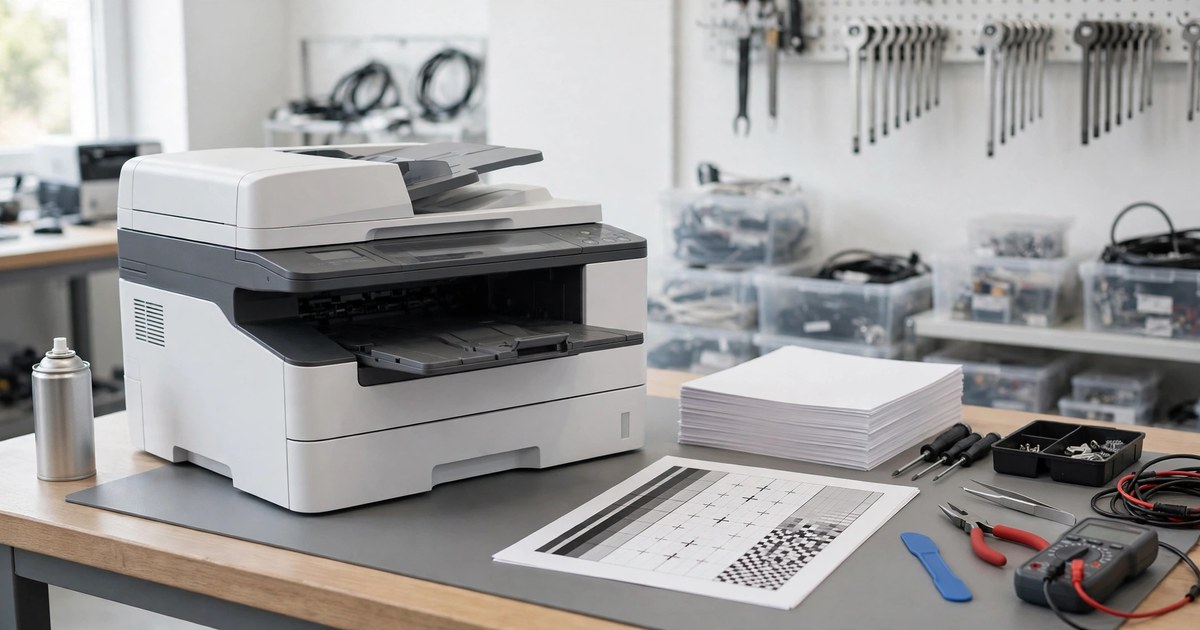
Key summary
Print quality, ADF scans, network dropouts and cartridge checks: triage tables, stopping points and repair-vs-replace guidance.
Introduction: what Part 1 already covered, in brief
The previous article (Part 1) already covered basic paper-jam steps, inkjet missing-line nozzle checks, the basics of laser ghosting, and the safety principle that high-temperature, live-electrical and internal-disassembly work should always be left to a technician. This follow-up does not rewrite those basics step by step. It focuses on new angles: how to diagnose print quality with inkjet-versus-laser comparison tables, why an ADF misfeeds or pulls multiple sheets at high speed, why scan-to-email, scan-to-folder and scan-to-USB so often fail, why network printing breaks after system updates, how to tell original, compatible, remanufactured and counterfeit consumables apart, how Hong Kong humidity affects everything from paper to print quality, and finally the most practical question of all — how to judge whether a printer is worth repairing or should be replaced.
One general principle applies throughout: if you are not sure, do not open the machine; anything involving high temperature, live electricity or internal parts should be left to a technician. Different brands and models are built differently, so every step must follow your own machine's manual and the manufacturer's guidance. A procedure found online for one model must not be applied directly to another model.
All repair, consumable and parts prices in this article are written as "quote on request". This article has no Hong Kong published price source, so it does not estimate prices. It also contains no real customer information and presents nothing as a real case; any example is clearly labelled "the following is a hypothetical scenario, not a real case".
Triage principles: five questions before you touch anything
Many printer problems stay unsolved not because they are especially difficult, but because the diagnosis started in the wrong direction. These five questions are the triage backbone of the whole article, and every later section returns to them:
1. Identify the machine type first. Inkjet and laser causes are completely different and cannot share one comparison table. The first step is always to confirm the machine type, then print a test page, nozzle-check pattern or print-quality check page, and match the symptom before deciding what to do next. Do not replace ink or toner on first sight.
2. Separate "print-only" from "copy/scan too". If a line appears only when scanning or copying, the fault is most likely in the scanner glass strip or ADF glass, not the print head or drum. If printing and copying show the same defect, suspect the print path.
3. Separate "repeating at a fixed position" from "random". Defects repeating at a fixed interval point to rotating parts such as the drum, fuser roller, transfer belt or rollers. Random marks are more often leaking toner or ink, paper debris or internal dust.
4. Check settings before suspecting hardware. A wrong paper-type setting (for example, thick paper treated as plain paper), greyscale mode switched on by mistake, draft or high-speed mode, or too low a scan DPI can all mimic hardware failure. Manufacturer documents repeatedly stress checking paper type and quality settings first.
5. Change one variable at a time. Change paper, cleaning, calibration or consumables one at a time, otherwise you will not know which change was the real fix, and you will waste ink or toner.
| Triage question | Which direction it points to | Next step |
|---|---|---|
| Inkjet or laser? | Inkjet: nozzles, ink path, paper absorption; laser: drum, fuser, toner transfer | Use the matching symptom table in the next section |
| Print only, or scan too? | Scan only: check scanner glass / ADF first; both: check the print path | Do not start by replacing print consumables |
| Fixed or random defect? | Fixed interval: measure the interval and compare with rotating parts; random: check leaks, debris, dust | Measure the distance between the centres of two identical defects |
| Are the settings wrong? | Paper type, quality mode, greyscale, DPI, duplex mode | Correct the settings and test-print again |
| How many things have you changed? | Change only one thing at a time and test before changing the next | Note down each change and which one worked |
1. Print-quality diagnosis: inkjet vs laser
1A. Inkjet symptom table
| Symptom | Common causes | Safe checks you can try | What not to get wrong / do wrong |
|---|---|---|---|
| Vertical white lines, missing colour, horizontal banding | Clogged nozzles, low ink, uncalibrated print head, wrong paper-type setting | Print a nozzle-check pattern and see which colour is missing; use the built-in cleaning function; run print-head alignment; check paper type and quality mode | Do not run repeated deep cleanings one after another; see the trap below |
| Overall pale print, colours washed out or greyish | Low ink, expired ink, non-original ink making the remaining-level reading unreliable, draft mode, paper whose absorption does not suit the job | Check the ink-level display and expiry date, switch back to normal or high-quality mode for a test print, try a fresh stack of plain paper | Do not conclude "pale always means out of ink"; expired ink, settings and paper can all cause it |
| Colour shift, one colour missing, colours wrong | One colour's nozzles clogged or cartridge empty, greyscale mode switched on by mistake, screen colour and print colour inherently differ, ink dried out | Start with a nozzle-check pattern to see which colour is affected; check whether greyscale is on | Do not promise "one alignment makes print match the screen 100%"; colour management can only bring them closer |
| Blurry, bleeding, smudged print | Damp paper, wrong paper for the job (for example, photo settings on plain paper), paper inserted with the print side reversed, ink stacked or touched before it dried | Use freshly sealed paper; confirm the print-side direction; let prints dry spread out before stacking; check the paper-type setting | Do not tell users to speed-dry ink with a hair dryer or high heat; there is no source supporting it, and it can curl the paper |
| Spots, ink dots, ink drag | Leaking nozzles, waste-ink pad or maintenance box near full, paper debris or dried ink in the paper path, curled paper edges touching the print head | After switching off and unplugging, check the paper path for debris; watch for a "maintenance box / waste-ink pad nearly full" message; leave this class of fault to a technician | Do not teach users to open the machine to empty waste ink or prise open a maintenance box |
| Ink leaking, ink pooling under or inside the machine | Cracked or damaged cartridge seal, cartridge not seated properly, blocked waste-ink path, repeated power cleanings sharply increasing waste ink | Switch off and unplug immediately, remove the leaking cartridge onto absorbent paper, wipe surface ink and let it dry; replace a cracked cartridge and do not keep using it | Do not tell users to keep printing on the theory that "a few more pages will clean it up"; leaking ink plus power is a safety risk |
Two uncertainties must be kept in mind. First, Epson's official guidance says non-original ink "may" make prints pale or colours inaccurate, and the remaining-level reading may be unreliable; it must not be read as "compatible ink always damages the machine" or "original ink always fixes the problem". Second, the nozzle-check pattern is the evidence: which colour is missing and how badly it is missing decides whether to clean, align or replace a cartridge. Do not replace a whole set on a feeling; that is the most wasteful option.
1B. Laser symptom table
| Symptom | Common causes | Safe checks you can try | What not to get wrong / do wrong |
|---|---|---|---|
| Vertical black or coloured lines at a fixed position | Scratched photosensitive drum (OPC drum), dirty drum surface, dirty corona wire, worn wiper blade | Check whether the line is in the same position on every page; slide the corona-wire cleaning tab if your model provides one, following the manual; compare the repeat interval before replacing a drum | Do not touch the drum surface with your hands or scrape it with a hard object; the drum is light-sensitive, so do not leave it exposed to strong light |
| Faint ghosting: a dark image faintly repeated on the same page or a later page | Toner residue on the fuser hot roller re-transferring, worn drum or wiper blade, toner melting point mismatched to fuser temperature, wrong paper-type setting leaving too little fuser energy | Measure the ghosting interval (see below); check the paper-type setting; swap in a known-good toner cartridge and see whether the ghosting follows the cartridge | Part 1 covered ghosting basics; this section adds only the new angle of "measure the interval to separate drum from fuser" |
| Toner rubs off at a touch | Fuser not reaching fusing temperature or damaged fuser film, paper too thick but set as plain paper, toner itself at fault | Once the page has cooled, a light finger-rub test is only a preliminary check; do not rub hard; check the paper-weight setting; persistent toner loss means stop using the machine and send it for inspection | Do not tell users to open the fuser for inspection while it is hot; high temperature plus high voltage is in the safety exclusion zone |
| Repeated marks or repeated print at a fixed interval | Damaged rotating parts: drum, fuser roller, transfer belt or transfer roller surface damaged or carrying stuck toner | Measure the distance between the centres of two identical marks, use the table below as a preliminary pointer, then have a technician confirm | Intervals are only approximate, differ by model, and must never be written as hard numbers that apply to every machine |
| Random marks, grey background across the page | Leaking toner cartridge, internal toner build-up, contaminated charge roller, ageing drum | Check the cartridge for leak traces; swap cartridges for comparison; consider drum replacement only when grey background appears together with a drum-life warning | Do not tell people to replace the drum at the first mark; a leak and drum ageing must be told apart, and replacing the wrong part is the most expensive mistake |
| Colour edges misaligned, coloured stripes out of register | Colour registration drift, transfer-belt (ITB) surface problem | Run the built-in colour registration / calibration function first; do not start by replacing toner cartridges | Do not tell users to remove the transfer belt for cleaning themselves |
| Wrinkled print, creased paper | Damaged fuser pressure roller, damaged fuser exit guide; repair experience points to the pressure roller in most wrinkling cases, not the transfer belt | Stop using the machine and send it for inspection; check whether only one paper type wrinkles | Wrinkled paper does not equal a transfer-belt fault |
1C. Repeat-interval reference (approximate values — read them this way)
The numbers below come from third-party repair sources as approximate values, for preliminary pointing only, and must be read as "varies by model; follow your model's manual". Different brands and models have different roller diameters, intervals can overlap, and interval alone may not separate two faults. Never present them as hard specifications that apply to every brand and model.
| Approximate interval | Preliminary pointer | Note |
|---|---|---|
| About 94–96 mm | One drum circumference | Drum-related defects most often fall in this range |
| About 75–81 mm; some sources write about 70–80 mm | One fuser-roller circumference | Write the range, not a single number |
| About 56–60 mm | One transfer-roller circumference | Read together with other symptoms |
| About 90–100 mm; some sources write about 94 mm | Transfer-belt surface damage | May overlap the drum interval, so one number alone cannot decide |
1D. Inkjet vs laser quick split
| Clue you see | Which machine type it leans towards |
|---|---|
| White lines and missing colour, plus an ink smell or damp feel | Inkjet nozzle or ink-path problem |
| Toner rubs off at a touch, plus hot-paper smell or wrinkled paper | Laser fuser problem |
| Repeating at a fixed interval | Rotating parts; both types have them, but the part names differ |
| Line appears only when copying or scanning | Both types: suspect scanner glass or ADF first, not the print path |
| Before replacing consumables | Do the three-way comparison first: new paper, correct settings, test page; it saves money and time |
The following is a hypothetical scenario, not a real case: suppose a laser printer puts a black line in the same position on every page, and the line stays after the toner cartridge is changed. Measuring the distance between two lines gives roughly one drum circumference, so the pointer leans towards the drum rather than the cartridge. Conversely, if the line follows the old cartridge when it is swapped out, the pointer leans towards the cartridge. This "does the defect follow the cartridge?" cross-check is the cheapest technique in the whole article: replace only the one colour or one cartridge you suspect, never the whole set.
2. ADF high-speed scanning: skew, multi-feeds, duplex misalignment
ADF problems must be split by mechanism, not lumped together. Skew and multi-feeds have different causes, and replacing the wrong part wastes money.
2A. Skew vs multi-feed: different causes
| Symptom | Most often points to | Other aggravating factors | Checks |
|---|---|---|---|
| Skewed scans | Feed-roller problems: dirty, worn or unevenly loaded rollers feeding paper in crooked; secondly side guides too loose or too tight | Curled or creased paper | Clean roller surfaces as the manual allows; adjust guides to touch the paper edge without squeezing the paper out of shape |
| Multi-feed (several sheets at once) | Separation pad or separation roller problems: a pad polished shiny (glazed) or grooved can no longer separate stacked sheets | Static-cling between sheets, damp sheets sticking together, staples or paper clips not removed, curled paper | Remove staples and clips, scan in smaller stacks; cleaning is only a first step, not a cure-all |
| Exceeding the ADF limit | Every ADF has a stack limit; overfilling pulls several sheets or pulls them crooked | Trying to save time by filling the feeder to the top | Scan in smaller stacks; do not fill the feeder to save time |
| Documents unsuitable for high-speed ADF | Curled, creased, torn, mixed-thickness paper, sticky notes, multi-layer transfer paper, envelopes, plastic cards | Such documents should use manual or one-at-a-time feeding, or the flatbed glass, as the model's manual directs | Check the manual for which document types are unsuitable for the ADF |
The key boundary must be stated plainly: roller cleaning is only a first step, not a cure-all. If the separation pad is already polished shiny or visibly grooved, cleaning may buy only a few days, and replacement is eventually needed. Do not let readers believe "wiping it equals fixing it". Repair experience also says skew mostly points to feed rollers, while separation-pad wear mostly shows up as multi-feeds. Do not swap the two; swapping them means replacing the wrong part.
Always count pages after an ADF scan: compare the scanned file's page count with the original's page count. A multi-feed shows up as missing pages in the file, and you cannot assume "it probably scanned everything" by feeling. Important documents deserve a page-by-page check, and multi-feed missed pages are a higher risk in humid seasons (see Section 6).
2B. Duplex-scan misalignment: single-pass vs reversing ADF
First, distinguish the two structures, because their misalignment causes differ:
| Structure | How it works | Misalignment most often relates to |
|---|---|---|
| Single-pass duplex (DADF) | Scans both sides in one pass, faster | Alignment of the two scan elements or the paper path |
| Reversing ADF (RADF) | Scans one side, flips the sheet, then scans the other side, slower | The flip itself adds one more skew or jam opportunity |
Suggested check order:
1. Confirm the machine genuinely supports automatic duplex scanning. Some machines support duplex printing but not automatic duplex scanning, and require manual flipping and a second scan. That is a specification limit, not a fault. Not all ADFs can scan duplex automatically.
2. Confirm paper orientation: for duplex documents the front side faces up, as the model's manual directs. Loading the sheet reversed causes wrong page order or orientation.
3. Try single-sided scanning as a comparison: if single-sided scans are fine and only duplex scans misalign, the fault leans towards the duplex paper path or the second scan element. If single-sided scans skew too, go back to Section 2A and check rollers and guides.
4. Check document sizes are consistent: mixed-size documents misalign especially easily in ADF duplex scanning, and official documents ask for one size per scan batch where possible.
5. Page-order trap: when flipping manually and scanning in two passes, page order depends on software merging or manual reordering. Do not assume software always orders pages correctly; check important documents page by page.
2C. Poor scan quality table
| Symptom | Common causes | Checks |
|---|---|---|
| Whole page blurry, character edges soft | DPI too low, wrinkled original not flat on the glass, machine or original moved during scanning, dirty glass | Use 300 dpi for document scans, dropping to 200 dpi where needed; photos may use 300–600 dpi; clean the flatbed glass and lid underside; lay the original flat and tight; do not move the machine during scanning |
| Line only in ADF scans, not in flatbed scans | Dust or marks on the ADF narrow glass strip, haze on the white pressure plate | Clean the ADF narrow glass strip with a dry or lens cloth, never spray liquid directly onto the glass, and clean the white pressure plate too; a line at a fixed position is strong evidence of a glass-strip problem |
| Whole page too dark or too light, show-through from the back | Brightness or contrast set wrong, black-and-white threshold set wrong, thin paper showing through | Lower brightness or raise contrast for comparison; adjust the black-and-white threshold; for thin paper, place a black sheet behind the original before scanning, as Epson officially suggests |
| Edges cropped, orientation wrong | Original loaded off-centre, margins set too narrow, scan area set wrong | Re-align the original against the reference marks; check margin and scan-area settings |
| File too large, transfer fails | DPI set too high, colour mode used for plain text documents | Plain text at 200–300 dpi in black-and-white or greyscale is enough; do not set maximum DPI for everything in the name of "clarity" |
| Preview sharp, output blurry | Software compression settings, incomplete driver, output-format settings | Compare with the manufacturer's full driver or the system's built-in scan function; check output compression settings |
3. Scan to email, folder and USB: three routes, three kinds of failure
Scan-to-email failure, scan-to-folder failure and scan-to-USB failure are three different things and must not be troubleshot together. A USB failure does not mean the network settings are wrong, and an email failure does not mean the printer hardware is broken.
3A. Scan to email: after 2025, the most common cause is not a mistyped password
Gmail and Google Workspace have disabled ordinary-password sign-in for "less secure apps": personal Gmail in May 2022, and Workspace broadly around May 2025 requiring OAuth or an app password. Entering an ordinary Gmail password into a printer's SMTP settings will very likely return error 535 5.7.8, "username and password not accepted", even when the password itself is correct. That is why retyping the same password repeatedly does not help — the problem is not whether the password is right, but that the sign-in method is no longer accepted.
The correct direction is:
1. Confirm the printer is actually online first; do not start by blaming the email provider.
2. After turning on two-step verification for the Google account, generate a 16-character app password (whether an app password can be generated depends on the Workspace administrator's two-step verification settings) and use it in the printer's SMTP settings; server smtp.gmail.com, port 587 (TLS / STARTTLS) or 465 (SSL); the sender address must match the account.
3. Remember the knock-on effect: changing the Google account password can invalidate the app password, which then needs to be regenerated. This is the common explanation for "scan-to-email stopped working right after I changed my password".
4. Other common causes: wrong SMTP server address, port or encryption method, firewall blocking the port, firmware too old, unstable printer network.
A security reminder must be stated: an app password is effectively an account key. Do not stick it on the machine, and do not record it in plain text in a shared company document. If an old machine supports only ordinary authentication and not OAuth, do not teach users to turn off two-step verification to suit the machine. Consider a dedicated relay or an upgrade instead, with prices written as "quote on request".
3B. Scan to folder: Windows 11 brings particular problems
| Common cause | Check direction |
|---|---|
| Windows 11 by default blocks unauthenticated guest access, so a printer connecting as guest to a shared folder is refused | Do not present "turn guest sign-in back on" as the only solution; weigh company IT policy and security risk, and ask IT if unsure |
| The scan account is a Microsoft cloud account | Create a dedicated local account on the computer for the printer; do not use a Microsoft cloud account as the scan account |
| Share and security permissions not both granted | Grant the account write permission in both the sharing and the security settings; either one missing blocks access |
| Network profile is "Public" rather than "Private" | The network profile must be "Private", otherwise the firewall blocks inbound connections |
The same warning applies again: do not keep insecure settings open for convenience. This is one troubleshooting direction; think about the security impact before changing it, and ask IT if unsure. This article does not teach readers to edit the system registry or to turn on the legacy SMB 1.0 protocol wholesale. Old-device problems should be assessed by IT staff, or the device should be upgraded or connected by a manufacturer-recommended modern method.
3C. Scan to USB: fitting in the socket does not mean it will be recognised
1. A printer's USB socket may not accept every format: many machines accept only FAT32, and NTFS or exFAT drives may not be recognised. In addition, Windows built-in tools have difficulty formatting a drive larger than 32 GB as FAT32; say so plainly.
2. Check order: try another known-good drive first, then check the drive is fully inserted, then confirm the format, and only format after backing up the data. Formatting erases all data, so the "back up first" warning must come before the step.
3. Scan-to-USB and scan-to-folder are two different things: a USB failure does not mean the network settings are wrong, so do not troubleshoot them together.
4. Network printing dropouts and system updates: triage first, do not reinstall drivers first
Part 1 already covered the basic checks for a printer showing "offline". This section covers the network layer and post-update changes, and does not rewrite Part 1's basic steps.
4A. Four-step triage
1. Check the printer panel or network status page: has the machine obtained an IP address, and is it connected to the correct Wi-Fi name?
2. Try printing from another device: if another computer or phone also fails, the fault leans towards the printer or network. If only one computer fails, the fault leans towards that computer's driver, queue or settings.
3. Try a direct USB connection: if USB prints but Wi-Fi does not, the problem is in the network layer, not the print head or cartridges.
4. Check whether a job is stuck in the print queue: a stuck job blocks the whole queue, and later jobs will not move.
4B. Wi-Fi dropout causes
| Cause | Why it happens | Countermeasure |
|---|---|---|
| IP address changed | The router assigns IPs by DHCP; after a printer restart or lease expiry the IP may change, and a computer remembering the old address cannot find the machine | Set a DHCP reservation on the router so the printer always gets the same IP, or set a fixed IP on the printer (a fixed IP must stay outside the router's DHCP allocation range to avoid an IP conflict) |
| Deep sleep / power-saving mode | Some printers respond slowly to network wake-up after deep sleep, or drop off the network altogether | Lengthen the auto-off or sleep time in the printer's power-saving settings, or turn off deep sleep, depending on the model |
| Router replaced, or Wi-Fi name, password or security settings changed | The printer does not follow automatically; Wi-Fi setup must be redone | After a router change, "it printed before and does not print now" should first be checked against this |
| Weak signal, long distance, many obstructions | A printer far from the router, behind thick walls or metal cabinets, gets an unstable signal and drops in and out | Move it closer to the router and reduce obstructions, or switch to wired networking or USB; a Wi-Fi extender depends on the actual environment |
| 2.4 GHz vs 5 GHz | Many printers support only 2.4 GHz, or are more stable on 2.4 GHz; computer and printer must be on the same network to find each other | Not all printers only have 2.4 GHz; it depends on the model — check the manual or specifications |
| Wrong restart order | IP assignment and network discovery have not been redone | Restart in order — router, then printer, then computer — waiting for each device to finish starting before powering the next |
4C. Printers breaking after Windows updates: key changes in 2025–2026
KB5055523 (April 2025 update). Microsoft Q&A carries a user report that after installing KB5055523 a Wi-Fi-connected HP printer could no longer be found. This should only be understood as "a user reported this type of problem after one update", not "all Windows users will be affected".
KB5065426 (September 2025 update) and shared printing. A Microsoft staff reply on Microsoft Q&A notes that the update's security hardening included resetting some network settings from Private to Public, turning off file and printer sharing and network discovery, and blocking insecure guest logons by default. The result was shared printers and network neighbourhoods suddenly disappearing. The fix direction is to restore each item one by one, not simply to delete the update — the staff reply explicitly notes that deleting the update also removes important security fixes. Deleting an update can only be a short-term diagnostic step, never a long-term solution.
Standard post-update fix order (Windows).
1. Restart the Print Spooler service.
2. Clear stuck print jobs.
3. In "Printers & scanners", remove the printer, restart the computer, then add it again. If automatic discovery fails, add it manually by IP address or host name, with device type IPP Device — one of the stable approaches suggested on Microsoft Q&A.
4. Download the driver from the printer manufacturer's website by exact model and Windows version. Do not use "universal driver" sites of unknown origin.
5. Check whether two identical printers have appeared — one driverless queue plus one manufacturer queue. A job sent to the unused queue looks as if it "disappeared". Remove the unused queue and set the right default printer.
Driverless (IPP) trade-offs. Tutorial sites note that driverless printing only shows the functions the printer publishes over IPP. Some models do not correctly publish duplex printing, extra trays or finishing options, so those options do not appear in the print dialogue. The remedy is to install the manufacturer's full driver package, delete the old queue and add the printer again. On scanning, driverless printing does not install the manufacturer's scanning software: basic scanning still works with the system's built-in scan function, but multi-page ADF profiles and other manufacturer-specific functions need the manufacturer's software.
Windows driver-policy direction (subject to official announcements). Tutorial sites report that Microsoft is moving towards driverless printing; details are subject to Microsoft's official announcements, and the timetables those sites compile have not been verified against a Microsoft official announcement in this article, so those dates are not presented here as confirmed official policy. Existing drivers can still be installed, and manufacturer installer packages remain available.
4D. Printers breaking after macOS updates
Reports compiled about macOS Tahoe mention printer failures after updating, with possible factors including privacy settings blocking network services and VPN software blocking network or AirPrint printing; the suggestion is to temporarily remove the VPN configuration for testing, then add it back once printing works. AirPrint needs no extra driver, but some manufacturer-specific functions may be missing; an automatically installed AirPrint driver can sometimes be functionally limited, and switching to the manufacturer's driver may restore full function. State both sides of the trade-off; do not claim AirPrint is always best or always worst.
Resetting the printing system is a last resort, not a first step. In macOS "System Settings, Printers & Scanners", Control-clicking the printer list and choosing "Reset printing system" deletes all printer and scanner settings, and every device must be added again after restarting. HP support replies stress doing this only when other steps have failed.
4E. Shared-printing checklist
The basic concept must come first: one computer connected to a printer shares it out, and other computers print over the network. The host must stay on; when the host shuts down or sleeps, nobody else can print. Many people miss this and mistake a shared printer for a network printer.
1. Host: printer properties, Sharing, tick "Share this printer", and note the share name.
2. Host and client networks must both be "Private", not "Public"; a Public setting blocks sharing.
3. Host and client must both have "Network discovery" and "File and printer sharing" on; either one missing breaks the chain.
4. Clients add the shared printer by computer name and share name.
5. Credential problems are the most common: using the same account on both machines is smoothest. Otherwise the host's username and password must be entered. If the password box keeps reappearing, first check for mistyped credentials, whether the host account has a password, and whether the network is Private.
6. The firewall must allow the "File and printer sharing" rules.
7. Extra checks after KB5065426: network reset to Public, sharing turned off, guest logon blocked — restore Private, reopen sharing and discovery, and restart both machines. If an old device's guest-logon problem is involved, have IT staff assess the security risk before deciding. This article does not teach readers to edit the system registry themselves.
A steadier alternative can be mentioned without turning it into a sales pitch: if sharing is needed constantly, a genuine network printer — the printer itself connected by Wi-Fi or wired networking — is more stable than sharing through one computer, because it does not depend on the host staying on, and multiple computers and mobile devices can each print directly.
4F. Firmware updates: do not take an all-or-nothing line
| Situation | Suggested direction |
|---|---|
| Machine works normally, no security concern, using compatible consumables | Do not update automatically; set updates to "notify first", and read the update notes before deciding |
| Manufacturer documents say a particular update fixes the fault you are experiencing | Update, then immediately check the consumables are still recognised before buying more |
| Machine is on a company network and handles sensitive documents | Security updates come first, consumable convenience second; confirm the consumable arrangement before updating |
| Machine is exposed to the internet in any way | Update, and also reduce that exposure — a printer should not face the public internet directly |
Pre-update checklist: confirm the exact model; download only from the manufacturer's website; do not cut power or disconnect, and do not run other print jobs during the update; prefer USB or a stable connection; run a test print after updating; note that restoring factory settings may re-enable automatic updates, so check the automatic-update setting again after a reset. The benefits of updating are fixing security holes, fixing known bugs and staying compatible with new Windows, macOS and phone apps. The key risk is that some manufacturers' firmware updates change consumable authentication rules, so previously usable compatible or remanufactured cartridges are suddenly refused (see Section 5).
5. Consumables: original, compatible, remanufactured and counterfeit are four different things
5A. Four terms that must be kept apart
| Term | Meaning |
|---|---|
| Original (OEM) consumables | Cartridges made by the printer brand itself |
| Compatible consumables | Third-party brands' own products, labelled as compatible with a model; they do not pretend to be original |
| Remanufactured consumables | Recycled original cartridges, cleaned, fitted with replacement parts, and refilled with ink or toner |
| Counterfeit goods | Imitations bearing an original brand, packaging and trademark; they may be illegal, and their quality and safety are unguaranteed |
The trap is clear: "compatible equals counterfeit" is wrong, and "cheap equals fake" is also wrong — a compatible product can be a lawful, compliant product, while a counterfeit is a fake. The reverse is equally wrong: "compatible always works fine" is false, because quality varies by manufacturer.
5B. Original vs compatible: which sentence is a manufacturer's position, and which is a general principle
Canon's official position is stated as follows: Canon says its original toner is designed for its laser machines, third-party toner may accumulate on the drum and fuser roller and cause lines, blurring or a grey background; damage caused by using non-original consumables is outside Canon's warranty coverage; and buyers should purchase through authorised dealers and check the original anti-counterfeit label on the packaging. The following is Canon's official position, not independently verified.
The correct understanding of warranty is: in general, a manufacturer will not automatically cancel the whole machine warranty because a third-party consumable was used. But if a third-party consumable actually causes damage to a particular part, the manufacturer may refuse to cover that part. That distinction matters. It is not "using compatible consumables instantly voids the warranty", nor "using compatible consumables always keeps the warranty". United States law is not Hong Kong law; the actual answer is whatever your own warranty terms and contract say.
The following are common problems compiled by repair or seller sources, not statistics: toner leaking into the machine, uneven print density, poor fusing (print rubbing off), chip communication errors (cartridge not recognised, false low-ink reports), and faster drum and fuser wear. In the other direction, some sellers claim tests show certified compatible toner performing close to original, but those tests were run by interested parties and have not been independently verified, so no percentages are quoted here, and the source and conflict of interest are stated plainly.
A practical buying checklist: match the exact model — a consumable code wrong by one character may not fit or may not be recognised; buy through a reputable channel and keep the receipt and packaging so a problem can be traced; check anti-counterfeit labels and packaging integrity; when trying a compatible brand for the first time, buy one cartridge first, print a test page to check density, lines and fusing, and only buy in bulk if it passes; use original or already-verified consumables for important documents (contracts, certificates, outward-facing documents), and do not try a new consumable for the first time when a deadline is pressing; if toner leaks, stop using the cartridge immediately and do not keep printing, because toner leaking inside the machine only makes things worse.
5C. Counterfeit consumables: prevention, not supposed secret tricks
An HP Asia-Pacific anti-counterfeit document notes that businesses and public bodies buying print consumables by tender are targets for counterfeits. Risks of fake toner or cartridges include poor print quality and even printer damage, paying again for faulty goods plus downtime, and chips that may bring network-security risks. HP's tender advice is to state exact product codes, require suppliers to prove the goods are genuine originals with a detailed delivery list, require HP partner certification, accept only unopened original packaging, and exclude goods of unknown origin. Canon's anti-counterfeit page likewise notes that fake toner appears in many countries, that making and selling counterfeits is a criminal offence in many countries, and that users face poor print quality, toner leaks and lower page yields.
No reliable source has been found to support any counterfeit market-share figure, so none is given here. It also teaches no supposed secret tricks for telling a particular batch of counterfeits apart, only the safe practices: official channels, anti-counterfeit labels, authorised dealers, and keeping receipts.
5D. Why ink-level readings are unreliable
Many printers' ink-level displays are estimates based on pages printed or ink ejections, not direct measurements of how much ink remains in the cartridge. Primera's official support page states this plainly: its ink-level display is a mathematical estimate, calculated from images sent by the driver and the number of ejections, then deducted from the known total of a new cartridge. It is not a direct reading of the cartridge. Sometimes it may still show a small percentage when the cartridge is already empty, appearing as one colour failing to print or colours going wrong. A consumable chip mainly records "how much should have been used", not a direct measurement of remaining ink or toner. A mainly light-text user may actually use less ink than estimated and get longer life than the display suggests; conversely, frequent photo printing and frequent cleaning cycles consume faster than estimated.
The same applies to refilled or remanufactured cartridges: HP community replies note that printers calculate ink levels from cartridge chip data and page counts, so a refilled cartridge whose chip keeps its old value may show a wrong level (for example, a previously 0% cartridge showing only a small percentage after refilling), or even show as empty.
Practical judgement: the ink-level display is only a reference; what actually prints is the truth. A colour suddenly missing, shifting or banding is the real signal of empty ink or a clogged nozzle. A low-ink warning with normal-looking prints means you can keep printing, but prepare a spare cartridge rather than discovering the cartridge is truly empty when a deadline is pressing. A display showing ink remaining but prints missing a colour should first be checked for a clogged nozzle, not immediately blamed on the chip.
5E. Printer lock-in and firmware blocking of compatible ink: what the public reports say
What is HP Dynamic Security? HP has for years used the Dynamic Security system, verifying through chips whether a cartridge is a genuine HP cartridge. A firmware update can cause previously usable non-original chip cartridges to be refused. HP's stated reason is preventing counterfeits and protecting print quality and safety; critics argue it restricts consumer choice and increases waste.
Firmware 2602A/B of 29 January 2026: several reports say HP released firmware 2602A/B on 29 January 2026, expanding Dynamic Security and affecting at least 11 printer models, including the OfficeJet Pro 7720, a model released nearly nine years earlier. Reports say the update appeared progressively in February.
EPEAT 2.0 background: the Global Electronics Council's EPEAT 2.0 sustainability standard took effect in December 2025. Reports say it requires certified printers not to block remanufactured cartridges and expressly prohibits deliberately disabling compatible third-party cartridges through firmware updates. Compliance routes include not issuing blocking updates, offering an official remanufacturing programme, or selling remanufactured cartridges itself. The International Imaging Technology Council criticised HP's approach as contrary to the spirit of EPEAT 2.0 and said HP is the only manufacturer continuing to use firmware updates for cartridge blocking. That sentence is the organisation head's statement, attributed as such here, not presented as a neutral fact.
Class-action settlement (approved March 2025): reports say the HP Dynamic Security class-action settlement was approved by a judge in March 2025. Owners of 21 specified models may choose to refuse firmware updates containing Dynamic Security, and those already blocked may remove the block through a firmware downgrade, limited to the specified models. HP admitted no wrongdoing, and the broad affected customer base received no monetary compensation. Printers made after December 2016 and not on the settlement list may, according to reports, still be blocked in future updates. Settlement details quoted here are as reported, and readers should rely on the manufacturer's announcements and court documents.
A compatible-consumable seller's compilation says blocking policies differ greatly by brand, and buyers should check their own model's manufacturer policy before buying. No percentages from that seller study are quoted here, because its figures and method have not been independently verified and the seller itself sells compatible consumables, creating a conflict of interest.
What this means for readers in practice: before buying a machine, check whether the brand or model has a Dynamic Security or similar consumable-authentication policy, and whether it has a setting that, once switched on, locks the machine to original ink — think before switching such a setting on. Before a firmware update, read the update notes for any mention of consumable-authentication changes. Users on compatible or remanufactured ink should be prepared to switch back to original ink after an update. Never update firmware when a print job is urgent. Immediately after updating, run a test print and confirm the consumables are still recognised. "Lock-in" does not mean the machine is scrapped: in most cases a particular cartridge is refused, and using a recognised consumable or following the manufacturer's guidance restores printing. It is not "an update instantly breaks the machine".
6. Hong Kong humidity: not occasional dampness, but dampness for most of the year
6A. Hong Kong humidity background, with sourced figures
Hong Kong Observatory 1991–2020 climate normals: annual mean relative humidity 78%; March 82%, April 83%, May 83%, June 82%, July 81%, August 81% — that is, almost the whole spring and summer above 80%; October 73% and December 70% are relatively drier. These figures support saying "Hong Kong is not occasionally humid, but humid for most of the year", but not "above 80% every day of the year".
Ideal indoor relative humidity for printing and paper storage differs slightly between official documents: HP, Samsung and Dell manuals mostly write 20–24°C and 45–55% relative humidity; Boise Paper writes 40–50%; one technical article gives a target of 45–55%, with below 35% accelerating nozzle clogging and static, and above 65% making paper handling unreliable. About 45–55% is the commonly suggested range, not a single absolute standard.
The key contrast is direct: Hong Kong outdoor humidity, and indoor humidity without air conditioning, is often far above the 45–55% range. So "paper left on a desk for a few days becomes damp" is not an exaggeration; it is a physical property.
| Month | Mean relative humidity (Observatory 1991–2020) |
|---|---|
| Annual mean | 78% |
| March | 82% |
| April | 83% |
| May | 83% |
| June | 82% |
| July | 81% |
| August | 81% |
| October | 73% |
| December | 70% |
6B. Damp paper: the most common, most easily misdiagnosed problem
Paper is hygroscopic and reaches equilibrium with ambient humidity: factory moisture content is about 4–6%, and after opening it absorbs or loses water with room humidity.
Damp paper shows up as curled or wavy edges, softness and lost stiffness, sheets sticking together, multi-feeds or skew on intake, and frequent paper jams. For print quality, damp paper absorbs inkjet ink unevenly, ink sits on the surface and dries slowly, and easily bleeds or drags; for laser, damp paper disturbs electrostatic transfer, making prints pale or uneven, and moisture turning to steam in the fuser can blister the toner layer or roughen the surface.
Too dry is also a problem: low humidity deforms paper through water loss, creates static that sticks sheets together, and attracts dust — also causing jams and quality problems. It is not "the drier the better".
Storage practice, consistently recommended in official documents: keep unopened paper sealed, and do not open a whole carton at once; reseal leftover opened paper in moisture-proof packaging, and do not leave it spread out in the paper tray long-term; store paper in the same room as the printer so it acclimatises to room temperature and humidity, not in a garage, attic, near a window, near a water dispenser or near an air-conditioner outlet; do not buy more than about three months' supply at once, because long storage spans humidity and temperature extremes; do not place paper directly on the floor — raise it on shelves or in cupboards, away from wall dampness; in humid seasons, load only the day's supply in the tray and reseal the remainder before leaving work — the cheapest and most effective practice.
6C. How humidity affects ink, toner and rollers
Ink: high humidity itself does not make ink "go bad", but it lengthens drying time after printing, so stacking prints or touching them immediately smudges them. Low humidity or long disuse is the main cause of dried, clogged nozzles. Keep "not yet dry after printing" and "nozzle clogged" as two different things.
Toner: toner is a fine powder, and dampness affects its charging and transfer, making prints pale or uneven. Do not store toner cartridges long-term in damp places, and note the storage environment before changing a cartridge. If toner spills, never clean it with an ordinary vacuum cleaner: official safety documents warn that fine toner particles meeting sparks carry a fire risk. Use a broom and dustpan, or a damp cloth with soapy water. Wash toner off skin with cold water and soap, not hot water.
Rollers and separation pads: humidity plus paper dust plus dust makes roller surfaces slip or accumulate deposits, destabilising paper intake. Once rollers wear shiny, friction falls and separation worsens. Cleaning can help, but beyond a certain wear level replacement is needed; do not "keep wiping and using" indefinitely.
Mould and odour: a long-term damp environment with accumulated paper dust and dust favours mould growth, but no Hong Kong printer mould incidence data has been found, so no incidence rate is given here; the practical advice is to keep ventilation, regularly clean the paper path and machine surfaces, and reduce dust and damp build-up.
Condensation trap: when a printer moves from a cold environment into a warm, humid one — for example, out of an air-conditioned room, or indoors from outside in winter — condensation can form on the machine and cartridge surfaces. Epson safety documents advise waiting at least one hour before using a toner cartridge. Practical reminder: do not print immediately after moving the machine.
The following is a hypothetical scenario, not a real case: suppose an office starts jamming and multi-feeding every May, and changing rollers does not help, until someone notices whole cartons of paper opened and left near a window tray for weeks without resealing. The point of this hypothetical scenario is only that, in humid seasons, trying a freshly sealed stack of paper first — ruling out damp paper before suspecting hardware — is the cheapest step.
6D. Humid-season practical checklist
1. Use paper the same day and reseal it the same day; do not keep the tray filled long-term.
2. Spread printed pages out to dry before filing or stacking, especially for inkjet prints.
3. Regularly wipe the ADF glass strip, flatbed glass and feed rollers with a dry cloth, after switching off, and wait until dry before switching on again.
4. Keep ventilation around the printer; do not push it against a wall or place it by a window or water dispenser.
5. Before scanning important documents, count the pages; after scanning, count the file's pages again — multi-feed missed pages are a higher risk in humid seasons.
6. If jamming or multi-feeds persist for several days, try a freshly sealed stack of paper first and rule out damp paper before suspecting hardware — this step saves the most money.
7. All parts-replacement and repair prices are written as "quote on request".
7. Repair vs replacement: score against a framework, never decide on one factor alone
7A. Routine maintenance rhythm
Use the machine regularly: an inkjet left unused for a long time easily gets dried, clogged nozzles. A general suggestion is to print one colour page a week and keep the machine plugged in so it can run automatic maintenance. The following is only a general suggestion, not a guarantee that "doing this adds years of life". For environment: avoid direct sunlight, heat sources, dampness and dusty locations; store paper dry and flat, and do not feed wrinkled or damp paper into the machine.
An HP guide framework mentions a layered cleaning rhythm: daily external cleaning, weekly routine cleaning (not a power nozzle cleaning), monthly internal cleaning, quarterly professional service, annual deep maintenance. Adjust the rhythm above to usage and model; not every machine must follow it, and it is not a hard rule. Power nozzle cleaning should not be done frequently; see misconception 2 in Section 8. A recording habit also matters: note repair history, which parts were replaced, which errors occurred, usage and maintenance spending, so a repair-versus-replacement decision has data instead of relying on feeling.
7B. Decision framework table
The core rule has sources: HP guidance and several compilations use the same line — when the repair cost exceeds half the price of a new machine, lean towards replacement. No specific amount is given here; only that proportion line is used as a framework, and actual prices are always "quote on request".
| Decision factor | Leans towards repair | Leans towards replacement |
|---|---|---|
| Repair cost vs new-machine price | Far below half the new-machine price | Above half the new-machine price, or a year's accumulated repair spending already near the new-machine price |
| Failure frequency | Occasional, isolated problem | Failing every few months, with more and more things breaking |
| Parts availability | Parts easy to buy, especially parts designed as consumables | Parts discontinued, long waits, or manufacturer support for the model ended |
| Nature of the part | Rollers, drum, fuser, transfer belt, maintenance kits — parts designed to be replaced | Main board, print head and other core parts damaged, especially in a cheap inkjet |
| Print quality | Returns to normal after consumables are replaced | Still poor after new ink or a new drum; quality persistently below standard |
| Print volume vs machine rating | Volume still within the machine's designed range | Volume already above the machine's load; chronic overload wears it out faster |
| Functional gaps | Current functions are enough (duplex, scanning, network printing all work) | Missing functions now needed (for example, stable Wi-Fi, mobile printing, automatic duplex, ADF), or security / firmware updates stopped |
| Downtime impact | Occasional short stop, small impact | Frequent stops affecting deadlines, with workflows outsourced for printing |
| Consumable spending trend | Consumable spending stable | Consumable spending rising month by month, with an old machine's low-capacity cartridges needing constant replacement |
Two special reminders: for a cheap inkjet with a mechanical fault, lean towards replacement, because labour plus parts can easily exceed the price of a new machine — ask for a clear quote before deciding, and no fixed amount is given here. For an ink-tank printer where only the maintenance box or waste-ink pad is full, lean towards repair, because the user has already invested in ink and replacing the machine wastes the remaining ink value — but waste-ink pad or maintenance-box handling must follow the model's guidance, and must not be dismantled casually.
Cheap exclusion steps before deciding to replace: new ink or toner cartridge, thorough cleaning, print-head alignment, reset. Only after all of these fail should the machine be judged as needing replacement or major repair. A repair-quote checklist to ask: does the repair price include parts? Does it include labour? Is there a warranty period? If inspection finds more parts need replacing, will the total price change? Is there a backup plan while the machine is away for repair? The answers to all of these are "quote on request".
One sentence on 2026 right-to-repair background: a Washington State consumer-electronics right-to-repair law took effect on 1 January 2026, prohibiting parts-pairing measures that block repair. This is the United States situation, not Hong Kong.
7C. Stop-using safety red lines
Smell of burning, visible smoke, serious ink or toner leakage, damaged power cord or plug, or a foreign object inside the machine that cannot be removed: switch off and unplug immediately, do not test-print again, and call a professional. For fuser or other high-temperature internal parts, wait until cool before touching — Part 1 covered this, and one reminder here is enough. Opening the machine, replacing a main board or handling the waste-ink system: do not do these yourself; leave them to professionals. Spilled toner must not be cleaned with an ordinary vacuum cleaner. While the fuser is hot, do not reach inside the machine to inspect or clean the fuser roller. Any situation requiring disassembly of high-temperature or high-voltage parts means stop.
8. Common misconceptions: misconception → truth
1. "Any banding means out of ink; just change the cartridge." Truth: banding can be clogged nozzles, alignment drift, a wrong paper-type setting or damp paper. Check the nozzle-check pattern before changing a cartridge, or the replacement may change nothing.
2. "The more head cleanings, the better; clean until it is clean." Truth: repeated deep or power cleanings consume large amounts of ink, fill the maintenance box or waste-ink pad quickly, and can even start affecting other colours. The official approach is to print a check pattern after cleaning for comparison, and to stop and send the machine for inspection after two deep cleanings without improvement. Do not loop indefinitely. (Note: these "two" refer to deep cleanings; HP support documents separately mention up to three cleanings after a nozzle check as a general practice — a different context, so do not mix the two.)
3. "Compatible ink or toner always damages the machine; original always works." Truth: official documents only say non-original consumables "may" make colours inaccurate or remaining-level readings unreliable. Conversely, toner with a mismatched melting point can indeed cause poor fusing, but that is a product-specific problem, not a universal rule.
4. "A drum-life warning means replace the drum immediately." Truth: drum-life warnings are mostly estimates based on print volume, not actual measurements. If print quality is still normal, the drum can keep being used; consider replacement when fixed-interval repeated defects or a fully grey page appear.
5. "Scan-to-email failure means the email password was mistyped." Truth: after 2025, the most common cause is Gmail or Workspace discontinuing ordinary-password sign-in. A correct password is still refused, so the fix is an app password or OAuth, not retyping the same password.
6. "Scan-to-folder failure means the printer is broken." Truth: often it is Windows 11 blocking guest access, a Microsoft cloud account used as the scan account, or a network profile set to "Public" instead of "Private". These are computer-setting problems, not printer hardware faults.
7. "A USB drive that fits the socket will always scan." Truth: a printer's USB socket may accept only FAT32, and NTFS or exFAT drives may not be recognised. Back up before formatting, or the data will be lost.
8. "ADF skew means the separation pad is broken." Truth: repair experience says skew mostly points to feed rollers, while separation-pad wear mostly shows up as multi-feeds. Do not swap the two; swapping them means replacing the wrong part.
9. "The cheaper the paper, the better the deal; any paper prints the same." Truth: paper weight, coating and dampness all affect ink absorption, fusing and feeding. A wrong paper-type setting — for example, thick paper treated as plain paper — leaves too little fusing energy, and toner rubs off at a touch.
10. "Humidity only causes paper jams; it does not affect print quality." Truth: damp paper also affects inkjet drying time, laser electrostatic transfer and fusing, and can make prints pale, bleeding or blistered — not just jammed.
11. "Higher scan DPI is always better; set it to maximum for the clearest scan." Truth: plain-text documents need only 200–300 dpi. Setting it too high only makes files larger, transfers slower, and can even fail transfers. Photos are the case for 300–600 dpi.
12. "Having duplex printing means having duplex scanning." Truth: some machines support duplex printing but not automatic duplex scanning, and require manual flipping and a second scan. Check the specifications before buying or troubleshooting; do not assume both are always present.
13. "Wi-Fi dropout means the machine is broken." Truth: often the IP changed, the router settings changed, deep sleep kicked in, or a system update changed network settings — not hardware failure.
14. "Reinstalling drivers fixes everything." Truth: if the problem is in the network layer — IP, Wi-Fi name, VPN, firewall — reinstalling drivers will not help. Triage first.
15. "A shared printer is a network printer." Truth: a shared printer depends on its host staying on; when the host shuts down, nobody else can print. A network printer is independently connected.
16. "Updates are always good / always bad." Truth: firmware updates bring security and compatibility benefits, but may also change consumable authentication. Read the update notes before deciding; neither blind automatic updating nor never updating is right.
17. "Compatible equals counterfeit." Truth: compatible products are lawful third-party products; counterfeits are fakes. They are different things, with different risks.
18. "Using compatible consumables instantly voids the warranty." Truth: the correct wording is that a manufacturer may refuse to cover damage actually caused by a third-party consumable, but that does not mean the whole machine warranty automatically lapses. Your own warranty terms govern.
19. "An ink display of 0% means it stops printing immediately, and 30% remaining means it will definitely print." Truth: ink displays are mostly estimates; what actually prints is the truth. Display and reality can both be wrong, in either direction.
20. "A cheap machine plus cheap ink is the cheapest option." Truth: consumable policy, whether firmware can block cartridges, cartridge capacity, repair cost and downtime impact all count. The machine price is only one part.
21. "Printers need no security attention." Truth: a network printer is a connected device. Old firmware, internet exposure and default passwords are all risks. Do not expose a printer directly to the internet.
22. "United States law equals Hong Kong law." Truth: Magnuson-Moss and United States right-to-repair laws are United States situations. Hong Kong readers must go by their own warranty terms and Hong Kong law.
FAQ
Q: An inkjet prints white lines. Do I need to change the cartridge immediately?
A: No. Print a nozzle-check pattern first, see which colour is missing, and check the paper-type and quality settings. White lines can be clogged nozzles, alignment drift, wrong settings or damp paper. Changing the cartridge before checking the pattern may change nothing. Repeated deep cleanings are not a good remedy either: after two deep cleanings without improvement, stop and send the machine for inspection.
Q: A laser printer puts a black line in the same position on every page. How do I make a preliminary judgement?
A: Check whether the line is in the same position on every page, then measure the distance between the centres of two identical defects and compare it with your own model's repeat-defect interval table for a preliminary pointer. Intervals are only approximate and vary by model; do not treat third-party repair approximate values as hard numbers that apply to every machine. Do not touch the drum surface with your hands, do not scrape it with a hard object, and do not leave the drum exposed to strong light for long.
Q: Toner rubs off at a touch. Does that always mean the toner is faulty?
A: Not necessarily. Insufficient fusing energy is also very common — for example, paper too thick but set as plain paper. Check the paper-weight setting first. Once the page has cooled, a light finger-rub test is only a preliminary check; do not rub hard. Persistent toner loss means stop using the machine and send it for inspection; do not open the fuser for inspection while it is hot.
Q: ADF scans keep coming out skewed. Is the separation pad broken?
A: Do not conclude that so quickly. Repair experience says skew mostly points to feed rollers, while separation-pad wear mostly shows up as multi-feeds. Do not swap the two. Check first for dirty or worn rollers, guides too loose or too tight, and curled paper, then compare with a smaller stack. Cleaning is only a first step; a separation pad polished shiny or visibly grooved will eventually need replacement.
Q: The ADF pulls several sheets at once. How do I know whether pages were missed?
A: Count pages. After scanning, compare the scanned file's page count with the original's page count. Fewer pages in the file means missed pages; do not assume by feeling that everything was scanned. Important documents should be checked page by page. When flipping manually and scanning in two passes, page order depends on software merging or manual reordering; do not assume software always orders pages correctly.
Q: Duplex scans misalign. Is the machine broken?
A: Not necessarily. First confirm the machine genuinely supports automatic duplex scanning — some machines support duplex printing but not automatic duplex scanning, and that is a specification limit, not a fault. Then confirm paper orientation and consistent document sizes, and try single-sided scanning as a comparison: if single-sided scans are fine and only duplex scans misalign, the fault leans towards the duplex paper path. If single-sided scans skew too, go back to checking rollers and guides.
Q: Scan-to-email keeps saying the username or password is not accepted, but the password is definitely correct. Why?
A: After 2025, the most common cause is Gmail or Workspace discontinuing ordinary-password sign-in. A correct password is still refused, usually with error 535 5.7.8. The correct direction is to turn on two-step verification for the Google account and generate a 16-character app password for use in the printer's SMTP settings. An app password is effectively an account key: do not stick it on the machine, and do not record it in plain text in a shared document. Do not turn off two-step verification to suit an old machine.
Q: Scan-to-folder keeps failing on Windows 11. Is the printer broken?
A: Often it is not a printer hardware problem, but a computer-setting problem: Windows 11 blocking guest access, a Microsoft cloud account used as the scan account, or a network profile set to "Public" instead of "Private". The suggested direction is a dedicated local account for the printer, write permission granted in both sharing and security settings, and a "Private" network profile. Think about the security impact before changing anything, and ask IT if unsure. This article does not teach readers to edit the system registry or turn on legacy protocols wholesale.
Q: A USB drive is not recognised when plugged into the printer. What should I do?
A: Many printer USB sockets accept only FAT32, and NTFS or exFAT drives may not be recognised. Try another known-good drive first, then check the drive is fully inserted, then confirm the format. Formatting erases all data, so back up before formatting.
Q: After a Windows update the printer suddenly stops printing. Should I delete the update immediately?
A: Do not treat deleting the update as a long-term solution, because deleting it also removes important security fixes. First confirm the problem really started after the update, then work through queue, Print Spooler, remove-and-re-add, and manufacturer-driver steps, then check whether the network was reset to Public and whether sharing and discovery were turned off. Note the update number, error code and printer model before seeking support, and do not try registry changes one by one at random.
Q: Can a firmware update suddenly make compatible ink unusable?
A: Possibly. Reports say some manufacturers' firmware updates change consumable-authentication rules, so previously usable non-original chip cartridges are refused. Users on compatible or remanufactured ink should read the update notes for any mention of consumable-authentication changes before updating, never update when a print job is urgent, and run a test print immediately after updating to confirm the consumables are still recognised. If the machine works normally, has no security concern and uses compatible consumables, the suggestion is to set updates to "notify first" and decide after reading the notes.
Q: The ink display still shows ink remaining, but prints are missing a colour. Which should I trust?
A: Trust what actually prints. Ink displays are mostly estimates based on page counts or ejection counts, not direct measurements. A display showing ink remaining but prints missing a colour should first be checked for a clogged nozzle, not immediately blamed on the chip. A low-ink warning with normal-looking prints means you can keep printing, but prepare a spare cartridge.
Q: How do original, compatible, remanufactured and counterfeit consumables differ?
A: Original means made by the brand itself. Compatible means a third party's own product, labelled as compatible with a model, not pretending to be original. Remanufactured means a recycled original cartridge refilled with ink or toner. Counterfeit means an imitation bearing an original brand and packaging. Compatible does not equal counterfeit, but quality varies by manufacturer. Buy through reputable channels, keep receipts and packaging, and check anti-counterfeit labels.
Q: Hong Kong is so humid. How should paper be stored most safely?
A: Keep unopened paper sealed; do not open a whole carton at once. Reseal leftover opened paper, and do not leave it spread out in the paper tray long-term. Store it in the same room as the printer, not near a window, water dispenser or air-conditioner outlet. Do not buy more than about three months' supply at once, and do not place paper directly on the floor. In humid seasons, load only the day's supply in the tray and reseal the remainder before leaving work — the cheapest and most effective practice.
Q: How expensive must a repair be before replacement is the better choice?
A: This article has no specific price source, so all prices are "quote on request". The framework's proportion line is that a repair cost exceeding half the new-machine price leans towards replacement. But never decide on one factor alone: score failure frequency, parts availability, the nature of the part, print quality, print volume, functional gaps, downtime impact and consumable-spending trend one by one. Only when several factors point the same way towards replacement should you replace; a single consumable-type problem such as worn rollers usually leans towards repair.
Q: In what situations must I stop using the machine immediately and not test-print again?
A: Smell of burning, visible smoke, serious ink or toner leakage, a damaged power cord or plug, or a foreign object inside the machine that cannot be removed: switch off and unplug immediately, do not test-print again, and call a professional. Any situation requiring disassembly of high-temperature or high-voltage parts, including the fuser and power board, means stop.
Steps involving high temperature, live electricity or disassembly should always be left to a professional; repair and consumable prices are quote on request.
Sources
- Canon inkjet manuals, TS9500 / E4200 series: blurry printing, wrong colours, white-line checks — https://ij.manual.canon/ij/webmanual/Manual/All/TS9500%20series/EN/NTR/ntr_t_03_06_01_c.html ; https://ij.manual.canon/ij/webmanual/Manual/All/E4200%20series/EN/NTR/ntr_t_03_06_01_c.html
- Sinosyn: laser-printer streaks, fuser vs transfer belt vs drum — https://www.sinosyn.com/new/why-does-my-laser-printer-streak-fuser-belt-drum.html
- TonerCom: laser-printer streak fix, drum vs fuser vs transfer (2025-08) — https://tonercom.net/2025/08/laser-printer-streaks-fix/
- TechBullish: how to fix printer streaks (inkjet and laser) — https://techbullish.com/how-to-fix-printer-streaks/
- Epson official: poor overall print quality — https://files.support.epson.com/docid/cpd5/cpd51065/source/pro_graphics/source/troubleshooting/reference/scp10000_20000/problem_poor_print_quality_scp10000_20000.html
- Epson official: colours incorrect — https://files.support.epson.com/docid/cpd6/cpd60508/source/printers/source/troubleshooting/reference/problem_colors.html
- BCH Technologies: Epson EcoTank power cleaning and fast-filling maintenance box — https://bchtechnologies.com/blogs/questions-and-answers/epson-ecotank-nozzle-loss-after-power-cleaning-maintenance-box-filling-fast-damper-priming-and-tank-venting-explained
- InkProducts: what is a printer maintenance box — https://www.inkproducts.com/what-is-a-printer-maintenance-box.html
- Castle Ink: printer ghosting, why faint repeat images appear — https://castleink.com/blogs/printer-help/printer-ghosting-why-faint-repeat-images-appear-on-prints-and-how-to-fix-it
- PrinterPartsFactory: ghosting and blurred prints, drum, wiper blade or fuser? — https://www.printerpartsfactory.com/en/blog/ghosting-blurred-prints-causes.html
- Epson laser safety documents: fuser high-temperature warning, toner cleaning, condensation wait of one hour — http://support2.epson.net/manuals/english/page/aculasercx11/pdf/alcx11_safety.pdf ; http://files.support.epson.com/htmldocs/cx11nf/cx11nfug/safe.htm
- Sinosyn: why the ADF jams or streaks — https://www.sinosyn.com/new/why-does-my-adf-jam-or-streak.html
- HP Support Community: HP LaserJet Pro MFP M428fdw ADF scan skew — https://h30434.www3.hp.com/t5/Printer-Paper-Jams-Feed-Issues/The-automatic-document-feed-for-my-scanner-on-my-HP-LaserJet/td-p/9330299
- HP N8400 manual: ADF problems — http://manualsdump.com/en/manuals/hp-n8400/292332/34
- Ricoh PFU: overlapped-document detection / multi-feed — https://www.pfu.ricoh.com/imaging/downloads/manual/ssca-ios/English/ssca/topic/ssmobile_99_014.html
- Fujitsu fi-6000NS operating guide: clearing ADF jams, staple checks — https://www.gebruikershandleiding.com/Fujitsu-siemens-fi-6000ns-color-duplex-network-scanner/preview-handleiding-523952.html?page=0256
- Office Interiors: what is a single-pass automatic document feeder — https://learningcentre.officeinteriors.ca/blog/what-is-single-pass-automatic-document-feeder
- Canon official: placing originals for scanning / copying (ADF) — https://support.usa.canon.com/kb/s/article/ART171162
- HP Support Community: duplex scanning, some models do not support automatic duplex scanning — https://h30434.www3.hp.com/t5/Scanning-Faxing-Copying/Double-sided-scanning/td-p/8957617
- Lexmark official: skewed image when using the ADF or flatbed scanner — https://support.lexmark.com/fr_fr/manuals-guides/online/T652/skewed-image-when-using-the-adf-or-flatbed-scanner.html
- SMTP2GO: scan-to-email setup and troubleshooting — https://www.smtp2go.com/blog/fixes-for-scan-to-email/
- Warmy: SMTP 535 5.7.8 error and Google's basic-authentication discontinuation timeline — http://www.warmy.io/blog/google-error-535-5-7-8-username-and-password-not-accepted/
- Canon Community: imageCLASS MF753Cdw scan-to-email SMTP authentication error (app password) — https://community.usa.canon.com/t5/Printer-Software-Networking/imageCLASS-MF753Cdw-Cannot-Scan-to-Email-with-SMTP-Auth-Error/td-p/546675
- TonerCom: scan-to-folder not working on Windows 11, SMB fix (2026-03) — https://tonercom.net/2026/03/scan-to-folder-not-working-windows-11-fix/
- Direction Software: NTFS and printing / scanning workflows, printer USB may accept only FAT32 — https://directionsoftware.org/en/printing-and-scanning/what-is-ntfs-file-system/pdf/
- HP Support Community: blurry scanned photos, 300–600 dpi resolution — https://h30434.www3.hp.com/t5/Scanning-Faxing-Copying/My-pictures-are-scanning-a-little-blurry-What-resolution/td-p/9411972
- Epson official: scanned-image quality problems (blur, too dark, show-through, black-paper backing) — https://files.support.epson.com/docid/cpd6/cpd62194/source/troubleshooting/reference/epson_scan_2/problem_scanned_image_quality.html
- FaxBurner: fax / scan quality troubleshooting comparison — https://faxburner.com/blog/improve-quality-when-faxing-from-scanner/
- Hong Kong Observatory: 1991–2020 monthly climate normals (relative humidity) — http://www.weather.gov.hk/en/cis/normal/1991_2020/normals.htm
- HP / Samsung / Dell paper-storage environment documents: 20–24°C, 45–55% relative humidity, paper hygroscopicity, about three months' supply — https://www.manualsdir.com/manuals/396046/hp-laserjet-5200-printer-series.html?page=80 ; https://www.dell.com/support/kbdoc/en-vg/000136198/printer-and-paper-storage-environment-on-dell-laser-printers?lang=en
- Boise Paper: why summer humidity is a silent enemy of office printing — https://www.boisepaper.com/why-summer-humidity-is-a-silent-enemy-of-office-printing/
- ShutterNoise: temperature, humidity and print variables (target 45–55%; risks below 35% / above 65%) — https://www.shutternoise.com/articles/environmental-factors-print-process.html
- PrintiPrinti: printing problems? Damp paper may be to blame (paper moisture content 4–6%) — https://printiprinti.com/problems-with-printing-paper-wetting-may-be-to-blame/
- HP Support Community: printer will not stay connected to Wi-Fi after Windows 11 update — https://h30434.www3.hp.com/t5/Printer-Wireless-Networking-Internet/Since-Win11-update-printer-won-t-stay-connected-to-wi-fi/td-p/9487839
- Emerald Document: how to connect a printer to Wi-Fi — https://emeralddocument.com/how-to-connect-your-printer-to-wifi/
- Canon Community: printer software and networking discussion — https://community.usa.canon.com:443/t5/forums/forumtopicprintpage/board-id/printersoftwareandnetworking/message-id/11894/print-single-message/true/page/1
- Microsoft Q&A: losing print drivers after every Windows update — https://learn.microsoft.com/en-au/answers/questions/5790220/losing-print-drivers-after-every-windows-update
- Microsoft Q&A: after installing KB5055523, Wi-Fi printer no longer accessible — https://learn.microsoft.com/en-us/answers/questions/3855888/after-installing-kb5055523-i-can-no-longer-access
- Microsoft Q&A: KB5065426 update stops file and print sharing — https://learn.microsoft.com/en-us/answers/questions/5551014/kb5065426-update-stops-file-and-print-sharing-from
- Microsoft Q&A: why network sharing and printing are not working — https://learn.microsoft.com/en-us/answers/questions/5490509/why-are-my-network-sharing-printing-not-working-af
- TechDows: Windows 11 printer-driver installation and update guides (tutorial-site compilation; driver-policy timetable not verified against an official announcement in this article, and not presented as confirmed policy) — https://techdows.com/how-to-install-or-update-a-printer-driver-in-windows-11-full-guide.html ; https://techdows.com/updating-printer-drivers-complete-guide-for-2026.html
- Printersupport.io: printer-not-printing-after-Windows-update guide (tutorial site, reference only) — https://printersupport.io/guides/printer-not-printing-after-windows-update
- HP Support Community: printer does not print since the latest Microsoft update — https://h30434.www3.hp.com/t5/Printer-Setup-Software-Drivers/Since-the-latest-Microsoft-update-my-printer-doesn-t-print/td-p/9557128
- MacReports: printers not working after updating to macOS Tahoe (macOS 26) — https://macreports.com/printers-not-working-after-updating-to-macos-tahoe-macos-26-fix/
- HP Support Community: LaserJet M1213nf MFP printing on macOS Tahoe — https://h30434.www3.hp.com/t5/Printer-Setup-Software-Drivers/Laserjet-m1213nfmfp-now-printing-with-macOS-Tahoe-working/td-p/9563604
- HP Support Community: MacBook Air printing problems, 2.4 GHz stability discussion — https://h30434.www3.hp.com/t5/Printer-Wireless-Networking-Internet/MacBook-air-printing-problems/td-p/9262399
- TechDows: Windows printer guide (shared printing settings) — https://techdows.com/windows-printer-guide.html
- GadgetHacks: turning file and printer sharing on or off in Windows 11 — https://windows.gadgethacks.com/how-to/turn-on-or-off-file-and-printer-sharing-in-windows-11-full-guide/
- Microsoft Learn: SMB open file-sharing ports best practices — https://learn.microsoft.com/fi-fi/windows-server/storage/file-server/best-practices-analyzer/smb-open-file-sharing-ports
- Epson firmware-update tutorial (do not interrupt an update) — https://fixepson.com/epson-printer-firmware-update/?amp=1
- CompAndSave: how Brother printer firmware updates affect non-OEM cartridges (seller site, reference only) — https://www.compandsave.com/blog/posts/how-brother-printer-firmware-update-affects-non-oem-cartridges.html
- Castle Ink: printer firmware updates and third-party ink (seller site, decision framework reference only; percentages not quoted) — https://castleink.com/blogs/printer-help/printer-firmware-updates-and-third-party-ink-what-they-change-and-how-to-control-them
- Bajaj Finserv: how to fix printer offline issues — https://www.bajajfinserv.in/how-to-fix-printer-offline-issue
- Canon anti-counterfeit page: why use genuine toners — https://my.canon/en/campaign/anti-counterfeit/why-use-genuine-toners
- HP Asia-Pacific anti-counterfeit document (July 2026) — https://h20195.www2.hp.com/v2/GetDocument.aspx?docname=c08392753&jumpid=ba_u1f3rgve26
- Marconet: compatible vs original toner cartridges (seller site, reference only) — https://www.marconet.com/blog/compatible-toner-cartridge-vs-original
- Printer Services Australia: are compatible toners worth the risk (seller site, reference only) — https://www.printerservices.com.au/blog/news/are-compatible-toners-worth-the-risk/
- Primera official support: cartridges empty but driver ink-level monitor shows ink left — https://customercare.primera.com/portal/en/kb/articles/my-cartridges-are-empty-but-the-printer-driver-ink-level-monitor-says-i-have-some-ink-left
- InkDepot: how printer cartridge chips work (seller site, mechanism reference) — https://www.inkdepot.com.au/blog/how-do-printer-cartridge-chips-work
- HP Support Community: recycled cartridge ink-level detection — https://h30434.www3.hp.com/t5/Printing-Errors-or-Lights-Stuck-Print-Jobs/Recicled-cartridge-detected-level-by-the-printer/m-p/7625876
- TechSpot: HP ink-blocking firmware report (via Ars Technica) — https://www.techspot.com/news/111672-hp-ink-blocking-firmware-clashes-new-global-sustainability.html
- Mezha: HP blocking third-party ink report — https://mezha.ua/en/news/hp-blocking-third-party-ink-309377/
- Gadget Review: HP ink-blocking firmware report — https://www.gadgetreview.com/hps-ink-blocking-firmware-may-violate-global-sustainability-rules-and-cost-you-more
- abit.ee: HP Dynamic Security class-action settlement report — https://abit.ee/en/hard/printers/hp-dynamic-security-hp-third-party-ink-hp-cartridge-block-hp-firmware-settlement-hp-printer-lawsuit-en
- HP official: extend your printer's life guide — https://www.hp.com/us-en/shop/tech-takes/extend-your-printers-life
- Castle Ink: how long printers last (seller site, framework reference; percentages not quoted) — https://castleink.com/blogs/printer-help/how-long-do-printers-last
- SmartTechFL: how long a printer lasts — https://smarttechfl.com/blog/how-long-does-a-printer-last/
- TonerConnect: when to replace a printer (seller site, reference only) — https://tonerconnect.net/blog/replace-your-printer/
- EO Johnson: when to replace a production printer (production-printer framework, principle only) — https://www.eojohnson.com/blog/when-to-replace-your-production-printer
*This article is general information only. Actual steps depend on the individual model and must follow that machine's manual. Anything involving high temperature, live electricity or disassembly should be left to a technician. Repair and consumable prices are quote on request. Research date: 2026-10-22.*
---
Related articles
- Printer Not Printing, Paper Jam, or Not Detected? Fix Guide
- Home WiFi Dead Zones: Measure First, Then Fix
- Why Do Computers Overheat So Easily in Hong Kong's Humid Weather? Cooling, Cleaning, Temperature Monitoring, and Long-Term Effects — A Complete Guide
- Why Your Computer Keeps Getting Slower: SSD, RAM, Malware, or System Problems? A Step-by-Step Diagnosis — and When Upgrading Beats Buying New
- Hong Kong Backup Strategy Guide: The 3-2-1 Rule Done Properly — Time Machine, Windows, Cloud and Offline Drives
Frequently Asked Questions
An inkjet prints white lines. Do I need to change the cartridge immediately?
No. Print a nozzle-check pattern first, see which colour is missing, and check the paper-type and quality settings. White lines can be clogged nozzles, alignment drift, wrong settings or damp paper. Changing the cartridge before checking the pattern may change nothing. Repeated deep cleanings are not a good remedy either: after two deep cleanings without improvement, stop and send the machine for inspection.
A laser printer puts a black line in the same position on every page. How do I make a preliminary judgement?
Check whether the line is in the same position on every page, then measure the distance between the centres of two identical defects and compare it with your own model's repeat-defect interval table for a preliminary pointer. Intervals are only approximate and vary by model; do not treat third-party repair approximate values as hard numbers that apply to every machine. Do not touch the drum surface with your hands, do not scrape it with a hard object, and do not leave the drum exposed to strong light for long.
Toner rubs off at a touch. Does that always mean the toner is faulty?
Not necessarily. Insufficient fusing energy is also very common — for example, paper too thick but set as plain paper. Check the paper-weight setting first. Once the page has cooled, a light finger-rub test is only a preliminary check; do not rub hard. Persistent toner loss means stop using the machine and send it for inspection; do not open the fuser for inspection while it is hot.
ADF scans keep coming out skewed. Is the separation pad broken?
Do not conclude that so quickly. Repair experience says skew mostly points to feed rollers, while separation-pad wear mostly shows up as multi-feeds. Do not swap the two. Check first for dirty or worn rollers, guides too loose or too tight, and curled paper, then compare with a smaller stack. Cleaning is only a first step; a separation pad polished shiny or visibly grooved will eventually need replacement.
The ADF pulls several sheets at once. How do I know whether pages were missed?
Count pages. After scanning, compare the scanned file's page count with the original's page count. Fewer pages in the file means missed pages; do not assume by feeling that everything was scanned. Important documents should be checked page by page. When flipping manually and scanning in two passes, page order depends on software merging or manual reordering; do not assume software always orders pages correctly.
Duplex scans misalign. Is the machine broken?
Not necessarily. First confirm the machine genuinely supports automatic duplex scanning — some machines support duplex printing but not automatic duplex scanning, and that is a specification limit, not a fault. Then confirm paper orientation and consistent document sizes, and try single-sided scanning as a comparison: if single-sided scans are fine and only duplex scans misalign, the fault leans towards the duplex paper path. If single-sided scans skew too, go back to checking rollers and guides.
Scan-to-email keeps saying the username or password is not accepted, but the password is definitely correct. Why?
After 2025, the most common cause is Gmail or Workspace discontinuing ordinary-password sign-in. A correct password is still refused, usually with error 535 5.7.8. The correct direction is to turn on two-step verification for the Google account and generate a 16-character app password for use in the printer's SMTP settings. An app password is effectively an account key: do not stick it on the machine, and do not record it in plain text in a shared document. Do not turn off two-step verification to suit an old machine.
Scan-to-folder keeps failing on Windows 11. Is the printer broken?
Often it is not a printer hardware problem, but a computer-setting problem: Windows 11 blocking guest access, a Microsoft cloud account used as the scan account, or a network profile set to "Public" instead of "Private". The suggested direction is a dedicated local account for the printer, write permission granted in both sharing and security settings, and a "Private" network profile. Think about the security impact before changing anything, and ask IT if unsure. This article does not teach readers to edit the system registry or turn on legacy protocols wholesale.
A USB drive is not recognised when plugged into the printer. What should I do?
Many printer USB sockets accept only FAT32, and NTFS or exFAT drives may not be recognised. Try another known-good drive first, then check the drive is fully inserted, then confirm the format. Formatting erases all data, so back up before formatting.
After a Windows update the printer suddenly stops printing. Should I delete the update immediately?
Do not treat deleting the update as a long-term solution, because deleting it also removes important security fixes. First confirm the problem really started after the update, then work through queue, Print Spooler, remove-and-re-add, and manufacturer-driver steps, then check whether the network was reset to Public and whether sharing and discovery were turned off. Note the update number, error code and printer model before seeking support, and do not try registry changes one by one at random.
Can a firmware update suddenly make compatible ink unusable?
Possibly. Reports say some manufacturers' firmware updates change consumable-authentication rules, so previously usable non-original chip cartridges are refused. Users on compatible or remanufactured ink should read the update notes for any mention of consumable-authentication changes before updating, never update when a print job is urgent, and run a test print immediately after updating to confirm the consumables are still recognised. If the machine works normally, has no security concern and uses compatible consumables, the suggestion is to set updates to "notify first" and decide after reading the notes.
The ink display still shows ink remaining, but prints are missing a colour. Which should I trust?
Trust what actually prints. Ink displays are mostly estimates based on page counts or ejection counts, not direct measurements. A display showing ink remaining but prints missing a colour should first be checked for a clogged nozzle, not immediately blamed on the chip. A low-ink warning with normal-looking prints means you can keep printing, but prepare a spare cartridge.
How do original, compatible, remanufactured and counterfeit consumables differ?
Original means made by the brand itself. Compatible means a third party's own product, labelled as compatible with a model, not pretending to be original. Remanufactured means a recycled original cartridge refilled with ink or toner. Counterfeit means an imitation bearing an original brand and packaging. Compatible does not equal counterfeit, but quality varies by manufacturer. Buy through reputable channels, keep receipts and packaging, and check anti-counterfeit labels.
Hong Kong is so humid. How should paper be stored most safely?
Keep unopened paper sealed; do not open a whole carton at once. Reseal leftover opened paper, and do not leave it spread out in the paper tray long-term. Store it in the same room as the printer, not near a window, water dispenser or air-conditioner outlet. Do not buy more than about three months' supply at once, and do not place paper directly on the floor. In humid seasons, load only the day's supply in the tray and reseal the remainder before leaving work — the cheapest and most effective practice.
How expensive must a repair be before replacement is the better choice?
This article has no specific price source, so all prices are "quote on request". The framework's proportion line is that a repair cost exceeding half the new-machine price leans towards replacement. But never decide on one factor alone: score failure frequency, parts availability, the nature of the part, print quality, print volume, functional gaps, downtime impact and consumable-spending trend one by one. Only when several factors point the same way towards replacement should you replace; a single consumable-type problem such as worn rollers usually leans towards repair.
In what situations must I stop using the machine immediately and not test-print again?
Smell of burning, visible smoke, serious ink or toner leakage, a damaged power cord or plug, or a foreign object inside the machine that cannot be removed: switch off and unplug immediately, do not test-print again, and call a professional. Any situation requiring disassembly of high-temperature or high-voltage parts, including the fuser and power board, means stop. Steps involving high temperature, live electricity or disassembly should always be left to a professional; repair and consumable prices are quote on request.