Computer Repair · October 26, 2026 · ComputerKing Team
How to Set Up NAS Snapshots So They Actually Stop Accidental Deletion and Ransomware: Retention, Locked Snapshots, and Off-Machine Replication
Taking snapshots frequently does not mean you can recover. This article explains how to calculate snapshot retention, use locked and immutable snapshots, replicate snapshots to a second machine, and do three things before any restore.
Key Summary
Taking snapshots frequently does not mean you can recover. A snapshot is only a point-in-time record inside the same NAS: if retention is too short, if nothing is locked, or if there is only one machine, a late-discovered deletion or ransomware with administrator access can wipe the whole snapshot chain. This article explains how to design snapshots so they actually work: how to calculate retention, how to use immutable and locked snapshots, how to replicate snapshots to a second machine, and the three things to do before any restore.
Introduction: how this article divides work with earlier articles
If you are buying a NAS for the first time, start with our article 69, "Home and Small-Office NAS: How to Choose, Configure, and Back Up" — the from-scratch guide to capacity, RAID, the 3-2-1 concept, and remote-access safety. If you want to know how to prove a backup really restores, read article 82, "Backed Up Does Not Mean Recoverable: Restore Verification and Immutable Backups" — the four-layer restore-testing guide. If you want a buying checklist, read article 91. For how ransomware deliberately destroys backups, read article 115 on the SafePay joint advisory.
This article does not repeat any of that. It answers one NAS-specific question: how do you design the snapshot layer so it does not fail at the critical moment? Snapshots, backups, RAID, and sync are four different things, and confusing them is the most common trap. Consider a hypothetical scenario, given as an example and not a real case: a small-office user takes snapshots every day and the system reports normal every day. One day a colleague deletes an entire quotation folder, and the deletion is only discovered two weeks later — by which time the seven-day snapshot retention has already auto-deleted every version from before the deletion. Nothing about the snapshot feature was broken; the design itself could not save this situation. This article shows how to design a snapshot scheme that can, before anything goes wrong.
Section 1: What a snapshot is, and what it is not
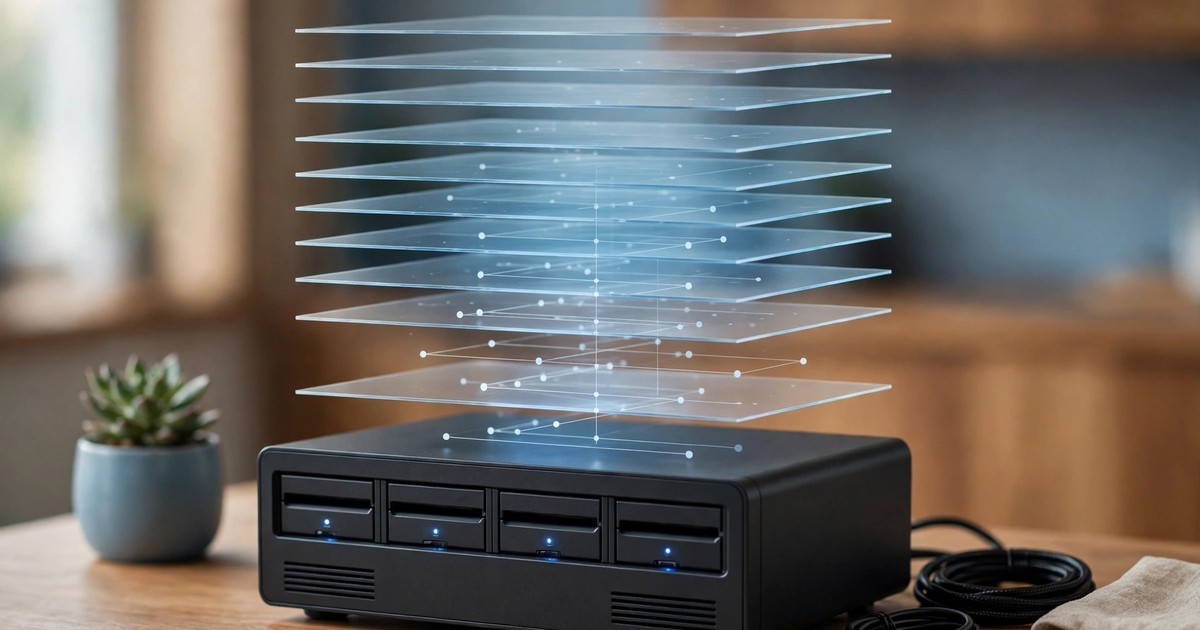
A snapshot records the state of a shared folder or storage space at a point in time. After that, if a file is wrongly edited or deleted, you can go back to that point-in-time version. Snapshots are taken in seconds, and because they only record what changed, they do not eat space like a full copy would. Synology's official documentation states that a snapshot can be taken every 5 minutes, with up to 1,024 snapshots per shared folder and 65,536 per system — but the numbers are not the point. The point is: taking snapshots frequently does not mean keeping them for long.
| Mechanism | What it does | What it protects against | What it does NOT protect against |
|---|---|---|---|
| Snapshot | Records a point-in-time state inside the same NAS | Accidental deletion, wrong edits, overwritten versions, restored within minutes | The whole NAS failing, theft, fire or flood, the snapshots themselves being deleted |
| Backup | Copies files to another device or another location | The NAS itself failing, ransomware encrypting the originals | The backup job itself failing, or the backup copy being deleted with the same stolen account |
| RAID | Several disks backing each other up so the machine still runs if one disk fails | Disk failure | Deletion, ransomware, fire, theft of the whole machine (RAID is not a backup, as article 69 explains) |
| Sync | Copies the latest state to other devices so several machines see the same files | Keeping several devices consistent | Wrong deletions and encryption travel with the sync — sync treats the wrong state as the correct state and copies it onward |
Remember it this way: a snapshot is a time machine, a backup is another copy in another place, RAID is "still running when a disk dies", and sync is "everyone sees the same latest file". Each has its own job, and none replaces another. This article covers only the snapshot layer — the first layer of a protection design, never the whole design on its own.
Section 2: Why snapshots fail — five common failure paths
Snapshot failure is rarely caused by "the snapshot feature breaking". It is usually caused by holes in the design itself. Check your own machine against each of the five paths below:
Failure path 1: Snapshots were never turned on, or only for some folders
Many NAS units do not auto-enable snapshots for every folder out of the box; you must enable them folder by folder. The result is that the most important folder is precisely the one with no snapshots. The fix is simple: list every important folder and confirm its snapshot schedule is on. Do not assume "it came with it".
Failure path 2: Retention is too short, and discovery comes too late
Retention is how long snapshots are kept. Seven days means versions older than seven days are auto-deleted. Wrong deletions, overwritten files, and lurking ransomware can all go undiscovered for longer than seven days. Ransomware in particular likes to lurk: encrypt a little, watch whether anyone notices, and only then encrypt everything. If retention is shorter than the discovery time, snapshots are as good as never taken. How to calculate retention is covered in Section 3.
Failure path 3: Anyone with administrator access can delete snapshots
Ordinary snapshots can be deleted with an administrator account. Attackers' first targets include the administrator account — article 115 on the SafePay advisory explains that attackers deliberately destroy backups, including factory-resetting NAS units that hold backups and deleting network backups. QNAP's own documentation likewise states that ransomware attacks often target backups and snapshots first by abusing compromised administrator credentials. The fix is Section 4's locked snapshots: during the protection period, not even an administrator can delete them.
Failure path 4: Snapshots live on the same machine, so they die with it
Snapshots live on the same NAS and the same disk group. If the disk group is damaged, the whole machine is stolen, or there is a fire or flood, snapshots disappear with the originals. The fix is Section 5's off-machine replication: copy snapshots to a second NAS, using different credentials, ideally in a different location.
Failure path 5: Snapshot space fills up, and the schedule quietly stops
Snapshots consume storage space; the more changes and the longer the retention, the more space they eat. When space runs out, some systems auto-delete old snapshots, some stop taking new ones, and some raise storage-pool warnings. Either way, the result is "thought I had snapshots, actually did not". The fix is Section 7: reserve space and monitor snapshot usage instead of waiting until the pool is full.
Section 3: How to calculate retention — count three numbers, not feelings
Retention should not be set by feeling — "seven days" or "thirty days" — but by counting three numbers, taking the largest, and adding a buffer:
1. Discovery time: from the incident to someone noticing, how long could it be at most? Home users may only discover a deleted photo months later. A small office may only discover a wrong quotation version when the next quotation is opened. Ask yourself: how late could discovery be? That number is the floor for retention.
2. Ransomware dwell time: ransomware can lurk for a while before striking, and only encrypts everything when it strikes. Clean versions from before the encryption must still be inside the retention window. If retention is too short, the clean versions have already been auto-deleted and only post-encryption versions remain.
3. Version needs: some files need old versions kept for work comparison — contract revisions, design drafts, accounts. This is not "emergency use" but "work use", and its retention must match the workflow rather than being confused with emergency retention.
Synology's retention method is GFS (Grandfather-Father-Son): you set separately how many hourly, daily, weekly, monthly, and yearly snapshots to keep. For example, take a snapshot every hour but keep only the most recent 24 hourly snapshots, 7 daily snapshots, 4 weekly snapshots, and 12 monthly snapshots — recent points stay dense, distant points stay sparse, and total space stays manageable. The point is not to copy these numbers, but to understand the principle: dense recently, sparse further back, and total retention longer than discovery time.
The following two starting suggestions are starting points only, not standard answers; check your own machine's official documentation and actual space before setting them:
| User type | Snapshot frequency starting point | Retention starting point | Why |
|---|---|---|---|
| Home users (photos and documents) | Daily, every 4 hours for important folders | Daily snapshots kept 30 days, weekly snapshots kept 3 months | Photo deletions are discovered late, so 30 days is a floor, not a target; weekly snapshots cover "discovered months later" cases |
| Small offices (quotations, accounts, shared documents) | Hourly during working hours | Hourly snapshots kept 48 hours, daily snapshots kept 30 days, weekly snapshots kept 3 months | Changes are frequent during work hours, so hourly snapshots are needed to rescue "wrong within today"; 30 days of daily snapshots covers month-end and reconciliation discoveries |
Reminder: these are only starting points, not guarantees. Longer retention eats more space, so read Section 7 on space management before setting retention that fills the pool.
Section 4: Locked and immutable snapshots — the layer even administrators cannot delete
If Section 3 is "how long to keep", this section is "during that time, nobody can delete". Synology calls this feature immutable snapshots, based on WORM (Write Once, Read Many) technology: within a specified protection period, nobody can change or delete these snapshots, and the shared folders, LUNs, volumes, or storage pools containing them cannot be deleted either. Synology's Knowledge Center recommends a protection period of 7 to 14 days, and once set, the protection cannot be disabled or shortened until existing snapshots expire — that restriction is itself part of the protection, preventing an intruder with administrator access from simply switching protection off.
QNAP's immutable storage documentation states the same principle: during the retention period, data cannot be modified, deleted, or overwritten, even by administrators, precisely to protect recovery data from ransomware, credential compromise, and malicious deletion. Once retention expires, data can be removed under normal lifecycle management — immutable does not mean permanent; it only locks for a defined period.
When using locked snapshots, understand three limits, and do not assume switching them on makes you invulnerable:
- The lock expires: a 7-to-14-day protection period means snapshots older than that become deletable again. Locked snapshots must be combined with Section 3's long retention; 7 days of lock alone is not enough.
- The lock does not cover the whole machine: immutable snapshots prevent snapshot and folder deletion, but not destruction of the whole storage pool, theft of the whole machine, or fire. Those need Section 5's off-machine replication and offline copies.
- Not every model supports it: Synology states you should check whether your model supports immutable snapshots. Check the official support list before buying or enabling the feature; do not assume every machine has it.
Practical suggestion: enable locked snapshots, with a protection period of at least 14 days, for your one or two most important folders (for example accounts, contracts, quotations); use ordinary snapshots with long retention for general folders. Locking everything eats a lot of space and becomes rigid to manage — tiered handling is the sustainable approach.
Section 5: Off-machine replication — snapshots must reach a second machine to count as a second layer
Snapshot replication copies one NAS's snapshots to another NAS. The purpose is simple: if the first machine fails, the second still holds point-in-time records. When setting up replication, four things must be kept separate, or the two machines are merely "two copies of the same weakness":
1. Separate accounts and passwords: the second machine must not use the same administrator account and password as the first. An intruder who takes the first machine's administrator access should not be able to delete the second machine's snapshots as well. The replication task's own account should have replication-only permission, not deletion permission.
2. Separate locations: the second machine should ideally sit in a different location — another branch, another floor of the home, the responsible person's home. Two machines in the same room, under the same desk, fail together in a fire or flood.
3. Replication frequency matched to retention: the more frequent the replication, the fresher the second machine's time points; but replication also eats bandwidth and space. For a small office, daily replication already covers most cases; important folders can be more frequent. Frequency is not "the more frequent the better" — it must match "how much loss is acceptable", the recovery-point-objective concept from article 82.
4. Locked snapshots on the second machine too: replicated snapshots must also have locked protection on the second machine, or an intruder who cannot delete the first machine's snapshots will simply delete the second machine's instead.
One more clarification: off-machine replication is not an offline backup. Both machines stay powered on and connected, so an intruder could in theory reach both. A truly offline copy is one copied periodically to an external drive, then disconnected and stored away — the "two different media" idea from article 69's 3-2-1 concept, not repeated here, only flagged as a reminder: snapshots plus off-machine replication plus offline copies, all three layers together, make a complete design.
Section 6: Three things to do before any restore
However well snapshots are designed, wrong restore steps can make things worse. Before restoring, do all three of the following:
First: take a new snapshot before restoring
Whether restoring a single file or rolling back a whole folder, take a snapshot of the current state first. Why? Because a rollback wipes out every change made after the rollback point — including files that were actually fine and only later turn out to be needed. Take a snapshot first, and if you restore the wrong version, there is still a way back. QNAP's official restore guidance carries the same spirit: set useful snapshots to permanent retention before restoring, so they are not auto-deleted when retention expires.
Second: confirm the snapshot itself is clean
Before restoring, confirm that the chosen point-in-time snapshot contains unencrypted files, normal file extensions, and files that open. QNAP's official restore guidance starts exactly here: open Snapshot Manager and confirm the files in the snapshot are not encrypted, for example by checking that file extensions look normal. If you restore from an already-encrypted point in time, you only restore the encrypted state. If infection is suspected, do not restore directly on the infected machine — isolate it, scan it, and confirm the restore point is clean first, as article 82 explains in detail and this article does not repeat.
Third: for large restores, restore to an external drive, not by overwriting in place
QNAP's official guidance states that restoring a large number of files directly can exhaust storage-pool space, and recommends restoring to an external hard drive or using the restore-volume option — with the understanding that a whole-volume rollback wipes out every change after the rollback point. Before restoring, back up files created or modified after the rollback point that are not encrypted. The most common small-office restore mistake is "overwrite in place for speed", rescuing old files while destroying new ones.
One more point for post-ransomware restores: restoring files does not mean the machine is clean. QNAP's official guidance recommends reinitializing the attacked NAS and updating it to the latest version after backing up the restored files, before moving files back. File restoration and system cleanup are two separate jobs; do not treat a finished file restore as "all clear".
Section 7: Snapshot space management — frequent snapshots do not mean long retention
Three points for snapshot space management:
- Reserve space: snapshots grow with the volume of changes. A frequently changed folder, snapshotted often and kept long, can exceed expectations quickly. When setting retention, check how much pool space remains and keep a buffer; do not run the pool to 99% before discovering snapshots have no room.
- Monitor, do not guess: check snapshot usage reports regularly — which folder's snapshots eat the most space and grow fastest. Abnormal growth may mean a program constantly rewriting files, or abnormal activity, and is worth investigating rather than simply deleting old snapshots.
- Think before deleting old snapshots for space: when space runs short, the tempting move is to delete old snapshots. But old snapshots are precisely what covers "discovered late" cases. Solve space problems by adding capacity, clearing useless large files, or restructuring retention (for example fewer hourly snapshots, keeping weekly snapshots) — not by deleting all old snapshots in one go.
Section 8: Five common mistakes
Mistake 1: Thinking snapshots switched on means backups done
Snapshots live on the same machine; if the machine fails, they fail together. Snapshots are the first layer, backups the second layer. Both are needed; neither alone is enough.
Mistake 2: Setting seven-day retention and assuming it is enough
Seven days only covers "discovered within seven days". Wrong deletions, lurking ransomware, and month-end discoveries can all exceed seven days. Calculate retention from Section 3's three numbers, not from feeling.
Mistake 3: Using the same retention for every folder
Photos and accounts have completely different discovery times and importance. One retention policy for all folders means protecting the most important data to the loosest standard. Set tiers: important folders denser, longer, and locked; general folders looser.
Mistake 4: Using the same administrator account on the second machine
Replicating to a second machine with the same account and password hands the intruder the second machine's keys as well. Accounts, passwords, and permissions must all be separate.
Mistake 5: Never having tried a restore
However beautiful the snapshot settings, an untested restore is only an expectation. Article 82's four-layer restore testing applies to snapshots too: pick one file, restore it from a snapshot, confirm it opens, and confirm it is the right version. Tested counts as verified; untested only counts as configured.
Section 9: Setup checklist (check once after setup, then every quarter)
1. Is the snapshot schedule switched on for every important folder?
2. Is retention longer than expected discovery time? Does GFS achieve "dense recently, sparse further back"?
3. For the one or two most important folders, are locked or immutable snapshots on? How many days is the protection period?
4. Is the snapshot replication task to the second machine running normally? Are the second machine's credentials separate?
5. Do snapshots on the second machine also have locked protection?
6. When was the offline copy (external drive) last made? Was it disconnected and stored away after copying?
7. How much snapshot space is the storage pool using? Is there buffer space reserved?
8. Does the administrator account have two-factor authentication? Is the default administrator account disabled?
9. When was the last test restore? Did the restored file open, and was it the right version?
10. Does the responsible person know the post-ransomware restore flow — snapshot first, confirm clean, do not overwrite in place? Is it written down?
FAQ
Q: For home users, is it enough to choose either snapshots or backups?
A: No, it is not a choice — both layers are needed. Snapshots rescue wrong deletions and wrong edits within minutes; backups provide another copy when the machine itself fails. Snapshots without backups mean the machine failing takes everything together; backups without snapshots mean rescuing one wrongly deleted file requires slowly searching a whole backup, which may not even hold the right point-in-time version. The two layers do different jobs and cannot replace each other.
Q: How long should retention be?
A: There is no universal number. Calculate Section 3's three numbers — discovery time, ransomware dwell time, and version needs — take the largest, and add a buffer. Home starting points are daily snapshots kept 30 days and weekly snapshots kept 3 months; small-office starting points are hourly snapshots kept 48 hours, daily snapshots kept 30 days, and weekly snapshots kept 3 months. These are only starting points; check your own machine's official documentation and actual space before setting them.
Q: What protection period does Synology recommend for immutable snapshots?
A: Synology's Knowledge Center recommends a protection period of 7 to 14 days. During the protection period, the snapshots and the shared folders and storage spaces containing them cannot be deleted, and protection cannot be disabled or shortened until existing snapshots expire. Note that 7 to 14 days is only the lock period, not the whole retention period — retention itself must be calculated per Section 3, and lock period and retention period are two different things.
Q: Does switching on immutable snapshots make me safe from ransomware?
A: No. Immutable snapshots prevent snapshot and folder deletion, but not destruction of the whole storage pool, theft of the whole machine, or fire and flood, and they become deletable again once the protection period expires. Locked snapshots must therefore be used together with long retention, off-machine replication, and offline copies; one layer alone is not enough.
Q: What is most easily done wrong when restoring QNAP snapshots?
A: Three things: first, restoring from an already-encrypted point in time without confirming the snapshot is clean; second, restoring a large number of files directly in place and exhausting storage-pool space; third, rolling back a whole volume without first backing up unencrypted files created or modified after the rollback point, rescuing old files while destroying new ones. Taking a new snapshot before restoring prevents most of the damage from the third mistake.
Q: Must the second NAS be the same brand for snapshot replication?
A: Not necessarily, but check the official documentation. Synology snapshot replication and QNAP snapshot replication each have their own systems and requirements; cross-brand replication usually means copying files with a backup task rather than directly with snapshot replication. Before buying a second machine, check both brands' official replication documentation, and do not assume "it plugs in, so it replicates". Whichever method is used, the second machine's credentials must be separate from the first machine's.
Q: Is taking snapshots more frequently always better?
A: No. Frequent snapshots give dense recent time points and precise restore choices, but they also eat space and system resources, and they do not mean long retention — snapshots every 5 minutes with one-day retention are still useless for a deletion discovered ten days later. The correct approach is GFS: dense recently, sparse further back, total retention longer than discovery time, plus space monitoring so snapshots do not fill the pool.
Q: My machine already has ransomware. Are snapshots still useful?
A: They may be, but follow Section 6's order: isolate first and do not restore directly on the infected machine; confirm which point-in-time snapshot is clean and unencrypted; set useful snapshots to permanent retention and stop the snapshot schedule before restoring; for large restores, restore to an external drive; after restoring files, reinitialize the machine and update it to the latest version before moving files back. If every snapshot is already encrypted or deleted, fall back to off-machine replication and offline copies, and read article 115's advisory and article 66's response guide before considering any ransom decision. Actual charges require individual quotations; confirm in advance which items are included and which are not.
Sources
1. Synology Knowledge Center: "What is an immutable snapshot? How do I use it?" — Immutable snapshots are WORM technology; within the protection period they cannot be changed or deleted; recommended protection period 7 to 14 days. https://kb.synology.com/en-br/DSM/tutorial/what_is_an_immutable_snapshot
2. Synology documentation: Snapshot Replication snapshot settings — snapshot schedules, retention settings (latest count, keep-for-days, advanced retention policy), immutable snapshot settings. https://help.synology.com/api/v1/findHelpFile/dsm/SnapshotReplication/7.4.4-1694/enu/7.2-64570/synology_v1000_1821+/100/snapshots.html
3. Synology Snapshot Replication technical specifications — snapshots can be taken every 5 minutes, up to 1,024 snapshots per shared folder and 65,536 per system; GFS retention policy across hourly, daily, weekly, monthly, and yearly. https://www.synology.com/en-global/dsm/7.3/software_spec/snapshot_replication
4. QNAP immutable storage documentation — during the retention period, data cannot be modified, deleted, or overwritten, even by administrators; ransomware often targets backups and snapshots first. https://www.qnap.com/en/solution/immutable-storage
5. QNAP: "How can I recover files encrypted by ransomware using snapshots?" — confirm the snapshot is unencrypted, set permanent retention, stop the schedule, restore to an external drive, reinitialize the NAS after restore. https://www.qnap.com/fr-fr/how-to/faq/article/%E6%AA%94%E6%A1%88%E9%81%AD%E5%88%B0%E5%8B%92%E7%B4%A2%E8%BB%9F%E9%AB%94%E5%8A%A0%E5%AF%86%E8%A9%B2%E5%A6%82%E4%BD%95%E9%80%8F%E9%81%8E%E5%BF%AB%E7%85%A7%E6%81%A2%E5%BE%A9; see also QNAP's DeadBolt statement (snapshots enabled by default from QTS 5.0, restore via snapshots, disable DMZ, UPnP, and port forwarding). https://www.qnap.com/en/security-news/2022/qnaps-response-action-and-statement-to-recent-deadbolt-attacks
6. This site, article 69: Home and small-office NAS choosing, configuration, and backup guide. https://www.computerking.hk/blog/nas-home-office/
7. This site, article 82: Backed up does not mean recoverable — restore verification and immutable backups. https://www.computerking.hk/blog/backup-strategy-verify-restore-guide/
8. This site, article 91: NAS buying and first-day checklist. https://www.computerking.hk/blog/nas-home-office-buying-guide-first-day-checklist/
9. This site, article 100: Restored, but the wrong version — version management and retention. https://www.computerking.hk/blog/backup-version-history-retention-guide/
10. This site, article 115: SafePay ransomware joint advisory, six SME self-protection steps. https://www.computerking.hk/blog/safepay-ransomware-cisa-advisory-sme-defence-guide/
Frequently Asked Questions
For home users, is it enough to choose either snapshots or backups?
No, it is not a choice — both layers are needed. Snapshots rescue wrong deletions and wrong edits within minutes; backups provide another copy when the machine itself fails. Snapshots without backups mean the machine failing takes everything together; backups without snapshots mean rescuing one wrongly deleted file requires slowly searching a whole backup, which may not even hold the right point-in-time version. The two layers do different jobs and cannot replace each other.
How long should retention be?
There is no universal number. Calculate Section 3's three numbers — discovery time, ransomware dwell time, and version needs — take the largest, and add a buffer. Home starting points are daily snapshots kept 30 days and weekly snapshots kept 3 months; small-office starting points are hourly snapshots kept 48 hours, daily snapshots kept 30 days, and weekly snapshots kept 3 months. These are only starting points; check your own machine's official documentation and actual space before setting them.
What protection period does Synology recommend for immutable snapshots?
Synology's Knowledge Center recommends a protection period of 7 to 14 days. During the protection period, the snapshots and the shared folders and storage spaces containing them cannot be deleted, and protection cannot be disabled or shortened until existing snapshots expire. Note that 7 to 14 days is only the lock period, not the whole retention period — retention itself must be calculated per Section 3, and lock period and retention period are two different things.
Does switching on immutable snapshots make me safe from ransomware?
No. Immutable snapshots prevent snapshot and folder deletion, but not destruction of the whole storage pool, theft of the whole machine, or fire and flood, and they become deletable again once the protection period expires. Locked snapshots must therefore be used together with long retention, off-machine replication, and offline copies; one layer alone is not enough.
What is most easily done wrong when restoring QNAP snapshots?
Three things: first, restoring from an already-encrypted point in time without confirming the snapshot is clean; second, restoring a large number of files directly in place and exhausting storage-pool space; third, rolling back a whole volume without first backing up unencrypted files created or modified after the rollback point, rescuing old files while destroying new ones. Taking a new snapshot before restoring prevents most of the damage from the third mistake.
Must the second NAS be the same brand for snapshot replication?
Not necessarily, but check the official documentation. Synology snapshot replication and QNAP snapshot replication each have their own systems and requirements; cross-brand replication usually means copying files with a backup task rather than directly with snapshot replication. Before buying a second machine, check both brands' official replication documentation, and do not assume "it plugs in, so it replicates". Whichever method is used, the second machine's credentials must be separate from the first machine's.
Is taking snapshots more frequently always better?
No. Frequent snapshots give dense recent time points and precise restore choices, but they also eat space and system resources, and they do not mean long retention — snapshots every 5 minutes with one-day retention are still useless for a deletion discovered ten days later. The correct approach is GFS: dense recently, sparse further back, total retention longer than discovery time, plus space monitoring so snapshots do not fill the pool.
My machine already has ransomware. Are snapshots still useful?
They may be, but follow Section 6's order: isolate first and do not restore directly on the infected machine; confirm which point-in-time snapshot is clean and unencrypted; set useful snapshots to permanent retention and stop the snapshot schedule before restoring; for large restores, restore to an external drive; after restoring files, reinitialize the machine and update it to the latest version before moving files back. If every snapshot is already encrypted or deleted, fall back to off-machine replication and offline copies, and read article 115's advisory and article 66's response guide before considering any ransom decision. Actual charges require individual quotations; confirm in advance which items are included and which are not. 1. Synology Knowledge Center: "What is an immutable snapshot? How do I use it?" — Immutable snapshots are WORM technology; within the protection period they cannot be changed or deleted; recommended protection period 7 to 14 days. https://kb.synology.com/en-br/DSM/tutorial/what_is_an_immutable_snapshot 2. Synology documentation: Snapshot Replication snapshot settings — snapshot schedules, retention settings (latest count, keep-for-days, advanced retention policy), immutable snapshot settings. https://help.synology.com/api/v1/findHelpFile/dsm/SnapshotReplication/7.4.4-1694/enu/7.2-64570/synology_v1000_1821+/100/snapshots.html 3. Synology Snapshot Replication technical specifications — snapshots can be taken every 5 minutes, up to 1,024 snapshots per shared folder and 65,536 per system; GFS retention policy across hourly, daily, weekly, monthly, and yearly. https://www.synology.com/en-global/dsm/7.3/software_spec/snapshot_replication 4. QNAP immutable storage documentation — during the retention period, data cannot be modified, deleted, or overwritten, even by administrators; ransomware often targets backups and snapshots first. https://www.qnap.com/en/solution/immutable-storage 5. QNAP: "How can I recover files encrypted by ransomware using snapshots?" — confirm the snapshot is unencrypted, set permanent retention, stop the schedule, restore to an external drive, reinitialize the NAS after restore. https://www.qnap.com/fr-fr/how-to/faq/article/%E6%AA%94%E6%A1%88%E9%81%AD%E5%88%B0%E5%8B%92%E7%B4%A2%E8%BB%9F%E9%AB%94%E5%8A%A0%E5%AF%86%E8%A9%B2%E5%A6%82%E4%BD%95%E9%80%8F%E9%81%8E%E5%BF%AB%E7%85%A7%E6%81%A2%E5%BE%A9; see also QNAP's DeadBolt statement (snapshots enabled by default from QTS 5.0, restore via snapshots, disable DMZ, UPnP, and port forwarding). https://www.qnap.com/en/security-news/2022/qnaps-response-action-and-statement-to-recent-deadbolt-attacks 6. This site, article 69: Home and small-office NAS choosing, configuration, and backup guide. https://www.computerking.hk/blog/nas-home-office/ 7. This site, article 82: Backed up does not mean recoverable — restore verification and immutable backups. https://www.computerking.hk/blog/backup-strategy-verify-restore-guide/ 8. This site, article 91: NAS buying and first-day checklist. https://www.computerking.hk/blog/nas-home-office-buying-guide-first-day-checklist/ 9. This site, article 100: Restored, but the wrong version — version management and retention. https://www.computerking.hk/blog/backup-version-history-retention-guide/ 10. This site, article 115: SafePay ransomware joint advisory, six SME self-protection steps. https://www.computerking.hk/blog/safepay-ransomware-cisa-advisory-sme-defence-guide/ - Slug: nas-snapshot-protection - Cover image: drafts/article-nas-snapshot-protection-cover.jpg (1200×630, visually verified: clear, zero readable text, NAS plus layered time-point illustration, one message, not presented as a real repair case) - FB image: drafts/fb-nas-snapshot-protection-cover.jpg (1080×1350, visually verified: clear, zero readable text) - GBP image: drafts/gbp-nas-snapshot-protection-cover.jpg (1200×900, visually verified: clear, zero readable text; generic equipment illustration, not a real shopfront, staff, or completed-case photo — do not present it as a real shop photo on publication) - Division of work: #69 choosing/RAID/3-2-1, #82 four-layer restore testing, #91 buying checklist, #100 version retention, #115 SafePay backup destruction; this article covers only the snapshot layer (retention calculation, locking, off-machine replication, three pre-restore steps) without re-teaching the above.