Computer Repair · October 21, 2026 · ComputerKing Team
Home and Small-Office NAS Setup: How to Choose, Configure RAID, Back Up with 3-2-1, and Secure Remote Access
Home and small-office data keeps growing. How to choose a NAS, configure RAID, put 3-2-1 backup into practice, and keep remote access safe — one complete guide, with common mistakes and a prevention checklist.
Key Takeaway
More and more of a household's or small office's data needs one central home: family photos, company quotations and accounts, students' schoolwork — scattered across phones and PCs, it is all too easy to lose. This guide explains how to choose a NAS that fits you, how to configure RAID, how to put the 3-2-1 backup rule into practice, and how to make remote access safe. It is written for first-time NAS buyers and small offices of roughly 5 to 20 people.
Introduction
Have you ever had this happen: a family member asks for photos from a few years ago, and you realise the old phone is long gone — and so are the photos? Or a quotation your colleagues need lives only on one laptop, and when that laptop breaks, the whole office has to wait. When files are scattered across devices, the real problem is not that they are hard to find — it is that there is no second copy.
A NAS (Network Attached Storage) exists to solve exactly that. It is a small storage server that stays switched on and connected to your home or office network. Everyone in the household or office can access and share files from it with their own account, instead of passing USB sticks back and forth.
But buying a NAS is not a case of "buy the most expensive one and be done". Buying the wrong capacity, configuring RAID the wrong way, doing backup wrong, or opening remote access the wrong way can leave you worse off than having no NAS at all. This guide walks through it all: what a NAS is, who it suits, how to choose one, how to configure RAID, how to make backup actually work, and how to keep remote access safe — plus common mistakes and a prevention checklist. Every step has a clear stopping point, and nothing here asks you to do anything beyond a careful user's reach.
Section 1: What a NAS Is, and Who It Suits
What kind of device is a NAS?
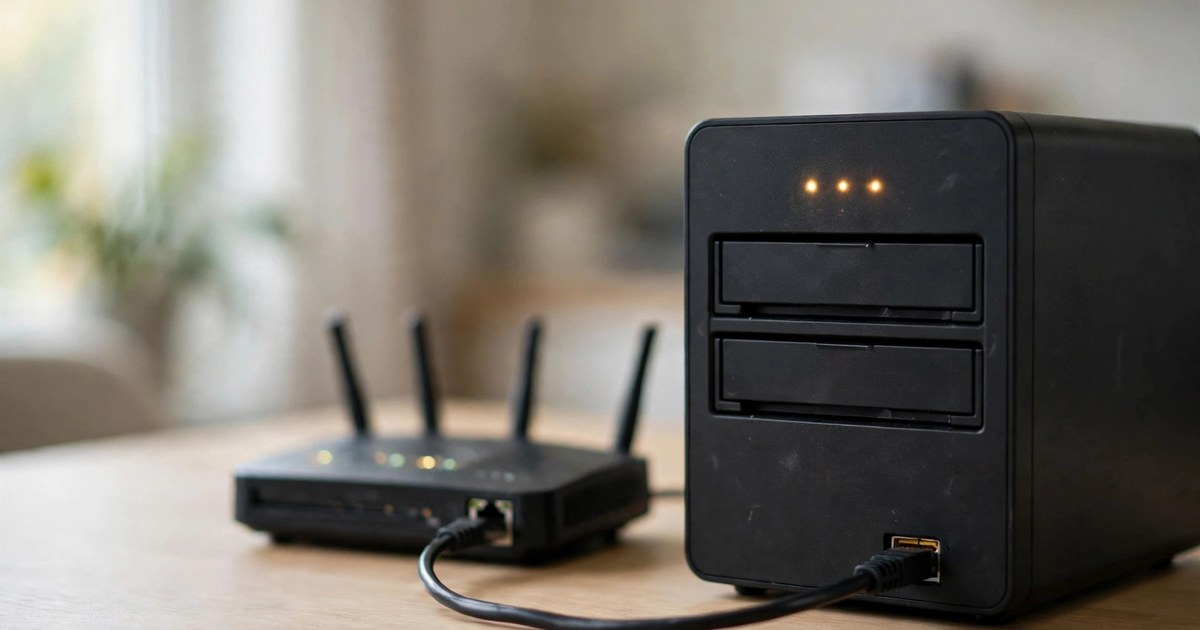
Simply put, a NAS is a small computer built for storing files. It holds one or more hard drives and connects to your home or office router. After that, every device on the same network — PCs, phones, tablets — can reach the files over the network. Unlike an external drive that can only plug into one machine, a NAS is a shared filing cabinet for the whole household or office.
Most home and small-office NAS units also come with a management system. Synology's is called DSM (DiskStation Manager); QNAP's is called QTS. Both are managed through a web interface in your browser: creating accounts, setting folder permissions, scheduling backups, and installing extra apps such as photo management, media streaming, or surveillance recording. In other words, when you buy a NAS you are buying a whole software ecosystem, not just a box.
Who benefits most from a NAS?
The first group is households: several phones and PCs at home, a desire to keep photos and videos in one place, no wish to pay a monthly cloud fee, and a need for each family member to have their own private space. A 2-bay NAS already covers most households.
The second group is small offices and freelancers: a few people sharing the same documents, quotations, and design files, working from both the office and home. A NAS centralises files, separates access by permission (who can see which folder), and can back up every PC automatically — reducing the risk that one broken machine wipes out everything.
The third group is people with large photo and video collections: photographers, videographers, and households with several terabytes of family video. They need more capacity and speed, and usually should be looking at 4 bays or more, with room to grow.
When you may not need a NAS at all
If you are a single person with a single PC and not many files, an external drive plus a cloud backup is already enough — there is no need to buy a NAS just to follow a trend. A NAS needs basic network setup and regular maintenance (system updates, drive-health checks). If you genuinely do not want to manage anything, think carefully before buying. And if your main need is off-site backup rather than household sharing, a cloud backup service may be more direct. Before buying, ask yourself: do I really need storage that is shared by several people and several devices and switched on all the time? Only if the answer is yes is it worth reading on.
Section 2: How to Choose the Right NAS
Count capacity first, then choose the bay count
The first step in choosing a NAS is not the price — it is counting how much data you have. Add up the files currently scattered across your devices, then allow for growth over the next two to three years — usually about double is a sensible margin. A common scenario: the family's photos currently total around 2 TB, and phone photos and 4K video will keep growing, so you should plan for roughly 4 TB of *usable* capacity.
Note that usable capacity is not the same as total drive capacity. RAID protection uses some space for redundancy (explained in the next section). For example, two 4 TB drives in RAID 1 (mirroring) give you only 4 TB of usable space, not 8 TB. Factor that in when counting, or you will discover too late that you bought too little.
2-bay or 4-bay?
A 2-bay (two drive slots) unit is the mainstream starting point for households and small offices. Its advantages are lower cost, quieter operation, a smaller footprint, and lower power use; two drives in mirroring already give basic protection. Its drawback is limited expansion: to grow later, you can only swap drives one at a time for larger ones, or replace the unit. It suits users whose data volume is stable and unlikely to surge soon.
A 4-bay (four drive slots) unit suits users whose data grows fast, or who want larger capacity plus protection in one go. Four drives can run RAID 5 or SHR, which balance capacity and protection well, and you can add drives one at a time later. The drawbacks are a higher unit price, more noise, more power use, and more shelf space.
How to decide? Ask yourself two questions. First, will my data double in the next three years? If yes, look straight at 4-bay. Second, is there room for a bigger unit, and is fan noise acceptable where it will sit? If space is tight or it will sit near a bedroom, 2-bay is usually the more practical choice. Remember: you are buying for the next few years' needs, not just today's — but do not buy a rack-sized unit "just in case" either.
Synology or QNAP: principles for choosing, not a fixed recommendation
The two most common brands for home and small-office use are Synology and QNAP. Each has its own strengths, but one principle matters before anything else: you are buying a whole system, not just a box. You will live with its management interface, mobile apps, backup tools, and update support for years, so whether the interface feels natural to you matters more than headline specifications.
Four principles for choosing:
- Interface and ease of use: try the management interface in a shop, or on a friend's unit, and see whether you can actually use it. Synology's DSM is generally regarded as the more intuitive interface, suiting first-time NAS users; QNAP's QTS offers more features and flexibility, suiting users who like to tune things themselves. That is a general impression — actual feel varies by person, so try it yourself.
- Mobile apps and app ecosystem: if you will often view photos or open documents from your phone, check whether each brand's mobile apps support what you need (photo backup, file access, media playback). Install the free apps and try them before buying.
- Drive compatibility and expansion: each brand publishes an official drive compatibility list — check it before buying drives. Do not buy a cheap drive that is not on the list to save money; when something goes wrong, manufacturer support can become very difficult. Also check whether the unit can later take more memory or a network card, so you keep an upgrade path.
- After-sales support and update lifespan: a NAS stays switched on and connected to the internet for years, so security updates matter a great deal. Before buying, check how long the brand supports older models with updates, and do not buy a unit that was discontinued long ago just because it is on clearance.
On price, this article gives no specific model prices, because models and street prices change. Actual charges require an individual quotation — ask your supplier for the current price and warranty terms, and cost the drives together with the unit, not the bare unit alone.
How to choose drives
NAS drives are different from ordinary PC drives: they are designed for 24-hour operation in a constantly vibrating environment, and are generally sold as NAS-specific or enterprise-grade drives. Three points to note when buying: first, buy NAS-specific models — do not stuff old drives pulled from a PC into the NAS as a stopgap. Second, drives in the same RAID group should ideally be the same brand and capacity, because traditional RAID sizing is based on the smallest drive and mismatched capacity is wasted. Third, plan for drive failure before you buy — drives are consumables and will fail one day, so decide in advance how you will handle a failed drive instead of panicking when it happens.
Section 3: How to Configure RAID — Protection or Capacity, Mostly a Trade-Off
What RAID is
RAID (Redundant Array of Independent Disks) is a technology that combines several hard drives into one logical storage space. Different RAID levels distribute data and redundancy information differently, giving different levels of protection and capacity efficiency. One point must be stated first, because it is the most misunderstood: RAID is not backup. RAID only protects against one kind of failure — a dead hard drive. It does not protect against accidental deletion, ransomware encryption, fire, flood, or the whole NAS being stolen. Backup is a separate job, covered in Section 4.
The RAID levels compared
The table below summarises Synology's official DSM documentation on RAID levels (see Sources at the end). Note that different brands may support the same level slightly differently and may name things differently — always check your own unit's official documentation before configuring.
| RAID level | Minimum drives | Drives that may fail | Usable capacity (based on smallest drive) | Suits |
|---|---|---|---|---|
| RAID 0 (striping) | 2 | 0 — one failed drive loses the whole array | Sum of all drives | Speed only, for data that does not matter; not recommended for home backup |
| RAID 1 (mirroring) | 2 | 1 | Capacity of the smallest drive | Mainstream choice for 2-bay home and small-office use; simple and reliable |
| RAID 5 | 3 | 1 | (Number of drives − 1) × smallest drive | 4-bay and above; balances capacity and protection |
| RAID 6 | 4 | 2 | (Number of drives − 2) × smallest drive | Very important data; survives two drives failing at once |
| SHR (Synology Hybrid RAID) | 1 (redundancy starts at 2) | 1 to 2 (depending on SHR-1 or SHR-2 and drive count) | Automatically optimised by the system, especially good with mixed drive sizes | First choice for Synology beginners, especially if you plan to add drives or swap in larger ones later |
| Basic / JBOD | 1 | 0 — no redundancy | Full capacity | Temporary storage or testing only; not for important data |
Which level, when
2-bay users: almost always RAID 1 or SHR (with two drives, SHR behaves much like RAID 1). It is simple and protective enough: if one drive fails, the unit keeps running, and swapping in a replacement rebuilds automatically. Never choose RAID 0 just to double your capacity — one failed drive loses the whole array, which is worse than using an external drive.
4-bay home / small-office users: RAID 5 or SHR is the common balance point. A common scenario: four 4 TB drives in RAID 5 give roughly 12 TB usable and survive one drive failure; in RAID 6 they give roughly 8 TB usable but survive two failures. Which to pick? It depends on how important the data is and how fast you can get a replacement drive. If you live far from shops and a replacement takes days, RAID 6's double protection is reassuring; if the data also has other backups elsewhere, RAID 5 is already enough.
When SHR is especially right: if you already own drives of different capacities, or plan to swap in larger drives one at a time, SHR automatically makes the best use of mixed-size drives, while traditional RAID 5/6 sizes everything to the smallest drive and wastes the extra space on larger drives. Synology's official documentation also notes SHR as the recommended option for beginners. QNAP users do not have SHR and must use traditional RAID levels, so they should buy drives of matching capacity.
What to know about replacing a drive and rebuilding
RAID protection is not magic. When a drive fails, the system prompts you to replace it, and after replacement it performs a "rebuild" — writing the data back onto the new drive. During a rebuild the unit runs slower, and the remaining drives work at full speed; this is the most fragile period — if a second drive fails during a rebuild (in RAID 5), the data is at risk. That is why you should watch drive health routinely instead of waiting for an actual failure, and why you must not power off or pull drives during a rebuild. Let it finish.
Section 4: Putting the 3-2-1 Backup Strategy into Practice
What 3-2-1 is
3-2-1 is the backup world's most durable golden rule. Veeam's official documentation defines it as: 3 copies of your data, on 2 different media, with 1 copy off-site. Broken down:
- 3: important data should exist in 3 copies — the original, plus two backups.
- 2: the 3 copies should live on 2 different media — for example, the PC itself plus an external drive, or a NAS plus the cloud.
- 1: one copy must be off-site — not in the same place as your PC or NAS — so that even a fire, flood, or burglary at home leaves you with a copy elsewhere.
In recent years some people add another "1", making 3-2-1-1, where one copy is offline or immutable, specifically to resist ransomware encrypting your backups too. Households and small offices may not achieve that on day one, but the direction matters: the point of backup is to survive *different kinds* of failure, not to pile up copies in the same place.
How 3-2-1 works in a NAS setup
With a NAS at the centre, one practical combination looks like this:
1. Copy 1 (the original): the files on the PCs and phones you use every day.
2. Copy 2 (the NAS): use the maker's backup tool (for example, Synology's Hyper Backup or QNAP's Hybrid Backup Sync) to back up PCs to the NAS on a schedule — or make the NAS itself the household file centre, in which case the NAS is copy 2.
3. Copy 3 (off-site): back up the NAS's most important folders, encrypted, to cloud storage — or regularly copy them to an external drive kept somewhere other than home (for example, the office, or a relative's house). With cloud backup, note the monthly fee and the upload speed: the first full backup can take days, and that is normal.
One dangerous misunderstanding to clear up: sync is not backup. Services like Google Drive, Dropbox, and OneDrive synchronise your changes instantly — delete a file on your PC by mistake, and the sync service will very likely delete it in the cloud too; if ransomware encrypts your files, the encrypted versions get synced as well. A real backup keeps version history (so you can restore a file as it was at an earlier point in time) and includes at least one copy that is not instantly synced. When choosing a cloud backup service, confirm whether it is "backup" or "sync" — they are not the same thing.
After backup, test a restore
Many people set up backup and assume they are safe, but a backup is only proven good when you have restored from it. Test one file every month: restore an older file from the backup, open it, and confirm the contents are right. Also check the backup schedule regularly: has the NAS backup job quietly stopped weeks ago because a drive filled up or the network dropped? Turn on email notifications for backup jobs, so at least a failure reaches someone.
Section 5: Remote Access Security — Balancing Convenience and Safety
One of the most attractive NAS features is reaching your home or office files from outside. It is also the most dangerous switch: any door you open for yourself is a door the whole internet can try. Before setting up remote access, understand the three methods and how they differ.
Method 1: The maker's relay service (Synology QuickConnect / QNAP myQNAPcloud Link)
This is the most convenient method: no router configuration needed. Enable the service on the NAS, sign in with the maker's account, and you can reach the NAS from outside through a dedicated link or mobile app. Its advantage is that it needs no open port on your router, reducing direct exposure; its drawback is that your login entry point is still reachable from the internet through the maker's service, so account security becomes critical.
If you use this method, all of the following are mandatory:
- Enable two-factor authentication (2FA): Synology DSM supports several second-step methods, including verification codes (OTP), mobile approve-sign-in, and hardware security keys; QNAP has two-step verification on both the account and the NAS. Whichever brand you use, turn 2FA on — do not skip it for convenience.
- Disable the default admin account: use an administrator account with a custom name, and do not leave the guessable "admin" account active.
- Use a long, unique password: your NAS password must not be shared with any other website; use a password manager to generate and store it.
- Enable auto-block: after a few failed logins, automatically block that IP address for a period, to blunt automated password-guessing programs.
- Do not expose the management interface (DSM / QTS) through QuickConnect / myQNAPcloud if all you need is file access — exposing only the file-access app is enough.
Method 2: VPN (the most robust approach)
A VPN pulls your outside device "back into the home network" before it touches the NAS, so no NAS service is directly exposed to the internet. QNAP's official security guidance explicitly recommends disabling router port forwarding and connecting remotely via myQNAPcloud Link or QVPN Service instead. Synology also offers a VPN Server package supporting protocols including OpenVPN and L2TP/IPSec; a newer option is WireGuard, which is lighter and faster to set up.
A VPN's advantage is the smallest attack surface: even if someone scans your home IP address, they cannot see a NAS login page. Its drawback is more setup steps — every device that needs remote access must run a VPN client, and not every family member will know how. For a small office, a VPN is usually the right answer; for a household, if there are many family members and devices, the maker's relay service with full 2FA and auto-block enabled is a reasonable compromise.
Method 3: Router port forwarding — least recommended
Forwarding the NAS management ports (for example 5000/5001, 8080) directly out through your router is the most dangerous approach. Automated scanners probe the whole internet's NAS login pages around the clock trying passwords, and a weak password falls quickly. QNAP's official security guidance also tells users to turn off UPnP automatic port forwarding and unpublish unnecessary services. If you discover this kind of forwarding on your home router and are not sure why it is there, the correct move is to turn it off immediately and switch to one of the two methods above.
One sentence to summarise remote access: first ask "do I really need to reach the NAS *management* interface from outside?" Most people only need to *see files* from outside, not to *manage the unit*. Keeping the management interface reachable only from the home network already blocks most of the risk.
Common Mistakes (5)
Mistake 1: Thinking RAID is backup
Why it is wrong: RAID only guards against drive failure. It does not guard against accidental deletion, ransomware, fire, or the whole unit being stolen. Many people set up a NAS with RAID 1 and believe they are fully protected — then delete a folder by mistake and lose it on both drives at once.
Do this instead: RAID is an *availability* tool; backup is a *recovery* tool — you need both. Follow 3-2-1 from Section 4 so there is an off-site copy; only then does RAID make sense.
Mistake 2: Budgeting only for the bare NAS unit, forgetting drive costs
Why it is wrong: the bare NAS unit is only half the cost; drives are the bigger part, and you should also budget for future replacement drives. Budgeting on the bare unit alone means either overspending when the real bill arrives, or cutting corners on unsuitable drives.
Do this instead: cost the whole package at once — NAS unit + drives + a replacement-drive plan — and ask your supplier for an individual quotation for the full setup before deciding.
Mistake 3: Opening everything for remote access, with the management interface exposed
Why it is wrong: for convenience, forwarding every port on the router, with a weak password and the default admin account, is exactly the combination automated attacks love most.
Do this instead: follow Section 5 — prefer a VPN or the maker's relay service, enable 2FA, disable admin, enable auto-block, and keep the management interface off the internet.
Mistake 4: Never updating the system or checking drive health
Why it is wrong: a NAS stays connected to the internet, so unpatched system vulnerabilities are an open invitation; and a drive whose health you never check may fail before you can buy a replacement.
Do this instead: enable automatic updates (or set a fixed day each month to update manually), check drive S.M.A.R.T. health and backup job reports monthly, and act immediately when a drive-failure warning appears.
Mistake 5: Setting up backup and never testing a restore
Why it is wrong: a backup job can silently stop for months — a full drive, a changed password, a dropped network connection — and you only discover it when you actually need a restore, and find the backup is months old or never ran at all.
Do this instead: turn on failure notifications, and restore one file every month to confirm the backup is really running and really restores.
Prevention: Keeping a NAS Reliable Long-Term
Do right now:
- Enable 2FA, disable the admin account, set a long password, enable auto-block.
- Turn off UPnP automatic port forwarding on the router and any unnecessary port forwarding.
- Confirm backup jobs are running, and turn on failure notifications.
Do regularly:
- Monthly: check drive health (S.M.A.R.T.) and storage usage; keep at least 15% free space, because a full volume affects the system and backups.
- Monthly: test-restoring one file to confirm backups are valid.
- Quarterly: check system updates and backup version-retention settings, so old versions do not fill the drive.
- Yearly: review capacity planning — is data growing faster than expected, and is it time for larger drives or another unit?
Stopping point: if you notice any of these — a drive showing persistent bad-sector warnings, the system repeatedly reporting storage anomalies, or login records showing sign-ins that were not you — do not improvise repairs yourself. First copy your most important data elsewhere, then have someone experienced inspect the unit. If you suspect the account was compromised, change the password immediately, disable remote access, and review the login records.
FAQ
Q: With a 2-bay NAS in RAID 1, do I already have a backup?
A: No. RAID 1 only writes the same data to two drives at once, protecting against drive failure. Accidental deletion, ransomware encryption, theft of the whole NAS, or a fire takes both drives together. A real backup follows 3-2-1: another copy on different media, in a different location, ideally with version history so you can restore an older version.
Q: What is the difference between Synology SHR and traditional RAID 5? Which should I choose?
A: SHR is Synology's own flexible RAID mechanism. Its biggest advantage is making good use of drives of different capacities, and expanding more smoothly when you swap in larger drives one at a time. Traditional RAID 5 sizes everything to the smallest drive, so extra space on larger drives is wasted. If you use Synology and expect to swap in larger drives gradually, SHR is usually more convenient; if you use QNAP or want a standard choice that works across brands, traditional RAID 5/6 is the standard option. Check your own unit's official documentation before configuring.
Q: My home network is slow — will the NAS be slow too?
A: Two different kinds of slowness. Accessing the NAS inside your home depends mainly on whether your home network is Gigabit (a wired connection is most stable; Wi-Fi speed depends on signal and interference). If large files are slow over Wi-Fi, the Wi-Fi itself is usually the problem, not the NAS. Accessing the NAS from outside over the internet is limited by your home upload bandwidth — Hong Kong home broadband upload is generally slower than download, so remote playback of large videos stuttering is normal and does not mean the NAS is broken.
Q: Which is safer, QuickConnect or a VPN? What if family members cannot use a VPN?
A: A VPN has the smaller attack surface, because no NAS service is directly exposed to the internet; QuickConnect is convenient, but its login entry point is still reachable from outside, so 2FA and auto-block are mandatory. If family members cannot use a VPN, a workable compromise is: family members use QuickConnect for file access only (management interface not exposed), while you manage the unit via VPN or only from the home network. Whichever method you use, weak passwords and the default admin account are the most dangerous combination of all.
Q: Should a NAS stay on 24 hours, or be switched off when not in use?
A: A NAS is designed to stay on. Its drives and system are built for continuous operation, and scheduled backups, system updates, and drive checks all depend on it being on. Frequently power-cycling it actually forces drives through repeated spin-ups, which is not necessarily kinder. The practical approach is to leave it on, with idle drive hibernation enabled and backups and checks scheduled overnight to reduce wear. Where power cuts are frequent, a small UPS is recommended, so the unit can shut down cleanly instead of losing power abruptly.
Q: How long does professional NAS setup take, and what does it cost?
A: It depends. Basic setup (initialisation, RAID creation, accounts, backup configuration) can usually be completed within one working day; a full package including remote access, VPN, and off-site backup takes longer. Costs require an individual quotation, depending on the model, the number of drives, and the scope of configuration. Agree in advance what is included and what is not, and do not trust fixed-price promises found online.
Summary
1. Count capacity before choosing a unit: add up today's data plus two to three years of growth, factor in the space RAID redundancy consumes, then decide between 2-bay and 4-bay — do not judge on the bare unit price alone.
2. RAID is protection, not backup: RAID 1 fits 2-bay, RAID 5/SHR fits 4-bay, but backup must still follow 3-2-1 — 3 copies, 2 media, 1 off-site — with a monthly test restore.
3. Remote access: tighter is better: prefer a VPN, or the maker's relay service with full 2FA; port forwarding that directly exposes the management interface is not recommended.
Stopping point: drive bad-sector warnings, repeated storage anomalies, or unfamiliar login records — do not improvise. Copy your most important data elsewhere first, then have someone experienced inspect the unit.
Need help? Call +852 2115 9219 for enquiries. Charges require an individual quotation, depending on the model and the scope of configuration.
Sources
1. Synology Official DSM Documentation — Choose a RAID Type — https://help.synology.com/api/v1/findHelpFile/dsm/dsm/7.2.2/enu/7.2.2-72806/synology_rtd1619b_ds124/100/StorageManager/storage_pool_what_is_raid.html — Referenced for the RAID level comparison (RAID 1 needs 2 drives and tolerates 1 failure; RAID 5 needs at least 3 drives and tolerates 1 failure; RAID 6 needs at least 4 drives and tolerates 2 failures; SHR optimises mixed-capacity drive combinations and is recommended for beginners). Accessed: 2026-10-21.
2. Veeam Official Documentation — Backup Copy, Veeam Backup & Replication Quick Start Guide — https://helpcenter.veeam.com/docs/backup/qsg_hyperv/backup_copy.html — Referenced for the 3-2-1 rule definition (3 copies of data, 2 different media, 1 off-site backup). Accessed: 2026-10-21.
3. Synology Official DSM Feature Page — Authentication Methods — https://www.synology.com/en-br/dsm/feature/authentication — Referenced for DSM's supported authentication methods (passwordless sign-in, FIDO2 two-factor authentication, and others). Accessed: 2026-10-21.
4. QNAP Official Support Article — What is the best practice for enhancing NAS security? — https://www.qnap.com/en-me/how-to/faq/article/what-is-the-best-practice-for-enhancing-nas-security — Referenced for disabling UPnP automatic port forwarding, disabling router port forwarding, and connecting remotely via myQNAPcloud Link or QVPN Service instead. Accessed: 2026-10-21.
5. QNAP Official Tutorial — How to set up and use QVPN — https://www.qnap.com/en/how-to/tutorial/article/how-to-set-up-and-use-qvpn — Referenced for QVPN Service being QNAP's built-in VPN server/client tool for establishing an encrypted remote connection. Accessed: 2026-10-21.
Related Articles
- NAS Data Recovery Guide: Synology/QNAP Rescue (Hong Kong)
- RAID Recovery for Hong Kong SMEs: What Not to Do First
Frequently Asked Questions
With a 2-bay NAS in RAID 1, do I already have a backup?
No. RAID 1 only writes the same data to two drives at once, protecting against drive failure. Accidental deletion, ransomware encryption, theft of the whole NAS, or a fire takes both drives together. A real backup follows 3-2-1: another copy on different media, in a different location, ideally with version history so you can restore an older version.
What is the difference between Synology SHR and traditional RAID 5? Which should I choose?
SHR is Synology's own flexible RAID mechanism. Its biggest advantage is making good use of drives of different capacities, and expanding more smoothly when you swap in larger drives one at a time. Traditional RAID 5 sizes everything to the smallest drive, so extra space on larger drives is wasted. If you use Synology and expect to swap in larger drives gradually, SHR is usually more convenient; if you use QNAP or want a standard choice that works across brands, traditional RAID 5/6 is the standard option. Check your own unit's official documentation before configuring.
My home network is slow — will the NAS be slow too?
Two different kinds of slowness. Accessing the NAS inside your home depends mainly on whether your home network is Gigabit (a wired connection is most stable; Wi-Fi speed depends on signal and interference). If large files are slow over Wi-Fi, the Wi-Fi itself is usually the problem, not the NAS. Accessing the NAS from outside over the internet is limited by your home upload bandwidth — Hong Kong home broadband upload is generally slower than download, so remote playback of large videos stuttering is normal and does not mean the NAS is broken.
Which is safer, QuickConnect or a VPN? What if family members cannot use a VPN?
A VPN has the smaller attack surface, because no NAS service is directly exposed to the internet; QuickConnect is convenient, but its login entry point is still reachable from outside, so 2FA and auto-block are mandatory. If family members cannot use a VPN, a workable compromise is: family members use QuickConnect for file access only (management interface not exposed), while you manage the unit via VPN or only from the home network. Whichever method you use, weak passwords and the default admin account are the most dangerous combination of all.
Should a NAS stay on 24 hours, or be switched off when not in use?
A NAS is designed to stay on. Its drives and system are built for continuous operation, and scheduled backups, system updates, and drive checks all depend on it being on. Frequently power-cycling it actually forces drives through repeated spin-ups, which is not necessarily kinder. The practical approach is to leave it on, with idle drive hibernation enabled and backups and checks scheduled overnight to reduce wear. Where power cuts are frequent, a small UPS is recommended, so the unit can shut down cleanly instead of losing power abruptly.
How long does professional NAS setup take, and what does it cost?
It depends. Basic setup (initialisation, RAID creation, accounts, backup configuration) can usually be completed within one working day; a full package including remote access, VPN, and off-site backup takes longer. Costs require an individual quotation, depending on the model, the number of drives, and the scope of configuration. Agree in advance what is included and what is not, and do not trust fixed-price promises found online.