Apple Repair · April 28, 2026 · Apple Certified Technician
MacBook Water Damage? Follow These Steps from Experienced Technicians
Spilling water on your MacBook is terrifying. We receive these emergencies daily. Here are years of hands-on experience to help save your machine.
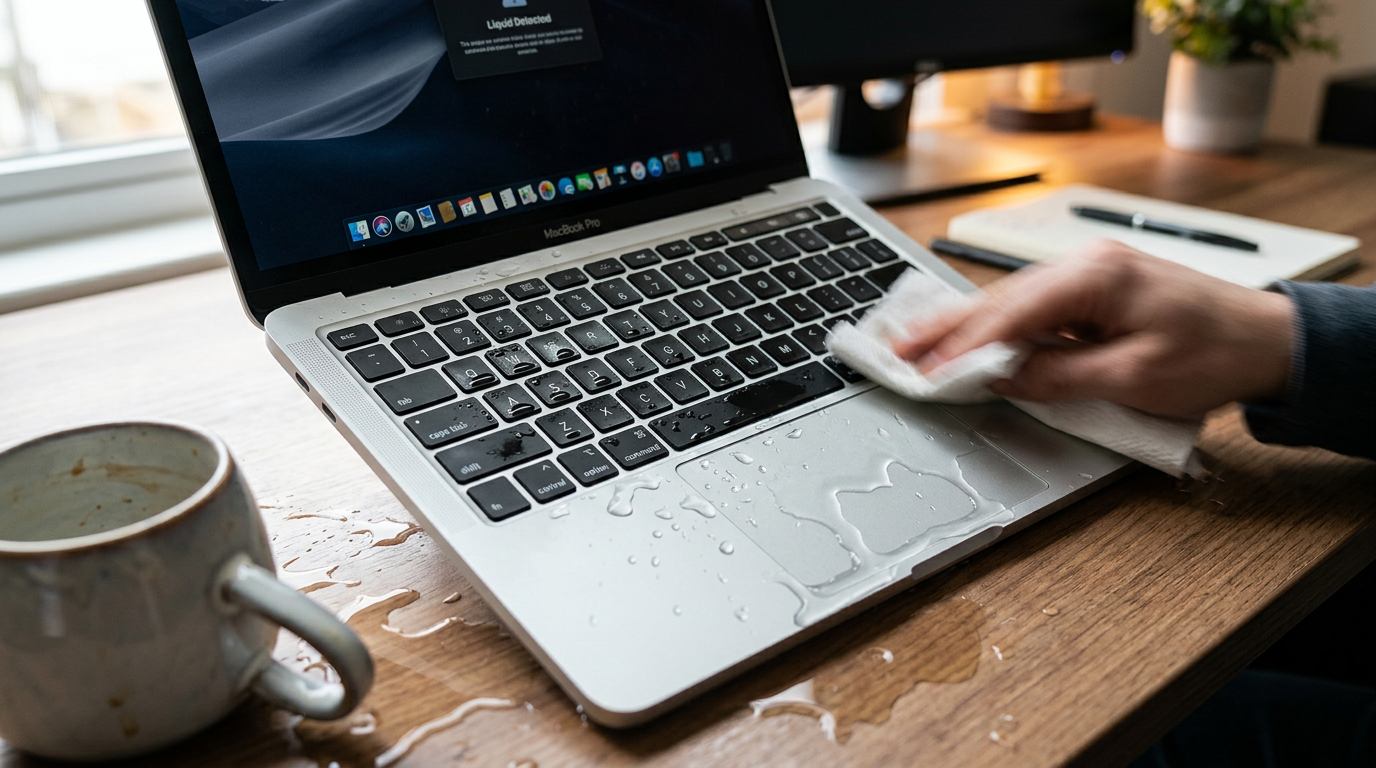
How Serious Is MacBook Water Damage? Here's What the Data Shows
According to ComputerKing repair center statistics, MacBook water damage is the second most common emergency repair after screen breakage, accounting for 22% of all Mac repair cases. Hong Kong's cramped living spaces and the habit of placing coffee, milk tea, or lemon tea next to laptops increase water damage accident rates by nearly 40% compared to other regions. Most alarming — over 35% of water damage cases involve users making at least one critical mistake after the accident, turning what could have been an $800-$1,500 cleaning job into a $4,000+ motherboard replacement. Knowing the correct emergency steps can literally save you thousands.
Step 1: Cut Power Immediately — The Golden 5 Seconds
The very first action: unplug the charger. If the machine is still on, hold the power button (Touch ID / Power) for 5-10 seconds until the screen goes completely dark. Do not wait for a normal shutdown — the shutdown process can take 10-30 seconds, during which moisture can reach critical chips and cause short circuits.
Based on our repair experience, MacBooks disconnected within 5 seconds of water contact have a successful repair rate of 85% or higher. Those disconnected after 30 seconds see repair rates drop to around 55%. Bottom line: every second counts — literally worth money.
Step 2: Remove All Peripherals — Don't Miss These
USB drives, external hard drives, phone charging cables, SD cards, external monitor HDMI cables — unplug everything. These peripherals can carry moisture into the motherboard through ports, and the peripherals themselves risk damage from short circuits. Special warning: USB-C Hubs are the most common fail point — many hubs have multiple devices connected, and when water hits, they all get affected.
Step 3: Position It Upside Down — Correct Posture and Common Mistakes
Open the MacBook to approximately 90 degrees, keyboard facing down, in an inverted V-shape on a dry towel. Let gravity pull water away from the keyboard gaps rather than toward the motherboard. Place in a ventilated area at room temperature — do NOT place in direct sunlight (heat can cause battery swelling).
Never use a hair dryer! High heat can soften solder joints, accelerate battery aging, and warp the screen's polarizing film. Also, don't use a vacuum cleaner on the keyboard — static electricity can instantly fry motherboard chips. As for the rice trick? Honestly, it barely works, and rice dust can enter the chassis. Use real silica gel desiccants instead.
Step 4: Assess the Liquid Type — Different Liquids, Different Outcomes
Different liquids have vastly different destructive potential for MacBooks:
| Liquid Type | Corrosiveness | Short Circuit Risk | Repair Difficulty | Recommended Action |
|---|---|---|---|---|
| Pure / Distilled Water | Low | Medium | ★★☆ | Possible self-recovery after thorough drying |
| Coffee / Milk Tea | High (acidic + sugar) | High | ★★★ | Sugar residue sticks to components — must disassemble and clean |
| Soda / Fruit Juice | Very High (acidic + sugar) | Very High | ★★★ | Even after drying, acid continues corroding the motherboard |
| Beer / Alcohol | Medium | High | ★★☆ | Evaporates quickly but residue conducts electricity |
| Seawater / Sports Drinks | Very High (salt) | Very High | ★★★ | Salt is most corrosive — ultrasonic cleaning required |
If you know how to open the bottom case (most MacBooks post-2016 use a P5 Pentalobe screwdriver), you can inspect for visible water marks. But if you're not experienced, don't risk it — we receive 3-5 cases monthly where DIY attempts resulted in torn ribbon cables or screwdriver-punctured batteries.
Most Important: Do NOT Try to Turn It On — Why the Long Wait?
Even if the machine looks completely dry, BGA chips on the motherboard (CPU, GPU, RAM) may still have microscopic moisture trapped underneath. Powering on with moisture present causes instantaneous electrolytic corrosion — turning a board that just needed cleaning into one with permanent circuit breaks. This process, called Electrochemical Migration, is the worst-case scenario in water damage repair.
How Long to Wait? Hong Kong Humidity Considerations
Hong Kong's annual average relative humidity is 78%, rising above 90% in spring and summer. Natural air drying is much slower than in dry climates. Our recommendations:
- Wait at least 72 hours (3 days) before considering power-on
- Place the MacBook in a sealed container with plenty of silica gel desiccant packs
- Air-conditioned rooms help reduce humidity — you can leave AC running (but don't blow directly into the machine)
- If after 72 hours the machine still won't turn on, stop immediately and seek professional inspection
Professional Repair vs. DIY: What's the Difference?
| Comparison | DIY Handling | ComputerKing Professional Repair |
|---|---|---|
| Diagnostic Tools | Visual inspection | Microscope inspection + current detection |
| Cleaning Method | Natural air drying / hair dryer | Class 1000 clean room + ultrasonic cleaning |
| Corrosion Treatment | Cannot treat corroded areas | Professional cleaning agents + micro-soldering repair |
| Success Rate | ~35% (pure water only) | ~85% (all liquid types) |
| Time Required | 3-7 days waiting | 1-3 working days |
| Cost | $0 (but mistakes cost more) | $800-$2,500 (depending on severity) |
Pro Tip: Prevention Always Beats Cure
ComputerKing Technician's Honest Advice: After 15 years of Mac repair, I can say with certainty — spending $50-$100 on a waterproof keyboard cover, plus developing the habit of "drinks on the left, laptop on the right," can prevent over 90% of water damage accidents. Also, MacBook AppleCare+ covers two incidents of accidental damage (including water damage), with excess fees of just $799 (MacBook Air) to $2,299 (MacBook Pro 16"). That's far cheaper than paying for a motherboard repair out of pocket. If your machine is still within 60 days of purchase, I strongly recommend adding AppleCare+.
FAQ
Q: Does AppleCare+ cover MacBook water damage?
A: Yes, AppleCare+ covers accidental damage including water damage. However, each incident requires an excess fee (MacBook Air $799, MacBook Pro $2,299). Without AppleCare+, official repair quotes for water-damaged motherboards typically range from $3,500 to $8,000, depending on model and year.
Q: If it was just a small amount of clean water, can I wait until it dries and continue using it?
A: Pure water is theoretically the least corrosive, but you can't be 100% certain the interior is completely dry. We've seen many cases where users thought everything was fine for three months, only for the machine to suddenly die. Upon opening, the motherboard had been slowly rusting the entire time. For safety, at minimum bring it in for an initial evaluation.
Q: If my MacBook turns on and works after water damage, does that mean it's fine?
A: Not necessarily. Short-term functionality doesn't mean corrosion isn't happening. Common "delayed death" symptoms include: certain keyboard keys failing, USB ports intermittently disconnecting, screen backlight flickering, and battery not charging. These symptoms can appear weeks or even months after water exposure.
Q: Does the rice trick actually work?
A: The popular "rice method" is very limited in effectiveness. Rice absorbs moisture far less effectively than silica gel desiccants, and rice dust and starch can enter the machine's interior, causing secondary contamination. For moisture absorption, use real desiccant packs or place the machine in an air-conditioned room.
Water Damage Emergency Cheat Sheet: Remember "Cut, Remove, Flip, Wait"
1. Cut: Cut power immediately (unplug charger + hold power button to force shutdown)
2. Remove: Remove all peripherals (USB, Hub, SD card, external monitor)
3. Flip: Position keyboard-down in inverted V-shape, let gravity drain the liquid
4. Wait: Wait at least 72 hours — do NOT attempt to power on during this period
After completing these four steps, contact a professional repair center as soon as possible for inspection. Even if you think the machine is fine, an initial evaluation can at least confirm the motherboard hasn't started corroding.
Need Help?
ComputerKing provides free water damage inspection. We have a Class 1000 clean room, ultrasonic cleaner, and microscope inspection equipment to assess water damage severity with transparent pricing — no charge if repair is unsuccessful.
📞 WhatsApp 2115 9219 now or visit our Sha Tin/Wan Chai stores directly. For more computer care tips, check out our Computer Maintenance Checklist.
*Last updated: July 25, 2026. This article was written by an Apple Certified Technician based on over 10,000 Mac repair cases.*
Frequently Asked Questions
How soon should I bring in a wet MacBook?
ASAP, ideally within 24 hours. Corrosion worsens over time — fine today doesn't mean fine in two weeks.
Can I use a hair dryer?
No. Hot air drives water deeper and heat damages components. Air-dry keyboard-down.
Does AppleCare cover liquid damage?
AppleCare+ covers accidental damage with a service fee. Standard AppleCare doesn't cover liquid damage.
Any lasting issues after rescue?
Depends on severity and response time. Prompt professional cleaning often means full recovery; delays risk intermittent faults.