Apple Repair · October 20, 2026 · ComputerKing Team
MacBook Liquid Damage: What to Do First & How to Save Data
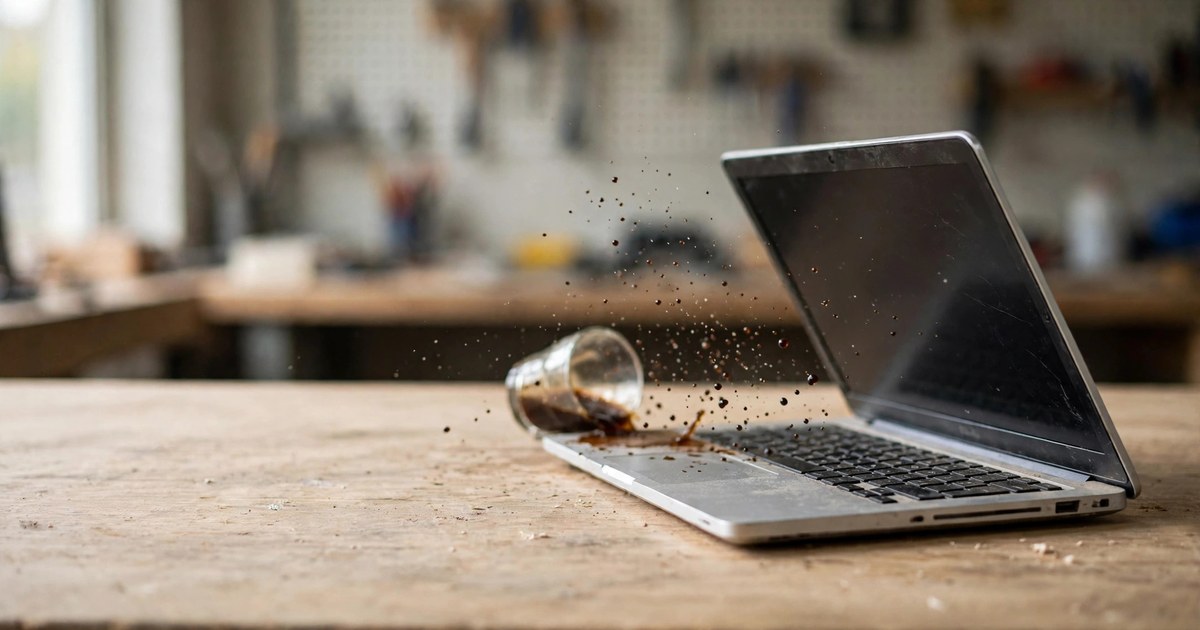
If your MacBook gets liquid inside, the most important steps are: power it off immediately, do not power it on again, and send it for repair as soon as possible. Different liquids corrode at different speeds, and sugary or milky drinks are especially dangerous.
Key Summary
If your MacBook gets liquid inside, the most important steps are: power it off immediately, do not power it on again, and send it for repair as soon as possible. Different liquids corrode at different speeds, and sugary or milky drinks are especially dangerous.
1. The First Moments After a Spill: What to Do and What Not to Do
The first principle needs to be stated clearly: Apple's public position on liquid inside a machine is straightforward — get help from an Apple Authorised Service Provider or Apple Store as soon as possible. Apple's official cleaning guidance says: "If liquid makes its way inside your Apple product, get help from an Apple Authorised Service Provider or Apple Store as soon as possible." Apple does not publish a "DIY liquid-spill first-aid SOP" for a whole machine. The first-response steps below come from third-party media and repairers, and this article attributes each of them. They are not presented as Apple official steps.
What Apple's official cleaning guidance says
According to Apple's official "How to clean your Apple products" page:
- Before cleaning any Apple product, disconnect all external power, devices, and cables. Do not let liquid get into any openings. Do not spray cleaner directly onto the product.
- When cleaning a MacBook's enclosure and display, first shut it down and disconnect the power adapter. Use a damp, soft, lint-free cloth. Do not let moisture get into any openings. Do not spray liquid directly at the computer. Do not use aerosol sprays, solvents, abrasives, or cleaners containing hydrogen peroxide.
- For stubborn marks, you may use a cloth dampened with a 70% isopropyl alcohol (IPA) solution to gently wipe the Mac laptop display or the enclosure's outer surfaces. Note: this approval covers exterior wiping only. It is not approval to pour IPA inside the machine to clean the logic board. The two must never be confused.
Third-party first-response steps (not Apple official guidance)
Combining the round-ups from Macworld and MacBook Journal, the following steps may be taken after a spill, but only where it is safe to do so:
1. Power off immediately, and disconnect the power cable and charger. The biggest danger is not the water itself, but "liquid plus a live circuit", which causes short circuits and corrosion. How to shut down: if the display still responds, use the Apple menu to shut down. If it does not respond, press and hold the power button to force a shutdown — but only if your hands, the button, and the surroundings are dry and safe. Do not keep using the machine to rescue files or check the damage.
2. Disconnect all external devices, such as external drives, hubs, and printers. Only disconnect while the connectors are dry. Do not plug the charger back in, and do not charge the machine.
3. Mind electrical safety. If liquid has touched the power adapter, the wall socket, or the plug, do not touch the wet parts, and do not stand in water to unplug anything. Keep your hands dry. If you cannot disconnect power safely, leave the area and get help.
4. Move the computer away from the spill, but keep the machine still before wiping surface liquid — do not tilt or shake it. Tilting or shaking can move water from the keyboard to areas that were dry, including into the display's bottom vents.
5. Blot visible liquid with a soft, dry, lint-free cloth, including the keyboard and trackpad. Wipe the display dry if it is wet, because water can get behind the glass and leave water marks. Do not rub hard, and do not push cloth, cotton swabs, or any other object into the ports.
6. Keep it powered off and still, on a dry, ventilated, stable surface, and send it for repair as soon as possible. Do not blow air into the machine, and do not use compressed air, which can push liquid deeper inside.
Information to note down before repair
Salvation Repair suggests noting down what liquid was spilled, when it happened, and what steps were taken afterwards. That information helps the technician. Write it down, then send the machine for repair promptly — do not delay.
Do not confuse the "USB-C liquid detection alert" with a whole-machine spill
This is the easiest point in this whole guide to get wrong. For newer MacBooks (M3 models and later), Apple has a liquid-detection warning for the Thunderbolt / USB-C ports. If you see a "Liquid Detected" warning, the procedure is: point the affected port downward and gently tap out the liquid; leave it in a dry place with passive airflow for at least 30 minutes, and absolutely do not use a hair dryer; if the warning reappears, leave it in a dry place for up to 24 hours. This procedure covers the port only. It is not a drying time or a recovery guarantee for a whole machine that has had liquid spilled into it. Do not treat "wait 24 hours" as proof that a soaked machine is safe to power on.
---
2. Why Different Liquids Are So Different
Not all liquids are the same. Multiple third-party sources agree: plain water is relatively the mildest; liquids containing sugar, acid, salt, milk, or fat leave residues that do not disappear when the water evaporates, and they keep conducting electricity and corroding metal. Even after the outside of the machine looks dry, residues can still cause delayed failure.
Plain water
Plain water is relatively the mildest, because it has no sugar and no acid. But tap water contains dissolved minerals — it is not pure water — and can still cause short circuits and corrosion. On a live logic board, water still triggers electrochemical corrosion. After it dries, the oxides left behind, the eroded traces, and the dead components are the damage.
Coffee and tea
Coffee and tea are "more corrosive than plain water". They leave a thin film that absorbs moisture and conducts electricity. Coffee with sugar or milk adds sugar crystals and milk-fat residue. Willpower PCs notes that even if a machine powers on immediately after a coffee spill, it may still fail weeks later as corrosion worsens. Drying alone is not enough, because the corrosive residues do not evaporate with the water.
Milk tea: only as an ingredient-based inference
The research reports state explicitly that this research found no dedicated public study or official guidance on milk tea or bubble tea spilled into a MacBook. The following can only be written as an inference from the ingredients — it must not be written as "research has proven that milk tea does X":
- Tea base: refer to the film, moisture-absorbing, and conductive properties of tea- and coffee-type liquids.
- Sugar: refer to the sugar-crystal, conductive, and corrosive properties of sugary drinks.
- Milk or creamer: refer to the claims that "milk goes rancid inside the case" and that milky drinks leave fatty residue that blocks the keyboard membrane.
- Tapioca pearls, pudding, coconut jelly, and other solid toppings: no public source describes their specific effect on a logic board, so this article does not write about them.
Conclusion, stated as inference: milk tea combines three residue sources — "sugar plus milk/fat plus tea" — so on the available sources it falls into the "needs professional internal cleaning" category, not the "just let it dry" category. This must be labelled as an ingredient-based inference, not as milk-tea-specific evidence.
Fizzy drinks and fruit juice
Fizzy drinks, fruit juice, and energy drinks contain sugar plus acid, so they make keys sticky and corrode quickly. Sugar does not evaporate with the water; after drying, it keeps eroding the traces. Liquids containing citric acid (for example, orange juice) are equally troublesome. The iFixit community has shared repair experience mentioning the cleaning properties of distilled water and isopropyl alcohol, but that is community experience sharing, not Apple official guidance, and this article does not present it as encouragement for users to open up their machines and clean them.
Alcohol: three categories that must be kept separate, not one
- Beer and alcoholic drinks: acidic and staining, and classed as "sticky spills" — sugar crystals and salt/mineral residues remain conductive after evaporation and cause corrosion. Alcoholic drinks evaporate quickly but often leave a sticky film.
- Pure spirits (for example, vodka): the alcohol itself evaporates quickly, but if juice or sugar is mixed in, the mixture's residue is still harmful. iFixit forums contain individual cases of a vodka spill leaving a keyboard dead. Those are individual forum cases and cannot be treated as a general conclusion.
- Disinfectant isopropyl alcohol (70% IPA): Apple officially approves only a cloth dampened with 70% IPA solution for gently wiping exterior surfaces. It does not approve pouring IPA into the machine to clean the logic board. AEANET also warns against spraying alcohol directly at the keyboard, which can let liquid seep into internal components.
Salt water and seawater
Salt water is listed by multiple sources as the worst category: salt is both conductive and destructive to everything it touches.
Liquid comparison table (third-party round-up, not an Apple official grading)
| Liquid | Relative risk | Key residue |
|---|---|---|
| Plain water | Lowest relative risk, but can still short-circuit and corrode | Tap-water minerals |
| Black coffee / tea | Medium to high | Film that absorbs moisture and conducts |
| Coffee with sugar and milk / milk tea | High (ingredient-based inference) | Sugar crystals plus fat residue plus tea film |
| Fizzy drinks / fruit juice | High | Sugar plus acid, continuously eroding metal |
| Beer / alcoholic drinks | High | Sugar plus acid plus sticky film plus staining |
| Pure spirits (vodka, etc.) | Depends on whether juice / sugar is mixed in; the alcohol itself evaporates quickly, but mixture residue is still harmful | Mixture residue |
| Seawater / salt water | Extremely high | Salt — conductive and destructively corrosive |
---
3. Common Myths, Debunked One by One
Myth 1: Put it in a bag of rice to absorb the water
Wrong. Multiple sources agree against this. Macworld notes that rice grains can enter the ports and cause further damage. Willpower PCs notes that rice cannot meaningfully draw moisture out of a sealed enclosure, and instead brings starch dust and fine fragments into the ports and vents — a "myth with no engineering basis". Pacific NW Computers notes that rice does not "pull" water out of sealed electronics; it adds dust and starch to the ports and can trap moisture. The iFixit community also notes that a desiccant only absorbs moisture from the air, not moisture that has already condensed, and certainly not the minerals, sugar, or acid in a fizzy drink — which are the real damage.
One attribution needs care: DJ Tech Reviews relays Apple guidance as "no bag of rice; Apple says rice particles can damage the Mac". That is a third-party relay, and this article states it as a relay rather than as a direct Apple official quote.
Myth 2: Blow-dry it with a hair dryer
Wrong. Multiple sources agree against this. Macworld notes that heat can damage sensitive components. Willpower PCs notes that even on a "cool" setting, forced airflow can push moisture deeper into connectors and under chips; warm or hot air can warp the plastic enclosure, delaminate the keyboard membrane, and in the worst case cause a lithium battery to vent or swell. Apple's guidance for the USB-C liquid alert (as relayed by third parties) is also "absolutely no hair dryer" — use passive airflow to dry.
The distinction matters: "passive ventilation" or "a fan moving air across the surface of the device" is not the same as "blowing a hair dryer at it from close range". The first is a gentle approach suggested by third parties; the second is a practice to avoid.
Myth 3: Power it on right away to "see if it still works"
Wrong, and one of the most dangerous mistakes. Multiple sources list it as the biggest error. Macworld says do not try to restart too soon. Willpower PCs says every power-on attempt while the logic board is still wet carries a short-circuit risk; if the first power-on attempt fails, stop and send it for repair. Pacific NW Computers says do not power it on a few hours later to "see if it works" — if the inside is still wet, that one attempt may be the one that shorts the logic board.
The extended myth is "if it powers on, it must be fine". RepairPC notes that computers often keep working after a spill, which lulls people into continuing to use them, while corrosion quietly eats away at the logic board inside. Problems commonly start the same day or the next day, and sometimes only days later. SalvageData also notes that even if a machine still works after drying, a liquid spill can still corrode and rust internal components.
Other mistakes
| Mistake | Why it is bad |
|---|---|
| Shaking the machine | Spreads liquid to areas that were dry |
| Pushing cotton swabs / tissues hard into vents or ports | Can damage the logic board or the ports themselves |
| Using compressed air | Can push liquid deeper inside |
| Rubbing hard while wiping | Can spread liquid and push it deeper |
| Ignoring it / delaying repair | Gives the liquid time to corrode internal components |
Three points where sources disagree — this article does not pick one side only
First, upside-down placement. Macworld suggests placing the computer upside down on paper towels so liquid can drip out. iDevice suggests opening the lid to about 120 degrees, keyboard facing down, standing it like a tent on a towel to drain. MacBook Journal, however, says not to shake the machine or turn it upside down to drain it. Different third-party sources disagree on inversion. The safest common ground is "keep it powered off, do not shake it, and send it for repair as soon as possible". This article does not present inversion as absolutely correct.
Second, closing the lid. IT-Tech suggests closing the lid to trigger the hardware sleep sensor and cut power. iPhoneiPadFix lists "closing the lid" as a mistake, arguing it can carry liquid into the display. Both are third-party claims, and this article does not present either as settled. Suggested approach: if you need to cut power, prefer pressing and holding the power button; do not rely on closing the lid as the main power-off method. The sources disagree, and this article says so.
Third, drying time. The numbers from third-party sources differ: Macworld says at least one day; Pacific NW says 24 hours for a small splash, 48–72 hours for a laptop (plain water), and cleaning rather than just drying for sticky spills; AEANET says at least 24–72 hours. This article does not give a single "standard drying time". It also states that Apple's official "at least one day" applies only to the USB-C liquid-alert port procedure, not to a whole-machine spill — and that drying does not mean residues have been removed.
---
4. Liquid Contact Indicators (LCI), Warranty, and AppleCare+
What is an LCI
Mac laptops have Liquid Contact Indicators (LCIs) that help determine whether the product has been exposed to liquid. According to Apple wording relayed by third parties, Mac laptop computers and some Apple wired and wireless keyboards have LCIs. An LCI is usually a small white or silver dot / sticker that turns red or pink after contact with liquid, and the colour change is irreversible. LCI locations vary by model, and are generally near the places most easily wetted, such as ports, vents, and near the trackpad. Checking an LCI usually requires opening the machine. This article states clearly: checking LCIs is a professional inspection matter, and this article does not present it as encouragement for users to open their machines to check.
An LCI changing colour only proves "has been exposed to liquid". It does not mean "the machine is unusable". An LCI does not identify which part is faulty; conversely, an LCI that has not changed colour does not prove there was no liquid ingress — a small amount of liquid may not trigger every indicator. Apple technicians use the LCI as one of the inputs for judging liquid damage. One caveat: this research could not directly open Apple's official LCI page, so the Apple wording above comes from third-party relays. This article does not fabricate an Apple LCI page URL.
macOS USB-C liquid detection
According to 9to5Mac reporting (relayed by several third parties), macOS Sonoma 14.1 added a system daemon called "liquiddetectiond", described as a "Liquid Detection and Corrosion Mitigation Daemon", which collects liquid-detection analysis for each USB-C port in the background. The reporting says the Mac version of the daemon appears to be used for analysis only, unlike the iPhone / iPad version, which warns the user. The collected data may be used by technicians to judge whether the machine qualifies for warranty-covered repair. Whether it applies only to M3 models is still unclear. This is reporting, not an Apple official announcement, and this article attributes it as "according to 9to5Mac reporting".
An individual LCI dispute case: "there is this report" only
In 2026, there was a report that a user claimed their 3-month-old, 13-inch M5 MacBook Air was judged by an Apple Authorised Service Provider to have liquid damage (display cable corrosion), while the user insisted they had never spilled liquid on it. The report quoted replies saying an LCI can change colour in extremely humid environments, but the user said the temperature where they lived was normal. The report also said the user had not yet uploaded the diagnostic evidence they claimed to have. This is a single Reddit-sourced case relayed by Wccftech, with evidence not publicly available. It cannot be written as the fact that "LCIs give false positives in humidity". This article mentions it only as "in 2026 there was a report of a user disputing an LCI finding, with the case evidence not publicly available", and at the same time states Apple's official position that the LCI is one of the inputs used to judge liquid contact. One practical lesson readers can take from it: keep purchase receipts, repair paperwork, and communication records.
Apple limited warranty: liquid damage is not covered
Apple's official cleaning page states: "Liquid damage isn't covered under the Apple product warranty or AppleCare Protection Plans, but you may have rights under consumer law." In other words, liquid damage is not covered by the Apple product warranty or AppleCare Protection Plans, but you may have rights under consumer law. Apple's Vision Pro support page carries the same principle, but that page is about Vision Pro, not Mac. This article cites it as an official example of the same principle, not as a Mac page.
AppleCare+: accidental-damage cover includes liquid contact, but a service fee applies
Based on Apple's current official terms:
- Section 2.2 of the AppleCare+ for Mac official terms, "Services for Accidental Damage from Handling (ADH Service)", states that if a valid claim is submitted during the plan period, and the covered device fails due to accidental handling damage (for example, damage from drops and liquid contact from spills), Apple will, at its discretion and upon payment of a service fee, repair or replace it.
- The same terms state that unlimited ADH Service Events are available during the plan's validity, with a service fee charged per Service Event. The terms list service fees for Tier 1 (screen-only / enclosure-only) and Tier 2 (other ADH damage), but the amounts vary by region / currency. The version of the terms obtained in this research lists Malaysian ringgit amounts. There is no public source for the Hong Kong dollar service fee amount, so this article writes no Hong Kong dollar service-fee figure, and does not present US-market third-party figures as Hong Kong prices.
- The terms also contain exclusions. Readers should check their own plan's terms and not read this as "AppleCare+ covers every spill".
- One common outdated claim also needs correction: older third-party articles wrote "2 accidents per 12 months". That is outdated. Apple's current official terms are "unlimited plus a service fee per event".
Repair-path trade-offs (third-party repairer view)
Gillware notes that Apple's repair approach for a liquid-damaged MacBook is usually to replace the whole logic board. Replacing the logic board does not preserve data — on T2 / Apple Silicon Macs, the new logic board has new encryption keys, and the old data's encryption keys no longer exist. Apple does not offer data recovery services. Without a Time Machine / iCloud backup, data may be unrecoverable. If the data matters, board-level repair / data recovery should be considered before a logic-board replacement. The above is Gillware's description, given as a third-party repairer's view, and this article attributes it as such — it is not presented as an Apple official promise. Practical reminder: back up before repair if backup is still possible, and ask the repair centre about pricing and data handling.
---
5. Apple Silicon vs Intel: Why the Aftermath of a Spill Is So Different
The appearance and the liquid entry paths (keyboard, speaker holes, ports, hinge area) are broadly similar, but the aftermath of a spill and the rescue path are completely different. The Apple Silicon generation integrates the processor, unified memory, storage controller, and security components in a single SoC, with the SSD soldered to the logic board and encrypted end to end. The older Intel generation falls into three groups by year — "removable SSD", "T1 transition", and "T2 encryption" — with rescue difficulty rising from generation to generation.
Generation comparison table (spill / data-rescue relevance)
| Generation | Storage and encryption | Memory | Key difference for spill rescue |
|---|---|---|---|
| Older Intel, about 2015 or earlier (e.g. Retina MacBook Pro 2013–2015, older MacBook Air) | Removable PCIe SSD (proprietary blade connector); no T2 hardware encryption; FileVault only encrypts if the user manually enables it | Varies by model, some replaceable | If the logic board is dead but the SSD is intact, the SSD can be removed and read externally. This is the most favourable generation for spill data rescue |
| Intel 2016–2017 MacBook Pro (Touch Bar, A1706 / A1707) | SSD already soldered / integrated with the logic board; T1 only handles Touch Bar and Touch ID, does not encrypt the SSD; has a Lifeboat / Customer Data Migration connector | Mostly soldered | Still has a dedicated connector for retrieving data from a dead board, so relatively recoverable |
| Intel 2018–2020 (T2 chip) | NAND soldered to the logic board; T2 encrypts all SSD data in hardware, encryption always on with no way to turn it off; encryption keys are generated inside the T2 Secure Enclave and never leave the chip; Customer Data Migration connector removed from 2018 | Soldered | Removing the NAND yields only ciphertext. The original logic board must be repaired to a bootable state and decrypted by the original T2 before data can be recovered |
| Apple Silicon from 2020 (M1, M2, M3, M4, and later) | NAND soldered to the logic board; storage controller, Secure Enclave, and application processor integrated in one SoC; every block written to NAND is encrypted first; keys are generated inside the Secure Enclave and bound to that processor, never leaving the SoC | Unified memory, integrated with the SoC, fixed at purchase, cannot be upgraded later | Same as the T2 generation: "replacing the board means losing the data". Higher integration makes board-level repair even more dependent on repairing the original board |
Logic-board layout: what teardowns observed
- M1 generation: iFixit's teardown found the M1 MacBook Air / Pro internals "nearly identical" to the previous Intel models. The Air dropped the fan in favour of an aluminium heat spreader. The biggest differences were the new logic board and heatsink, and the integrated memory. M1 models have no standalone T2 chip, because the T2 security functions are integrated into the M1.
- M4 generation: iFixit's teardown says the M4 Pro MacBook Pro is "no big design change" from the M3 version — still Pentalobe screws plus battery stretch-release adhesive. The logic board was slightly redesigned, with a larger heatsink and rearranged parts, but removing the logic board remains very laborious. Most ports can be replaced independently, but the MagSafe connector and card reader still need advanced soldering skills. Parts pairing and calibration remain major obstacles.
- M5 generation (late-2025 teardown): iFixit says the battery replacement procedure improved — if the Apple official procedure is not followed, the trackpad need not be removed and the frame's small window need not be used to pull adhesive. The article also notes that Apple published an updated battery removal procedure in December 2025. This article does not present the M5 improvement as applying to all M1–M4 models.
Battery adhesive and disassembly difficulty: practical meaning
Modern MacBook batteries are glued to the chassis and are parts where "mishandling carries a fire risk". Gillware states explicitly that the battery is glued in place, and that mishandling carries a puncture-and-fire risk, so users are advised not to disassemble it themselves. iFixit's pre-repair guidance also reminds readers to back up before repair, and that a swollen battery is a safety-handling matter. M4-generation batteries still use stretch-release adhesive, and removing an M4 battery still requires removing the trackpad first (only M5 improved this). This article provides no steps for prying a battery, pulling battery adhesive, or removing a logic board. Battery handling on a liquid-damaged machine is a professional-repair matter.
One iron rule for both generations
After a spill: do not power on, do not charge, and do not power on to "see if it still works". Powering on accelerates short circuits and corrosion. The Apple Silicon generation carries an extra risk: because data is bound to the logic board, any power-on attempt that further damages the board may also close the data-recovery window. The Intel removable-SSD generation had the fallback of "remove the SSD and read it elsewhere", but Intel models from 2016 onwards no longer have that fallback.
---
6. Data Recovery: How to Save Data When the Machine Will Not Boot
Core principle: extract data first, replace the board later
1. Extract data first, replace the board later. Any repair involving a logic-board replacement, if done before data is extracted, means permanent loss of the old data on T2 / Apple Silicon models, because the new board has different encryption keys and the old data's keys no longer exist.
2. The original logic board must take part in decryption. Removing the NAND chips and reading them separately yields only ciphertext.
3. If you have a backup, there is nothing to fear. If you do not, fight for board-level handling before any board replacement.
4. Do not repeatedly power on / charge to "try it". Every power-on of a wet machine can widen the corrosion.
Gillware and MDRepairs both state that Apple does not offer data recovery services. Apple's repair path is usually a logic-board replacement, and data not extracted before replacement is permanently lost.
Recovery paths by "how alive is the machine"
A. Powers on intermittently / dies halfway through boot (rescue window)
If the machine powers on intermittently, or dies halfway through boot, immediately copy files and photos to an external drive — copy files and photos first, not applications. Do not update the system, do not "see if it happens again", and do not run diagnostics. Copy first.
B. Cannot boot into macOS, but can still reach Recovery / Share Disk / Target Disk Mode
- Apple Silicon: Share Disk. Connect the two Macs with a cable (wired connection; connector depends on the model). With another Mac's help, boot the faulty machine into Recovery options (press and hold the power button) and use Share Disk. The faulty machine's drive then appears on the healthy Mac, and files can be copied. A password is required, and FileVault will ask to unlock.
- Intel: Target Disk Mode. Hold down the T key at boot, and the faulty machine becomes an external drive connected by cable (wired connection) to another Mac for reading.
- Limitation: Share Disk still requires the machine to at least reach the Recovery environment. If it cannot even get that far, this method does not work.
C. Can reach Recovery, but the system has problems
In Recovery, "Disk Utility" → "First Aid" can be used to attempt a disk repair. Apple's official guidance reminds users to have an up-to-date backup before repair, in case damaged files need restoring or Disk Utility finds errors it cannot fix.
D. No response at firmware level: DFU Revive (Revive only — do not press Restore by mistake)
Apple Configurator can perform DFU operations on Apple Silicon / T2 Macs from another Mac:
- Revive: updates the firmware and updates recoveryOS. It is designed not to alter the boot volume, the user data volume, or other volumes. User data may survive.
- Restore: erases all internal storage and installs the latest macOS, returning the machine to factory state. Always try Revive first. Consider Restore only if Revive has failed and a backup already exists.
DFU entry methods vary by model, requiring specific key combinations plus a USB-C cable to another Mac. This article does not write one combination as if it applied to all models; it states "varies by model — check the DFU instructions for that model".
E. Completely dead: board-level repair (professional scope — this article describes the principle only, with no steps)
The process in principle (as described in public sources): inspect the logic board under a microscope without power; ultrasonically clean visible corrosion; replace damaged components by micro-soldering, such as the power-management IC, capacitors near the SSD power rail, and USB-C / Thunderbolt port controllers; once the board is repaired to a bootable state, the T2 or Apple Silicon chip boots and decrypts the soldered NAND, and the data is copied via Thunderbolt / USB-C to another target drive.
Common damage points (public sources): power-management IC, capacitors near the SSD power rail, USB-C / Thunderbolt port controllers. If the logic board's damage is too extensive, MDRepairs mentions the extreme case of "moving the critical chips to a healthy donor board" as a board-level operation, but also state that if the storage chips or the Secure Enclave are destroyed, recovery is impossible. This article states this as an extreme case with no guarantee of success, and does not write it as "always recoverable".
Ultrasonic cleaning itself deserves a clear explanation: an ultrasonic cleaner uses high-frequency sound waves to create tiny bubbles in cleaning liquid, removing corrosion residue invisible to the naked eye, including residue under chips. Individual repairers claim their equipment removes "all" corrosion residue; that is the merchant's advertising claim, with no independent verification, and this article does not repeat it. After cleaning, components and traces already damaged by corrosion still need inspection and repair. Cleaning alone does not mean short circuits or broken traces have been fixed.
F. Restore path when a backup exists
- Time Machine: if a full Time Machine backup was made beforehand, it can be restored onto a new machine or after repair. Multiple sources remind readers to "assume the drive will be wiped or replaced before repair" and to make a full backup first.
- iCloud: if important data is already synced to iCloud, it can also be retrieved during restore. But note that iCloud sync is not a full system backup — Time Machine and iCloud cover different things.
Common data-recovery myths
| Myth | Correction |
|---|---|
| "Just remove the SSD and read the data" | Only applies to removable-SSD models from about 2015 or earlier. On T2 / Apple Silicon models, removing the NAND yields only ciphertext |
| "The Apple Store will recover my data for me" | Public sources agree that Apple does not offer data recovery services. Apple's repair path is usually a logic-board replacement, and data not extracted before replacement is permanently lost |
| "Drying it for a day and powering on is safe" | Corrosion can keep developing after the surface looks dry. A dry surface does not mean a clean interior |
| "A bag of rice will save it" | Multiple sources state that rice cannot draw liquid out of a sealed machine, and rice dust can get into ports and gaps. The time spent waiting for rice to "work" is exactly the time corrosion spreads |
| "DFU Restore and Revive are much the same" | They differ by one option, but the consequences are "keep the data" versus "erase all the data" |
---
7. After-Effects: How to Check Which Parts Are Affected
Liquid entry paths and the parts that show symptoms first
The keyboard and trackpad usually show obvious symptoms first, because liquid mostly enters there. The logic board is the more expensive hidden risk. Common symptom combinations include: will not power on, battery will not charge, fan spins but no picture, no backlight, distorted display, USB-C ports not responding, battery draining extremely fast; sometimes the machine powers on but cannot communicate normally with the battery or display; sometimes it shuts down when it gets hot.
Keyboard after-effects and user checks (no disassembly)
Symptoms include: keys sticking, keys not responding, one press producing multiple characters. Check method (no disassembly): where the machine can be powered on safely, press each key once and check whether the feel and response are consistent. This must be stated together with the warning: if the machine is still wet or has not been inspected, do not power it on just to test. Do not let readers power on a wet machine for the sake of testing.
Trackpad after-effects and checks: rule out "swollen battery" at the same time
Symptoms include: cursor jumping, clicks not registering, gestures failing, a dead zone in one area of the trackpad, or the trackpad feeling "hard" or "flat". Check method (no disassembly): slowly drag a finger across every area of the trackpad, and note any fixed area where tracking drops out or clicks fail. Check whether the trackpad surface is raised, whether the machine rocks on a flat table, whether there is a gap between the bottom case and the top case, and whether the machine sits flush when closed. These checks only apply where the machine is already dry / inspected and can be powered on safely. If the machine is still wet, do not power it on just to test — send it for repair directly.
Key distinction: directly underneath the trackpad sits the battery. A swollen battery pushes upward against the trackpad, breaking the normal click of a Force Touch trackpad (on models from 2015 onwards, Force Touch simulates a click with pressure sensing plus haptic feedback — it is not a traditional mechanical button). Symptom pattern: the cursor can still move, but clicking becomes difficult or stops working entirely, and the trackpad feels hard or flat. Replacing only the trackpad without dealing with a swollen battery will not fix the problem.
Safety note: if a swollen battery is suspected, treat it as a safety matter. Do not keep using the machine on a soft surface (such as a bed or your lap), and do not open the bottom case yourself to "have a look". Send it to a qualified repairer for assessment promptly. This article does not teach users to open the machine to check the battery.
Display after-effects and checks
Symptoms include: flickering, vertical / horizontal lines, no picture at all, an extremely dim picture, backlight failure, water marks / stains, and uneven backlight.
Torch test (backlight-failure check): in a dark room, shine a torch at the display. If you can faintly see a very dim image, that points to a backlight circuit problem rather than the whole display system being dead. This is a user check that needs no disassembly, but it is a preliminary distinction only, not a diagnosis. The torch test only applies where the machine is already dry / inspected and can be powered on safely. If the machine is still wet, do not power it on just to test — send it for repair directly.
Water-mark causes: liquid can damage the display's backlight layer, causing discolouration / water marks. iFixit answers note that a MacBook display is a sealed assembly, and the practical fix is usually to replace the whole display assembly rather than replacing the backlight or LCD alone. The backlight needs high voltage, so it is a common failure and corrosion point in a spill. Inspection points include burn / corrosion marks near the display connector on the logic board. That part is a professional inspection, and this article describes the principle only — it does not teach users to clean the logic board themselves.
Delayed onset: even if wiped dry immediately, liquid may already have seeped into the display assembly. Corrosion can accumulate over time, and faults may appear days or weeks later. "It works right now" does not mean "nothing is wrong".
Other common after-effects
- Charging / battery: will not charge, battery not recognised, battery draining extremely fast. The battery itself can also be a victim of the spill.
- Ports: USB-C / Thunderbolt ports not recognising devices. Port controllers are among the common damage points in board-level recovery.
- Speakers: distorted sound, noise. Liquid can get trapped in the speaker holes, distorting sound and then corroding.
- Power and stability: unexpected shutdowns, restart loops, overheating, or abnormal power drain. Symptoms may appear gradually and can easily be mistaken for unrelated hardware faults.
Delayed-failure warning signs
If any of the following appears, power off immediately and send the machine for repair — do not keep powering on to test: individual keys failing, repeated input, sticky keys; trackpad failure / abnormal clicks; charging problems, cannot charge; screen flickering, going black (system still running), abnormal display; unexpected shutdowns, abnormally loud fan, overheating, unstable behaviour; unusual smell (burning smell).
When it can be saved, and when it cannot
This article writes no "after X days it can never be saved" and no success-rate figures, because there is no public source for them. The correct statement is: whether repair is possible depends on the liquid type, the amount of liquid, whether power was cut immediately, whether the machine was powered on while wet, how quickly it was sent for repair, the extent of corrosion, and the components affected. A professional inspection is needed to judge. Some cases may need replacement of the keyboard / battery / ports. Some cases may need board-level repair. Some cases may not be worth repairing on economic grounds. The specifics depend on the inspection quote.
Favourable factors (third-party experience): power cut quickly; relatively mild liquid type; small amount of liquid that did not reach the logic board; fast repair; a backup exists. Unfavourable factors (third-party experience): repeated power-on / charging while wet; sugary / acidic / salty / milky liquids; delayed repair; liquid already reaching critical power-supply circuits; data unrecoverable after a logic-board replacement; battery damage. On "how many hours is best for sending it in", different merchants say different things, and this article does not present a single unified standard.
---
8. Before Sending It for Repair in Hong Kong
This section only gives general judgement criteria and pre-repair preparation. It invents no specific shop names, addresses, prices, reviews, success rates, or "which shop is best".
Before repair: what to do first
1. Decide first: data first, or repair first. If the data matters and there is no backup, state before any board-replacement repair that you want "data first, board later". If a full backup already exists, a board-replacement repair is a reasonable path.
2. If the machine still powers on, back it up immediately. Make a full backup with Time Machine, or copy important files to an external drive / cloud. Check that the backup really completed (for example, Time Machine's "latest backup" date).
3. If the machine is already wet / will not power on, do not power it on to back up. At that point the backup step no longer applies. Send it for inspection directly.
4. Write down the fault details (write them down — do not rely on memory): what liquid (water / coffee / tea / fizzy drink / alcohol / other), roughly how much, when it was spilled; whether the machine was on / asleep / off at the time; whether it was powered on / charged afterwards, and how many times it was powered on; what symptoms appeared afterwards (will not power on, which keys failed, trackpad behaviour, display behaviour, charging behaviour, any unusual smell / sound / smoke); model and year (for example, MacBook Air M1 2020), macOS version (if known), whether AppleCare+ is held; what was already done before repair (for example, already powered off, already unplugged). Writing down what happened can help the technician judge the case. This article does not claim that "writing it down makes it cheaper / faster".
5. Prepare documents and accessories: purchase receipt / warranty documents (if available), repair paperwork, charger (if the repairer asks for it), and how login passwords or Apple ID details will be handled (see next section).
6. Photograph the machine's appearance and serial number (if the situation allows): record the machine's appearance, serial number, and existing damage before repair, to help with later checking. This is a general self-protection suggestion for repair, written as a "suggestion", not a "guarantee".
Account and lock settings before repair (depends on model and repairer requirements)
- Find My Mac / Activation Lock: MacWorks360 and MacMegaSite repair-preparation guides note that Apple or authorised repair may require Find My Mac to be switched off (i.e. Activation Lock disabled), or certain repairs may not be possible. But independent repairers' requirements may differ. Ask the repairer what they require first — do not assume.
- Firmware password: only older Intel Macs have this setting. Apple Silicon does not support it. If an older Intel machine has a firmware password, handle it as the repairer instructs before repair.
- Signing out of iCloud / deleting sensitive data: DarwinsData's repair-preparation guide suggests signing out of iCloud and removing sensitive data after backing up. But if the machine will not power on at all, this step is simply impossible. This article states "only consider it if the machine can still be operated", and does not write "you must sign out before repair" in a way that makes readers think they have to power on a dead machine to sign out.
- Guest account: some guides suggest creating a guest account for the technician so you do not hand over your main password. This likewise applies only if the machine can still be operated. This article states "as the repairer requires", not as a hard rule.
How to choose a repairer (general judgement criteria, no specific shop names)
All of the following are "what to ask, what to look for", and involve no rating of any specific merchant:
1. Ask about the diagnostic process first: will they do a no-power inspection, microscope inspection, and written diagnosis before quoting? Will they explain before starting that "cleaning" and "replacing parts" are two different things?
2. Ask about the quoting method first: will they provide a written quote before repair, listing the charge items and a cap? Will they contact you and wait for approval before continuing if extra damage is found?
3. Ask about data handling first: if the data matters, will they promise "data first, board later"? Will they explain the risk that a board replacement loses the old data? Will they explain the backup-restore arrangements?
4. Ask about parts and warranty first: what parts are used (original / third-party / refurbished), how long the post-repair warranty lasts, what the warranty covers (for example, whether it excludes a later spill), and whether the warranty terms are written down?
5. Ask about repair paperwork first: will they provide a repair order / receipt listing the model, serial number, fault description, repair content, charges, and warranty terms?
6. Ask about the effect on warranty and AppleCare+ first: third-party repair may affect the original warranty. A spill itself is already outside the original limited warranty's coverage. Before repair, understand your machine's warranty / AppleCare+ status, then decide which path to take.
7. Look at whether communication is clear: can they explain the damage scope, repair options, risks, and alternatives (for example, data-only recovery without repairing the machine) in plain language? If they only say "replace the board" without explaining the data risk, be on alert.
8. Do not use "fastest / cheapest" as the only standard: spill repair involves cleaning, corrosion inspection, and board-level repair. An overly fast or overly cheap promise does not necessarily mean the inspections were done properly. Compare diagnosis, quote, warranty, and data arrangements — not just "pick the cheapest one".
Warranty and AppleCare+ (only verifiable general principles, no Hong Kong-specific charges)
The Apple limited warranty does not cover liquid damage. On AppleCare+, Macworld notes that "accidental liquid damage is not covered by the Apple limited warranty, but if you bought an AppleCare+ plan, liquid damage can be part of the accidental-damage cover". AppleCare+ accidental-damage cover provides unlimited ADH Service Events, with a service fee per event (amount varies by region) — see Section 4. Arrangements may differ by region, plan year, and terms version. This article does not copy any one source's charges as a Hong Kong general figure. Before repair, check your own machine's AppleCare+ terms and cover status. If going through a third-party repairer, first ask clearly about the effect on the original warranty / AppleCare+.
Extra notes for Hong Kong's humid environment (general advice only, no Hong Kong-specific statistics)
Hong Kong's humidity is high, and when there is a large temperature gap between an air-conditioned room and the outdoors, condensation can form inside and outside the machine. Avoid taking a cold machine straight from an air-conditioned room into a highly humid environment and powering it on immediately. For day-to-day storage, use a dry, ventilated environment. A spare machine left unused for a long time can be powered on periodically for a check. If white / green corrosion spots appear on the ports, send it for inspection rather than scraping them off yourself. This research found no public statistics on "Hong Kong MacBook spill rates" or "Hong Kong humidity-driven MacBook corrosion rates", so this article writes no such statistics.
---
9. Prevention: Keyboard Covers / Waterproof Measures — Pros and Cons, and Everyday Habits
Keyboard covers: pros and cons must be presented together, not one-sided
Possible benefits (third-party source claims):
- They can block dust, debris, and small amounts of liquid from entering the keyboard, reducing keyboard dirt and wear. They are easy to clean, and can personalise the appearance.
Possible drawbacks (third-party sources plus Apple's official warning):
- Apple's official warning (the most important point, included in this article): "To enable the thin design of Mac notebook computers, the clearance between the display (screen) and the top case is engineered to tight tolerances. If you use a camera cover, palm rest cover, or keyboard cover with your Mac notebook, remove the cover before closing your display. Leaving any material on your display, keyboard, or palm rest might interfere with the display when it's closed and cause damage to your display."
- Apple also states in its camera-cover document that closing a laptop with a camera cover fitted can damage the display, because the gap between the display and the keyboard is designed to very strict tolerances. A camera cover can also interfere with the ambient light sensor, affecting auto-brightness and True Tone.
- Screen marks / scratches: a keyboard cover adds thickness, and closing the lid can press it against the display, leaving marks or scratches, and in severe cases cracking the screen. There are reports that even a thin sheet of paper / card left on the keyboard when closing the lid can damage the display.
- Heat: a thicker, non-breathable keyboard cover can obstruct airflow and trap heat, raising the machine's temperature. Some sources suggest removing the keyboard cover during heavy workloads, or choosing a thinner, more breathable style.
- Trapped moisture: moisture and heat can be trapped under a keyboard cover, which over the long term can cause mould or corrosion. This needs extra attention in humid environments.
- Typing feel: some users feel a keyboard cover makes the keys feel "softer" and less responsive, increasing typos.
This article's judgement: a keyboard cover is not a waterproof guarantee — at most it blocks a small splash. It cannot stop a large spill, nor liquid entering from the side / ports / hinge. If a keyboard cover is used, it must be removed before closing the lid. This article writes neither "a keyboard cover will definitely damage the machine" nor "a keyboard cover is definitely safe". The correct statement is "pros and cons coexist — it depends on usage habits". This article also writes no keyboard-cover brand waterproof ratings / test data, and no statistics such as "using a keyboard cover reduces spill damage by X%", because there are no public sources.
Other preventive measures (everyday habits)
- Keep drinks separate: do not put a water cup / coffee cup next to the MacBook. If you want a drink, use a lidded bottle and keep it further away. Do not pass drinks over the top of the MacBook.
- Lid-closing habit: before closing the lid, check the keyboard for paper, cards, earphones, keyboard covers, or other objects. Do not trap objects between the keyboard and the display.
- External keyboard: when using the machine for long periods in a dusty, debris-heavy, or high-risk environment (for example, a restaurant, a workshop, or an outdoor market), consider an external keyboard to reduce the keyboard's direct contact with liquid and debris. This is general advice. This article does not claim an external keyboard can fully prevent spills.
- Bag protection: when travelling, put the MacBook in a separate padded sleeve, and do not put it in the same compartment as a water bottle. A leaking water bottle is one of the common causes of spills (public sources list leaking water bottles and rain seeping into a computer bag among spill scenarios).
- Cleaning: regularly wipe the keyboard and display with a clean microfibre cloth. Avoid spraying compressed air at the keyboard from close range, which can blow moisture into the machine.
- Backup habit: the most practical preventive measure is backup — even if a spill cannot be fully avoided, a recent Time Machine backup means a board replacement will not lose your data.
- Do not rely on after-the-fact first aid: do not use rice, a hair dryer, or an oven to "rescue" a machine, and do not rely on after-the-fact first aid as a substitute for prevention.
---
Book an Inspection
After a spill, do not power on and do not charge — send the machine for inspection promptly. Service charges require an individual quote and depend on the model and the extent of damage; call +852 2115 9219 to book an inspection and quote (Room 1209, Dalton Plaza, Shek Mun, Shatin).
---
FAQ
Q1: What should I do first after liquid gets into my MacBook?
Power off immediately, disconnect the power cable and charger, disconnect all external devices, blot visible liquid with a soft, dry, lint-free cloth, keep it powered off and still, and send it for repair as soon as possible. If liquid has touched the power adapter or socket, do not touch the wet parts and do not stand in water to unplug anything. Apple's public position on liquid inside a machine is to get help from an Apple Authorised Service Provider or Apple Store as soon as possible.
Q2: Can I use a bag of rice or a hair dryer to dry it out?
No. Rice cannot meaningfully draw moisture out of a sealed enclosure, and rice grains and starch dust can get into the ports and vents and cause further damage. A hair dryer's heat can damage sensitive components, and even on a cool setting, forced airflow can push moisture deeper into connectors and under chips. Use passive ventilation, keep the machine powered off, and send it for repair promptly.
Q3: It still powers on after the spill — does that mean it is fine?
No. Computers often keep working after a spill, but corrosion quietly eats away at the logic board inside. Problems commonly start the same day or the next day, and sometimes only days later. Even if a machine still works after drying, a liquid spill can still corrode and rust internal components. Powering on does not mean it is fine — send it for inspection promptly.
Q4: Does the Apple warranty cover MacBook liquid damage? How does AppleCare+ handle it?
The Apple limited warranty does not cover liquid damage. For AppleCare+, under Apple's current official terms, damage from liquid contact caused by a spill falls within the Accidental Damage from Handling (ADH) cover. Unlimited ADH Service Events are available during the plan's validity, but a service fee is charged per Service Event, and the amount varies by region / currency. The terms also contain exclusions, so readers should check their own plan's terms. There is no public source for a Hong Kong dollar service-fee amount, and this article writes no Hong Kong dollar figure.
Q5: The machine will not power on. Can the data inside still be saved?
It depends on the model and the extent of the damage. On removable-SSD models from about 2015 or earlier, if the SSD is intact it can be removed and read separately. On T2 / Apple Silicon models, the NAND is soldered to the logic board and fully encrypted — removing it yields only ciphertext. The original logic board must be repaired to a bootable state and decrypted by the original chip before data can be recovered. The principle is "extract data first, replace the board later" — on T2 / Apple Silicon models, replacing the board before extracting data means permanent loss of the old data. Apple does not offer data recovery services. If the machine powers on intermittently, copy files and photos first. If it reaches Recovery, consider Share Disk (Apple Silicon) or Target Disk Mode (Intel). If there is no response at firmware level, consider DFU Revive (preserves data) — never press Restore by mistake (it erases all data). If it will not power on at all, that is professional board-level repair territory: principle only, no DIY steps.
Q6: Does a keyboard cover waterproof a MacBook? Should I leave one on permanently?
No — it is not a waterproof guarantee. At most, a keyboard cover blocks a small splash. It cannot stop a large spill, nor liquid entering from the side / ports / hinge. Apple's official warning is that keyboard covers, camera covers, and palm rest covers must be removed before closing the display, or they may interfere with the display and cause damage. Keyboard covers have both pros and cons: they can block dust and small amounts of liquid, but they may press against the display, affect cooling, trap moisture, and change typing feel. It depends on usage habits — do not treat one as waterproof insurance.
Q7: What should I prepare before sending it for repair?
Write down what liquid, roughly how much, when it was spilled, the machine's state at the time, whether it was powered on / charged afterwards, what symptoms appeared, the model and year, and whether AppleCare+ is held. If the machine still powers on, make a full Time Machine backup immediately and check that the backup really completed. If the machine is already wet / will not power on, do not power it on to back up — send it for inspection directly. Prepare the purchase receipt / warranty documents, repair paperwork, and charger. Ask the repairer about the diagnostic process, written quote, data handling ("data first, board later"), parts and warranty terms, repair paperwork, and the effect on the original warranty / AppleCare+. Do not use "fastest / cheapest" as the only standard.
---
Sources
Apple official
- How to clean your Apple products: get help promptly if liquid gets inside; liquid damage not covered by warranty / AppleCare Protection Plans; 70% IPA for exterior wiping only
- Vision Pro liquid damage not covered by the one-year limited warranty / AppleCare Protection Plan; has an LCI — Vision Pro page, cited as an analogous principle
- AppleCare+ for Mac official terms: ADH includes spill liquid contact; unlimited Service Events; service fee per event
- Keyboard covers / camera covers / palm rest covers: remove before closing the display
- Do not close a MacBook with a cover over the camera
- Repair a Mac storage device with Disk Utility
Third-party media / repairers (experience round-ups, not official)
- First-response steps; things not to do; M3+ USB-C liquid alert
- Safe power-off; USB-C alert vs whole-machine spill
- DFU Revive preserves files; Restore erases the machine
- LCI; Apple logic-board replacement does not preserve data; no-power inspection + ultrasonic cleaning + micro-soldering
- Soldered NAND; Share Disk / Target Disk Mode; extract data first, replace board later
- Generation encryption comparison table
- Harms of rice / hair dryer / powering on; sugary drinks need professional cleaning
- Sticky spills; rice / hair dryer / powering on; drying-time table
- Drying time; do not rub; harms of delay
- Liquid-type comparison; tent-shaped placement; professional cleaning process
- Sugar / citric acid worst; ultrasonic + micro-soldering process
- Ultrasonic + microscope + micro-soldering process; contains advertising claims not cited here
- Disassembly + ultrasonic cleaning + bench testing process
- Coffee / tea / fizzy drinks / alcohol / milk differences
- Electrochemical corrosion; delayed failure; salt water worst
- Delayed corrosion; display black but system still running
- Warranty / AppleCare+; do not disassemble yourself; note down spill details
- Apple whole-module replacement vs independent repair; lid-closing to trigger sleep — third-party, conflicts with other sources
- Sugary / milky / alcoholic drink residues; contains a single-source claim not cited here
- Relayed Apple USB-C guidance: no rice, no heat, no compressed air, no objects pushed into ports
- LCI colour change irreversible, third-party
- LCI white dot turns red; white / green corrosion residue, third-party round-up
- Spill paths and symptoms
- Common after-effects
- Pre-repair backup guidance
- Drive may be wiped and reinstalled after repair
- Try Revive first; do not press Restore by mistake
- Revive replaces firmware and Recovery container only; Restore erases the whole internal SSD
- Share Disk limitation
- Pre-repair preparation
- LCI principle
- Find My Mac / firmware password before repair
- Bring purchase receipt; disable Find My Mac on T2 / Apple Silicon
- Limited warranty vs AppleCare+
- Keyboard / display / port / speaker symptoms; LCI limitations
- Swollen battery pressing against the trackpad
- Swollen battery as the most common cause of a trackpad suddenly not clicking
- Do not open the bottom case yourself to look at the battery
- Keyboard cover pros and cons
- Keyboard cover pros and cons
- Keyboard cover screen marks
- Keyboard cover cleaning advice
- Keyboard cover trapping moisture
- Do not trap objects between keyboard and display
- Apple advises removing the keyboard cover before closing the lid
- General humidity advice, not Apple official
Teardowns and repair guidance
- M1 teardown
- M4 teardown
- M5 teardown
- M4 battery details
- M4 battery removal requires trackpad removal first
- Back up before repair; swollen battery
- Keyboard / trackpad inspection
- Trackpad cable
- T1 / T2 / M-series encryption integration
- Water marks; replace the whole display assembly
- Sealed display; replace the whole display assembly
- Backlight high-voltage circuit
- Torch test
- LCI only proves liquid contact)
- Cola sugar plus acid
- Rice does not work; community experience, not a DIY guide
Reporting / relays (reporting, not official confirmation)
- Relayed Apple LCI wording; 9to5Mac liquiddetectiond reporting
- liquiddetectiond reporting
- liquiddetectiond reporting
- M5 single case, evidence not publicly available
---
Frequently Asked Questions
What should I do first after liquid gets into my MacBook?
Power off immediately, disconnect the power cable and charger, disconnect all external devices, blot visible liquid with a soft, dry, lint-free cloth, keep it powered off and still, and send it for repair as soon as possible. If liquid has touched the power adapter or socket, do not touch the wet parts and do not stand in water to unplug anything. Apple's public position on liquid inside a machine is to get help from an Apple Authorised Service Provider or Apple Store as soon as possible.
Can I use a bag of rice or a hair dryer to dry it out?
No. Rice cannot meaningfully draw moisture out of a sealed enclosure, and rice grains and starch dust can get into the ports and vents and cause further damage. A hair dryer's heat can damage sensitive components, and even on a cool setting, forced airflow can push moisture deeper into connectors and under chips. Use passive ventilation, keep the machine powered off, and send it for repair promptly.
It still powers on after the spill — does that mean it is fine?
No. Computers often keep working after a spill, but corrosion quietly eats away at the logic board inside. Problems commonly start the same day or the next day, and sometimes only days later. Even if a machine still works after drying, a liquid spill can still corrode and rust internal components. Powering on does not mean it is fine — send it for inspection promptly.
Does the Apple warranty cover MacBook liquid damage? How does AppleCare+ handle it?
The Apple limited warranty does not cover liquid damage. For AppleCare+, under Apple's current official terms, damage from liquid contact caused by a spill falls within the Accidental Damage from Handling (ADH) cover. Unlimited ADH Service Events are available during the plan's validity, but a service fee is charged per Service Event, and the amount varies by region / currency. The terms also contain exclusions, so readers should check their own plan's terms. There is no public source for a Hong Kong dollar service-fee amount, and this article writes no Hong Kong dollar figure.
The machine will not power on. Can the data inside still be saved?
It depends on the model and the extent of the damage. On removable-SSD models from about 2015 or earlier, if the SSD is intact it can be removed and read separately. On T2 / Apple Silicon models, the NAND is soldered to the logic board and fully encrypted — removing it yields only ciphertext. The original logic board must be repaired to a bootable state and decrypted by the original chip before data can be recovered. The principle is "extract data first, replace the board later" — on T2 / Apple Silicon models, replacing the board before extracting data means permanent loss of the old data. Apple does not offer data recovery services. If the machine powers on intermittently, copy files and photos first. If it reaches Recovery, consider Share Disk (Apple Silicon) or Target Disk Mode (Intel). If there is no response at firmware level, consider DFU Revive (preserves data) — never press Restore by mistake (it erases all data). If it will not power on at all, that is professional board-level repair territory: principle only, no DIY steps.
Does a keyboard cover waterproof a MacBook? Should I leave one on permanently?
No — it is not a waterproof guarantee. At most, a keyboard cover blocks a small splash. It cannot stop a large spill, nor liquid entering from the side / ports / hinge. Apple's official warning is that keyboard covers, camera covers, and palm rest covers must be removed before closing the display, or they may interfere with the display and cause damage. Keyboard covers have both pros and cons: they can block dust and small amounts of liquid, but they may press against the display, affect cooling, trap moisture, and change typing feel. It depends on usage habits — do not treat one as waterproof insurance.
What should I prepare before sending it for repair?
Write down what liquid, roughly how much, when it was spilled, the machine's state at the time, whether it was powered on / charged afterwards, what symptoms appeared, the model and year, and whether AppleCare+ is held. If the machine still powers on, make a full Time Machine backup immediately and check that the backup really completed. If the machine is already wet / will not power on, do not power it on to back up — send it for inspection directly. Prepare the purchase receipt / warranty documents, repair paperwork, and charger. Ask the repairer about the diagnostic process, written quote, data handling ("data first, board later"), parts and warranty terms, repair paperwork, and the effect on the original warranty / AppleCare+. Do not use "fastest / cheapest" as the only standard. --- ## Sources ### Apple official - [How to clean your Apple products: get help promptly if liquid gets inside; liquid damage not covered by warranty / AppleCare Protection Plans; 70% IPA for exterior wiping only](https://support.apple.com/en-sg/103258) - [Vision Pro liquid damage not covered by the one-year limited warranty / AppleCare Protection Plan; has an LCI — Vision Pro page, cited as an analogous principle](https://support.apple.com/HT213968) - [AppleCare+ for Mac official terms: ADH includes spill liquid contact; unlimited Service Events; service fee per event](https://www.apple.com/legal/sales-support/applecare/applecareplus/2401/240122_applecareplusmac_myen_tc.pdf) - [Keyboard covers / camera covers / palm rest covers: remove before closing the display](https://support.apple.com/en-ph/102051) - [Do not close a MacBook with a cover over the camera](https://support.apple.com/en-my/102177) - [Repair a Mac storage device with Disk Utility](https://support.apple.com/en-us/HT210898) ### Third-party media / repairers (experience round-ups, not official) - [First-response steps; things not to do; M3+ USB-C liquid alert](https://www.macworld.com/article/672687/what-to-do-if-you-spill-liquids-on-your-mac.html) - [Safe power-off; USB-C alert vs whole-machine spill](https://macbookjournal.com/what-to-do-if-you-spilled-water-on-your-macbook/) - [DFU Revive preserves files; Restore erases the machine](https://www.macworld.com/article/3610732/how-to-revive-or-restore-an-unresponsive-mac-from-another-mac.html) - [LCI; Apple logic-board replacement does not preserve data; no-power inspection + ultrasonic cleaning + micro-soldering](https://www.gillware.com/data-recovery-services/macbook-water-damage/) - [Soldered NAND; Share Disk / Target Disk Mode; extract data first, replace board later](https://mdrepairs.com/blog/macbook-dead-recover-files/) - [Generation encryption comparison table](https://mdrepairs.com/blog/filevault-data-recovery/) - [Harms of rice / hair dryer / powering on; sugary drinks need professional cleaning](https://willpowerpcs.com/how-to-recover-your-laptop-after-liquid-damage/) - [Sticky spills; rice / hair dryer / powering on; drying-time table](https://blog.pacificnwcomputers.com/2026/01/spilled-liquid-on-device-your-emergency.html) - [Drying time; do not rub; harms of delay](https://www.aeanet.org/what-to-do-if-i-spill-water-on-my-laptop/) - [Liquid-type comparison; tent-shaped placement; professional cleaning process](https://idevice.sg/macbook-water-damage/) - [Sugar / citric acid worst; ultrasonic + micro-soldering process](https://www.macktechs.com/macrepair/mac-liquid-damage-repair/) - [Ultrasonic + microscope + micro-soldering process; contains advertising claims not cited here](https://mactechpro.ae/macbook-liquid-damage-repair.html) - [Disassembly + ultrasonic cleaning + bench testing process](https://apple-force.com/macbook-water-damage-repair/) - [Coffee / tea / fizzy drinks / alcohol / milk differences](https://www.davescomputers.com/3-common-incidents-leading-laptop-computer-repair/) - [Electrochemical corrosion; delayed failure; salt water worst](https://repairpc.co.il/en/if-liquid-was-spilled-on-a-laptop/) - [Delayed corrosion; display black but system still running](https://www.salvagedata.com/blog/repair-water-damaged-macbook) - [Warranty / AppleCare+; do not disassemble yourself; note down spill details](https://salvationrepair.com/macbook-liquid-damage-repair/) - [Apple whole-module replacement vs independent repair; lid-closing to trigger sleep — third-party, conflicts with other sources](https://www.it-tech.com.au/spilled-water-on-macbook-air-pro/) - [Sugary / milky / alcoholic drink residues; contains a single-source claim not cited here](https://tech.news.am/en/news/6423) - [Relayed Apple USB-C guidance: no rice, no heat, no compressed air, no objects pushed into ports](https://djtechreviews.com/guides/tutorials/what-to-do-if-you-spill-beer-or-booze-on-your-mixer-laptop-or-controller) - [LCI colour change irreversible, third-party](https://www.mactorontorepair.ca/single-post/macbook-water-damage-repair-toronto) - [LCI white dot turns red; white / green corrosion residue, third-party round-up](https://devicemag.com/how-to-check-macbook-for-water-damage/) - [Spill paths and symptoms](https://www.ismashed.com.au/macbook-liquid-spill-repair-example/) - [Common after-effects](https://computerrepairmiamis.com/macbook-pro-liquid-damage-repairs/) - [Pre-repair backup guidance](https://www.simplymac.com/macos/backing-your-mac-or-macbook-procedure) - [Drive may be wiped and reinstalled after repair](https://www.askdavetaylor.com/how_to_restore_imac_macbook_from_time_capsule_machine_backup/) - [Try Revive first; do not press Restore by mistake](https://www.hoxtonmacs.co.uk/blogs/news/how-to-use-apple-configurator) - [Revive replaces firmware and Recovery container only; Restore erases the whole internal SSD](https://eclecticlight.co/2023/07/07/when-to-revive-or-restore-in-dfu-mode/) - [Share Disk limitation](https://sopriza.com/macbook-stuck-on-apple-logo-recover-data/) - [Pre-repair preparation](https://darwinsdata.com/what-should-i-do-if-i-spill-water-on-my-mac/) - [LCI principle](https://darwinsdata.com/do-macbooks-have-a-water-sensor/) - [Find My Mac / firmware password before repair](https://www.macworks360.com/follow-these-steps-before-bringing-your-mac-in-for-repair/) - [Bring purchase receipt; disable Find My Mac on T2 / Apple Silicon](https://macmegasite.com/2024/12/28/prepare-your-mac-for-service-or-repair/) - [Limited warranty vs AppleCare+](https://www.launchtechgo.com/blog/apple-warranty-amp-applecare-explained-your-complete-guide) - [Keyboard / display / port / speaker symptoms; LCI limitations](https://gbtimes.com/how-to-know-if-a-macbook-has-water-damage/) - [Swollen battery pressing against the trackpad](https://primetechsupport.com/blogs/mac-repairs/macbook-pro-trackpad-not-clicking-battery-swelling) - [Swollen battery as the most common cause of a trackpad suddenly not clicking](https://pcmacgicians.co.uk/support-centre/it-support-blogs/macbook-trackpad-not-working/) - [Do not open the bottom case yourself to look at the battery](https://www.mactorontorepair.ca/single-post/swollen-macbook-battery-dangers-causes-risks-and-safety-steps) - [Keyboard cover pros and cons](https://www.thetechedvocate.org/the-pros-and-cons-of-getting-a-keyboard-cover-for-your-macbook/) - [Keyboard cover pros and cons](https://keymou.com/are-keyboard-covers-bad-for-macbook-pro/) - [Keyboard cover screen marks](https://gbtimes.com/are-keyboard-covers-bad-for-macbook-air/) - [Keyboard cover cleaning advice](https://gbtimes.com/are-keyboard-covers-bad-for-macbook-pro/) - [Keyboard cover trapping moisture](https://ideviceworld.com/blog/reviews/keyboard-covers-macbook-pro/) - [Do not trap objects between keyboard and display](https://appleinsider.com/articles/25/08/11/dont-put-camera-guards-screen-protectors-or-keyboard-covers-on-a-macbook-pro) - [Apple advises removing the keyboard cover before closing the lid](https://www.engadget.com/2274706/why-avoid-using-macbook-screen-protector/) - [General humidity advice, not Apple official](https://www.alibaba.com/product-insights/how-to-protect-electronics-from-humidity-in-tropical-climates.html) ### Teardowns and repair guidance - [M1 teardown](https://www.aivanet.com/2020/11/ifixit-teardown-m1-macbook-pro-and-macbook-air-internals-nearly-identical-to-intel-models/) - [M4 teardown](https://nl.ifixit.com/News/106300/macbook-pro-m4-pro-teardown-new-model-same-repair-situation) - [M5 teardown](https://www.ifixit.com/News/114046/m5-macbook-pro-teardown) - [M4 battery details](https://www.notebookcheck.net/iFixit-teardown-of-the-MacBook-Pro-with-Apple-M4-Pro-reveals-differences-to-M3-Pro-model.923479.0.html) - [M4 battery removal requires trackpad removal first](https://www.digitaltrends.com/computing/apple-m4-macbook-pro-teardown-repairability-speaker-replacement-report/) - [Back up before repair; swollen battery](https://www.ifixit.com/News/116077/everything-you-need-to-know-before-you-fix-a-macbook) - [Keyboard / trackpad inspection](https://de.ifixit.com/Anleitung/MacBook+water+damage+diagnostic/88913?revisionid=2490422) - [Trackpad cable](https://www.ifixit.com/Answers/View/357496/Bad+logic+board+or+something+else+after+a+spill) - [T1 / T2 / M-series encryption integration](https://it.ifixit.com/Risposte/Visualizza/795416/On+which+component+is+the+system+stored) - [Water marks; replace the whole display assembly](https://fr.ifixit.com/R%C3%A9ponses/Afficher/629727/Water+Stain+Under+Screen) - [Sealed display; replace the whole display assembly](https://es.ifixit.com/Respuestas/Ver/769525/Water+damage+has+been+fixed:+Now+my+display+has+water+spots.) - [Backlight high-voltage circuit](https://es.ifixit.com/Respuestas/Ver/359734/Very+dim+screen+after+water+damage) - [Torch test](https://pt.ifixit.com/Answers/View/359991/MacBook+screen+does+not+work+after+water+damage) - [LCI only proves liquid contact](https://fr.ifixit.com/R%C3%A9ponses/Afficher/133424/Where+are+placed+the+Liquid+Submersion+Indicators+(LSI)) - [Cola sugar plus acid](https://www.ifixit.com/Answers/View/103433/How+to+know+the+damage+level+of+a+coke+spill) - [Rice does not work; community experience, not a DIY guide](https://www.ifixit.com/Answers/View/454454/Spilled+some+coke+on+the+keyboard,+what+do+to+next) ### Reporting / relays (reporting, not official confirmation) - [Relayed Apple LCI wording; 9to5Mac liquiddetectiond reporting](https://www.3u.com/articles/12432) - [liquiddetectiond reporting](https://gigazine.net/gsc_news/en/20231104-mac-detect-liquids-usb-c-ports/) - [liquiddetectiond reporting](https://appleosophy.com/2023/11/05/mac-can-now-detect-if-liquids-have-entered-the-usb-c-ports/) - [M5 single case, evidence not publicly available](https://wccftech.com/m5-macbook-air-liquid-damage-apple-blame-diagnostic-data/) ---