Apple Repair · October 8, 2026 · ComputerKing Team
Mac Storage Full Again? Apple Intelligence Model Files May Be Quietly Eating Gigabytes
Your 256GB MacBook keeps running out of space and it's not your apps — macOS auto-downloads Apple Intelligence AI model files even with the features off. Here's how to safely clear them with built-in tools, and what never to delete.
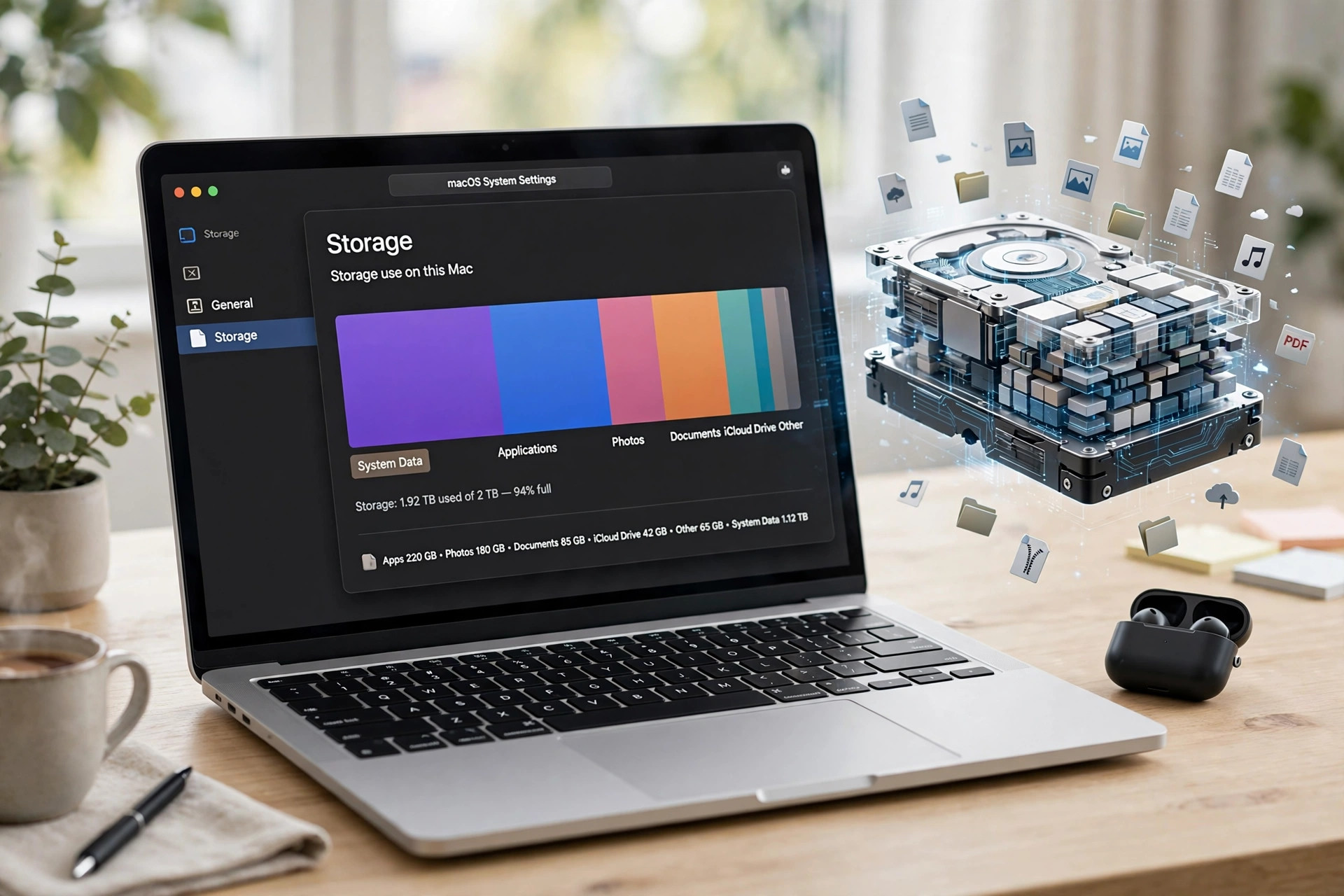
256GB Not Being Enough Is Not Your Fault
In Hong Kong, the most popular MacBook is the 256GB base model — light, affordable, and fine for school and office work. Until the "disk almost full" warning pops up and you can't even install system updates.
Many customers bring in their Macs and ask: "I barely installed anything, why is it full?" Often it's not what they installed — it's what the system quietly stashed away. One of the newer hidden space hogs is Apple Intelligence's AI model files.
The Culprit: Model Files Download Even If You Never Turned It On
Since macOS Sequoia, Apple added Apple Intelligence — writing assistance, Genmoji, photo cleanup and other AI features. The catch: even if you've never enabled these features, the system may have automatically downloaded the full set of AI model files, silently occupying several gigabytes.
These models power on-device AI and don't show up as normal files in Finder, so most people have no idea they exist.
How to Check
1. Open System Settings → General → Storage and let it finish calculating
2. Look at "System Data" and "macOS" — if they're unusually large, model files may be part of the reason
3. You can dig into `~/Library`, but don't delete anything you don't recognise (more on why below)
Three Safe Cleanup Steps (Built-in Tools Only)
Step 1: Turn On "Optimise Storage"
In System Settings → General → Storage, Apple offers one-click recommendations: move infrequently used files to iCloud, empty Trash automatically, remove watched Apple TV videos. A few clicks, zero risk.
Step 2: Remove Apps You Genuinely Never Use
The same Storage page lists every app and how much space it takes. GarageBand, iMovie and the other bundled apps you've never opened can go — they're free to reinstall from the App Store anytime.
Step 3: Clear Downloads and Desktop
The oldest trick and still the most effective. Many Macs carry gigabytes of forgotten installers in Downloads. A desktop piled with large files also slows down Finder.
Don't Touch These
- Anything in `~/Library`: this is the backstage warehouse for apps and the system. Delete the wrong folder and apps may break or the system may misbehave. If you're not sure what it is, leave it alone.
- Time Machine local snapshots: the system keeps local backup snapshots, but it automatically yields the space when you're running low. No need to manage manually.
- "One-click cleaner" third-party apps: some free cleaners promise gigabytes back with one click, but a few bundle extras or clean too aggressively. Don't experiment if you're unsure.
Still Running Out of Space?
If you've done all of the above and you're perpetually down to a few gigabytes, think longer term:
- External SSD: moving photos and videos to an external drive is the cheapest life extension
- iCloud upgrade: the 2TB plan, spread monthly, is good value if your Mac is your livelihood
- Apple Silicon note: on M1 and later Macs the SSD is soldered to the board and cannot be upgraded afterwards. That's why we always advise customers to start at 512GB when buying
If your Mac has slowed to a crawl, or you'd rather not risk deleting the wrong thing, bring it to ComputerKing — we'll check what's eating your space free of charge, quote before doing anything, and there's no obligation.
Frequently Asked Questions
Where are the Apple Intelligence model files?
They're hidden inside the system Library and won't appear in Finder. The safest way to manage them is via System Settings → General → Storage — don't go deleting folders manually.
Will deleting Apple Intelligence model files break my Mac?
No, but if you re-enable Apple Intelligence later the system will re-download them. Only remove them if you're sure you won't use the AI features — ask first if unsure.
Is 256GB really not enough for a Mac?
It depends. Fine for documents and browsing, but photo/video editing or a few large apps will fill it fast. With soldered SSDs on M1 and later, buy 512GB from the start.
Will 'Optimise Storage' delete my files?
No. It only moves infrequently used files to iCloud (originals stay accessible, loading on demand) and empties Trash automatically. It's Apple's own safe operation.
My Mac says there's not enough space for a system update. What now?
Major macOS updates typically need 20GB+ free. Do the three cleanup steps above; if it's still stuck, bring it in — sometimes old snapshots or update files are wedged and a proper clear-out fixes it.