Apple Repair · October 8, 2026 · ComputerKing Team
M4 MacBook Buying Guide: Air vs Pro, RAM and Storage (From a Repair Shop)
Not the priciest — the most suitable. With soldered RAM/SSD since M1 there's no going back, so choose right at purchase. A repair shop's guide plus Hong Kong buying tips.
Not the Most Expensive — the Most Suitable
Customers often ask: "I want a new Mac, which one?" Honestly, Apple's lineup is very clear now — people choose wrong mostly because they're unclear about their own needs. Here's the repair-shop perspective.
First Question: What Do You Use It For?
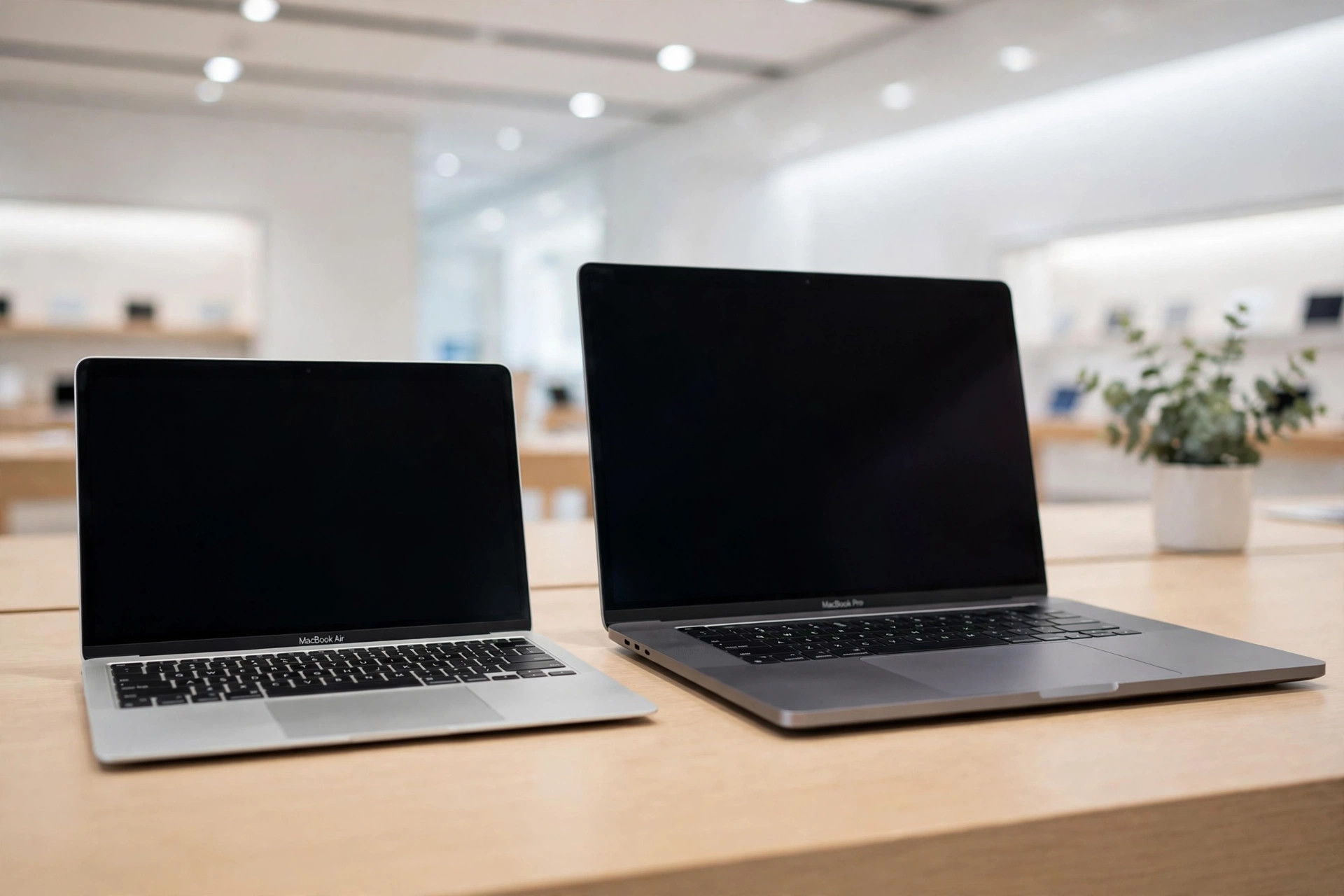
- Documents, browsing, video: MacBook Air is plenty. The M4 Air's performance is already overkill — plus it's lighter and cheaper.
- Video editing, design, coding: MacBook Pro. The fan isn't decoration — it sustains heavy loads, and the display is better.
- Desktop that never moves: iMac or Mac mini. The Mac mini is the best value if you already own a monitor.
Don't buy a Pro for "maybe someday". Nine out of ten document users who buy a Pro never spin its fan up fully in three years.
RAM and Storage: Get This Wrong and There's No Going Back
Here's the big one — since M1, RAM and SSD are soldered and cannot be changed after purchase. This is the single most important decision in the whole buying process:
- RAM: 8GB is the floor for documents; for editing and multitasking, 16GB for peace of mind. Planning to keep it 4+ years? Start at 16GB.
- SSD: 256GB fills fast (we covered why in our previous article). 512GB is the sweet spot; 1TB is for people with genuinely large files.
Better to step down one CPU tier than skimp on RAM/storage. You may never notice a slower CPU, but you'll notice full storage every day.
Hong Kong Buying Tips
- Education pricing: students and educators get meaningful discounts — don't forget to ask
- Grey imports vs official: grey is cheaper but warranty gets complicated. AppleCare is region-specific — clarify before buying
- Old machine handover: back up fully before switching, and sign out of iCloud plus erase all content before selling — skip this and the machine effectively can't change hands
Ask the People Who Fix Them
We see daily which models have the most problems and which last longest. If you're thinking of switching and unsure, drop by ComputerKing for a chat — no obligation, no pressure.
Frequently Asked Questions
MacBook Air vs Pro — how to choose?
Air for documents and browsing — light, affordable, plenty fast. Pro for editing, design and coding — the fan sustains heavy loads. Don't pay for performance you'll never use.
How much RAM and storage?
Soldered since M1, so decide at purchase. 16GB RAM for multi-year peace of mind; 512GB SSD is the sweet spot for most people.
Any Hong Kong buying tips?
Students/educators should ask for education pricing; grey imports are cheaper but warranty is tricky — clarify terms first; always sign out of iCloud and erase before selling an old Mac.
What should I do before switching Macs?
Full Time Machine backup, sign out of iCloud/iMessage, erase all content and settings. Skip these and your data could leak.