Computer Repair · October 30, 2026 · ComputerKing Team
When Your Laptop Screen Flickers Too Badly to Work: Rescue Your Work and Data With an External Display
When a laptop screen flickers too badly to read, your work and data are not necessarily lost: separate intermittent flicker, whole-screen distortion, and red flags first, then connect an external display in the order of power, cable, and input source, switch to Second screen only, save the file in progress, copy it, verify that the copy opens, and hand over a one-page note for inspection.
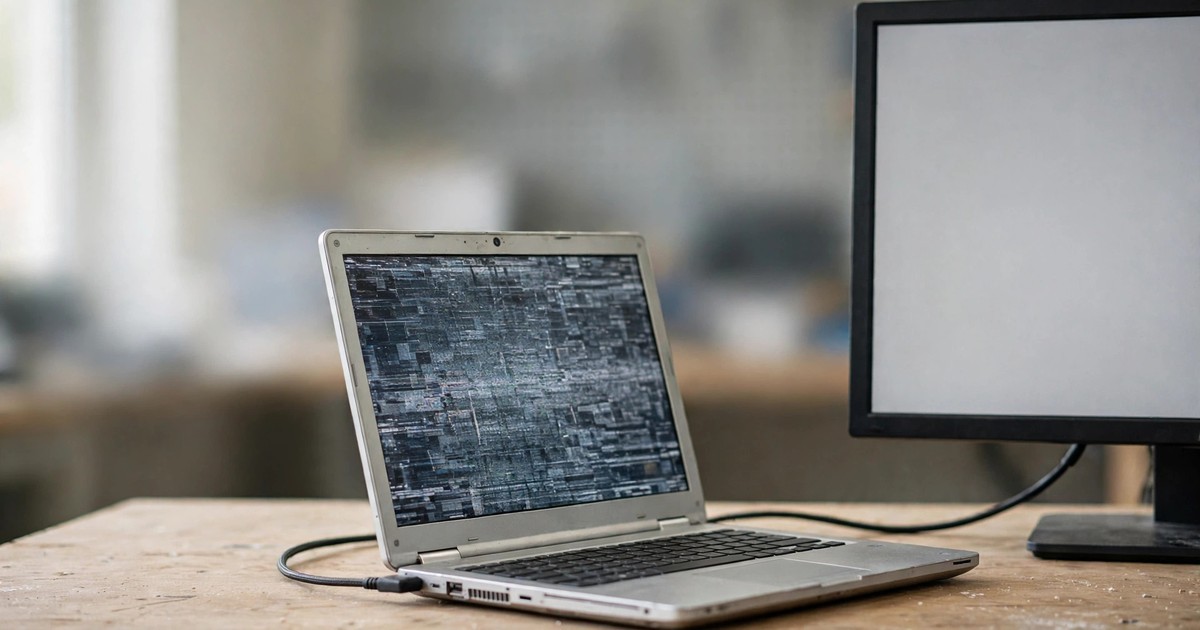
Summary: When a laptop screen flickers so badly that you cannot read it, that does not mean your current work and data are already lost. This article does not repeat how to diagnose flicker causes, does not cover third-layer technical causes, and does not teach the seven-day observation method. It covers one thing only: when the screen is already unusable, how to use an external display, in the order of stop first, connect second, and rescue data third, to save the file you are working on and your important data first, and then hand over a one-page note for inspection. Charges are quoted case by case.
Introduction: How This Article Fits With the Earlier Ones
When a laptop screen flickers until even file titles are unreadable, the most urgent question is usually not "which part is broken" but "what happens to the document I am working on, and the changes I have not saved yet". In that moment, people often do the two most costly things: first, they keep struggling in front of the flickering screen until their eyes hurt and nothing is saved; second, in a hurry they press keys at random, open and close the lid repeatedly, or try to open the machine, and a screen problem turns into a data risk.
This site already has three articles on screen flicker, and this article does not repeat their content. It adds one more layer on top of them:
- Article 74, laptop-screen-flicker: how to separate the three layers of cable, screen, and graphics card, and the two tests of connecting an external display and opening Task Manager.
- Article 95, laptop-screen-flicker-third-layer-causes: when the basic tests are all done and the screen still flickers, how the compositing layer, dynamic refresh rate, app acceleration, and power supply narrow the cause further.
- Article 120, laptop-screen-flicker-observation-log: how to spend seven days recording seven fields, so you can see whether flicker is getting more frequent or only appears under certain conditions.
The scope of this article is narrow. It covers only one thing: when the screen is already too bad to use, and you need to rescue work and data in a hurry, what to do. If your screen is still readable and only flickers from time to time, read the three articles above first. If your screen is already unreadable, this article is your rescue procedure. One boundary first: every step in this article needs no disassembly. Any step that needs opening the machine, removing the screen bezel, or removing a cable inside the machine is outside this article and should be left to inspection staff.
1. Before You Rescue Anything, Separate Three Situations
Before you rescue anything, the first step is not connecting a cable. It is to stop for a moment and see which situation you are in. Different situations need different rescue methods and different stopping points. You only need to match your machine to one of the three below.
The first situation: intermittent flicker, with clear moments in between. The screen flickers and stops, with a few seconds or even tens of seconds in between when it is readable. This situation suits rescue best, because you still have chances, during the clear moments, to press save and open a backup program. The strategy is "use the clear moment for the single most important step", not "use the clear moment to keep rushing work".
The second situation: the whole screen is distorted or covered in lines, or completely black, but the machine is still on, the fan is still turning, and the keyboard light or power light still responds. In this situation the machine itself may still be running, and only the built-in screen cannot show a normal picture. The strategy is "stop relying on the built-in screen and switch to an external display". The six steps in Section 2 are written for this situation.
The third situation: red flags. Stop at once, and do not rescue or test. If you smell a burnt or chemical smell, see the body deformed, the keyboard bulging, or the screen unable to close, or the machine was exposed to liquid or dropped before the flicker started, this is not the time to "rescue data". It is the time to "stop and arrange inspection". For battery swelling safety, see article 65, laptop-battery-swelling-safety-guide. Do not poke, do not press, and do not charge again. Do not take a risk for one document.
| Situation | Do at once | Do not do |
|---|---|---|
| Intermittent flicker, with clear moments | During a clear moment, save the file you are working on first, then follow Section 2 to connect an external display | Keep rushing work during clear moments and open more programs, so the next flicker catches you with nothing saved |
| Whole screen distorted or black, but the machine is still on | Stop relying on the built-in screen and follow Section 2 to connect an external display and rescue data | Keep opening and closing the lid, tapping the body, or switching the machine on and off repeatedly to "see if it gets better" |
| Red flags: smell, swelling, liquid, drop | Stop at once, do not charge again, do not poke, do not press, and arrange inspection | Keep switching the machine on to rescue data, keep charging it, or open the machine yourself to look inside |
Why separate situations first? Because every step of a rescue has a cost. Every random key press may make unsaved changes harder to recover. Every switch-on under a red-flag condition may turn a problem that could be inspected into a worse one. Separate first, and the whole rescue stays orderly instead of getting messier as you go.
2. Six Steps to Rescue With an External Display
The order of the six steps below matters, so do not reorder them: protect unsaved work first, then connect, then switch display mode, then rescue data, and only then think about temporary work and the inspection handover. Each step states what to do, how to do it, how to know it worked, and what to do if it does not.
Step 1: Stop, and write down what is open right now. Before you touch any cable, take one minute and write on paper three things: which programs are open, which document is unsaved, and which data was changed today. The point of writing it down is not to make a report. It is so that, when the external display lights up, you do not have to guess from memory which document matters most. You can do this step even without a readable screen, because you can still remember "which document I was just working on".
Step 2: Connect the external display, in the order of power, cable, then input source. First plug the external display into power and switch it on, then connect the video cable from the display to the laptop, pushing each plug in firmly, and finally use the display's own buttons or remote to switch its input source to the port you connected. The reason for this order is simple: if you connect the cable first and switch the display on later, you cannot tell whether "no picture" means the display is off, the input source is wrong, or the machine itself cannot output a picture. Microsoft's official guidance for external displays follows the same logic: first confirm the display is switched on and its input source is set to the correct port, then connect it to the computer. When connecting, do not force a plug. If the plug shape does not match, do not force it in. If an adapter does not match, do not force it either. Change to a cable or adapter with the matching shape.
Step 3: Switch the display mode, with the goal of "the external display shows everything". On Windows, press the Windows key plus P to bring up the projection menu, which has four modes: PC screen only, Duplicate, Extend, and Second screen only. For a rescue, choose "Second screen only", which hands the whole picture to the external display and stops the flickering built-in screen from getting in your way. Why not Duplicate? Because Duplicate sends the same flickering picture to the external display as well, so you would still be rescuing data in front of flicker. Why not Extend? Because Extend splits the desktop across two screens, and the window you need to rescue may still be on the built-in screen side, where you cannot see it or drag it back. After choosing "Second screen only", the external display should show the desktop. If the external display still shows nothing, first recheck the three items in Step 2, power, cable, and input source, and try once more. Do not jump straight to opening the machine or reinstalling drivers.
For Mac users, Apple's official guidance states: once the display has power and the cable is connected properly, the Mac usually detects the external display automatically, the desktop should appear on the display, and you can then adjust resolution and arrangement in the Displays section of System Settings. The number of displays you can use at the same time, and their resolution and refresh rate, depend on your Mac model, so check your own model's specifications instead of assuming every model behaves the same. If you want to keep using an external display with the Mac lid closed, follow the conditions in Apple's official documents. If you are unsure, keep the lid open and rescue data with the external display first.
Step 4: Rescue data, in the order of the file in progress, today's changes, then the whole folder. Once the external display lights up, the first thing is not email and not a browser. It is to press save on the file you are working on, and right after saving, save another copy to an external drive or to the backup location you normally use. Then handle the other files changed today, again saving plus a copy each. Only then do a backup of the whole folder. The reason for this order is that the rescue window may not last long: the machine may develop a problem again at any time, so you must save the most urgent and hardest-to-redo items first. For a full backup strategy, see article 79, backup-strategy-hk. This article covers only the order of steps at the moment of rescue.
Step 5: Verify that the backup copy opens. Do not judge a rescue by the file name alone. A common rescue mistake is to copy files and treat the rescue as done, only to find after inspection that the copy does not open, or that the copy is an old version. Verification is simple: on the external display, open once the copy you just made, and check whether it opens, whether its content is today's changed version, and whether its page count or file size looks reasonable. Only a copy that opens counts as rescued. If it does not open, copy it again at once, or change to another backup location. This step takes only one minute, but it prevents the most costly result of all: "thought it was rescued, but it was not".
Step 6: Decide on a temporary working mode, and stop once the rescue is done. After the data is rescued, you have two choices: first, use the external display temporarily for light work, such as replying to messages, reading documents, and simple paperwork; second, stop using the machine at once and arrange inspection. Whichever you choose, remember this: an external display only bypasses the built-in screen. The underlying problem is not solved. Do not use this state for heavy work, games, or video editing, and do not use it continuously for a long time. A temporary working mode exists so you do not have to stop work at once. It does not mean nothing is wrong.
3. Four External Display Methods Compared
Not everyone has the same external equipment at home. Which of the four methods below to choose depends on what you have at hand and how urgent the rescue is. Remember one principle: for a data rescue, use a wired connection first. Do not try a wireless connection for the first time when you are in the greatest hurry.
| Method | How to do it | Suits which situation | Watch out for |
|---|---|---|---|
| Wired connection straight to a display | Use a video cable with the matching shape, straight from the laptop to the display | You have a display and a matching cable. This is the most stable rescue method | Push each plug in firmly. Set the display input source correctly. Do not force a plug with the wrong shape |
| Adapter to a display | The laptop port and the display port have different shapes, so connect them with an adapter | The laptop has only one port shape and the display has only another | The adapter itself may be the fault point. If there is no picture, try changing the adapter or the cable |
| Television as a display | Connect a video cable to a television and set the television input source to the matching port | No computer display at home, but a television is available | Television resolution and text size may not suit long paperwork. It suits data rescue and simple tasks only |
| Wireless projection | Follow the maker's official wireless projection steps to send the picture to a supported display | No cable and no display at all, only a television or display that supports wireless projection | Wireless connections depend on the network and distance. If it is unstable during a rescue, switch back to wired at once. Do not save important documents while the wireless connection keeps dropping |
One more point after the four methods: whatever method you use, if the external display also shows no picture, or shows the same flicker, that information itself is useful. Do not throw it away as a failure. Write down which method you tried, which cable, which input source, and what the result was, and hand that record over for inspection. Inspection staff then do not have to start from zero and try each item one by one, and the whole inspection goes faster.
4. Five Common Mistakes
Mistake 1: Keep struggling in front of the flickering screen and delay saving
Many people's instinct is "wait a bit longer, the flicker will stop", and they only find out, when the screen suddenly goes black, that the document was never saved. The correct action is the one in Section 1: while there is still a clear moment, save first. If you cannot read the screen, switch to an external display at once. Do not wait. Saving always comes before "keep rushing work".
Mistake 2: Keep opening and closing the lid, or tapping the body, to test it
A change when the opening angle moves is indeed a cable clue, as article 74 explains, but "testing" and "rescuing" are two different things. During a rescue, repeated opening and closing only puts more movement on the cable and screen, and may also cause unsaved programs to fail. Observation records belong to the seven-day method in article 120. Do not do these actions at the moment of rescue.
Mistake 3: Once the external display lights up, open every program at once and rush work
An external display lighting up does not mean the machine is fixed. The underlying problem is not solved. Opening every program and doing heavy work only raises the chance that the machine develops a problem again, and may force you to rescue the backup you have not verified yet all over again. The correct order is save, copy, verify, and only then do light work.
Mistake 4: Write passwords into the inspection handover note
An inspection handover note should state symptoms, the external combinations already tried, results, and backup locations, but it must never include passwords, unlock codes, or any login details. The point of the handover note is so inspection staff do not have to guess what you already tried. It is not a place for your account details to travel around. Writing "external drive" or "which folder" for the backup location is enough, without writing how to log in.
Mistake 5: Treat "the external display works" as "no inspection needed"
An external display working only proves that the computing part still runs, and that the external output path still runs. It does not prove that the built-in screen, cable, or graphics card is fine. Putting off inspection may let flicker change from intermittent to frequent, or even to fully black, and later even the external check becomes harder. Once the data is rescued, follow Step 6 to decide on a temporary mode and an inspection arrangement. Do not treat a temporary setup as a long-term one.
5. After the Rescue, How to Hand Over So Inspection Staff Can Help
After the data is rescued, and before inspection, write a one-page handover note with only six lines: first, what the original symptom was, intermittent flicker, whole-screen distortion, or black; second, which external method you tried, which cable, and which input source; third, what the external result was, normal display, still flickering, or no picture; fourth, which documents you rescued, where the backup is, and whether you verified that it opens; fifth, whether there are any red flags, meaning smell, swelling, liquid, or a drop; sixth, what you would like inspection staff to look at first, confirming data safety, or the screen and cable. All six lines state facts, conditions, and results. Do not write your own conclusion about "which part must be broken". Leave conclusions until after inspection. Charges are quoted case by case. Before inspection, you can ask about the inspection and quotation process.
Frequently Asked Questions
Q: The screen flickers so badly I cannot read it. Can I press save from memory, without an external display?
A: This is not recommended. Pressing save from memory leaves you unable to tell whether you pressed save or pressed the wrong key, and you may even close a document without saving while unable to see the screen. After connecting an external display, you can see before you press save, and you can verify right after saving. That is the reliable rescue method.
Q: I have no external display at home. Can I use a television instead?
A: Yes, a television can serve as a temporary external display. Connect a video cable to the television, set the television input source to the matching port, and then switch the display mode as in Step 3 of Section 2. A television suits data rescue and simple tasks only. Its text may look larger or blurrier, and it does not suit long paperwork. Once the data is rescued, stop there.
Q: The external display also shows no picture. Does that mean the machine is completely broken?
A: Do not reach that conclusion so quickly. No picture on an external display may mean the display is not switched on, the input source is wrong, the cable is not pushed in firmly, or the adapter has a problem. All of these must be ruled out one by one. Only after ruling them out should you write down the combinations you tried and hand them over for inspection. Do not conclude on your own which part is broken.
Q: The external picture flickers in the same way. Is there anything left to rescue?
A: Yes, and that result itself is an important clue, because it suggests the problem may not be limited to the built-in screen. At this point, do not try more combinations. Stop, write down the fact that both the built-in and external pictures flicker, together with the cables and input sources you tried, and hand them over for inspection. For data rescue, if the external picture is also unreadable, do not press keys by guesswork. Leave it for inspection staff to handle under controlled conditions.
Q: During a rescue, should I save the file in progress first, or back up everything first?
A: Save the file in progress first. That file is the most urgent and hardest to redo, because it may never have been saved at all. After saving it, save another copy to an external drive or backup location right away, verify that it opens, and only then handle the other files changed today, and finally the whole folder backup.
Q: After copying a backup, how do I know it was really rescued?
A: Open the copy once to verify it. On the external display, open the file you just copied, and check whether it opens and whether its content is today's changed version. Looking at the file name only, or only checking that the file appears, does not count as verification. Only a copy that opens counts.
Q: Can I close the laptop lid and use only the external display?
A: Follow the conditions in the maker's official documents, and do not guess from memory. Conditions differ by model. If you are unsure, keep the lid open and rescue data with the external display first. A data rescue does not need a closed lid. Using an external display with the lid open is already enough, so do not take a risk just to save space.
Q: Besides symptoms and backups, what else should the inspection handover note include?
A: Include the external combinations you tried and their results, and whether there are any red flags. Which cable, which input source, and whether the external result was normal, still flickering, or no picture, all belong in the note. Do not write passwords, do not write login details, and do not write your own guessed conclusion. Leave conclusions until after inspection.
Summary
When a screen flickers too badly to read, the three most useful things are not to keep struggling, not to keep opening and closing the lid to test it, and not to open the machine at once. They are: first, separate the situations into intermittent flicker, whole-screen distortion, or red flags, and stop at once on any red flag; second, follow the order of stop first, connect second, switch to Second screen only third, and rescue data fourth, using an external display to save the file in progress first; third, verify that the backup copy opens, and then hand over a one-page note stating symptoms, combinations tried, results, and backup locations for inspection. With those three done, you change from "cannot read it, very worried" to "orderly, backed up, and handed over", and the whole inspection goes much more smoothly.
If the external display works completely normally after your rescue, do not treat the temporary setup as a long-term one. The underlying problem is not solved, so arrange inspection. If the external display shows no picture or the same flicker, write down the combinations you tried and stop. Do not keep testing at random. If you see any red flag, do not keep switching the machine on for one document. Stop at once and arrange inspection.
Sources
- Microsoft Support: Connect Surface to an external display (external display setup, Windows key plus P projection modes: PC screen only, Duplicate, Extend, Second screen only; accessed 2026-10-30): https://support.microsoft.com/en-au/surface/connect-surface-to-a-tv-monitor-or-projector-35c3aed4-f6c3-2767-d028-2c8ddbd2ee29
- Apple Support: Connect displays to your Mac (display power, video cable, automatic detection, Displays settings in System Settings; accessed 2026-10-30): https://support.apple.com/en-gb/102555
- Article 74 on this site, laptop-screen-flicker: three-layer diagnosis for laptop screen flicker
- Article 95 on this site, laptop-screen-flicker-third-layer-causes: third-layer causes of screen flicker
- Article 120 on this site, laptop-screen-flicker-observation-log: one-week observation method for screen flicker
- Article 79 on this site, backup-strategy-hk: backup strategy for Hong Kong users
- Article 65 on this site, laptop-battery-swelling-safety-guide: laptop battery swelling safety guide
Related Articles
- laptop-screen-flicker
- laptop-screen-flicker-third-layer-causes
- laptop-screen-flicker-observation-log
- backup-strategy-hk
- laptop-battery-swelling-safety-guide
Frequently Asked Questions
The screen flickers so badly I cannot read it. Can I press save from memory, without an external display?
This is not recommended. Pressing save from memory leaves you unable to tell whether you pressed save or pressed the wrong key, and you may even close a document without saving while unable to see the screen. After connecting an external display, you can see before you press save, and you can verify right after saving. That is the reliable rescue method.
I have no external display at home. Can I use a television instead?
Yes, a television can serve as a temporary external display. Connect a video cable to the television, set the television input source to the matching port, and then switch the display mode as in Step 3 of Section 2. A television suits data rescue and simple tasks only. Its text may look larger or blurrier, and it does not suit long paperwork. Once the data is rescued, stop there.
The external display also shows no picture. Does that mean the machine is completely broken?
Do not reach that conclusion so quickly. No picture on an external display may mean the display is not switched on, the input source is wrong, the cable is not pushed in firmly, or the adapter has a problem. All of these must be ruled out one by one. Only after ruling them out should you write down the combinations you tried and hand them over for inspection. Do not conclude on your own which part is broken.
The external picture flickers in the same way. Is there anything left to rescue?
Yes, and that result itself is an important clue, because it suggests the problem may not be limited to the built-in screen. At this point, do not try more combinations. Stop, write down the fact that both the built-in and external pictures flicker, together with the cables and input sources you tried, and hand them over for inspection. For data rescue, if the external picture is also unreadable, do not press keys by guesswork. Leave it for inspection staff to handle under controlled conditions.
During a rescue, should I save the file in progress first, or back up everything first?
Save the file in progress first. That file is the most urgent and hardest to redo, because it may never have been saved at all. After saving it, save another copy to an external drive or backup location right away, verify that it opens, and only then handle the other files changed today, and finally the whole folder backup.
After copying a backup, how do I know it was really rescued?
Open the copy once to verify it. On the external display, open the file you just copied, and check whether it opens and whether its content is today's changed version. Looking at the file name only, or only checking that the file appears, does not count as verification. Only a copy that opens counts.
Can I close the laptop lid and use only the external display?
Follow the conditions in the maker's official documents, and do not guess from memory. Conditions differ by model. If you are unsure, keep the lid open and rescue data with the external display first. A data rescue does not need a closed lid. Using an external display with the lid open is already enough, so do not take a risk just to save space.
Besides symptoms and backups, what else should the inspection handover note include?
Include the external combinations you tried and their results, and whether there are any red flags. Which cable, which input source, and whether the external result was normal, still flickering, or no picture, all belong in the note. Do not write passwords, do not write login details, and do not write your own guessed conclusion. Leave conclusions until after inspection.