Computer Repair · October 22, 2026 · ComputerKing Team
Laptop Screen Flickering or Showing Colour Artifacts? A Complete Three-Layer Guide to Cables, Panels, and Graphics Cards
A flickering laptop screen or colour artifacts do not automatically mean the panel is dead. This guide uses a three-layer method — external monitor, Task Manager, and lid-angle tests — to separate driver, cable, panel, and graphics-card faults.
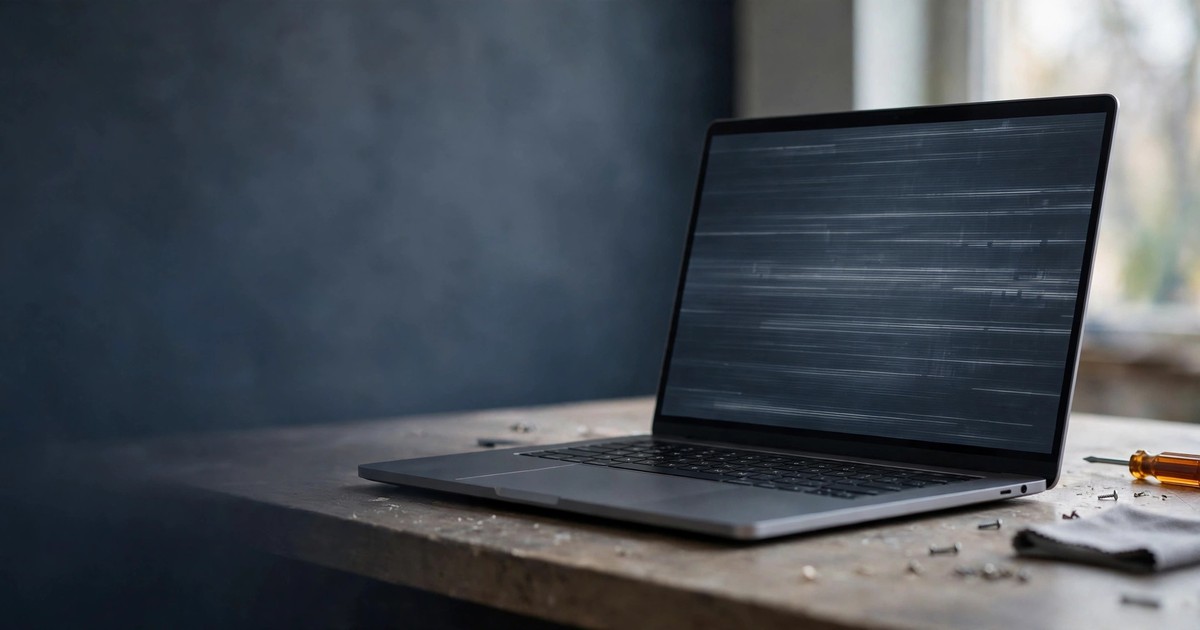
Key Summary
- A flickering or artifact-covered laptop screen does not automatically mean "the panel is dead". Causes usually fall into three layers: the software/driver layer, the display-cable connection layer, and the panel or graphics-card hardware layer. Working through them in order stops you from replacing the wrong part.
- The two fastest ways to narrow it down are: connect an external monitor and run the Task Manager test. If the external monitor is fine, the problem is most likely in the laptop's own screen or its cable. If Task Manager flickers too, the display driver is the prime suspect. If only one app flickers, that app is the prime suspect.
- If the picture changes when you move the lid, the display cable running through the hinge is very likely loose or worn. If artifacts are already there at power-on, before Windows loads, hardware is far more likely, because the driver has not taken over yet.
- Everything you can safely do yourself involves no disassembly. Opening the machine, prying off the screen bezel, pressing on the panel, or flashing the BIOS at random are all jobs to leave alone — a mistake can turn a cable problem into a full panel replacement.
- Prices, part numbers, and repair times vary by model. This guide gives no invented flat price; any responsible quote must be given per machine, after inspection.
Introduction
Your laptop screen starts flickering, or suddenly fills with wrong colours, horizontal and vertical lines, or a checkerboard pattern. It is not completely dead, so you can still work — but you cannot work with confidence, because you are waiting for it to go fully black. Many people's first instinct is to order a new panel online, or to assume the whole laptop needs replacing. In reality, screen flicker and artifacts can come from many different layers, ranging from a free settings fix to a part replacement. Replace the wrong layer and the money is wasted.
This guide walks you through the most practical method: first, identify exactly what kind of picture fault you are seeing; then use a three-layer approach to narrow it down; finally, draw a clear line between what you can test yourself and what must stop at professional inspection. The goal is simple: after reading, you should at least know roughly which layer the problem sits in, so you are not talked into a random cause, and you do not make things worse by opening the machine yourself.
One important note first: this is a general diagnostic method, not instructions for one brand or model. Key combinations, menu names, and diagnostic-tool entry points differ between brands, so always check your own machine's official manual or support pages for the exact steps. The Windows steps below follow the common Windows 10/11 interface.
Section 1: First, Identify Exactly What You Are Seeing
In everyday language, "flickering" and "artifacts" (sometimes called a "flower screen" in Chinese usage) get lumped together, but for diagnosis they can point in quite different directions. Spend one minute classifying what you see before doing anything else.
Flickering: the whole picture brightening and dimming, or briefly cutting out
Flickering usually means the picture brightness or signal is dropping in and out. The content itself is roughly correct, but the brightness jumps, or the whole screen goes black for a second and comes back. Sometimes only one app window flickers; sometimes the whole desktop, including the taskbar, flickers together. That distinction matters a great deal — Section 3 explains why it is the key to separating a driver problem from an app problem.
Artifacts: wrong colours, lines, checkerboards, colour blocks
Artifacts mean the picture content itself is wrong: colours shifted across the whole screen (for example, everything tinted green or red), horizontal or vertical lines, fine checker patterns, snow, colour blocks, or smeared text edges. Artifacts can be subdivided further: if the pattern moves when you open or close the lid, or changes when you press the screen edge, the connection layer is the prime suspect. If the pattern stays fixed in the same place no matter how you move the machine, the panel itself or the graphics card is more likely at fault.
Two related symptoms that often appear alongside, and must be separated
Black screen for a moment, then back to normal: if it only blacks out for a second or two and then fully recovers, it is often a brief driver restart or signal re-sync, and does not necessarily mean hardware failure. But if blackouts get more frequent and last longer, treat it as a hardware problem and take it seriously.
Only half the picture is normal, the other half has lines or is black: this kind of localised fault points more strongly at the panel itself. A screen is a panel plus backlight plus driver circuitry working together, and a localised failure usually cannot be fixed by updating a driver.
Write down three things before moving on, because every later section uses them: first, whether the problem covers the whole screen or only part of it; second, whether moving the lid or pressing the bezel changes anything; third, whether the problem is present from power-on, or only appears after Windows loads and you have been using the machine for a while.
Section 2: The Three-Layer Method — Software, Connection, Hardware
Splitting causes into three layers is not theory for its own sake. Each layer has a different testing cost and risk. Start with the cheapest, fastest, zero-risk layer and stop at whichever layer the evidence points to.
Layer 1: Software/driver — the cheapest, and often the real culprit
The graphics driver is the translator between Windows and the graphics card. A faulty driver, a driver that clashes with a system update, or an app that does not get along with the driver can all make the screen flicker, show artifacts, or intermittently go black. This layer has a tell-tale sign: the problem usually starts after a system update, a driver update, or installing a new app, when everything worked fine before. Another sign is that the problem eases or disappears in Safe Mode or under a different display configuration, because Safe Mode uses basic drivers and bypasses the faulty layer.
Refresh rate belongs in this layer too. Refresh rate is how many times per second the screen redraws, commonly 60Hz, 120Hz, or 144Hz. If you set a rate the panel does not support, or one that clashes with an external monitor, the picture can flicker. The fix is not to chase the highest number, but to set the manufacturer-recommended value first and test.
Layer 2: Display cable — the laptop's unique weak point
The biggest difference between a laptop and a desktop is that the screen connects to the main unit through a cable hidden inside the hinge (called the display cable or eDP cable). Every time you open and close the lid, that cable flexes. Flexed often enough, flexed sharply, or after a knock or liquid exposure, the cable can loosen, oxidise, or break internally. Cable problems have one almost unique symptom: the picture changes with the lid angle. Flickering at one angle and fine at another, or improving when you gently support the screen edge, points strongly at the cable.
Note that a loose cable and a broken cable are two different things. A loose one may be fixed by reseating it; a broken or internally worn one needs replacing. It is very hard for a non-specialist to tell the two apart by eye, and the cable connectors are tiny and fragile — opening the screen bezel is itself risky. So this guide teaches you how to recognise a cable suspect, not how to open the machine and reseat it yourself.
Layer 3: Panel or graphics-card hardware — the most expensive, so be most certain before replacing
A faulty panel can mean a damaged panel, a failed backlight circuit, or failed driver circuitry inside the screen. A faulty graphics card can mean a failed discrete graphics chip, failed solder joints, or faulty graphics memory. This layer is characterised by "hard" symptoms: fixed position, fixed pattern, unaffected by settings or driver changes, and usually already visible at power-on, on the BIOS screen, before Windows drivers load — because if the picture is wrong before the driver takes over, the fault is already in the hardware layer.
The key test separating panel from graphics card is the external monitor test (Section 3, step 1). It is the first step in almost every official repair flow, because it cuts the problem in half in one move.
Table 1: Symptom Comparison — Match Your Case Against It
| What you see | Most likely layer | What to do next |
|---|---|---|
| Whole screen flickers, including Task Manager | Software/driver layer | Update or roll back the graphics driver; check recent system updates |
| Only one app flickers, other windows are fine | Software/app layer | Update or disable that app; check its hardware-acceleration setting |
| Picture changes when you move the lid or hinge | Display-cable layer | Stop, note which angles are worst, and tell the repairer exactly that |
| Artifacts or lines already present at power-on, before Windows | Hardware layer (panel or graphics card) | Run the external-monitor test to separate panel from graphics card |
| External monitor is fine, only the laptop's own screen is faulty | Panel or cable layer | The graphics card is most likely fine; do not waste time reinstalling drivers endlessly |
| External monitor shows the same flicker or artifacts | Graphics-card or system layer | Check drivers first, then consider graphics-hardware inspection |
| Fixed bright lines, dark lines, or colour bands that never move | Panel itself | Usually needs a panel replacement; back up data before sending for repair |
| Flicker only on battery power, fine when plugged in | Power/power-management layer | Check the power plan, battery health, and charger output |
| Artifacts only under heavy load (gaming, video editing), fine for documents | Graphics-card/cooling layer | Monitor temperatures, check cooling, and do not keep pushing heavy loads |
This table is a direction map, not a diagnosis. Real cases can involve two layers at once — for example, a driver problem plus a loose cable. Even after matching a row, complete the tests in Section 3 before concluding.
Section 3: Five Safe Tests You Can Do Yourself (No Disassembly Required)
All five steps below need no disassembly and no tools. Do them in order, starting with the one that narrows the range most. Save your work first, because a few steps require restarting the machine.
Step 1: Connect an external monitor — cut the problem in half in one move
Connect an external monitor or TV with an HDMI, DisplayPort, or USB-C cable, and check whether the external picture shows the same problem. Set the display mode to "Duplicate" or "Second screen only" so you are comparing the same signal on two screens.
- External fine, laptop screen faulty: the problem is in the laptop's own screen, its cable, or its built-in screen settings. The graphics card itself is most likely fine.
- External faulty too: the problem is in the graphics card, the driver, or the system layer. Replacing the screen will not fix it.
- External intermittent: check the external cable and port first. A loose external cable or oxidised port can mimic a laptop fault, so do not blame the laptop immediately.
This test comes first because it costs the least and gives the clearest conclusion. Many repair cases are resolved at this step alone, saving the cost of a wrongly replaced part.
Step 2: The Task Manager test — separate driver from app
In Windows, press Ctrl + Shift + Esc to open Task Manager, and check whether the Task Manager window itself flickers along with everything else. This is Microsoft's recommended separation method, and the logic is simple: Task Manager is a system window of its own. If it flickers too, the whole display output is affected and the driver is the prime suspect. If Task Manager stays steady and only other apps flicker, a particular app is clashing with the display system, and that app is where to start.
- Task Manager flickers too: go to Device Manager, check whether the graphics driver shows a warning, and try updating the driver. If the problem started after an update, try rolling back to the previous driver version.
- Only one app flickers: update that app, look in its settings for a "hardware acceleration" option and temporarily turn it off, then test again. If that fails, uninstall and reinstall the app.
While doing this step, do not open a dozen apps at once, or you will not be able to tell which one is flickering.
Step 3: Reset the graphics driver and check the refresh rate — a free two-minute test
Windows has a built-in graphics-driver reset shortcut: Win + Ctrl + Shift + B. After pressing it, the screen goes black briefly and comes back — that is normal. The point is to restart the graphics driver once. If flicker only happened occasionally and does not return after the reset, it was most likely a one-off driver glitch, and nothing further may be needed.
Then check two settings: first, whether the resolution is set to the "Recommended" value; second, whether the refresh rate is set to a value the panel supports. The usual path is Settings → System → Display → Advanced display settings. Do not push the refresh rate beyond the panel's specification to chase a higher number, and remember that the built-in and external screens may need different refresh-rate settings.
Step 4: Safe Mode test — isolate third-party software
If the screen flickers constantly in normal mode but is stable in Safe Mode, a third-party app, a startup item, or a non-standard driver is very likely the cause. Safe Mode loads only basic drivers and services, so it is an excellent control group. The way into Safe Mode varies by Windows version and model; the usual route is Settings → System → Recovery → Advanced startup. Do not guess at function keys during boot and risk changing BIOS settings by accident.
Safe Mode being stable does not mean the problem is solved — it only tells you the direction is the software layer. After that, disable startup items one at a time and restart to test, until you find the culprit. Slow, but the most accurate method.
Step 5: Lid-angle and power comparison — identify cable and power suspects
Slowly open the lid from about 30 degrees to 120 degrees, pausing a few seconds at each angle, and note which angles flicker worst and which are completely fine. If the problem clearly follows the angle, that is strong evidence for a cable suspect. Tell the repairer this observation when you send the machine in — it lets the technician go straight to the hinge and cable instead of guessing through the whole machine.
Also run one more comparison: plugged in versus on battery only. An unstable charger, an ageing battery, or a power plan that squeezes graphics performance too hard can all make the picture flicker. This test costs nothing, yet many people skip it and jump straight to suspecting hardware failure.
After these five steps, you should be able to state a reasonable conclusion, for example "external monitor fine, picture changes with lid angle — probably the cable" or "Task Manager flickers too — probably the driver". With that conclusion, whether you follow up yourself or send the machine in, you are no longer guessing blind.
Section 4: How to Recognise a Cable Problem More Accurately
The display cable is the most commonly misjudged part of laptop screen faults, because its symptoms often look like a panel fault and sometimes like a graphics-card fault. The following features, taken together, raise accuracy a great deal.
First, angle dependence. The cable passes through the hinge and flexes and tugs slightly as the lid moves. As the internal wires start to wear, contact is good at some angles and poor at others, so the picture follows the angle. A faulty panel usually does not follow the angle so obediently.
Second, intermittent and irregular. Early cable contact problems can be on-and-off: fine today, flickering tomorrow, different again after closing and reopening the lid. That instability is itself a connection-layer characteristic. Driver problems usually reproduce steadily (for example, flickering every time you open a certain app); panel faults usually stay put (the line is always there).
Third, triggered by slight vibration. Carrying the machine while walking, moving it from one desk to another, or even typing heavily can trigger a flicker. Software problems do not change because you moved the machine.
Fourth, external monitor normal. Mentioned before, but especially important for cable judgement: if the external picture is fine, the signal leaving the graphics card is fine, so the fault must be on the path from the main board to the built-in screen — that is, the cable or the panel itself. Combined with the angle test, this narrows it further to the cable.
If you conclude the cable is suspect, do not open the machine. Instead, record your observations: which angles are worst, whether vibration triggers it, how long the problem has existed, and whether the machine has been dropped or exposed to liquid. That information is very valuable at repair time, because the technician does not have to start guessing from zero.
Section 5: Panel Versus Graphics Card — How to Tell Them Apart
Panel and graphics-card faults are both hardware-layer, but the part replaced, the repair difficulty, and the price can differ greatly. Telling them apart first prevents replacing the wrong one.
Typical signs of a faulty panel: the problem is fixed in one area, for example lines always in the right third of the screen; bright spots, dark spots, or bright lines that persist and do not disappear after restarting or updating drivers; the problem is already visible on the very first power-on screen (the brand logo); the external monitor is completely fine. In these cases, panel replacement is usually the only long-term fix. Pressing on the panel or propping it up may seem to help for a moment, but only risks further damage.
Typical signs of a faulty graphics card: the external monitor shows the same problem; artifacts follow the workload, appearing during gaming, video editing, or 3D apps but not during document work; the picture fault comes with full freezes, automatic restarts, or blue screens; the problem worsens as temperature rises. Graphics-card problems are sometimes cooling-related: dust-clogged fans or aged thermal paste keep the graphics card hot for long periods, indirectly causing picture faults. In that case, cleaning and improving cooling may help, but if the chip or graphics memory itself is already damaged, cleaning will not save it.
One in-between case deserves mention: backlight problems. If the picture content is actually still there but so dim you can barely see it, or only faintly visible when you shine a torch at the screen, the fault is most likely in the backlight circuit, not a completely dead panel. Backlight repair and panel replacement are different jobs, so tell the repairer clearly — "so dim it is almost invisible, but faintly there" — to speed up the right diagnosis.
A final reminder: final confirmation between panel and graphics card always requires professional testing, such as testing with a known-good panel or running the manufacturer's display diagnostics. Those steps involve disassembly and spare parts, and are not suitable to do at home.
Section 6: What Must You Never Do? Five Common Mistakes
Mistake 1: Pressing hard on the screen or thumping the machine to "press the lines back"
A screen panel is fragile glass and liquid-crystal layers. Pressing on it can spread the damaged area or even crack the panel. Even if pressing seems to help for a moment, it only temporarily changes contact; the root cause is untouched, and a problem that was only a loose cable can become a full panel replacement.
Mistake 2: Opening the machine or prying the bezel before backing up
Removing a screen bezel needs specialist tools and technique; the bezel clips break easily and cable connectors are easily damaged. More importantly, opening the machine without a backup risks your data: if the main board or drive connector is damaged during disassembly, the data can go with it. The order is always: back up first, then send for repair — never the reverse.
Mistake 3: Reinstalling drivers endlessly or flashing the BIOS at random, as if software can cure hardware
Reinstalling a driver once, and rolling it back once, is enough to rule the driver in or out. Reinstalling ten times will not help if the driver was never the problem. Flashing the BIOS at random, or changing graphics-card clocks and overclocking graphics memory, can turn a machine that still works into one that will not boot. Overclocking is directly linked to artifacts: graphics memory running above specification produces irregular horizontal lines and artifacts. In that case, restore default clocks — do not push higher.
Mistake 4: Buying a part first, or guessing the panel model from the internet
Laptop panel models have many variants: the same brand, the same series, and different years can mean different connectors, sizes, resolutions, and refresh rates. Buying on the basis of "my machine is 15 inches" very often yields a part with the wrong connector or one that will not fit. The correct approach is to let the technician match the model number on the base of the machine and the part number on the panel itself before ordering. Do not buy first and ask later.
Mistake 5: Keeping on pushing through worsening symptoms with important unsaved files open
Flicker and artifacts can be early signals of deteriorating hardware. Going from occasional flicker to constant flicker to black screen can happen quickly. The most dangerous thing in that window is not the machine, but your unsaved, unbacked-up files. As soon as the problem starts getting more frequent, the first thing to do is back up — not to keep rushing work.
Section 7: When Should You Send It for Repair Immediately? How to Prepare?
Send the machine for professional inspection promptly in these cases: artifacts already present at power-on; half the screen black; a cracked screen or a machine that has suffered an impact; flicker accompanied by a burning smell or abnormal heat; frequent automatic restarts that are getting worse; or you have completed all five tests in Section 3 and still cannot narrow it down. Delaying in these cases only widens the damage.
Before sending it in, prepare four things. First, back up your data: copy important files to an external drive or cloud storage, because repair may involve reinstalling the system or replacing parts, and nobody can guarantee your data through that process. Second, write down a symptom list: which angles are worst, any drops or liquid exposure, how long the problem has existed, and which tests you did and their results. Third, note the model details: the model number on the base, the year of purchase, and roughly how the machine has been used, to help match parts. Fourth, ask clearly about the quote structure: panel, cable, and graphics-card repairs can differ greatly in price and time, so ask before handing the machine over whether inspection, parts, and labour are charged separately, rather than discovering an extra charge at collection.
On price, this guide deliberately gives no figure. Panel prices alone can differ several-fold between models, and cable and graphics-card repairs vary by model too — any single flat price would mislead. Any responsible quote should come after inspection and part-number matching, priced per machine after inspection.
Frequently Asked Questions
Q: If my laptop screen flickers, does that definitely mean the panel is broken?
A: Not necessarily. Flicker can come from the driver, the refresh-rate setting, a particular app, a loose cable, a power problem, or the panel itself. Run the external-monitor test and the Task Manager test first to narrow down the layer before assuming a panel replacement is needed.
Q: How do I tell a cable problem from a panel problem?
A: The key is whether the picture changes with the lid angle. If moving the lid changes it, the cable is the prime suspect. If the fault stays fixed in the same place no matter how you move the machine, the panel itself is more likely. Add the external-monitor test: if the external picture is fine, the fault is on the built-in screen side, not the graphics card.
Q: If the external monitor flickers too, does that mean the graphics card is dead?
A: Not immediately. It only means the problem is in the graphics-card or system layer, and driver versus hardware still needs separating. Update or roll back the driver, check the refresh rate, and test in Safe Mode first. Only if all of those still show the fault should graphics-hardware inspection be considered.
Q: How does the Task Manager test work, and why does it separate driver from app?
A: Press Ctrl + Shift + Esc to open Task Manager and see whether its own window flickers too. Task Manager is a system window: if it flickers too, the whole display output is affected and the driver is the prime suspect. If Task Manager stays steady and only one app flickers, that app is clashing with the display system, and that app is where to start.
Q: What does it mean if artifacts are already there the moment I power on, before Windows loads?
A: It strongly suggests hardware. At power-on, Windows drivers have not loaded yet, so a picture that is already wrong is wrong before the driver takes over — usually the panel, the cable, or graphics hardware. Reinstalling drivers is very unlikely to help at that point; back up and send the machine for repair.
Q: Can I keep using a flickering screen for now and repair it later?
A: It depends. If it flickered once, and a driver reset cleared it with no recurrence, you can keep observing — but back up first. If it is getting more frequent, or comes with black screens, automatic restarts, heat, or a burning smell, do not delay. Continued heavy use risks wider damage, and your unbacked-up files are at risk. Whenever flicker worsens, backing up is always the first step.
Summary
Do not jump straight to the two most expensive conclusions — "replace the panel" or "replace the machine" — when a laptop screen flickers or shows artifacts. Remember the three-layer method: check drivers and settings first, then look at cable suspects, and only then consider panel or graphics-card hardware. Use the external-monitor test to cut the problem in half, the Task Manager test to separate driver from app, and the lid-angle test to identify a cable — with those three done, you already have a good grip on where the problem lies.
Everything you can do yourself is a no-disassembly test. Anything involving opening the machine, replacing parts, or board-level inspection belongs to a professional. Before sending a machine in, back up your data, write down your symptoms, and ask for a per-machine quote. Done properly, the whole repair goes far more smoothly, and you will not waste money on a wrongly guessed part.
If you have completed all five steps above and still cannot narrow it down, or the problem has already worsened to the point of affecting daily use, seek professional inspection promptly rather than waiting until the whole screen goes black.
Sources
- Microsoft Learn Q&A: Laptop screen occasionally flickering — driver update and refresh-rate adjustment advice — https://learn.microsoft.com/en-us/answers/questions/3728538/laptop-screen-occasionally-flickering
- Microsoft Learn Q&A: Screen flickering problem — driver updates, refresh rate, and Clean Boot troubleshooting — https://learn.microsoft.com/en-us/answers/questions/4135710/screen-flickering-problem
- LCD panel troubleshooting guide: screen flickering, black screen, and bright-line faults; loose and oxidised cable handling — https://www.displaymodule.com/de/blogs/knowledge/lcd-panel-troubleshooting-guide-screen-flickering-black-screen-bright-line-faults
- Notebook display fault analysis: display-cable fault symptoms and replacement judgement — https://qolumnist.com/en_us/2025/03/28/faults-of-the-notebook-matrix/
- Laptop LCD screen problem diagnosis: external-monitor test separating LCD from graphics-card faults — https://elservicecentre.com/different-types-of-laptop-lcd-screen-problem
Related Articles
- Why Do Computers Overheat So Easily in Hong Kong's Humid Weather? Cooling, Cleaning, Temperature Monitoring, and Long-Term Effects — A Complete Guide
- iPhone Data Recovery: Recovering Deleted Photos and WhatsApp Messages, iCloud Backup Restore, and When Recovery Is or Is Not Possible
- Home and Small-Office NAS Setup: Choosing a NAS, RAID Configuration, Backup Strategy, and Remote-Access Security Settings
Frequently Asked Questions
If my laptop screen flickers, does that definitely mean the panel is broken?
Not necessarily. Flicker can come from the driver, the refresh-rate setting, a particular app, a loose cable, a power problem, or the panel itself. Run the external-monitor test and the Task Manager test first to narrow down the layer before assuming a panel replacement is needed.
How do I tell a cable problem from a panel problem?
The key is whether the picture changes with the lid angle. If moving the lid changes it, the cable is the prime suspect. If the fault stays fixed in the same place no matter how you move the machine, the panel itself is more likely. Add the external-monitor test: if the external picture is fine, the fault is on the built-in screen side, not the graphics card.
If the external monitor flickers too, does that mean the graphics card is dead?
Not immediately. It only means the problem is in the graphics-card or system layer, and driver versus hardware still needs separating. Update or roll back the driver, check the refresh rate, and test in Safe Mode first. Only if all of those still show the fault should graphics-hardware inspection be considered.
How does the Task Manager test work, and why does it separate driver from app?
Press Ctrl + Shift + Esc to open Task Manager and see whether its own window flickers too. Task Manager is a system window: if it flickers too, the whole display output is affected and the driver is the prime suspect. If Task Manager stays steady and only one app flickers, that app is clashing with the display system, and that app is where to start.
What does it mean if artifacts are already there the moment I power on, before Windows loads?
It strongly suggests hardware. At power-on, Windows drivers have not loaded yet, so a picture that is already wrong is wrong before the driver takes over — usually the panel, the cable, or graphics hardware. Reinstalling drivers is very unlikely to help at that point; back up and send the machine for repair.
Can I keep using a flickering screen for now and repair it later?
It depends. If it flickered once, and a driver reset cleared it with no recurrence, you can keep observing — but back up first. If it is getting more frequent, or comes with black screens, automatic restarts, heat, or a burning smell, do not delay. Continued heavy use risks wider damage, and your unbacked-up files are at risk. Whenever flicker worsens, backing up is always the first step.