Computer Repair · October 29, 2026 · ComputerKing Team
Switching to a New iPhone? Check What Actually Comes With You: Three Transfer Routes and a Post-Move Checklist
Switching iPhones is scary not because setup has many steps, but because something may never have moved once the old phone is wiped: with both phones in hand prefer direct transfer, without the old phone rely on the newest backup, and only wipe the old phone after a ten-item post-move checklist passes.
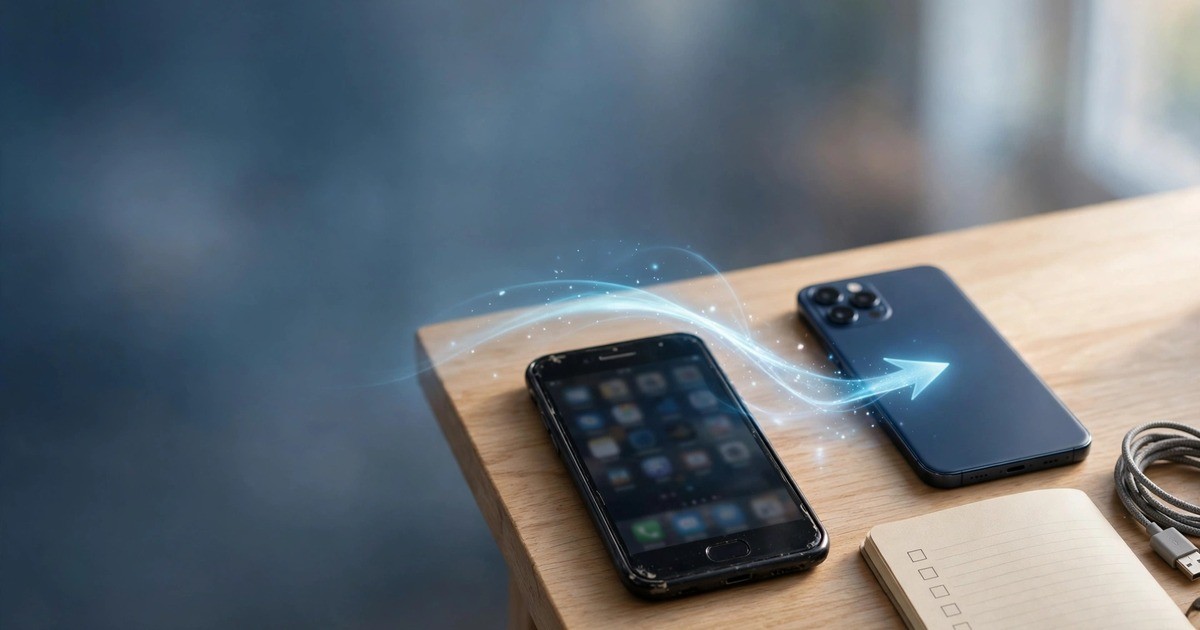
Key takeaway: The scariest part of switching iPhones is not the number of setup steps — it is discovering, after the old phone has been wiped, that something never made the move. This article does not repeat how to recover deleted photos, how to rescue a phone that will not switch on, or how to race recovery deadlines. It covers only the switch itself: which route to use when both phones are in your hands, how to restore from a backup when the old phone is already gone, how to make sure WhatsApp and photos truly moved, and a post-move checklist — photo count, WhatsApp chats, contacts, authenticator and banking apps, eSIM, health data, Apple Watch — to work through before the old phone is wiped.
Introduction: how this article differs from the earlier iPhone guides
If you deleted photos by mistake or lost WhatsApp chats, read the first-circle guide first: "iPhone Photo and WhatsApp Recovery: iCloud and Computer Backup Restore Guide". That article covers Recently Deleted, iCloud and computer backup restores, and the price of restoring — a restore overwrites the phone's current content in full. If your phone will not switch on or is stuck on the Apple logo, read "iPhone Won't Turn On or Stuck on the Apple Logo: A Data-First Recovery Order" — that article works from steps that do not touch your data first, and insists that Recovery Mode must try "Update" before "Restore". And if you want to judge how much time you have left and what can still be recovered, that is "iPhone Data Recovery: A Race Against Three Deadlines".
This article assumes your old phone still switches on and still works, and that you are simply switching to a new one. The problem is completely different: not "how do I rescue something that is already lost", but "how do I make sure nothing is left behind in the move". Most switch-over losses do not happen because a step was done wrong — they happen because nobody checked afterwards, and the old phone was wiped too early. The order below follows that logic: choose a route first, then prepare the old phone, then learn the seven things most often left behind, and finally work through a checklist — only when every item passes is the old phone ready to wipe.
One principle up front: do not wipe, trade in, or give away the old phone until the new phone has passed every check. The old phone is your last way back. Once it is wiped, there is no return trip.
Section 1: Three routes — pick the one that fits your situation
Apple's official guidance describes three main routes for moving to a new iPhone: direct transfer between two devices, restore from an iCloud backup, and restore from a computer backup. Which one fits depends on whether the old phone is still in your hands, how fast your home network is, and how much data you have.
| Route | What it needs | Fits which situation | Watch out for |
|---|---|---|---|
| Direct transfer between two phones | Both phones in hand, kept close together, connected to power; follow the on-screen pairing steps | The most common switch, when the old phone is still with you | Both phones must stay close and plugged in during the transfer — do not walk off with the old phone halfway through |
| Restore from an iCloud backup | An iCloud backup made on the old phone; on the new phone's setup screens, choose restore from iCloud backup; stable Wi-Fi and enough iCloud storage | The old phone is already handed over or not with you, or the two phones cannot easily sit side by side | The backup's date matters: anything created after the backup was made is not in it; make a fresh backup on the old phone before you start |
| Restore from a computer backup | A Mac or Windows computer that holds a backup, plus a cable; on the new phone's setup screens, choose restore from a computer backup | Large amounts of data, a slow home network, or if you already back up to a computer by habit | A computer backup must be encrypted to include health data and saved passwords; an unencrypted backup leaves those two categories to be dealt with separately |
How to choose? Ask two questions in order. First, is the old phone still in your hands? If yes, direct transfer is the natural first choice, because nothing has to be uploaded to the cloud and downloaded again, and the steps are fewest. Second, is the old phone already gone? Then only a backup restore is possible, and the whole game becomes the backup's date — pick the newest one, and accept that anything created after it may not be in it.
Every route shares one catch: once a new phone has been set up and used as a new device for a while, switching to a backup restore means erasing the new phone's entire content first, so that the setup screens offer the restore choice again. The route has to be decided on day one of the new phone, not several days later.
Section 2: Before the move — four preparations on the old phone
Most switch-over losses trace back not to the new phone, but to the old phone never having been prepared. Do these four things before the move starts:
First: make a fresh backup on the old phone, and note its date and time. Whatever route you plan to use, a fresh backup is insurance. For iCloud, trigger a manual backup in Settings and wait for it to finish, then check that the backup date is today. For a computer backup, connect the cable, run one, and likewise confirm the completion time. Starting the move before a backup finishes is like leaving home without insurance.
Second: check that iCloud storage is enough. If a backup stops halfway because storage is full, that backup is not the newest one. If space is short, deal with old backups or photo and video sync settings first — do not start on a hope that it will be enough. This is also a point our backup strategy guide keeps stressing: a backup only counts when you have seen its success record.
Third: run a separate backup inside WhatsApp. When an iPhone moves, WhatsApp chats can come across in two ways: together with a full-phone backup restore, or through WhatsApp's own backup feature — back up inside WhatsApp on the old phone, then sign in with the same phone number on the new phone and choose "Restore Chat History". Either way works. The point is never to assume "the whole phone moved, so WhatsApp must have moved too" — after the move, open WhatsApp on the new phone and check that the newest chats and groups are all there, and note whether "Include Videos" was switched on, because without it, videos may not come across.
Fourth: write down what does not move by itself. Some things never follow a phone move automatically and have to be handled one by one: banking apps and authenticator apps usually need to be signed in and re-bound on the new phone; some apps' sign-in states need fresh verification; an Apple Watch needs to be paired or transferred following the on-screen prompts; an eSIM needs to be handled through the new phone's setup prompts, and if the transfer fails, through your carrier. Write these down as a list and tick them off after the move — do not rely on memory.
Section 3: The seven things most often left behind
These seven are the most common switch-over gaps, with a check for each:
1. Photos and videos still syncing. If the old phone is still uploading photos, the new phone's library will come up short. The check is simple: photo and video counts on the old and new phones should match, and you should open a few of the most recent photos at random to confirm they really open — not just look at the total.
2. WhatsApp videos left behind. As noted above, a WhatsApp backup made without "Include Videos" brings the text back but may leave videos behind. The check: open a few chats that contain videos on the new phone and confirm the videos open.
3. Contacts gone missing. Contacts can come from iCloud, an email account, or a SIM card, and contacts from different sources can behave differently after a move. The check: compare contact counts between the old and new phones, and look up a few people you contacted recently to confirm their numbers and email addresses are complete.
4. Authenticator and banking apps not re-bound. This is the dangerous one: the old phone is wiped, and only then do you discover the new phone's authenticator was never set up, so you cannot get a verification code for your bank or email. The check: while the old phone is still in your hands, complete the re-binding and sign-in test for every important account on the new phone, and confirm you can sign in, before the old phone is wiped. Each authenticator app has its own transfer flow — follow the instructions inside the app, and do not assume one scanned code covers everything.
5. eSIM not transferred. A new phone that cannot make calls or receive texts after a switch very often has an eSIM that never moved. The check: once the new phone's SIM or eSIM setup is done, immediately make a test call and receive a test text, and confirm mobile data works — do not wait until you need a verification code to find out.
6. Health data and saved passwords. With an unencrypted computer backup, these two categories may not come across; even with an iCloud backup, you need to confirm the new phone is signed in to the same Apple Account. The check: open the Health app and confirm recent records are there, and try signing in to a website you normally use to see whether saved passwords carry over properly.
7. Apple Watch and other accessories not paired back. Watches and earphones need their pairing state and settings checked after a move. The check: watch faces and health sync on the watch should be normal, and earphone connections should work — do not assume every Bluetooth device follows automatically.
Section 4: Post-move checklist — only wipe the old phone when every item passes
Copy this list down and tick items off one by one. Only when all of them pass is the old phone ready to wipe:
| Checklist item | What counts as passing |
|---|---|
| Photos and videos | New phone's library count matches the old phone's; a few of the most recent photos and videos open properly |
| Newest chats and groups are all present; videos inside chats that contain them open properly | |
| Contacts | Counts match; a few recently contacted people have complete numbers and email addresses |
| Messages and call history | Recent messages and call records are visible on the new phone (depending on the route used, this item's completeness can vary — note any gap rather than assuming it) |
| Authenticator and banking apps | Every important account has been re-bound on the new phone and sign-in tests have succeeded, confirmed before the old phone is wiped |
| eSIM / SIM card | Test call made, test text received, mobile data working |
| Health data and passwords | Recent Health records are present; saved passwords can be brought up normally |
| Apple Watch and accessories | Watch pairing and sync are normal; Bluetooth devices such as earphones connect normally |
| Apps | Every frequently used app opens on the new phone; sign-in state checked one by one — do not assume all sign in automatically |
| Files that exist only on the old phone | Confirm the old phone holds no file that exists nowhere else — for example recordings, documents or downloads that were never synced to the cloud; copy those to the new phone or to another backup by hand first |
Two more steps before wiping the old phone, and neither may be skipped: first, before signing out of the Apple Account, confirm all ten items above have passed; second, after wiping, if the phone is being traded in or given away, confirm no account or personal data remains on it. Wiping properly means using "Erase All Content and Settings" in Settings — not just deleting apps one by one by hand.
Section 5: Five common mistakes
Mistake 1: Using the new phone for days, then deciding to go back to a backup restore
Why it goes wrong: once the new phone has been set up, switching to a backup restore means erasing its entire content first, and everything created on the new phone over those days is lost. The route must be decided on day one.
Do this instead: decide the route before switching the new phone on. If you have already used it for days, back up those days' new data separately first, then weigh whether restoring the old backup is worth erasing the new phone.
Mistake 2: Restoring an old backup without checking its date
Why it goes wrong: the backup list can hold several backups from different dates. Pick the wrong one and months of photos and chats will not appear on the new phone.
Do this instead: before restoring, look at each backup's date and size and pick the newest. Before the move, make a fresh backup on the old phone, so that "newest" is itself the right choice.
Mistake 3: Assuming a whole-phone move automatically moves WhatsApp
Why it goes wrong: WhatsApp chats have their own backup and restore flow. The whole-phone backup and WhatsApp's built-in backup are two layers, and a problem in either layer can leave chats incomplete.
Do this instead: right after the move, open WhatsApp and check your important chats one by one, including whether videos open. While the old phone is still in your hands, there is still room to fix a gap.
Mistake 4: Wiping the old phone the moment the move finishes
Why it goes wrong: authenticator, eSIM and health-data problems often surface only days later. Wiping the old phone too early removes the last way back.
Do this instead: keep the old phone until all ten checklist items have passed and important accounts have been sign-in tested on the new phone. Before trading it in, also confirm it holds no file that exists only on it.
Mistake 5: Carrying the old phone's problems onto the new phone without checking
Why it goes wrong: if the old phone already had failing backups, a full iCloud account, or apps long out of date, those problems survive the move — only the handset changes.
Do this instead: treat the switch as a good moment to check that backups succeed, that iCloud space is enough, and that important apps are up to date. Do those checks once on the new phone and you will not have to chase them again.
Prevention: how to make the next switch painless
Do it regularly: once a month, check that the backup date is recent and how much iCloud space remains; check that WhatsApp's built-in backup is actually running, rather than discovering on switch day that it stopped months ago.
Do it before every switch: run the four preparations from Section 2 one by one, without skipping steps; decide the route on the new phone's first day, not after using it for a while.
Do it after every switch: tick off the ten-item checklist; keep the old phone until everything passes; after wiping, make a fresh backup on the new phone so the new phone itself starts with a current backup.
Stop point: if, during new-phone setup, the backup list does not contain the fresh backup you expected, if restoring keeps interrupting, or if the new phone shows a different account from the old one, do not keep trying at random. Stop, and get help while the old phone is still in your hands. Random restore attempts can overwrite data that is already on the new phone.
FAQ
Q: Both phones are in my hands — should I use direct transfer or iCloud restore?
A: Direct transfer is generally the first choice, because the two phones sit together, plugged in, and the move can start without first uploading a whole backup to the cloud and downloading it again. That said, if your home network is stable and you already hold a fresh iCloud backup, iCloud restore is also a reasonable choice. What matters is not which route is faster, but which one you verify: run the Section 4 checklist after the move, and either route works.
Q: The old phone is already handed over and out of my hands — can I still move its data to the new phone?
A: Yes, but only through a backup restore: on the new phone's setup screens, choose restore from iCloud backup or restore from a computer backup, and pick the newest backup. Anything created after that backup was made is not in it, and that limit has to be accepted; if the old phone has already been wiped, data from after that point cannot be retrieved again. That is also why our deadlines article keeps stressing that the backup's date is the key factor.
Q: My WhatsApp chats are missing on the new phone — does that mean they cannot be recovered?
A: Not necessarily — two cases need separating. First, you signed in with the same phone number on the new phone, WhatsApp offered to restore chat history, you tapped restore, and chats are still incomplete: check the date of WhatsApp's built-in backup, and whether the new phone is signed in to the same Apple Account as the one that made the backup. Second, you never saw a restore prompt at all: the new phone may already have been set up with WhatsApp completed, in which case follow WhatsApp's own flow for that situation, and do not delete anything on the old phone in a rush while it is still in your hands. While the old phone survives, the room to fix things is greatest; once it is wiped, the options shrink sharply.
Q: My computer backup was not encrypted — what will be missing after restore?
A: The two categories most worth noting are health data and saved passwords. A computer backup must be encrypted to back those two categories up together with everything else; with an unencrypted backup, they have to be dealt with separately afterwards — for example by signing in again and re-binding authenticators. So if you normally back up to a computer, switch encrypted backup on, and keep the encryption password safe — lose that password and the whole backup cannot be opened.
Q: I have already used the new phone as a new device for days — can I still switch to a backup restore?
A: You can, but the price is high: the new phone's entire content must be erased first, so that the setup screens offer the restore choice again, and everything created on the new phone over those days will be lost. Before deciding, back up those days' new data separately, then weigh whether it is worth it. If the new data matters a lot, it is better to fill the gaps by hand than to erase the new phone for a restore.
Q: The photo counts do not match — does that mean photos are lost?
A: Not necessarily — check sync state first. Photos may still be uploading from the old phone, or still downloading to the new one, and a temporary count mismatch is normal. The right check is to wait until syncing finishes, with both phones on power and Wi-Fi for a while, then compare again, and open a few of the most recent photos at random to confirm they really open. If the gap remains after waiting, and the old phone is still in your hands, compare album by album to find which album is short.
Q: The eSIM transfer failed — what should I do?
A: First, look on the new phone's setup screens for an eSIM transfer prompt and follow it once. If the transfer still fails, do not delete the eSIM on the old phone in a rush, because then the old phone loses mobile service too. The right step is to contact your carrier and ask how this number's eSIM transfer should be handled, or whether a fresh eSIM needs to be issued. During the process, keep the old phone in hand, so you can still receive texts and verification codes.
Q: The old phone has passed every check — what else should I remember before wiping it?
A: Two things. First, confirm the old phone holds no file that exists only on it — for example recordings, documents or downloads that were never synced to the cloud; copy those to the new phone or to another backup by hand first. Second, wipe using "Erase All Content and Settings" in Settings, not by deleting apps one by one by hand — that is the only way to be sure no account or personal data remains when the phone is traded in or given away.
Summary
1. Decide the route on day one of the new phone: with the old phone in hand, direct transfer is the natural first choice; without it, only a backup restore is possible, using the newest backup; going back days later costs erasing the new phone's entire content.
2. Do not skip the four preparations: a fresh backup, a storage check, a WhatsApp built-in backup, and a list of things that do not move by themselves — all done before the move starts.
3. Only wipe the old phone when the checklist passes: photos, WhatsApp, contacts, authenticators, eSIM, health data, watch and accessories — ten items, all passing, before the old phone is wiped. The old phone is the last way back.
Stop point: no expected fresh backup in the backup list, restores that keep interrupting, or a different account appearing on the new phone — do not keep trying at random; get help while the old phone is still in your hands.
Need help? Call +852 2115 9219. Charges are quoted individually, depending on the phone model, the amount of data, and the scope of the setup.
Sources
1. Apple Support — Restore all content to iPhone from a backup — https://support.apple.com/guide/iphone/restore-all-content-from-a-backup-iph1624229a/ios — Cited for: a backup must exist before restoring; a device already set up must be erased before a backup restore can be used; iCloud-restore and computer-restore steps. Accessed: October 29, 2026.
2. Apple Support — Restore your iPhone, iPad, or iPod touch from a backup — https://support.apple.com/en-us/118105?cid=tw_sc_keynote_082221 — Cited for: choosing the restore source on the "Transfer Your Apps & Data" screen; checking each backup's date and size and picking the newest; an encrypted backup requires its password to restore. Accessed: October 29, 2026.
3. This site, first-circle guide — iPhone Photo and WhatsApp Recovery: iCloud and Computer Backup Restore Guide — /blog/iphone-data-recovery — Cited for: the post-deletion self-help order and the price of a restore overwriting current content; not repeated here, cross-referenced for division of labour.
4. This site, deadlines guide — iPhone Data Recovery: A Race Against Three Deadlines — /blog/iphone-data-recovery-three-deadlines — Cited for: the backup's date being the key factor; cross-referenced only.
5. This site, backup strategy guide — Hong Kong User Backup Strategy Guide: How the 3-2-1 Rule Counts as a Real Backup — /blog/backup-strategy-hk — Cited for: a backup counting only when its success record is seen, and restore-testing practice; cross-referenced only.
6. This site, boot-rescue guide — iPhone Won't Turn On or Stuck on the Apple Logo: A Data-First Recovery Order — /blog/iphone-wont-turn-on-data-recovery — Cited for: the handling order when the old phone will not switch on; this article assumes the old phone still switches on and does not repeat that guide.
Related Articles
- iPhone Photo and WhatsApp Recovery: iCloud and Computer Backup Restore Guide
- iPhone Data Recovery: A Race Against Three Deadlines
- Hong Kong User Backup Strategy Guide: How the 3-2-1 Rule Counts as a Real Backup
Frequently Asked Questions
Both phones are in my hands — should I use direct transfer or iCloud restore?
Direct transfer is generally the first choice, because the two phones sit together, plugged in, and the move can start without first uploading a whole backup to the cloud and downloading it again. That said, if your home network is stable and you already hold a fresh iCloud backup, iCloud restore is also a reasonable choice. What matters is not which route is faster, but which one you verify: run the Section 4 checklist after the move, and either route works.
The old phone is already handed over and out of my hands — can I still move its data to the new phone?
Yes, but only through a backup restore: on the new phone's setup screens, choose restore from iCloud backup or restore from a computer backup, and pick the newest backup. Anything created after that backup was made is not in it, and that limit has to be accepted; if the old phone has already been wiped, data from after that point cannot be retrieved again. That is also why our deadlines article keeps stressing that the backup's date is the key factor.
My WhatsApp chats are missing on the new phone — does that mean they cannot be recovered?
Not necessarily — two cases need separating. First, you signed in with the same phone number on the new phone, WhatsApp offered to restore chat history, you tapped restore, and chats are still incomplete: check the date of WhatsApp's built-in backup, and whether the new phone is signed in to the same Apple Account as the one that made the backup. Second, you never saw a restore prompt at all: the new phone may already have been set up with WhatsApp completed, in which case follow WhatsApp's own flow for that situation, and do not delete anything on the old phone in a rush while it is still in your hands. While the old phone survives, the room to fix things is greatest; once it is wiped, the options shrink sharply.
My computer backup was not encrypted — what will be missing after restore?
The two categories most worth noting are health data and saved passwords. A computer backup must be encrypted to back those two categories up together with everything else; with an unencrypted backup, they have to be dealt with separately afterwards — for example by signing in again and re-binding authenticators. So if you normally back up to a computer, switch encrypted backup on, and keep the encryption password safe — lose that password and the whole backup cannot be opened.
I have already used the new phone as a new device for days — can I still switch to a backup restore?
You can, but the price is high: the new phone's entire content must be erased first, so that the setup screens offer the restore choice again, and everything created on the new phone over those days will be lost. Before deciding, back up those days' new data separately, then weigh whether it is worth it. If the new data matters a lot, it is better to fill the gaps by hand than to erase the new phone for a restore.
The photo counts do not match — does that mean photos are lost?
Not necessarily — check sync state first. Photos may still be uploading from the old phone, or still downloading to the new one, and a temporary count mismatch is normal. The right check is to wait until syncing finishes, with both phones on power and Wi-Fi for a while, then compare again, and open a few of the most recent photos at random to confirm they really open. If the gap remains after waiting, and the old phone is still in your hands, compare album by album to find which album is short.
The eSIM transfer failed — what should I do?
First, look on the new phone's setup screens for an eSIM transfer prompt and follow it once. If the transfer still fails, do not delete the eSIM on the old phone in a rush, because then the old phone loses mobile service too. The right step is to contact your carrier and ask how this number's eSIM transfer should be handled, or whether a fresh eSIM needs to be issued. During the process, keep the old phone in hand, so you can still receive texts and verification codes.
The old phone has passed every check — what else should I remember before wiping it?
Two things. First, confirm the old phone holds no file that exists only on it — for example recordings, documents or downloads that were never synced to the cloud; copy those to the new phone or to another backup by hand first. Second, wipe using "Erase All Content and Settings" in Settings, not by deleting apps one by one by hand — that is the only way to be sure no account or personal data remains when the phone is traded in or given away.