Computer Maintenance · October 24, 2026 · ComputerKing 團隊
Hong Kong Humidity Triage: Heat, Dampness or Ageing?
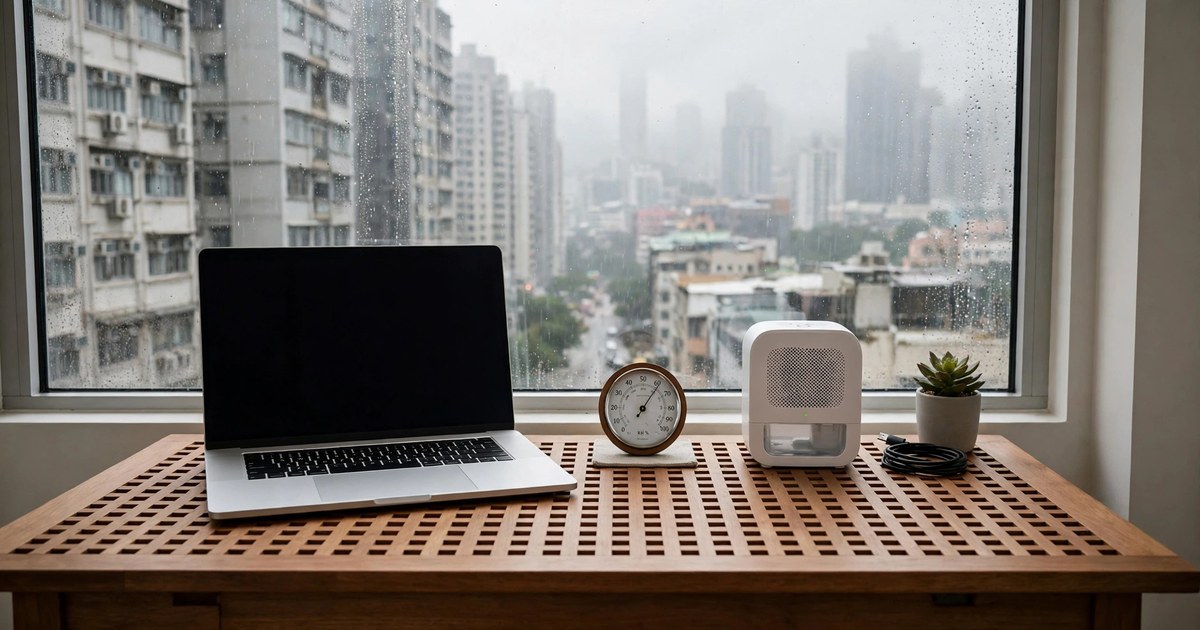
In Hong Kong, heat, humidity and ageing often strike together, so a slow or hot computer is hard to read. This article triages symptoms into four routes, then sets indoor conditions season by season to reduce misdiagnosis.
Key summary
In Hong Kong, heat, humidity and ageing often strike together, so a slow or hot computer is hard to read. This article triages symptoms into four routes, then sets indoor conditions season by season to reduce misdiagnosis.
This article draws on Hong Kong Observatory climate data, Electrical and Mechanical Services Department (EMSD) energy-saving advice, official / manufacturer specifications and clearly labelled secondary citations from Apple, Intel, AMD, Synology, QNAP, PlayStation and Nintendo, and public repair guidance. Sources are listed at the end. All charges are "individual quotation required" — no prices are estimated. No real customer cases and no success-rate figures are included.
---
Introduction: Why Hong Kong's Heat and Humidity Are So Hard to Deal With
This article is the triage-decision instalment of the humidity series: the previous instalment explained why humidity makes computers overheat more easily and covered cleaning and maintenance; this article does not repeat the mechanism, and focuses on triaging first (heat / dampness / ageing) and then setting indoor conditions season by season.
Related article: Hong Kong Humidity and Overheating: Why Humid Weather Makes Computers Overheat More Easily
When Hong Kong users say a computer has "gone hot" or "gone damp", the two problems are often happening at once — and on top of a machine that is itself ageing. Stacked together, the symptoms are naturally hard to separate.
Start with the Observatory's figures. Based on the Hong Kong Observatory's 1991–2020 monthly normals, the annual mean relative humidity is 78%: March 82%, April 83% and May 83% are the highest of the year, while December 70%, November 72% and January 74% are relatively lower. The Observatory also describes March and April as warmer with occasional high-humidity weather, with drizzle and fog reducing visibility; May to August as hot and humid, with afternoon temperatures often above 31°C and nights generally around 26°C with high humidity; and May to November as the months when tropical cyclones may affect Hong Kong, most likely from July to September.
One clarification first: no Observatory page or official definition for the term "returning dampness" (回南天) was found. When this article refers to the spring high-humidity period, it relies on the Observatory's March–April high-humidity description above, plus the fact that March–May monthly mean humidity is the highest of the year. A colloquial term must not be presented as an official definition.
Another distinction matters throughout: an "operating limit" and a "daily target" are two different things. An operating limit is a ceiling not to be exceeded, such as a manufacturer's specified humidity limit. A daily target is a comfort range to aim for, such as the general indoor comfort reference of 40%–60%. Writing a limit as if it were a recommended target, or a comfort target as if it were a manufacturer rule, is wrong in both directions.
It must also be stated plainly: no official figure from the EMSD or the Department of Health specifically for "indoor humidity for home electronic devices" in Hong Kong was found. Hong Kong has no single official indoor humidity standard for electronic devices. The figures below each have their own source and purpose: 40%–60% is a general indoor comfort reference; 60%–65% is a Hong Kong expert recommendation for dehumidifier settings; 24°C–26°C is the EMSD summer air-conditioning recommendation; 25.5°C is the Government's indoor temperature benchmark. They must not be blended, and no supposed "Hong Kong official device humidity standard" may be invented.
Part 1: Four-Way Triage — Ask About the Timeline First, Then Match the Symptoms
The first triage question is always the timeline: did the symptoms appear only after the weather turned humid, or do they appear regardless of the weather? The former points more towards environment, the latter more towards the hardware itself. This is a decision guide, not a diagnosis; a real diagnosis requires inspection.
Route 1: Pure Overheating
Pure overheating typically shows as heat, slowness, throttling, unexpected shutdowns or restarts, but without the erratic behaviour of dampness in the keyboard, trackpad, charging or display. Dell's official support lists overheating symptoms as: the internal fan running louder as its speed rises to expel excess heat; intermittent shutdowns or restarts; unexplained performance drops; the computer becoming unresponsive, or performance dropping while gaming; and start-up error messages relating to the fan, heatsink or temperature sensors. Dell also notes that the most common cause is a fan or vent blocked by dust or debris, restricting airflow.
What can you test yourself? Three simple comparisons: first, move the machine off soft surfaces such as beds, sofas and pillows onto a firm, ventilated work surface, and see whether fan noise and temperature improve; second, close heavy-load programs and check whether it stays hot at idle; third, note whether problems only occur under heavy load or also at idle. Brief high temperatures during gaming, rendering or large-file work are normal. What deserves concern is high temperature at idle, temperature rising too fast under load, or throttling and shutdowns triggered by workloads that should not cause them.
It also helps to understand the order of the protection mechanism. Intel's official community support staff confirm that when a processor reaches its internal core maximum safe operating temperature (TJmax), it throttles first, and only shuts down if temperature keeps rising, to prevent damage. In other words, an occasional throttle or automatic shutdown is a protection mechanism, not proof the machine is already burnt out; but repeatedly running near the limit with repeated automatic shutdowns is a signal to have the cooling checked or repaired. Exact limits must be checked per model in the manufacturer's own pages — never generalised. Secondary citations of Intel and AMD product pages put the Core Ultra 9 285K T-junction limit at 105°C, and the Core i9-14900K and Core i3-12100 maximum operating temperatures at 100°C; for AMD, the Ryzen 9 9950X3D Tjmax is 95°C while the Ryzen 7 7800X3D is only 89°C. X3D models have lower limits, so "AMD is always 95°C" must never be written.
Related article: Computer Overheating in Hong Kong Humidity: Cooling Self-Rescue
Route 2: Pure Dampness
Pure dampness may not feel very hot, but it produces a different set of symptoms: keys typing the wrong characters, keys not responding, erratic trackpad behaviour, failure to charge, abnormal fan noise, distorted audio, a flickering screen or random restarts. Visible signs include rust, oxidation or blue deposits on metal parts; dried water drops, stains or splash marks on the casing, keyboard or screen; and a blurred, garbled, flickering or distorted screen image that cannot be corrected by software settings.
What can you test yourself? First, recall the timeline: recent high humidity, rain exposure, the machine placed near a window, or large temperature changes moving in and out of air-conditioned rooms. Then inspect the outside: rust on ports and charging connectors, fog or moisture under the screen or keyboard, or a casing that feels damp to the touch. Most importantly, liquid damage can worsen with delay. Repair guidance notes that a machine may still work after minor liquid exposure, tempting the owner to think no repair is needed, yet liquid residue can remain on internal circuits and react with metal contacts, so corrosion gradually breaks electrical connections; a laptop that works today may later develop charging problems, keyboard faults, unexpected shutdowns, screen problems or complete motherboard failure. "It still works now" does not mean "nothing is wrong".
Route 3: Heat Plus Humidity Combined
In this route, both symptom groups appear together, or cooling worsens in humid weather and the machine feels both hot and stuffy. This route is the easiest to misread, because "hot plus shutdown" does not equal pure overheating: a damp laptop may shut down seconds or minutes after start-up, loop through restarts, freeze at the maker's logo screen, or shut down when moved — which can reflect moisture near power-management components, damaged battery connections, or a short circuit triggered as the system warms up.
The order of handling matters: stabilise the environment first, then judge the hardware. Dehumidify, ventilate and cool the room until conditions are stable, then see which symptoms remain. If overheating symptoms disappear once the environment improves but dampness symptoms remain, the case leans towards dampness; if throttling and shutdowns persist under load even after the environment improves, think again towards hardware ageing. Never run a heavy workload immediately in hot, humid conditions to force the machine to "prove itself".
Route 4: Hardware Ageing — Fan, Thermal Paste and Battery Each Have Different Signals
Symptoms that appear only after several years of use and grow more frequent point towards hardware ageing. But fan ageing and thermal paste drying have completely different symptoms and must not be conflated.
Fan ageing signals are grinding, clicking or buzzing sounds, slow or unstable fan speed, no airflow from the vent at all, or a fan that starts and stops hesitantly. Repair guidance stresses that simply being "loud" does not mean the fan is faulty — dust blockage, covered vents, background programs pushing up load, or dried thermal paste can all force a healthy fan to run at full speed. Airflow, temperature and load must be judged together. Sustained full speed under light load plus a hot casing plus weak airflow leans towards cleaning first; grinding or intermittent sounds plus unstable speed make the fan itself the prime suspect, and it should be inspected rather than merely cleaned. Cleaning fixes dust blockage; it does not repair a worn bearing.
For thermal paste, two accounts exist side by side, and both should be read together — neither alone is settled. Noctua's official FAQ states that NT-H1 and NT-H2 have a specified service life of up to 5 years on a CPU; after 5 years, occasional temperature checks are recommended, and replacement is unnecessary unless the difference between CPU temperature and ambient temperature under 100% load has clearly risen; many customers report NT-H1 still working well after more than 10 years. Industry or repair-media practice is shorter: general thermal paste about 2–5 years, high-end products about 2–3 years, budget or factory paste possibly drying in 1–2 years. The combined trigger for checking thermal paste is temperature climbing gradually under the same load, the fan running at full speed long-term, and throttling or unexpected shutdowns; "it is due by age" alone is not a reason to replace. The classic dried-paste picture is: the fan has been cleaned and spins normally, but temperatures stay high; or a machine that coped easily for years now overheats on work it used to handle with ease.
Battery ageing is a separate, highest-priority exit. Swelling signals include a bulging casing or a trackpad pushed upwards. On seeing them, stop using the machine immediately, shut it down, unplug it, and hand it to a repairer — do not add "dehumidify, air-dry and keep using it for now" on top. Apple's older manual also warns never to remove a MacBook Pro built-in battery yourself; the battery should only be replaced by an Apple-authorised service provider, and a computer that has been dropped or shows crushing, bending, deformation or damage should not be used. On temperature, a secondary citation of Lenovo's guidance says to avoid extreme environments (below 5°C or above 35°C) and to keep airflow temperature at or below 35°C while using the computer; Apple's official support document requires Mac laptops to be used at an ambient temperature of 10°C–35°C and relative humidity of 0%–95% (non-condensing), not on beds, pillows or bedding, without covering the keyboard and without putting anything into vents. Note that Apple's support document says 0%–95% while a MacBook Air M4 specification table reproduced elsewhere says 0%–90% (non-condensing) — both exist and must not be merged. The key phrase is always "non-condensing": 90% or 95% does not mean "water droplets are fine".
Four-Way Triage Table
| Route | Typical symptoms | What you can test yourself | Likely next step |
|---|---|---|---|
| Pure overheating | Heat, slowness, throttling, intermittent shutdowns or restarts; fan very loud or airflow weak; no dampness-style erratic behaviour | Move off soft surfaces; check idle temperature after closing heavy-load programs; compare light-load vs heavy-load behaviour | Clear vents, bring room temperature within the maker's recommended range; if still unresolved, have cooling checked |
| Pure dampness | Keyboard typing errors or dead keys, erratic trackpad, charging faults, flickering screen or watermarks, rust on ports; not necessarily hot | Recall high humidity, rain, window-side placement, air-conditioned room transitions; inspect ports for rust, screen or keyboard for fog | Power off and do not switch on to "test"; send for inspection if condensation or rust is seen |
| Heat plus humidity combined | Both symptom groups together; cooling worsens in humid weather, machine hot and stuffy; shutdown or restart loop shortly after start-up | Stabilise the environment first (dehumidify, ventilate, cool), then see which symptom group remains | Triage again after the environment improves; do not run heavy loads in poor conditions |
| Ageing: fan | Grinding, clicking or buzzing; unstable speed, starting and stopping; weak or no airflow | Listen, check airflow, compare against load: sustained full speed under light load alone does not prove fan failure | Fan itself suspect: send for inspection; cleaning cannot fix a worn bearing |
| Ageing: thermal paste | Cleaned fan spinning normally but temperature still high; temperature climbing gradually under the same load; old machine hot even under light load | Compare with past performance: work once handled easily now overheats | Judge by Noctua's check-based rule together with industry reference lifespans, not by age alone |
| Ageing: battery | Bulging casing, trackpad pushed up; rapidly falling battery life with heat | Look for bulging or deformation and a raised trackpad | Highest priority: stop use immediately, shut down, unplug, send for inspection; never remove a built-in battery yourself |
Part 2: Indoor Settings — Dehumidifier vs Air-Conditioner Dry Mode vs Ventilation
For computer users, the question is not which appliance saves the most electricity, but which method avoids swinging the machine between hot and cold. Air-conditioning blowing directly onto the machine, plus frequently opening doors and windows to let in humid outdoor air, is exactly a high-risk combination for condensation. A dehumidifier's value is that it lowers humidity without a large temperature change — but its limit must be stated: dehumidifying controls the environment; it does not repair hardware that is already damp. Damp hardware still needs inspection.
Dehumidifier: The Main Tool for Persistent Humidity and Enclosed Spaces
A dedicated dehumidifier suits persistently damp rooms, wardrobes, laundry-drying areas and rooms with a musty smell, offering better humidity control, but it is a separate appliance with its own water tank or drainage arrangement. Hong Kong expert advice (as reported) recommends setting a dehumidifier to 60%–65%, which can suppress mould and dust mites without drying the skin excessively; settings as low as 20%–30% can cause dry, cracked, itchy skin and breathing discomfort. On placement, the same report recommends the middle of the room rather than a corner, with a fan to assist air circulation, otherwise only local humidity is drawn down.
No specific dehumidifier model, price or coverage area is recommended in this article: choose by room size, check the manufacturer's stated figures before buying, and treat prices as individual quotation required. It must also be stated that Hong Kong has no unified official "room-area versus capacity" table for dehumidifiers; second-hand buying formulas use different rating conditions and cannot be swapped or presented as a Hong Kong standard.
Air-Conditioner Dry Mode: Best for Days That Are Sticky but Not Hot
Dry mode focuses on reducing humidity rather than strong cooling: the indoor unit draws warm, humid air across a cooling coil, moisture condenses and drains away, and the returning air feels less sticky. It suits enclosed, poorly ventilated spaces such as bedrooms and studies, especially after rain. A Hong Kong comparison notes that dry mode still feels cooler, because fan operation increases indoor air circulation and lower humidity reduces the felt temperature; dry mode uses less electricity and, in not-too-hot weather such as Hong Kong spring, can deliver cooling, dehumidifying and saving together.
But air-conditioner dehumidifying capacity is limited: the same Hong Kong comparison notes that an air-conditioner's dehumidifying output is only about 20% of a dehumidifier's, while consuming several times the power; if only dehumidifying is needed, especially in humid areas, a dehumidifier is more cost-effective, faster and overall more economical. The division of labour is simple: use cooling mode when the room is genuinely too hot; switch to dry mode when the room temperature is acceptable but the skin still feels sticky; fan mode only moves air and neither cools nor dehumidifies actively. Dry mode cannot fix leaks, persistently damp walls or poor ventilation at their root, nor cool a west-facing sun-baked room as quickly as cooling mode.
One practical combination strategy comes from the same Hong Kong comparison: run the air-conditioner to cool first, then after about ten to twenty minutes switch it off and run the dehumidifier, letting the dehumidifier maintain the low humidity the air-conditioner created without running the air-conditioner continuously. The point of this strategy is "maintaining", not "flash-freezing".
Air-Conditioner Cooling: The Lead Role on Genuinely Hot Days
The EMSD recommends setting and maintaining summer air-conditioned room temperature at 24°C–26°C; closing doors and windows while the air-conditioner runs, using curtains to block sunlight; using a fan to spread cool air more effectively; normally using low fan speed, and switching to high fan speed rather than lowering the temperature when more cooling is needed; and regularly cleaning dust filters and clearing vent obstructions. The Government's recommended best indoor temperature benchmark is 25.5°C, cited in Consumer Council and Leisure and Cultural Services Department documents.
Keep this separate: 25.5°C is a comfort and energy-saving benchmark, not a computer operating limit. Computer limits come from individual devices: MacBook recommended use environment up to 35°C, PS5 and Switch up to 35°C, NAS enclosures mostly up to 40°C. Confusing a comfort benchmark with a device limit produces errors in both directions — "28°C room temperature means over the limit" or "35°C is fine for everything".
Ventilation: Compare Indoor and Outdoor Humidity Before Opening Windows
Ventilation is the easiest to get wrong. General guidance notes that in humid climates, windows should stay closed in summer in favour of mechanical dehumidifying; before opening, compare indoor and outdoor humidity — ventilation only helps when the outdoor dew point is lower than indoors, and opening windows when the outdoor dew point is higher introduces moisture instead; windows should stay closed during high-humidity periods such as after rain or on summer nights. Hong Kong home guidance likewise notes that the instinct to close every window against damp weather is not always best: when it is sunny and dry outdoors, opening windows at the right time to promote airflow can help lower indoor humidity; when it rains or is foggy outdoors, windows are best kept closed to keep moisture out; running a fan in high humidity promotes air circulation, helps surface moisture on floors, walls and clothing evaporate, uses less electricity than air-conditioning or a dehumidifier, and suits brief or mild dampness.
For computer users, the ventilation decision simplifies to one sentence: open windows only when outdoors is clearly drier; when it rains, is foggy, or is hot and humid outside, close windows and rely on dehumidifying. Windows are not opened to "cool the computer", and certainly not during heavy rain as a ventilation-cooling measure.
Indoor Setting Decisions at a Glance
- Room genuinely too hot: run air-conditioner cooling, with the EMSD 24°C–26°C reference, plus a fan to spread cool air; do not let air-conditioning blow directly onto the machine and cause localised rapid cooling.
- Room temperature acceptable but sticky: switch to air-conditioner dry mode, or run a dedicated dehumidifier; dehumidifier setting reference 60%–65%, placed in the middle of the room with a fan.
- Persistently humid, enclosed room, musty smell near wardrobes: dedicated dehumidifier as the main tool, air-conditioner dry mode as support; cool first, then maintain low humidity with the dehumidifier.
- Sunny and dry outdoors: open windows for ventilation at the right time; rain, fog or high humidity at night: close windows and do not introduce moisture.
- In any case, if condensation droplets are seen on the machine or its ports: stop using it first; do not treat running a dehumidifier as a repair for the machine.
Part 3: Hong Kong's Four-Season Calendar — What Changes Each Season
Spring High-Humidity Period (March–May)
The Observatory describes March and April as occasionally highly humid, with drizzle and fog reducing visibility; monthly mean humidity is March 82%, April 83% and May 83%, the highest of the year. Settings focus on closed windows plus dehumidifying; open windows only when outdoors is clearly drier; air-conditioner dry mode suits "not hot but sticky" days; allow adaptation time when moving a machine in and out of air-conditioned rooms, and only switch on when the casing shows no moisture — never switch on immediately. The most common misdiagnosis here is pure dampness mistaken for pure overheating: the casing may not feel very hot, but the keyboard or charging fails first.
Summer (May–August)
The Observatory describes May to August as hot and humid with occasional showers and thunderstorms, afternoon temperatures often above 31°C, and nights generally around 26°C with high humidity. Cooling leads and dehumidifying supports; use the air-conditioner plus dehumidifier combination (cool first, then maintain with the dehumidifier); never block vents with beds, sofas or other soft surfaces; charging combined with heavy load most easily triggers overheating plus battery ageing. This is also the peak season for heat-plus-humidity combined cases: throttling, shutdowns and dampness symptoms can appear together, so the timeline question must come first — do not assume every shutdown is pure overheating.
Typhoon Season (May–November, Most Likely July–September)
The Observatory notes May to November as the months when tropical cyclones may affect Hong Kong, most likely July to September; the 2026 outlook expects the wind season to start in June or later and end in October or earlier, with about 4 to 7 tropical cyclones entering within 500 km of Hong Kong. During heavy rain, close windows and do not rely on opening them to "ventilate and cool"; after damp weather, dehumidify first and do not immediately run heavy loads. On triage, be careful: rain seepage or window-side dampness is easily miswritten as "hot weather"; always ask whether the machine was placed near a window or has a history of rain exposure.
Autumn–Winter Dry Period (November–February)
The Observatory describes November and December as often breezy, sunny and comfortable, among the best months of the year; January and February as cloudier, with occasional cold fronts followed by dry northerly winds, and urban temperatures sometimes falling below 10°C. Monthly mean humidity is December 70%, November 72% and January 74% — relatively lower, but absolutely not "so low it can be ignored": December still averages 70%. Ventilation can be more active in this period, but humidity-meter readings still rule — do not guess by feel; at low humidity watch static electricity, as static risk rises below 40%, and electronics-manufacturing guidance notes that dry air below 45% relative humidity can generate charge on contact, while 40%–60% allows static charge to dissipate as air and material conductivity improve. With smaller indoor–outdoor temperature differences, condensation risk is lower than in spring, but moving from a warm room into a cold car or cold room still requires adaptation time.
One extreme example is worth noting: according to reports citing the Observatory's monthly report, January 2026 was unusually dry and warm, with only 3.2 mm of rain, a monthly mean relative humidity of 63% — 11 percentage points below the normal 74% — and an afternoon relative humidity of 17% on 8 January. This shows autumn–winter dryness can go very far, but a single unusual month must not be treated as the year-round norm; settings should still follow the current humidity-meter reading, not a seasonal guess.
Four-Season Indoor Setting Table
| Season | Environmental character (sourced) | Computer-room setting focus | Easiest misdiagnosis |
|---|---|---|---|
| Spring high-humidity period (March–May, monthly mean humidity 82%–83%) | Observatory: March–April occasionally highly humid, with fog and drizzle; monthly mean humidity highest of the year | Closed windows plus dehumidifying as the main approach; open windows only when outdoors is clearly drier; air-conditioner dry mode suits not-hot-but-sticky days; allow adaptation time on air-conditioned room transitions, switch on only with no moisture | Pure dampness most easily mistaken for pure overheating: casing may not feel hot, but keyboard or charging fails first |
| Summer (May–August, hot and humid, afternoons often above 31°C) | Observatory: May–August hot and humid, nights around 26°C with high humidity | Cooling leads, dehumidifying supports; air-conditioner plus dehumidifier combination; never block vents with soft surfaces; charging plus heavy load most easily triggers overheating | Peak season for heat-plus-humidity combined cases: throttling, shutdowns and dampness symptoms can appear together; timeline question first |
| Typhoon season (May–November, most likely July–September) | Observatory: May–November tropical cyclones may affect Hong Kong; 2026 outlook: wind season June to October, about 4–7 cyclones within 500 km | Close windows during heavy rain; do not rely on opening windows to ventilate and cool; dehumidify after damp weather; do not run heavy loads immediately | Rain seepage or window-side dampness miswritten as hot weather; ask about window-side placement and rain history |
| Autumn–winter dry period (November–February, monthly mean humidity 70%–74%) | Observatory: November–December comfortable and sunny; January–February occasional cold-front dry northerly winds; January 2026 unusually dry and warm | Ventilation can be more active, but humidity-meter readings rule; watch static at low humidity; adaptation time still needed from warm rooms into cold cars or cold rooms | Fan ageing and dried thermal paste show up most clearly: cool weather but the machine still runs hot points to hardware ageing, not weather |
Part 4: Different Devices — Laptops, Desktops, NAS and External Drives, Consoles
Laptops: Most Vulnerable to Soft Surfaces Blocking Vents, Plus Battery Dampness
The two most common laptop environment mistakes are using the machine on beds, pillows or bedding that block vents, and exposing the battery to sustained heat and humidity long-term. Apple's official support document explicitly requires not using Mac laptops on beds, pillows or bedding, not covering the keyboard, and not putting anything into vents. On operating environment, Mac laptops are specified at 10°C–35°C ambient temperature and 0%–95% relative humidity (non-condensing); a MacBook Air M4 specification table reproduced elsewhere says 0%–90% (non-condensing) — the two figures come from different sources and must not be merged. For other brands, check the manufacturer's specifications for the individual model — do not assume all laptops are 10°C–35°C.
Desktops: Most Vulnerable to Enclosed-Cabinet Heat Plus Dust Blockage
Desktop problems are usually not a lack of cooling capacity but placement: stuffed into a closed cabinet, pushed against a wall, or surrounded by clutter, with intake and exhaust both blocked. Dell's official support notes that a fan or vent blocked by dust or debris is the most common cause of overheating. On handling, sustained full speed under light load plus a hot casing plus weak airflow leans towards cleaning first; but cleaning must follow the individual model's manual, and machines still under warranty should be referred to the manufacturer or repair centre first. Dell's official cleaning guidance requires switching off and unplugging before cleaning, never cleaning while switched on or plugged in, never spraying liquid directly onto the computer; cloths should be slightly damp, not dripping, and moisture must be kept away from the keyboard, display and ports; do not switch on before surfaces are completely air-dried, and do not switch on if any moisture is seen. Dell also requires canned compressed air — not a vacuum cleaner or hair dryer — because of static generation.
NAS and External Drives: Most Vulnerable to 24-Hour Enclosed Heat Plus Condensation
A NAS runs around the clock and generates heat continuously, so it is most at risk in a closed cabinet in an undehumidified corner. For Synology, most home or small-business models such as the DS1821+ and DS1520+ specify an operating temperature of 0°C–40°C, storage temperature of −20°C to 60°C, and relative humidity of 5%–95% RH; but exceptions differ by model: the BeyondCloud 1-bay (BC115J) operates at 4°C–35°C with 5%–95% RH, and the RackStation RS2818RP+ at 5°C–35°C operating temperature with 5%–95% operating humidity. For QNAP, home to rack models commonly specify 0°C–40°C operating temperature and 5%–95% RH (non-condensing) — for example the TS-131P, TS-832X, UX-1200U-RP and TS-130; the TS-832X and UX-1200U-RP additionally specify a 27°C wet-bulb temperature. For QNAP models, check the manufacturer's page for the model.
Hard-drive bodies have wider figures than NAS enclosures, but with a "sustained temperature" trap. The Seagate Desktop HDD product manual states a maximum drive-case temperature of 60°C and operating relative humidity of 5%–95% (non-condensing); the Seagate enterprise manual further distinguishes that to achieve the rated annualised failure rate, the sustained or long-term HDA case temperature should be 50°C, with 60°C as the maximum permitted — occasional excursions above 50°C do not affect the failure rate, but sustained exceedance lowers it, and chassis airflow may be needed to stay in range. WD Blue 3.5-inch datasheets give an operating temperature of 0°C–60°C, and WD Red Pro NAS drives 0°C–65°C. The conclusion is clear: a drive "withstanding 60°C" does not mean "running at 60°C long-term has no consequence"; NAS drives under sustained high temperature plus high humidity should first have cabinet ventilation or dehumidifying improved, not wait for a SMART error. Above all, every NAS humidity figure carries the key precondition of non-condensing — visible condensation droplets already exceed the recommended conditions.
Related article: Home/Small-Office NAS Buying Guide: Pre-Purchase Decisions + First-Day Checklist
Consoles: Most Vulnerable to the TV-Cabinet Oven
The PlayStation 5 safety guide specification table states an operating temperature of 5°C to 35°C; the Nintendo Switch 2 official specifications give an operating ambient temperature of 5°C–35°C and humidity of 20%–80%, with its important-information document adding: avoid damp places or places with rapid temperature change, switch off and let condensation evaporate naturally if it occurs, do not cover air intake or exhaust openings to prevent overheating, and do not disassemble the console yourself. Older PlayStation manuals add: use environment 5°C–35°C, do not place where temperature changes rapidly (for example 10°C or more per hour), do not place in dusty locations, and do not let liquid or small objects enter the machine.
A console stuffed into a closed TV cabinet is the classic "oven" scenario: cabinet temperature can easily exceed the console's 35°C limit, so open the cabinet door or move the unit out of the cabinet to test before discussing repair; TV boxes should be judged by their individual model's manual. For TV boxes, Android TV boxes and Apple TV, no authoritative source for each brand's official operating temperature and humidity range could be cited, so follow the individual model's manual in each case and no figure is estimated here. For Switch, also note that, as reported citing a Nintendo warning, the console automatically enters sleep when body temperature gets too high to protect itself — like computer throttling, this is a protection mechanism, not immediate proof of failure; for PS5 and other consoles, follow the individual manual for their protection behaviour.
Part 5: Dangerous Practices and Send-for-Repair Signals
Never Do These Things
- Switch on immediately after dampness or liquid exposure to "test" it: HP community support explicitly warns that every attempt to switch on while water remains inside may cause a short circuit, permanently damaging the motherboard or battery; it also advises against using a hair dryer or heat gun, as excess heat damages components. The correct action is to power off immediately, unplug the charger, and not switch on again to test.
- Cooling with a wet cloth or wet towel on the machine: Dell's official cleaning guidance requires moisture to be kept away from the keyboard, display and ports, and the surface to be completely air-dried before switching on. A wet towel as a heat sink has only forum-level objections; no manufacturer sentence banning "wet towel on the machine" was found; however, Dell explicitly requires moisture to be kept away from ports and the machine to be completely dry before switching on.
- Drying a damp machine in rice: repair media note rice absorbs very little moisture and can leave starch particles contaminating components — do not rely on rice to rescue a machine; this is repair-media advice, not a manufacturer guideline. A damp machine should be powered off and sent for inspection, not treated with rice or a dehumidifier as a repair.
- Blowing air-conditioning directly at the machine or flash-freezing it: Sony's manual warns against placing equipment where temperature changes rapidly; Nintendo's document warns against places with rapid temperature change and requires switching off to let condensation evaporate if it occurs. A rapid change from hot to cold is more dangerous than "cold" itself; an overheated computer should be left to cool naturally, not placed beside an open window in cold weather or force-cooled.
- Opening the machine yourself, or removing a built-in battery yourself: HP community support reminds that opening a laptop yourself may void warranty or cause further damage through mishandling; Nintendo explicitly warns not to disassemble the console for safety; Apple's manual requires built-in batteries to be replaced only by an authorised service provider. A swollen battery must never be pricked, squeezed or removed by the user.
- Cleaning with a household vacuum cleaner or hair dryer: Dell's official cleaning guidance requires canned compressed air, not a vacuum cleaner or hair dryer, because of static generation. Vent cleaning must follow the individual model's manual — never copy one method across all machines.
- Treating dehumidifying as a repair: Dehumidifying only controls the environment; it does not repair damp hardware. Hardware that is already damp, liquid-exposed, rusted or showing condensation still needs inspection — do not treat "dried out by the dehumidifier" as fixed.
Send for Repair Immediately If You See Any of These
If any of the following appears, do not delay: power off immediately, do not switch on again, and send for inspection (charges: individual quotation required):
1. Repeated automatic shutdowns, or shutdowns or restart loops shortly after start-up.
2. A burning smell or abnormal noise on start-up, or a fan that does not spin at all or keeps grinding.
3. The machine was switched on after liquid exposure, or condensation, rust or white crystals are seen on the casing or ports.
4. Battery swelling: bulging casing or raised trackpad. Dell safety documents warn that batteries must not be disassembled, squeezed or punctured.
5. A blurred, garbled, flickering or distorted screen image that cannot be corrected by software settings.
6. Charging faults: failure to charge, or shutting down when the charger is connected.
7. A fan error message, or no airflow from the vent while the casing stays hot.
Before sending for repair, it helps to record: when dampness or liquid exposure happened, what kind of liquid (clean water, coffee and salt water differ greatly — the latter leaves conductive residue), whether the machine was switched on to test, and any smells, sounds or automatic shutdown counts. If it can be done safely, back up by connecting the drive externally to another computer before discussing repair; but a swollen battery, a sealed machine or a machine with a built-in battery should go straight for inspection rather than being opened for backup.
Related article: Laptop Battery Swelling Safety Guide: Signs, Immediate Steps and Recycling
Frequently Asked Questions
Q1: My computer is hot and slow — is it definitely the weather?
A: Not necessarily. Ask the timeline question first: did symptoms only appear after the weather turned humid? If they appear regardless of weather and have grown more frequent after several years of use, hardware ageing leans larger — for example worn fan bearings or dried thermal paste. Dell's official support lists overheating symptoms including a louder fan, intermittent shutdowns or restarts, and unexplained performance drops; but dampness symptoms such as keyboard errors, charging faults and screen flicker are a different route and must not be lumped together as pure overheating just because the machine is slow.
Q2: What indoor humidity should I maintain?
A: Keep two figures apart. The general indoor comfort reference is 40%–60% — a human-comfort and mould-risk reference, not an official standard for electronic devices; Hong Kong expert advice puts dehumidifier settings at 60%–65%, which can suppress mould and dust mites without over-drying skin. For device operating limits, Apple Mac laptops are specified at 0%–95% (non-condensing) in the support document and 0%–90% (non-condensing) in the MacBook Air M4 specification table — the key phrase is "non-condensing". Hong Kong has no single official indoor humidity standard for home electronic devices, so none may be invented.
Q3: In hot weather, is air-conditioner dry mode or a dehumidifier better?
A: It depends on the room. If the room is genuinely too hot, use cooling mode; if room temperature is acceptable but skin still feels sticky, switch to dry mode; for persistently damp, enclosed spaces or musty smells near wardrobes, a dedicated dehumidifier offers better humidity control. A Hong Kong comparison notes air-conditioner dehumidifying output is only about 20% of a dehumidifier's while consuming several times the power; if only dehumidifying is needed, especially in humid areas, a dehumidifier is more cost-effective. A practical combination is to cool with the air-conditioner first, then maintain low humidity with the dehumidifier. Dehumidifier models and prices are individual quotation required; check the manufacturer's stated figures before buying.
Q4: On a fine day outdoors, does opening windows for ventilation always help?
A: Not always. Before opening, compare indoor and outdoor humidity: ventilation only helps when the outdoor dew point is lower than indoors, and opening windows when the outdoor dew point is higher introduces moisture instead; windows should stay closed during high-humidity periods such as after rain or on summer nights. Hong Kong home guidance likewise notes that opening windows when it is sunny and dry outdoors can help lower indoor humidity, while rain or fog outdoors means windows are best kept closed. For computer users: open windows only when outdoors is clearly drier; when it rains, is foggy, or is hot and humid outside, close windows and rely on dehumidifying.
Q5: When can I switch on a machine moved between an air-conditioned room and outdoors?
A: Allow adaptation time and only switch on when the casing shows no moisture. No false-precise minute count is given here, because cold-climate guidance offers several different figures while no dedicated source exists for the Hong Kong scenario. The physics is that a cold surface meeting warm, humid air condenses: Hong Kong's dangerous directions are the reverse of cold climates — not "cold machine into a warm room", but "air-conditioned cold machine out into hot, humid outdoors" and "heat-soaked machine straight into a strongly air-conditioned room". Both directions share the same physics, but examples must use the Hong Kong directions. Also, do not use heaters or hair dryers to force warming, as rapid warming can also accumulate condensation.
Q6: How often should thermal paste be replaced? When is a fan considered faulty?
A: Thermal paste has no unified standard, so both accounts should be read together. Noctua's official FAQ states NT-H1 and NT-H2 have a specified service life of up to 5 years on a CPU, with occasional temperature checks after 5 years, and replacement unnecessary unless the CPU-to-ambient temperature difference under 100% load has clearly risen; industry or repair-media practice is about 2–5 years. For fans, grinding or clicking sounds, unstable speed, starting and stopping, and almost no airflow from the vent are strong signals; simply being "loud" does not prove fan failure, as dust blockage, covered vents or background programs pushing up load can all force a healthy fan to full speed. Cleaning cannot fix a worn bearing — if the fan itself is the prime suspect, send it for inspection.
Q7: What temperature and humidity limits apply to a NAS kept in a cabinet?
A: Check the manufacturer's page for the model. Most Synology home or small-business models such as the DS1821+ and DS1520+ specify 0°C–40°C operating temperature and 5%–95% RH; exceptions differ by model, such as the BeyondCloud 1-bay (BC115J) at 4°C–35°C and the RackStation RS2818RP+ at 5°C–35°C. QNAP home to rack models commonly specify 0°C–40°C, 5%–95% RH (non-condensing); the TS-832X and UX-1200U-RP additionally specify a 27°C wet-bulb temperature. For drive bodies, Seagate Desktop HDD maximum case temperature is 60°C, but the sustained temperature for the rated annualised failure rate should be 50°C; WD Blue is 0°C–60°C and WD Red Pro 0°C–65°C. All NAS humidity figures assume non-condensing — visible condensation droplets already exceed the recommended conditions.
Q8: After dampness, can a dehumidifier dry the machine out and count as a repair?
A: No. Dehumidifying only controls the environment; it does not repair. HP community support explicitly warns that every attempt to switch on while water remains inside may cause a short circuit, permanently damaging the motherboard or battery; the correct action is to power off immediately, unplug the charger, and not switch on again to test. Liquid damage can worsen with delay: a laptop that works immediately may later develop charging problems, keyboard faults, unexpected shutdowns, screen problems or complete motherboard failure. On seeing condensation, rust, white crystals, battery swelling or repeated automatic shutdowns, send it for inspection immediately; charges are individual quotation required.
Sources
1. Hong Kong Observatory 1991–2020 monthly normals
2. Hong Kong Observatory — Hong Kong climate
3. Hong Kong Observatory press release 2026-03-23: 2026 outlook
4. Dimsum Daily 2026-02-03: January 2026 unusually dry and warm (citing Observatory monthly report)
5. EPFL indoor air quality and indoor humidity (40%–60% reference)
6. air-Q home humidity (40%–60%)
7. Condair electronics humidification (static risk below 45%)
10. Daikin dry mode comparison (cooling, dry and fan roles)
11. Natural Home Hong Kong home damp-proofing advice (window judgement, fan assistance)
12. Electronic Specifier enclosure condensation analysis
13. Dell official support: computer overheating and shutdown issues
14. Dell official cleaning guidance: how to clean and maintain your Dell computer
15. Dell enterprise safety document (battery warning, PDF)
16. BreakFixNow laptop overheating explained (overheating symptoms, dried thermal paste, fan ageing)
17. APM Tech Support laptop overheating causes
18. ITU Online computer overheating troubleshooting
19. RepairPrice laptop water damage repair guide (delayed worsening, dampness symptoms)
20. Darwins Data: is water damage obvious on a laptop (rust, stains, screen distortion)
21. TechBloat: 9 signs your laptop has water damage
22. Kingsener citing Lenovo high-temperature battery protection (airflow not above 35°C)
23. Engadget: trackpad popping out — stop using immediately (battery swelling)
24. Apple MacBook Pro manual safety information (never remove built-in battery yourself)
26. MacBook Air M4 13-inch specifications (0%–90% non-condensing)
27. Intel Community: Tcase vs TJmax (throttle first, shut down only if temperature keeps rising)
28. darkFlash CPU temperature guide (Intel and AMD limits cited)
29. Aivanet: how hot is too hot for your CPU (Intel and AMD limits cited)
30. Noctua FAQ: when is it necessary to reapply thermal paste (5-year check rule)
31. XDA Developers: 4 signs your thermal paste is past its prime (industry reference lifespans)
32. EC Marietta: how to know if your computer fan is bad (loud does not equal faulty)
33. Computer Repair Ltd: laptop fan noise causes
34. Synology DS1821+ installation guide (0°C–40°C, 5%–95% RH, PDF)
35. Synology DS1520+ hardware installation guide
36. B&H: Synology BeyondCloud BC115J specifications (4°C–35°C)
37. Synology RS2818RP+ manual (5°C–35°C)
38. QNAP TS-131P manual (0°C–40°C, 5%–95%)
39. Adorama: QNAP TS-832X specifications (27°C wet bulb)
40. QNAP UX-1200U-RP official specifications
41. Seagate Desktop HDD manual page 18 (case maximum 60°C, 5%–95% non-condensing)
42. Seagate ST3400755SS manual (sustained 50°C for rated annualised failure rate)
43. WD Blue datasheet (operating 0°C–60°C, via Digi-Key)
44. WD Red Pro datasheet (operating 0°C–65°C)
45. PlayStation 5 safety guide (operating 5°C–35°C, PDF)
46. Nintendo Switch 2 official specifications (5°C–35°C, 20%–80%)
47. Nintendo Switch 2 Important Information (condensation, rapid temperature change, do not disassemble)
48. Sony SCPH-50011 manual page 3 (rapid temperature change warning)
49. HP Support Community: laptop water exposure warning (do not switch on, do not use a hair dryer)
50. EMSD Energyland: air conditioning and ventilation advice (24°C–26°C)
51. Consumer Council Choice #439: Government recommended indoor temperature 25.5°C
52. The Standard: 5 tips for using a dehumidifier (60%–65%, middle of the room)
53. Alibaba: does opening windows really reduce indoor humidity (outdoor dew point judgement)
55. Ceedo: how to fix a water-damaged laptop (liquid type matters, repair handover notes)
56. iFixit Answers: why won't my laptop come on after water (back up first)
57. QNAP TS-130 manual (0°C–40°C, 5%–95%)
58. Kotaku report: Nintendo Switch heat warning (reported account of automatic sleep protection)
Frequently Asked Questions
My computer is hot and slow — is it definitely the weather?
Not necessarily. Ask the timeline question first: did symptoms only appear after the weather turned humid? If they appear regardless of weather and have grown more frequent after several years of use, hardware ageing leans larger — for example worn fan bearings or dried thermal paste. Dell's official support lists overheating symptoms including a louder fan, intermittent shutdowns or restarts, and unexplained performance drops; but dampness symptoms such as keyboard errors, charging faults and screen flicker are a different route and must not be lumped together as pure overheating just because the machine is slow.
What indoor humidity should I maintain?
Keep two figures apart. The general indoor comfort reference is 40%–60% — a human-comfort and mould-risk reference, not an official standard for electronic devices; Hong Kong expert advice puts dehumidifier settings at 60%–65%, which can suppress mould and dust mites without over-drying skin. For device operating limits, Apple Mac laptops are specified at 0%–95% (non-condensing) in the support document and 0%–90% (non-condensing) in the MacBook Air M4 specification table — the key phrase is "non-condensing". Hong Kong has no single official indoor humidity standard for home electronic devices, so none may be invented.
In hot weather, is air-conditioner dry mode or a dehumidifier better?
It depends on the room. If the room is genuinely too hot, use cooling mode; if room temperature is acceptable but skin still feels sticky, switch to dry mode; for persistently damp, enclosed spaces or musty smells near wardrobes, a dedicated dehumidifier offers better humidity control. A Hong Kong comparison notes air-conditioner dehumidifying output is only about 20% of a dehumidifier's while consuming several times the power; if only dehumidifying is needed, especially in humid areas, a dehumidifier is more cost-effective. A practical combination is to cool with the air-conditioner first, then maintain low humidity with the dehumidifier. Dehumidifier models and prices are individual quotation required; check the manufacturer's stated figures before buying.
On a fine day outdoors, does opening windows for ventilation always help?
Not always. Before opening, compare indoor and outdoor humidity: ventilation only helps when the outdoor dew point is lower than indoors, and opening windows when the outdoor dew point is higher introduces moisture instead; windows should stay closed during high-humidity periods such as after rain or on summer nights. Hong Kong home guidance likewise notes that opening windows when it is sunny and dry outdoors can help lower indoor humidity, while rain or fog outdoors means windows are best kept closed. For computer users: open windows only when outdoors is clearly drier; when it rains, is foggy, or is hot and humid outside, close windows and rely on dehumidifying.
When can I switch on a machine moved between an air-conditioned room and outdoors?
Allow adaptation time and only switch on when the casing shows no moisture. No false-precise minute count is given here, because cold-climate guidance offers several different figures while no dedicated source exists for the Hong Kong scenario. The physics is that a cold surface meeting warm, humid air condenses: Hong Kong's dangerous directions are the reverse of cold climates — not "cold machine into a warm room", but "air-conditioned cold machine out into hot, humid outdoors" and "heat-soaked machine straight into a strongly air-conditioned room". Both directions share the same physics, but examples must use the Hong Kong directions. Also, do not use heaters or hair dryers to force warming, as rapid warming can also accumulate condensation.
How often should thermal paste be replaced? When is a fan considered faulty?
Thermal paste has no unified standard, so both accounts should be read together. Noctua's official FAQ states NT-H1 and NT-H2 have a specified service life of up to 5 years on a CPU, with occasional temperature checks after 5 years, and replacement unnecessary unless the CPU-to-ambient temperature difference under 100% load has clearly risen; industry or repair-media practice is about 2–5 years. For fans, grinding or clicking sounds, unstable speed, starting and stopping, and almost no airflow from the vent are strong signals; simply being "loud" does not prove fan failure, as dust blockage, covered vents or background programs pushing up load can all force a healthy fan to full speed. Cleaning cannot fix a worn bearing — if the fan itself is the prime suspect, send it for inspection.
What temperature and humidity limits apply to a NAS kept in a cabinet?
Check the manufacturer's page for the model. Most Synology home or small-business models such as the DS1821+ and DS1520+ specify 0°C–40°C operating temperature and 5%–95% RH; exceptions differ by model, such as the BeyondCloud 1-bay (BC115J) at 4°C–35°C and the RackStation RS2818RP+ at 5°C–35°C. QNAP home to rack models commonly specify 0°C–40°C, 5%–95% RH (non-condensing); the TS-832X and UX-1200U-RP additionally specify a 27°C wet-bulb temperature. For drive bodies, Seagate Desktop HDD maximum case temperature is 60°C, but the sustained temperature for the rated annualised failure rate should be 50°C; WD Blue is 0°C–60°C and WD Red Pro 0°C–65°C. All NAS humidity figures assume non-condensing — visible condensation droplets already exceed the recommended conditions.
After dampness, can a dehumidifier dry the machine out and count as a repair?
No. Dehumidifying only controls the environment; it does not repair. HP community support explicitly warns that every attempt to switch on while water remains inside may cause a short circuit, permanently damaging the motherboard or battery; the correct action is to power off immediately, unplug the charger, and not switch on again to test. Liquid damage can worsen with delay: a laptop that works immediately may later develop charging problems, keyboard faults, unexpected shutdowns, screen problems or complete motherboard failure. On seeing condensation, rust, white crystals, battery swelling or repeated automatic shutdowns, send it for inspection immediately; charges are individual quotation required.