Computer Maintenance · October 21, 2026 · ComputerKing Team
Why Do Computers Overheat So Easily in Hong Kong's Humid Weather? Cooling, Cleaning, Temperature Monitoring, and Long-Term Effects — A Complete Guide
Hong Kong is hot and humid, and computer cooling starts at a disadvantage here. This guide explains how humidity affects cooling, how to tell normal warmth from real overheating, how often to clean dust out, and how to monitor temperatures.
Key Summary
Hong Kong is hot and humid, and computer cooling starts at a disadvantage here. This guide explains how humidity affects cooling, how to tell normal warmth from real overheating, how often to clean dust out, and how to monitor temperatures.
Introduction
You know the situation: with only a few office documents and browser tabs open, your laptop fan is already loud, the base feels hot to the touch, and a video call or a short video edit starts to stutter. Moving into an air-conditioned room seems to help, but back in a room without air conditioning — or when the humid season returns — the problem comes straight back. Many people's first reaction is "the machine is just old," or "that is just Hong Kong weather, nothing can be done." Each of those explanations is only half right.
The truth is that Hong Kong's weather does make computer cooling harder, but that does not mean nothing can be done. Overheating is rarely caused by a single factor. It is usually several factors stacking up: high room temperature, humid air, dust build-up, poor placement with blocked airflow, and a sudden jump in workload. Once you learn to separate those factors and check them one by one, you can often make a machine run cooler, quieter, and more smoothly without replacing it.
This article focuses on the Hong Kong humidity angle, with a different job from a general "my computer overheats, what do I do" article. Its focus is not on replacing your whole cooling system. It explains how humidity affects cooling, how to use temperature data instead of guesswork to judge the problem, what cleaning frequency makes sense, and when to stop and have the machine inspected. Every step below is graded: things you can safely try yourself, things that need care, and things you should not try yourself. The stop points for work involving disassembly, batteries, and power are stated up front — do not skip ahead past them.
One idea matters most before anything else: "feels hot to the touch" does not mean "overheating," and "loud fan" does not mean "broken." A computer works by moving heat from the processor and graphics chip to a heatsink, then blowing it away with a fan. Warmth and fan noise during heavy work are signs of a cooling system doing its job. What should worry you is heat that clearly cuts performance, causes unexpected restarts or shutdowns, or stays high and noisy even when the machine is idle. Learning to tell those two situations apart stops you from spending money on parts you do not need — and stops you from ignoring a real problem until it causes damage.
Section 1: Why Is Hong Kong Especially Prone to Overheating? Four Stacking Factors
Factor 1: Cooling starts from a higher baseline — high room temperature, small temperature difference
Computer cooling works on a simple principle: use air cooler than the machine itself to carry heat away. The higher the room temperature, the smaller the difference between incoming and outgoing air, and the harder the same fan must work to remove the same amount of heat. In a Hong Kong summer, a room without air conditioning can easily reach around 30 degrees Celsius, so the machine's cooling baseline is already far higher than it would be in a 20-degree room.
That also explains why the same machine can feel very different in winter and summer. In winter it seems quiet and smooth; in summer, the same program stutters. That does not necessarily mean the machine suddenly got worse — the environment changed the cooling conditions. Any judgement must take room temperature into account, not just the machine itself.
Manufacturers also state a recommended operating range. Apple's support documentation for laptops, for example, recommends using a laptop where the ambient temperature is between 10 and 35 degrees Celsius, on a stable work surface that allows good ventilation — not on a bed, a pillow, or under bedding — and not covering the keyboard or putting anything into the ventilation openings. That range does not mean the machine breaks the moment it passes 35 degrees. It means that beyond the recommended range, cooling and stability guarantees weaken. A Hong Kong room without air conditioning in summer, a car parked in the sun, or a desk in direct sunlight by a window can all easily go beyond that range.
Factor 2: Humidity turns dust into a "dust mat" — not ordinary dust
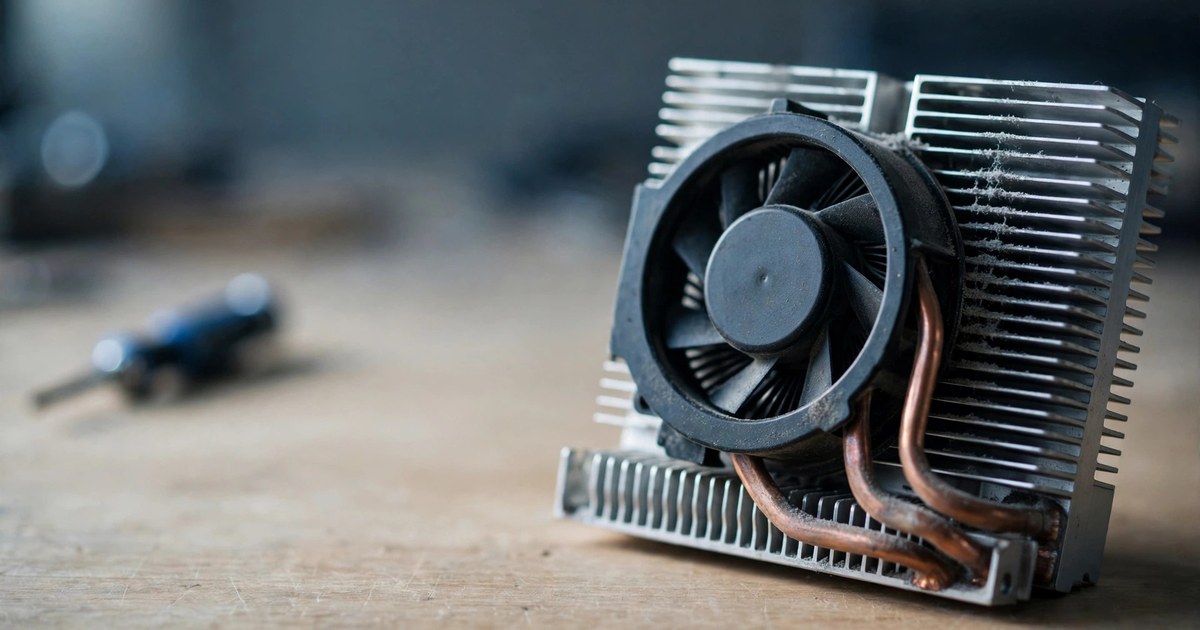
In dry climates, dust is mostly loose particles that blow away fairly easily. Hong Kong's humid air is different: with more moisture in the air, dust sticks more readily to heatsink fins and fan blades, and over time it packs into a dense mat. That layer does not just add "a bit more dust" — it directly seals off the airflow channels. The fan may still be spinning, but air cannot get through the fins, so heat stays trapped inside the machine.
This mechanism also explains why blowing compressed air in from the exhaust vent sometimes feels like cleaning, yet temperatures barely improve. Surface dust may be gone, but the sticky mat deep inside the fins can still be there — and sometimes dust is just pushed from one spot to another, packing even tighter. External cleaning has limits, and the section below states clearly when external cleaning is enough and when an internal inspection is needed.
The Hong Kong Observatory's long-term climate normals give useful background here. According to its monthly normals for 1971–2000, Hong Kong's annual mean relative humidity is 78%: 82% in March, 83% in April, 84% in May, 82% in June, 81% in July, and 82% in August. In other words, Hong Kong is not humid for just a few days — it spends much of the year in high humidity. That is climate background, not a claim that every day or every indoor space is that humid, but it is enough to show that "machines here build up dust and grime faster" is a reasonable inference with a climate basis, not an invented claim.
Factor 3: Small flats, tight placement — blocking your own cooling space
Hong Kong homes and offices are generally small, so computers often end up in positions that hurt cooling: a corner tight against a wall, a desktop tower inside a drawer unit, a laptop used on a bed, a desk piled with clutter, or vents facing a fabric sofa or curtains. These positions share one problem: the air intake or exhaust is covered, or hot air blown out is immediately sucked back in, creating a loop where the machine keeps breathing its own hot air.
Laptops are especially vulnerable, because their air intakes are often on the base or near the keyboard. On a bed, bedding, or your lap, a soft surface seals the intake and cooling drops immediately. Desktop towers are no exception: a tower pushed too close to a wall has nowhere for its hot rear air to go, and a tower inside a sealed cabinet just keeps heating the air inside the cabinet, so the fan spins at full speed circulating hot air. These problems cost nothing to fix, yet they are the most easily overlooked, because people assume "the machine's cooling is poor" without considering placement.
Factor 4: Hot-cold swings and condensation — the risky moment is moving from air conditioning to humidity
People in Hong Kong constantly move between air-conditioned rooms and hot, humid outdoors. A machine chilled in air conditioning, then taken somewhere without air conditioning or out into the street, has a surface colder than the dew point of the surrounding air, so moisture in the air can condense into droplets on the machine's surface — or near its air intakes. Apple's support documentation also specifies relative humidity on a "noncondensing" basis: high humidity itself is not necessarily the problem; condensation is.
The risk of condensation is not that "the machine will short-circuit instantly." It is that repeated, slight dampness over time helps dust stick faster and speeds up ageing of metal contacts and fan bearings. The more direct risk is this: if the machine's surface already has moisture on it and you immediately power it on, charge it, and run a heavy workload, dampness plus current plus high temperature is the worst combination. The right move is to wait until the machine's temperature has balanced with its surroundings and its surface is dry before doing heavy work. Do not rush it.
One more common Hong Kong scenario deserves mention: near kitchens and bathrooms. Cooking steam, bathroom steam, and a dehumidifier blowing directly at the machine all keep it in a high-humidity environment for long periods. A machine does not need to get wet to be affected — long-term use near steam is enough to speed up internal dust build-up and dampness problems. Those spots are simply not good long-term homes for a computer, and moving the machine a short distance can do more than any cooling accessory.
Section 2: How to Tell Normal Warmth from Real Overheating? Look at the Signs, Not Just How It Feels
Three situations to separate first
Situation 1: Normal warmth. During gaming, video editing, many open tabs, or a video call, the machine gets warm and the fan gets loud, but within a few minutes after the work ends, temperature and fan noise fall back. Performance does not clearly drop, and there are no unexpected restarts. This is usually not a problem to fix — it is a cooling system working normally.
Situation 2: Blocked cooling. Even at idle or under light load, the machine stays hot and the fan stays loud for long periods, and the same program runs noticeably slower than it used to — but it has not yet restarted or shut down on its own. The most common causes here are blocked placement, dust-clogged vents, or background programs consuming resources. This stage deserves serious attention, because it is "not broken yet, but heading that way."
Situation 3: Real overheating protection kicking in. Unexpected restarts, sudden shutdowns, shutting down shortly after booting, a cliff-edge drop in performance, a base too hot to touch comfortably, a fan that does not spin at all or makes a grinding sound, or a strange smell. These are no longer "a bit hot" — they are the system throttling or cutting power to protect hardware, or cooling hardware itself failing. At this stage, do not just "blow another fan at it" and carry on. Stop and inspect.
Table 1: Symptom Comparison — Match Your Case Against It
| Symptom | More like normal warmth | More like blocked cooling or real overheating |
|---|---|---|
| When it gets hot | Only during heavy work; falls back within minutes after | Stays hot at idle or under light load and does not settle |
| Fan noise | Loud during heavy work, quiets down after | Loud all the time, or not spinning at all, grinding, or stopping intermittently |
| Performance | Smooth during heavy work, recovers after | Same program getting slower and slower, stuttering, or sudden restarts/shutdowns |
| Case temperature | Warm, touchable, not painfully hot | Hot to the touch, especially one spot that is abnormally hot for a long time |
| Recovery | Back to normal after a few minutes of rest | Still hot after a long rest, or problems return as soon as heavy work starts |
How to use this table: match your situation to a row first. Do not jump to the worst row to frighten yourself, and do not treat the third situation as if it were the first and keep dragging it out. "Hot to the touch" in the table is a feeling description, not a temperature standard. A real judgement needs the temperature monitoring described below, not touch alone.
One important technique: compare, do not rely on a single reading
A single temperature reading has limited value, because room temperature, workload, and charging state all affect it. The useful approach is comparison: with the same program, the same room temperature, and the same kind of workload, record temperature and fan behaviour before and after cleaning, before and after changing placement, and before and after turning on air conditioning. If changing one factor clearly brings temperatures down, you have found the main cause. If nothing you change helps at all, the problem may be in the cooling hardware itself — for example, an ageing fan, ageing thermal paste, or a sensor problem — and it is time for a professional inspection.
Section 3: What Should You Do? From No-Disassembly Steps to Professional Inspection
Step 1: Things you can do right now, without opening the machine
Change the placement. Put the laptop back on a hard, flat desk, with room for air to circulate under the base. Keep a desktop tower away from the wall, with clearance at the back and sides, and out of a sealed cabinet. This step costs nothing, yet it is often the step with the most obvious improvement. After moving it, run the same program for a while and see whether fan noise and temperature fall back.
Clear anything blocking the vents. Check whether the air intakes and exhausts are covered by clutter, fabric, paper, or other objects. Laptop vents are often on the side or at the rear of the base; desktop vents are at the back and sides of the case. Once blockages are cleared, hot air has a way out. Note that this step means "clear things outside the machine" — it does not mean opening the machine to clean inside.
Reduce the immediate load. Open Task Manager (Windows) or Activity Monitor (Mac) and look for a program consuming a large share of processor resources for a long time. Some programs consume a lot in the background after an update, while indexing files, or while syncing to the cloud, making the machine run hot for no obvious reason. Finding the culprit — pausing it, updating it, or letting it finish syncing — often brings temperatures down on its own. Note that Task Manager and Activity Monitor mainly show load and which program is consuming resources. Temperature itself needs the monitoring tools described below. The two kinds of tools do different jobs; do not confuse them.
Check charging and power. A machine normally gets a little warmer while charging, but if it only gets unusually hot while charging, or only with one particular charger, check whether the charger and cable are original or compliant, and whether they show heating, deformation, or a smell. Power problems should not be dragged out. If you suspect a charger, stop using it first, then compare with another compliant charger.
Step 2: How to monitor temperature? Record three numbers
Monitoring temperature is not about staring at a number every day in anxiety. It is about having data to speak clearly when a problem appears. The method is:
1. Pick one monitoring method and stick with it. Prefer tools provided by the computer brand or motherboard maker. If there are none, use a monitoring route built into the system, or a reputable third-party monitoring tool from a reliable source. The key point is "use the same tool throughout." Do not use tool A today and tool B tomorrow and then compare their readings — different tools sample different points and calculate differently, so the comparison is meaningless.
2. Record the idle temperature. After the machine has been on for a while with no heavy program running, record the processor temperature and fan state. This is your baseline.
3. Record the load temperature. Run the program that normally makes your machine hot — for example, a video call or video editing — for ten to fifteen minutes, and record the highest temperature, plus whether stuttering, throttling, or restarts appear. A high load temperature alone does not prove a problem. What matters is whether it reaches a level that cuts performance or triggers protection.
4. Record room temperature and placement. Each time you record, note roughly how warm the room is, whether air conditioning is on, and where the machine is placed. Without those three pieces of background, temperature numbers are hard to compare.
What temperature counts as overheating? There is no single answer that fits every model, because different models have different limits. One sourced reference is the processor's maximum junction temperature (TjMax): an Intel technical explanation in its official community states that for mobile processors, TjMax is in the vicinity of 100 degrees Celsius. At that temperature the processor actively throttles performance to bring temperature down, and if temperature keeps rising, it shuts down to protect itself. That number does not mean "up to 99 degrees is fine." It tells you that throttling and shutdown are the processor's own protection mechanisms, not the only proof that a machine is broken. In everyday use, what you should watch is not "did it touch 100 degrees," but "is idle temperature persistently high," "is temperature under the same load climbing over time," and "is that accompanied by performance drops or restarts." Those three trends are more useful than any single reading. Always check your own model's specifications for its actual limit — do not apply one model's number to another model.
Misunderstandings to avoid while monitoring. First, case temperature is not processor temperature: a warm case does not mean the processor is overheating, and a cool case does not mean the inside is fine. Second, a loud fan does not necessarily mean high temperature — sometimes it is the fan itself ageing or a control problem. Third, temperature going up and down is normal. Do not panic because one spike rises quickly. Look at the trend and whether performance problems accompany it.
Step 3: External cleaning — you can do it yourself, but follow the rules
External cleaning aims to clear dust from vent surfaces. It does not mean opening the machine. Safe practice:
1. Shut down first, unplug the power and all external cables, and wait until the machine is fully cool before starting.
2. Gently brush vent surfaces with a soft brush, or use compressed air in short bursts from the exhaust direction to blow surface dust away. Keep the can upright, do not spray continuously for a long time, and do not turn the can upside down.
3. While spraying, gently hold the fan blades in place so airflow does not spin them freely at high speed. Free-spinning at high speed can damage bearings and can generate reverse current.
4. After cleaning, wait a while, confirm there is no leftover moisture or debris, and only then power on. After powering on, listen for normal fan sound and check whether temperatures improved.
Be clear about the limits of external cleaning. If a dust mat is already packed deep into the heatsink fins, external cleaning can only clear the surface, and temperature improvement will be limited. At that point, do not increase air pressure, do not poke hard objects into the vents, and do not use a vacuum cleaner aggressively against the vents. Those moves can push dust deeper, damage fins, or damage internal parts through static. External cleaning has done its job at this point. What follows is the internal inspection stage.
Step 4: How often should you clean dust? Use environment grades, not one fixed number
Many people ask "how often should I clean dust?" There is no single number that fits everyone, because environments differ so much. One sourced reference is HP's OMEN laptop maintenance guide: for normal use, clean the fans every 6 to 12 months; in dusty environments or homes with pets, every 3 to 4 months; for heavy gaming use, every 4 to 6 months. Note that this is a guide for OMEN gaming laptops, not a universal standard for all computers — but its grading logic is worth borrowing: the dustier the environment and the heavier the load, the shorter the cleaning interval should be.
Applying that logic to Hong Kong's humid environment gives this grading:
| Environment | External vent check frequency | Internal deep-clean reference |
|---|---|---|
| Clean air-conditioned office, little dust, light load | Look at the vents once a month for visible build-up | Check once every 12 months, or when temperatures clearly worsen |
| Typical home, windows opened, near cooking fumes, occasional dust | Look at the vents every two to four weeks | Check every 6 to 12 months |
| Dusty environment, pets, near construction or busy roads, sustained heavy load (gaming, video editing, rendering) | Look at the vents weekly; do external cleaning when build-up is visible | Check every 3 to 6 months; do not wait until failure |
The frequencies in this table are references, not rigid rules. The real deciding factor is your monitoring data: if idle temperature keeps climbing, fan noise keeps growing, or you can already see a dust mat on the vents, check sooner no matter how long it has been since the last clean. Conversely, if your environment is very clean and your monitoring data stays stable, there is no need to open the machine just to follow a calendar. Cleaning frequency should follow data, not a calendar alone.
Seasonal tip. Before the humid "returning dampness" season in March and April, and before summer truly heats up, are two sensible moments for a check. Checking before the humid season means the vents start that season clear, so a dust mat forms more slowly. Checking before summer means the machine meets its hottest months in its best cooling state. This is not a rigid rule — just tying checks to seasons so they are easy to remember.
Step 5: Internal deep cleaning and thermal paste — state the stop points clearly
Internal deep cleaning — opening the case, clearing dust deep in the heatsink, and checking fan and thermal paste condition — is a dividing line. In the following situations, do not try it yourself. Have the machine inspected by someone experienced:
- The machine is still under warranty, and the warranty terms say self-disassembly affects coverage.
- You are not sure of your model's disassembly steps, or the cooling assembly can only be reached after removing the battery.
- The fan already makes grinding sounds, stops intermittently, vibrates, or its blades are cracked after opening.
- External cleaning and placement changes bring no improvement at all in temperature or performance.
- The machine has water damage, dampness, a swollen battery, a strange smell, or has been dropped.
Thermal paste needs a special note. Thermal paste is the material between the processor and the heatsink that transfers heat. Over time it ages and dries, and heat transfer worsens. But replacing thermal paste is not simply "the next step after cleaning." It involves removing the heatsink, cleaning off old paste, applying new paste, and reinstalling — and any mistake can make cooling worse, or damage the processor or motherboard. So this article's position is clear: thermal paste is an item to assess during inspection, not a do-it-yourself project for readers. If you suspect ageing paste, the right move is to have it inspected and let the inspection result decide whether replacement is needed, rather than buying paste and trying it yourself.
On pricing: inspection and deep cleaning require an individual quote, depending on the model, disassembly difficulty, and inspection results. Any claim that quotes a fixed price before inspection, or promises "cleaning will definitely drop temperatures by a specific amount," should not be trusted, because the improvement depends on how blocked the dust is, the fan's condition, and the original cooling design. Nobody can state it firmly before seeing the machine.
Section 4: What Does Long-Term Overheating Do? Explain Mechanisms, Do Not Frighten
The most common consequence of long-term overheating is not "instant burnout." It is a series of slowly accumulating effects. They are explained below by mechanism, without unverified lifespan numbers:
First, performance stays suppressed. When a processor reaches high temperature, it automatically throttles to protect itself. That mechanism is a good thing, but if the machine is throttling most of the time, you never get the full performance you paid for. The same program takes longer to finish, the fan must run at high speed for longer, and a vicious cycle forms. Many people think a machine "slowed down because it aged," when part of the slowdown is actually throttling caused by blocked cooling. After cooling is cleared, performance may return toward its proper level. Note the wording: "may" — not a guarantee — because slowdowns have other causes too, such as full storage, software problems, or hardware ageing itself, which must be ruled out one by one.
Second, battery ageing speeds up. A battery is a chemical device, and high temperature speeds up its chemical ageing. Long-term use in high temperature, doing the heaviest work while charging, or leaving a machine charging in a hot, stuffy place will all make battery health fall faster. The effect does not show in a day, but after a year or so, when battery life has clearly shortened, many people only then realise cooling and battery health are connected. The practical prevention is simple: try not to do the heaviest work while charging, do not leave the machine charging in a high-temperature place for long periods, and watch for signs of battery swelling. A swollen battery is a separate matter: stop using the machine immediately if you find one. See the battery safety guide in the related articles.
Third, fan and cooling-part wear speeds up. A fan running at high speed for long periods wears its bearings faster; thermal paste kept at high temperature ages faster too. That wear alone does not stop a machine immediately, but it steadily reduces cooling capacity, so afterwards a higher fan speed is needed to hold the same temperature, which speeds up wear further. By the time a fan makes grinding sounds or stops intermittently, wear has reached a stage that needs handling. Do not keep dismissing it as "just a bit louder."
Fourth, system stability worsens. Long-term high temperature makes a system more likely to behave unstably: programs closing on their own, unexpected system restarts, or errors while writing files. High temperature does not necessarily cause every such problem directly, but it makes problems already near the edge more likely to break out. The loss is especially sharp when an important, unsaved document is open during a sudden restart — what is lost is time and data, not just hardware. So long-term overheating is not simply "the machine runs a bit hotter." It directly affects how reliable your work is.
Fifth, dampness and corrosion risk accumulates. In a humid environment, long-term high temperature plus slight dampness helps dust stick more firmly and makes metal contacts and circuit-board surfaces more prone to oxidation and corrosion. The process is slow — it will not show in a month — but over years it becomes fertile ground for intermittent faults: working sometimes and not others, poor contact, or a port suddenly failing. These faults are the hardest to diagnose, because they are not a clean, total failure but an on-and-off problem. So maintenance in a humid environment should not look at temperature alone. Placement and dampness matter too: do not keep a machine near steam for long periods, do not use it long-term in a bathroom or kitchen, and let it warm back up after coming out of air conditioning before powering it on.
To emphasise again: all of the above are increases in risk, not certainties that a machine will break. Nobody can state from one article how many more or fewer years your machine will last. The purpose of this section is to make clear that "leaving it alone" has a cost — and that cost does not erupt instantly, but slowly eats away performance, battery, and stability.
Section 5: What Must You Never Do? Five Common Mistakes
Mistake 1: Using bedding, a sofa, or your lap as a desk — then blaming the machine's cooling
Why it is wrong: Soft surfaces seal the base air intake, blocking airflow from the start. The machine's cooling is not poor — it never gets a chance to cool.
What to do instead: Always use a hard, flat desk surface. If you really must use a machine on a bed, at least put a hard board underneath so intakes and exhausts are not covered. Changing this one habit already removes the first layer of cause in a large share of laptop overheating cases.
Mistake 2: Using a vacuum cleaner aggressively against the vents when you see dust, or poking hard objects inside
Why it is wrong: A vacuum cleaner can generate static, and hard objects can damage heatsink fins and fan blades, as well as push dust deeper. These methods look "thorough" but are high-risk and low-return.
What to do instead: For external cleaning, use only a soft brush and short bursts of compressed air, holding the fan blades still. Do not poke inside. Dust you cannot clear externally is a signal for internal inspection, not a reason to push harder.
Mistake 3: Turning the air conditioning to its coldest and assuming the cooling problem is solved
Why it is wrong: Air conditioning does lower room temperature and improve cooling conditions, but it does not solve dust blockage, blocked placement, or an ageing fan. And moving from an extremely cold air-conditioned room into a humid environment actually raises condensation risk. Air conditioning is an aid, not a replacement for cleaning and placement.
What to do instead: A reasonable air-conditioning temperature is enough. The priorities are airflow and clear vents. Before taking a machine out of air conditioning, give it a little time to warm back up, and only start heavy work once its surface is dry.
Mistake 4: Buying a cooling pad or a replacement fan the moment a machine gets hot, assuming the hardware must be at fault
Why it is wrong: A cooling pad can help ventilation, but if the main cause is dust blockage or placement, a pad only blows more air from outside while the blocked channel inside stays blocked. Replacing a fan is the same: if the old fan is not broken, a new fan will not solve a dust blockage.
What to do instead: Do the checks above first: change placement, clean the vents, check load, record temperatures. Find the main cause before deciding whether to buy accessories. Accessories should solve a confirmed problem, not cover up a problem that has not been investigated.
Mistake 5: Keeping on using a machine that overheats and restarts on its own, with important unsaved files open
Why it is wrong: When an unexpected restart happens, unsaved work can be lost at any moment. Using a machine at the edge of overheating protection for a long time also speeds up the battery, fan, and stability wear described above. The longer you drag it out, the more problems an inspection will have to handle.
What to do instead: Once unexpected restarts or shutdowns appear, save important data and make a backup first, then work through the checks in Section 3 in order. During important work, build a habit of saving regularly. Do not bet data safety on the machine "not restarting at this exact moment."
Section 6: Prevention — Do Now, and Do Regularly
Do right now:
- Put the machine back on a hard, flat, ventilated desk surface, with intakes and exhausts uncovered.
- Clear clutter from around the vents, and leave clearance behind and beside a desktop tower.
- Open Task Manager or Activity Monitor, look for a program consuming large resources for a long time, and pause or update it.
- Check the charger and cable for heating, deformation, or smell. If you suspect a problem, stop using them first.
- When moving a machine from air conditioning into a humid environment, let it warm back up and dry before starting heavy work.
Do regularly:
- Check the vents once a month, or every two to four weeks depending on how dusty your environment is, and do external cleaning when build-up is visible.
- Record idle and load temperatures once a month, together with room temperature and placement, so you can see trends.
- Before the humid season and before summer, do a cooling check each time, so the machine meets the humid and hot seasons in its best cooling state.
- Every 6 to 12 months, assess against the environment grading table whether an internal inspection is needed. In dusty environments, homes with pets, or sustained heavy-load use, shorten the interval to 3 to 6 months.
- Back up important data regularly. Do not wait until a machine restarts on its own before thinking about backup.
Stop points: If you find any of the following, do not open the machine and experiment on your own. Leave it as it is first, then have it inspected by someone experienced: still under warranty and unsure whether disassembly affects coverage; fan grinding sounds or intermittent stopping; swollen battery, strange smell, water damage, or dampness; no improvement at all after external cleaning and placement changes; unexpected restarts or shutdowns that have already happened several times. Pricing requires an individual quote, depending on the model and inspection results.
Frequently Asked Questions
Q: How can I tell whether it is Hong Kong weather, or a problem with my machine?
A: Tell them apart by comparison, not by one feeling. Under the same room temperature and the same load, compare temperature and fan behaviour before and after changing placement, before and after cleaning the vents, and before and after turning on air conditioning. If changing placement and cleaning the vents clearly brings temperatures down, the main cause is likely environment and dust. If everything has been changed and the machine still stays hot at idle, the fan stays loud for long periods, or unexpected restarts appear, that leans toward a cooling hardware problem needing internal inspection. The feeling that "summer is hotter" alone cannot separate the two.
Q: In Hong Kong, how often should I clean dust out?
A: There is no single number that fits everyone. It depends on the environment grade. HP's OMEN laptop maintenance guide gives this reference: normal use every 6 to 12 months, dusty environments or homes with pets every 3 to 4 months, heavy gaming use every 4 to 6 months. In Hong Kong's humid environment, dust sticks more easily, so users in dusty conditions, with pets, near busy roads, or under sustained heavy load should use the shorter interval. The most accurate approach is to follow your own monitoring data: if idle temperature keeps climbing, or you can already see a dust mat on the vents, check sooner. Do not follow a calendar blindly.
Q: How do I monitor temperature? What temperature counts as overheating?
A: Use the same monitoring tool consistently, and record idle temperature, load temperature, room temperature, and placement, looking at trends rather than a single reading. Task Manager and Activity Monitor mainly show which program is consuming resources; temperature itself needs a brand tool or a monitoring tool. As for what counts as overheating, there is no universal answer — you must check your own model's specifications. One sourced reference is Intel's maximum junction temperature of around 100 degrees Celsius, at which a processor throttles to protect itself, then shuts down if temperature keeps rising. For everyday judgement, watch three trends instead: whether idle temperature is persistently high, whether temperature under the same load keeps climbing, and whether performance drops or restarts accompany it. Those trends are more useful than a single reading.
Q: Does turning on air conditioning solve the cooling problem?
A: No. Air conditioning lowers room temperature and improves cooling conditions, but it does not solve dust blockage, blocked placement, or an ageing fan. Moving from an extremely cold air-conditioned room into a humid environment can also raise condensation risk. The right approach is a reasonable air-conditioning temperature, plus airflow and clear vents, plus giving a machine taken out of air conditioning a little time to warm back up and dry before heavy work.
Q: Will long-term overheating damage my machine or battery?
A: Long-term overheating does not burn a machine out instantly. It slowly accumulates risk: the processor throttles for long periods so full performance is never used, battery chemical ageing speeds up so battery life shortens, fan bearings and thermal paste wear faster so cooling capacity keeps falling, system stability worsens so unexpected restarts become more likely, and dampness and corrosion risk accumulates in a humid environment. All of these are increases in risk, not a guarantee of failure within a set time, and there is no lifespan number that fits every model. What is worth doing is handling a cooling problem before unexpected restarts appear, rather than waiting until several problems need handling at once.
Q: How long does an inspection or deep cleaning take, and how is it charged?
A: It depends. Checking placement, vent condition, and monitoring data alone can usually identify the main cause quickly. If internal deep cleaning is needed, the time depends on how difficult the model is to disassemble and how blocked the dust is. Pricing requires an individual quote, depending on the model, disassembly difficulty, and inspection results. Clarify beforehand what inspection and cleaning cover, and do not trust anyone who quotes a fixed price before inspection or promises that cleaning will drop temperatures by a specific amount.
Summary
1. Hong Kong overheats easily because four factors stack up: high room temperature raises the cooling baseline, humidity helps dust pack into a mat, small flats make it easy to block vents, and hot-cold swings bring condensation risk. Check those four factors one by one to find the real main cause.
2. Judge by comparison and trends, not by one feeling: use the same monitoring tool consistently, record idle temperature, load temperature, room temperature, and placement, and see whether changing one factor improves things.
3. Cleaning frequency should follow the environment, not a fixed number: check every 6 to 12 months in a general environment, and every 3 to 6 months in dusty, pet-owning, or sustained heavy-load environments. External cleaning has limits; deep dust blockage and fan problems need internal inspection.
4. The cost of long-term overheating accumulates slowly: suppressed performance, faster battery ageing, fan wear, worse stability, and accumulating dampness risk are all increases in risk, not instant failure — but the longer they are dragged out, the higher the handling cost.
Stop points: Still under warranty and unsure whether disassembly affects coverage, fan grinding sounds or intermittent stopping, swollen battery, strange smell, water damage or dampness, no improvement at all after external cleaning and placement changes, or unexpected restarts or shutdowns that have already happened several times — do not open the machine and experiment on your own. Leave it as it is first, then have it inspected by someone experienced.
Need help? Call +852 2115 9219. Pricing requires an individual quote, depending on the model and inspection results.
Sources
1. Hong Kong Observatory — Monthly Meteorological Normals for Hong Kong, 1971–2000 — https://www.hko.gov.hk/en/cis/normal/1971_2000/normals.htm — Cited for: annual mean relative humidity 78%, March 82%, April 83%, May 84%, June 82%, July 81%, August 82%. Accessed: 2026-10-21.
2. Apple Support — Keep your Mac laptop within acceptable operating temperatures — https://support.apple.com/en-ca/102336 — Cited for: recommended ambient temperature 10 to 35 degrees Celsius, relative humidity 0% to 95% (noncondensing); use on a stable, well-ventilated work surface, not on a bed, pillow, or under bedding, and do not cover the keyboard or put anything into ventilation openings. Accessed: 2026-10-21.
3. Intel Community technical explanation — Tjmax — https://community.intel.com/t/tjmax/128440 — Cited for: mobile processor maximum junction temperature in the vicinity of 100 degrees Celsius, at which the processor actively throttles to bring temperature down, and shuts down if temperature keeps rising. Accessed: 2026-10-21.
4. HP official guide — Essential Maintenance Guide: Keeping Your HP OMEN's Fans Clean and Efficient — https://www.hp.com/us-en/tech-takes/gaming/maintenance/hp-omen-fan-cleaning-maintenance-guide.html — Cited for: OMEN laptop fan cleaning reference: normal use every 6 to 12 months, dusty environments or homes with pets every 3 to 4 months, heavy gaming use every 4 to 6 months. Accessed: 2026-10-21.
Related Articles
- Computer Overheating? Cooling Solutions for Hong Kong's Humid Weather
- Want Your Computer to Last Longer? Daily Maintenance Checklist
- Computer Randomly Restarts? PSU Failure or Overheating?
Frequently Asked Questions
How can I tell whether it is Hong Kong weather, or a problem with my machine?
Tell them apart by comparison, not by one feeling. Under the same room temperature and the same load, compare temperature and fan behaviour before and after changing placement, before and after cleaning the vents, and before and after turning on air conditioning. If changing placement and cleaning the vents clearly brings temperatures down, the main cause is likely environment and dust. If everything has been changed and the machine still stays hot at idle, the fan stays loud for long periods, or unexpected restarts appear, that leans toward a cooling hardware problem needing internal inspection. The feeling that "summer is hotter" alone cannot separate the two.
In Hong Kong, how often should I clean dust out?
There is no single number that fits everyone. It depends on the environment grade. HP's OMEN laptop maintenance guide gives this reference: normal use every 6 to 12 months, dusty environments or homes with pets every 3 to 4 months, heavy gaming use every 4 to 6 months. In Hong Kong's humid environment, dust sticks more easily, so users in dusty conditions, with pets, near busy roads, or under sustained heavy load should use the shorter interval. The most accurate approach is to follow your own monitoring data: if idle temperature keeps climbing, or you can already see a dust mat on the vents, check sooner. Do not follow a calendar blindly.
How do I monitor temperature? What temperature counts as overheating?
Use the same monitoring tool consistently, and record idle temperature, load temperature, room temperature, and placement, looking at trends rather than a single reading. Task Manager and Activity Monitor mainly show which program is consuming resources; temperature itself needs a brand tool or a monitoring tool. As for what counts as overheating, there is no universal answer — you must check your own model's specifications. One sourced reference is Intel's maximum junction temperature of around 100 degrees Celsius, at which a processor throttles to protect itself, then shuts down if temperature keeps rising. For everyday judgement, watch three trends instead: whether idle temperature is persistently high, whether temperature under the same load keeps climbing, and whether performance drops or restarts accompany it. Those trends are more useful than a single reading.
Does turning on air conditioning solve the cooling problem?
No. Air conditioning lowers room temperature and improves cooling conditions, but it does not solve dust blockage, blocked placement, or an ageing fan. Moving from an extremely cold air-conditioned room into a humid environment can also raise condensation risk. The right approach is a reasonable air-conditioning temperature, plus airflow and clear vents, plus giving a machine taken out of air conditioning a little time to warm back up and dry before heavy work.
Will long-term overheating damage my machine or battery?
Long-term overheating does not burn a machine out instantly. It slowly accumulates risk: the processor throttles for long periods so full performance is never used, battery chemical ageing speeds up so battery life shortens, fan bearings and thermal paste wear faster so cooling capacity keeps falling, system stability worsens so unexpected restarts become more likely, and dampness and corrosion risk accumulates in a humid environment. All of these are increases in risk, not a guarantee of failure within a set time, and there is no lifespan number that fits every model. What is worth doing is handling a cooling problem before unexpected restarts appear, rather than waiting until several problems need handling at once.
How long does an inspection or deep cleaning take, and how is it charged?
It depends. Checking placement, vent condition, and monitoring data alone can usually identify the main cause quickly. If internal deep cleaning is needed, the time depends on how difficult the model is to disassemble and how blocked the dust is. Pricing requires an individual quote, depending on the model, disassembly difficulty, and inspection results. Clarify beforehand what inspection and cleaning cover, and do not trust anyone who quotes a fixed price before inspection or promises that cleaning will drop temperatures by a specific amount.