Computer Repair · October 25, 2026 · ComputerKing Team
After Your Hard Drive Starts Clicking: What to Do After Powering Off — Judge Urgency, Prepare for a Quote, and Avoid Making Recovery Harder
After a clicking hard drive has been powered off, the real decisions begin: first judge urgency from the type of sound, then prepare five pieces of information before asking for a quote, and ask seven specific questions about diagnosis, cleanroom work, parts, and how charges are calculated.
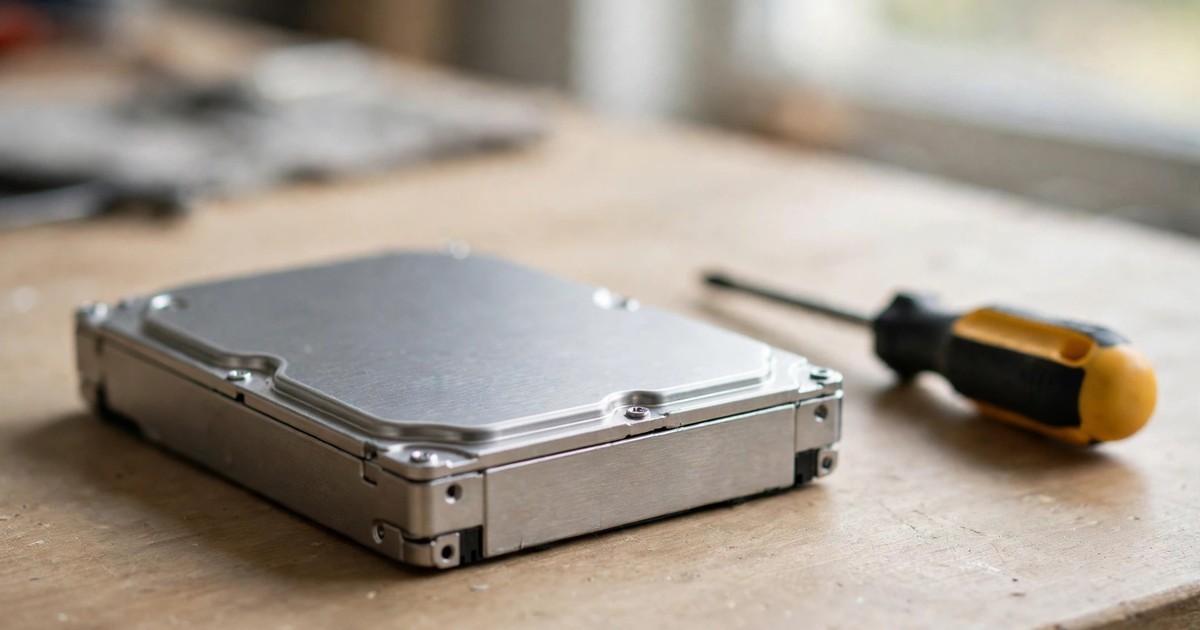
Key Summary
After a clicking hard drive has been powered off, the real decisions begin: first judge urgency from the type of sound, then prepare five pieces of information before asking for a quote, and ask seven specific questions about diagnosis, cleanroom work, parts, and how charges are calculated. Throughout the process, do not power the drive on again, do not run software on it, and do not open it yourself — these actions do not just carry risk, they can make later recovery harder, more expensive, or impossible.
Introduction: The First Article Covered Emergency Action; This One Covers What Comes Next
If you have read our first, comprehensive guide to clicking hard drives (article #67), you will already have taken the most important step: power off immediately when you hear clicking, do not power on again, do not run chkdsk, do not scan with recovery software, do not open the drive, do not put it in a freezer, and do not tap it. For an external drive, you will also have ruled out a power problem first — changing the cable, skipping the USB hub, connecting directly to a rear USB port on a desktop PC, and using the original power adapter for a 3.5-inch drive. That article's focus was "stop", and it already covers sound classification, six common myths in detail, laboratory procedure, cleanroom standards, SMART warnings, telling a power problem apart from a mechanical failure, and overseas price references in depth. This article does not repeat those sections.
What this article covers is what comes after stopping — the practical questions that very few guides answer in one place: does this drive still have a chance? How do you tell which kind of failure you are facing? What information should you prepare before asking for a quote, so that you are not stuck when asked three questions and can only answer one? Which items on a quote must be clarified? And after recovery, how do you avoid ending up in the same place again?
One principle first: a clicking sound is not a diagnosis, only a warning. The same "clicking" can come from insufficient power, a firmware problem, a head failure, or a scratched platter, and the handling and outcome can be completely different. Everything below only helps you judge urgency and prepare; a real determination of the fault requires professional diagnosis, and you should not diagnose the drive yourself from its sound.
Step One: Tell Them Apart — Which Sounds Are Most Urgent, and Which Are Not Necessarily Fatal
Not every hard drive sound means the same thing. Seagate's official support documentation states this clearly: a drive makes slight clicking or chattering sounds during normal reading and writing, and similar sounds can occur during occasional offline scans, and these are not necessarily faults. Repeated, regular tapping, beeping, or clicking, however, are indicators of abnormal function or a potential drive failure. Two hard clicks at startup followed by a boot error message or a system shutdown are a symptom of a failed drive. If you hear grinding, you should power down immediately to avoid further damage that would make recovery attempts more difficult, if not impossible.
For detailed sound classification, see section one of the first article. The table below is only an urgency summary, adding Seagate's two specific decision points (two hard clicks at startup, and grinding means power down at once). Remember, this table judges urgency only; it is not a diagnosis, and you should not use it to decide on your own whether the drive can still be recovered.
| Sound You Hear | What It May Point To (Reference Only, Not a Diagnosis) | Urgency and Next Step |
|---|---|---|
| Slight, irregular clicking during reading and writing, with normal operation afterwards | Normal reading and writing or offline scans can sound like this | Low: back up important data first, then watch whether the sound becomes more frequent or more regular; if in doubt, stop using the drive and seek diagnosis |
| An external drive beeping, or one click on connection and then silence | Very likely insufficient power, especially for USB-powered external drives | Medium: run the power exclusion steps from the first article once (change the cable, skip the hub, use a rear port, use the original adapter for 3.5-inch drives); if it still behaves the same, stop and do not keep trying |
| Regular, endlessly repeating clicking, with the computer unable to detect the drive | The heads failing to calibrate or find data, an indicator of abnormal function | High: power off immediately, do not power on again to test, do not run software scans, prepare for professional diagnosis |
| Two hard clicks at startup, followed by an error or automatic shutdown | Listed by Seagate's official documentation as a symptom of a failed drive | High: power off immediately, same handling as the row above |
| Grinding or scraping, like metal on metal | The heads may already be in contact with the platter surface, a so-called head crash | Highest: power off immediately and do not press another button; every further power-on may score the platter deeper |
Why bother distinguishing? Because the cost of "just trying once more" varies enormously with the type of failure. With a power problem, one more try may not cause immediate harm, but with heads already failing, every power-on gives the heads another chance to drag across the platter. If you cannot tell which case you are in, treat it as the worst case — stopping is always the cheapest and safest choice.
Step Two: After Powering Off, Why These Actions Make Things More Expensive
Section three of the first article debunks the six common myths one by one. This section does not repeat those debunks; it explains the practical consequence for your quote and recovery chances, because understanding "what it costs you" is what stops you from giving in when you are in a hurry.
Powering on again to test. Repeated power cycles are the most common route by which a clicking drive gets worse. When the heads cannot park or calibrate properly, each power-on can drag them across the platter, scratching areas that were still intact. Damage that started as local can become widespread after a few more attempts, and the difficulty and cost of recovery rise with it.
Running chkdsk or recovery software. These tools are designed to make a file system consistent again, or to find deleted files on a healthy drive — not to rescue a mechanical failure. Pointed at a mechanically failing drive, software issues constant read requests, forcing damaged heads to work repeatedly, which has the same effect as repeated power-ons, only faster. Installing recovery software onto the same failing drive is worse again, because writing to it can overwrite data that might still have been recoverable.
Opening the cover to look inside. A hard drive's interior must only be opened in a controlled cleanroom environment. Dust particles invisible to the naked eye in ordinary room air are enough to cause new damage once they land on a platter. A drive that has already been opened is a different, harder case even when it is later handed to professionals. This is also why "has it been opened?" is information you must honestly declare when asking for a quote — hiding it only makes the diagnosis inaccurate.
Swapping in another circuit board to test. A modern drive's circuit board carries calibration data specific to that drive's heads and platters; it is not interchangeable just because the model matches. A wrong board does not just fail to help, it can complicate a case that was still workable. Technical documentation on WD drives makes this point explicitly.
Clicking "Format" when prompted. When the system asks whether you want to format or initialise a drive that previously held data, that does not mean the data is gone — the data is still there, only the structures pointing to it are damaged. Clicking OK overwrites those structures yourself, and the difficulty of recovery jumps a level at once.
Remember this sentence: after powering off, every "just try it" action gambles the parts of the platter that are still intact. Not trying is already the most active form of rescue.
Step Three: Before Asking for a Quote, Prepare These Five Pieces of Information
A common experience when asking for a quote is this: the other side asks three questions, you cannot answer two of them, and the quote can only be a rough range, or has to wait until the drive is delivered. Preparing the five items below in advance makes the whole conversation much smoother and the quote much more accurate. While preparing them, keep the drive powered off at all times — do not power on to read information off it.
| Information to Prepare | How to Get It (Without Powering On) | Why It Helps |
|---|---|---|
| Brand, model, capacity, interface | Read the label on the drive or the external enclosure packaging; for an internal drive, use the purchase receipt or the machine's label | Different brands and models have different parts availability and handling methods; this is the most basic classification for any quote |
| An accurate description of the sound and symptoms | Note down: what sound (regular clicking / grinding / beeping), when it started, whether it was two hard clicks at startup or continuous clicking, whether the computer detects the drive | Helps the diagnostic side judge urgency and the direction of the fault without guessing |
| What happened before it failed | A drop, water exposure, a power cut, a thunderstorm, a house move, or nothing at all | Drop and water damage follow different paths; stating this up front avoids going down the wrong path |
| What handling has already been done | How many times it was powered on to test, whether any software was run, whether the cover was opened, whether the cable or adapter was changed | All of these affect the current state of the platter and the difficulty of recovery; honest disclosure is what makes a quote accurate, and hiding them only disconnects the quote from reality |
| Which data matters most, and whether any backup exists | List the highest-priority categories (for example work documents, photos, accounts) and whether copies exist anywhere else | Recovery can then be prioritised; if a backup already exists, the urgency and the whole approach can be reassessed |
Beyond these five items, decide one more thing in advance: what are your boundaries? For example, are there confidentiality requirements for the data, should the failed drive be returned after recovery, and how should a failed drive be disposed of? Thinking these through beforehand means you can ask them all at once when getting a quote, instead of going back and forth afterwards.
Step Four: How Professional Diagnosis Usually Works — The Staged Concept
Many people assume that sending a drive for diagnosis means it is opened at once. In fact, a proper process is staged, and opening is only the last stage — and not every drive needs it. For the detailed laboratory procedure, see sections four and five of the first article. Here the staged concept is used only to teach you how to read a quote: it explains why some cases reach a conclusion quickly and others take longer, and why a quote that promises a firm price before any diagnosis deserves scepticism.
| Stage | What Happens | Purpose |
|---|---|---|
| Stage 1: Non-invasive inspection | Visual inspection, label information, interface and power state, and confirmation of prior handling history | Rule out power and connection problems, confirm whether the drive has been opened, set the direction of diagnosis |
| Stage 2: Controlled testing | Limited testing on professional equipment to determine whether the fault is firmware, circuit, head, or platter related | Classify the fault type before deciding which route to take; this step is not the same as scanning with ordinary software |
| Stage 3: Imaging | Where the drive is stable enough, make a full image backup first, then extract files from the image | Avoid repeated reading directly from an unstable original drive, reducing further wear on the original |
| Stage 4: Cleanroom opening | Only if needed, open the drive in a controlled cleanroom environment, inspect the heads and platter, and replace parts with matched components where necessary | Handle head failures that can only be addressed by opening; cases that do not need opening never reach this stage |
Two points to note. First, later stages usually cost more and take longer, so the diagnostic side needs to explain how each stage is charged before you reach stage four — not suddenly introduce new charges at that point. Second, not every diagnostic provider has the capability for all four stages, and some cases may need referral; that should also be stated up front, not only after the drive has been opened.
Step Five: How to Ask for and Compare Quotes — Seven Questions You Must Ask
Recovery charges depend on the fault type, the stage of work required, parts availability, and turnaround requirements, and must be quoted individually. No single flat price fits every case. Ask the seven items below one by one when getting a quote; only then do you have a fair basis for comparison. Remember, what you are comparing should not be a single total alone, but the whole charging structure.
| Question You Must Ask | Why Ask It | What Counts as a Clear Answer |
|---|---|---|
| How is the diagnosis charge calculated? | Diagnosis and recovery are two separate charges, or the diagnosis fee may be deductible from the later recovery fee | The diagnosis fee amount, what it covers, and when it is charged, stated in writing |
| How is the recovery charge calculated? | By fault level, by the volume of data recovered, or a mixture of both | The basis of calculation stated, and under what circumstances the charge would change |
| Are cleanroom opening and parts charged separately? | Head replacement requires matched parts; is the parts cost already included in the quote? | Whether parts costs are included, how parts are matched, and how it is charged if more than one part has to be tried |
| How is it charged if recovery fails? | If recovery ultimately fails, or only partly succeeds, how are charges handled? | The failed-recovery charging arrangement stated, not just a verbal "we will do our best" |
| How long will it take? | How much difference is there between an urgent job and a normal job, and does urgency cost extra? | An estimated time stated, and how you will be notified if it overruns |
| How is data handed over, and how is it kept confidential? | On what medium is recovered data handed over, and how are the original drive and images handled afterwards? | The handover method, retention period, and destruction arrangements stated |
| What happens to the failed drive? | After recovery is complete, is the failed drive returned, destroyed on your behalf, or handled some other way? | The fate of the failed drive stated; for sensitive data, this must be in writing |
One more warning: any promise made before diagnosis that sounds very certain — for example guaranteeing what percentage will be recovered, or guaranteeing how long it will take — deserves caution. A responsible answer is: it can only be assessed after diagnosis, and a firm price can only be quoted after assessment. A quote that is willing to say "we need to look at it first" is often more trustworthy than one that offers a firm price and a guarantee immediately.
Step Six: After Recovery Succeeds, and After It Does Not
If recovery succeeds, the first job is not to relax, but to build a backup immediately. Recovered data should be copied at once to at least two different places: for example, an external hard drive plus a cloud backup, with an additional offline copy for important work files. This is the basic spirit of the 3-2-1 backup rule — three copies, on two different media, with one copy off-site. For the detailed approach, see section eleven of the first article and our backup strategy article; it is not expanded again here.
At the same time, think about the old drive: a drive that has already suffered a mechanical failure should not be used again to store the only copy of important data, even if recovery succeeded this time. It can be retired, or used only for non-essential files that can be found again at any time, but it must never again be the main storage.
If recovery fails, accepting that reality is also a decision. Some platter scoring has reached a point where no handling can recover the data, or the cost of recovery far exceeds the value of the data itself. At that point, continuing to power on and trying folk remedies only wastes time and money and changes nothing. The correct close is: confirm the handling arrangement for the failed drive (return or destruction under confidentiality requirements), then put your energy into rebuilding — piecing back the most important parts from other sources (email attachments, cloud versions, copies held by collaborators) — and building a backup habit you can actually keep for the future.
Whichever outcome you get, one thing is common to both: do not wait for the next failure before thinking about backup. Backup is not a remedy after failure; it is a habit to keep every day.
Common Mistakes: After Powering Off, These Ways of Thinking Are the Most Dangerous
| Mistaken Idea | Why It Is Dangerous | What to Do Instead |
|---|---|---|
| "Leave it for tomorrow, put it aside for now" | Delay itself does not make the platter worse, but many people, while delaying, cannot resist powering on to test, and the result is worse | Arrange diagnosis as soon as possible after powering off; in the meantime keep the drive in a dry, safe place and do not power it on again |
| "Find some software online and rescue it myself, save the money" | Scanning a mechanical failure with software only accelerates deterioration; the diagnosis fee you save can become a higher recovery cost later, or a case that cannot be recovered at all | For a mechanical failure, the correct first step is always stopping plus professional diagnosis, not downloading software |
| "Swapping a board is simple, I will do it myself" | The calibration data on a circuit board is specific to that drive; a wrong board can complicate the case | Do not swap boards yourself; leave it to the diagnostic side to judge during controlled testing |
| "Click OK on the format prompt, then rescue afterwards" | Formatting overwrites the structures pointing to the data, raising the difficulty of recovery by a full level at once | Never click a format or initialise prompt; power off and seek diagnosis |
| "Freezing it overnight might fix it" | Moisture in a fridge causes condensation and corrosion inside the drive; this is a long-circulating but harmful folk remedy | Never put it in a freezer, and never tap or shake the drive |
| "That quote is expensive, try a cheaper place and test again" | Each provider's testing and handling places a load on the drive; moving between providers with repeated power-ons only wears the platter further | Prepare the full information and ask the seven questions before getting quotes, compare them in one pass, and do not use the drive itself to test providers one by one |
Prevention: For the Next Drive, How to Avoid Repeating This
The point of prevention is not to buy a drive that "never fails" — no such drive exists. The point is to make "failure" stop meaning "loss of data":
- Backup first. The 3-2-1 rule is not a slogan: three copies, two media, one off-site. An external hard drive plus cloud backup is already a starting point most people can achieve.
- Watch for early signals. A drive getting slower, files occasionally unreadable, or SMART warnings from the system (for example abnormal values in attributes 05, C5, or C6) are all signals to back up and replace early — do not wait for clicking to act.
- Keep the power supply stable. Use the original adapter for external drives, avoid low-quality hubs, and avoid writing large files on a laptop just as its battery is about to run out, reducing the impact of unstable power on the drive.
- Keep placement stable. A spinning hard drive fears vibration and drops most of all; do not move a drive while it is still spinning, and keep an external drive where nobody can knock it off.
- Verify your backups regularly. Making a backup does not mean it can be recovered — every so often, open a few backed-up files at random to check they open properly; only then is it a genuinely effective backup.
Conclusion
After a hard drive starts clicking, the order of work should be: first, power off and stop — that step is already done. Second, judge urgency from the sound: grinding is the most urgent, regular clicking next, and slight reading sounds are not necessarily a fault, but if in doubt, stop using the drive. Third, prepare the five pieces of information before asking for a quote, and never power on to obtain them. Fourth, clarify the seven items — diagnosis fee, recovery pricing, cleanroom parts, failed-recovery terms, time, confidentiality, and the fate of the failed drive — before comparing quotes. Fifth, if recovery succeeds, build a 3-2-1 backup immediately; if it fails, close the case properly and do not gamble further with folk remedies. The single most important sentence in this whole process is: after powering off, not trying is already the most active form of rescue.
Q: The drive is still clicking. Can I power on and copy just the most important files first?
A: No. Clicking means the heads or mechanical parts are already failing, and while copying, the heads drag across the platter surface, and every read can scratch a wider area. The correct action is to power off immediately, do not power on again, and hand the drive to professional diagnosis, where it can be assessed under controlled conditions.
Q: Does clicking mean the drive is dead and cannot be recovered?
A: Not necessarily. Clicking is only a warning. Behind it can be insufficient power, a firmware problem, a head failure, or platter scoring, and the handling and outcome can be completely different. A power problem may return to normal once excluded; a firmware problem may be handled without opening; a head problem requires cleanroom opening and matched parts; a platter with widespread scoring has the smallest chance. Which one it is can only be known after professional diagnosis — do not conclude from the sound alone.
Q: Do normal hard drives ever make slight clicking sounds?
A: Yes. Seagate's official documentation states that a hard drive makes slight clicking sounds during normal reading and writing, and similar sounds can occur during occasional offline scans. Repeated, regular tapping, beeping, or clicking, however, are indicators of abnormal function or a potential failure, and grinding requires powering down immediately. The distinction to make is between "occasional and slight" and "regular and endlessly repeating" — the two mean completely different things.
Q: When asking for a quote, is a firm price offered before the drive has been seen trustworthy?
A: Treat it with caution. Recovery charges depend on the fault type, the stage of work required, parts availability, and turnaround requirements, and must be quoted individually. A firm price offered before diagnosis often does not account for variables that only appear after diagnosis. A responsible approach is: diagnose first, classify the fault, then quote a firm price, stating the diagnosis fee, recovery pricing, cleanroom parts, failed-recovery terms, time, confidentiality, and the fate of the failed drive.
Q: I have already opened the cover and run software on it. Is there still a chance?
A: Tell the diagnostic side honestly so that they can assess accurately. Opening the cover may already have contaminated the platter with dust, and running software may already have dragged the heads repeatedly across the platter, and both make recovery harder — but they do not necessarily mean there is no chance at all. What matters in the end is the extent of platter damage. The worst thing to do is to hide the handling history and send the diagnosis in the wrong direction. Stopping now is already the best remedy available.
Q: Can an SSD make clicking sounds too?
A: No. An SSD has no moving mechanical parts and physically cannot produce a clicking sound. If you hear clicking and the machine uses an SSD, the sound very likely comes from somewhere else, such as a fan, another mechanical hard drive, or an optical drive. Identify the source of the sound first, and do not mistakenly treat the SSD as the source of the fault.
Q: After recovery succeeds, can the old drive keep being used?
A: It is not recommended to use it again to store the only copy of important data. A drive that has already suffered a mechanical failure, even if recovery succeeded this time, no longer has the same reliability. It can be used for non-essential files that can be found again at any time, but main storage must be a new drive, together with a 3-2-1 backup, so that the next drive failure does not mean losing data.
Q: How do you tell whether a data recovery service is trustworthy?
A: Look at whether it is willing to explain clearly: how many stages its diagnosis has, how its charges are structured, what happens if recovery fails, how data is kept confidential, and how the failed drive is handled. A provider willing to say "we need to diagnose first" and to put the seven questions in writing is usually more trustworthy than one that offers a firm price and a guaranteed recovery immediately. Charges are always quoted individually; no flat price fits every case.
Sources
- Seagate official support document "Internal Hard Drive Troubleshooter": repeated, regular tapping, beeping, or clicking are indicators of abnormal function or a potential drive failure; two hard clicks at startup followed by a boot error or shutdown are a symptom of a failed drive; grinding requires powering down immediately to avoid making recovery attempts more difficult. https://www.seagate.com/support/kb/internal-hard-drive-troubleshooter-006183en/
- Seagate official support document "What should I do for a noisy disk drive?": slight clicking sounds can occur during normal reading and writing and offline scans; beeping from an external drive very likely indicates insufficient power, and the drive should be removed from USB hubs, connected directly to a USB port, connected to a rear port on a desktop computer, and tried with a replacement cable; a failed test or mechanical problem means the drive should be replaced. https://www.seagate.com/support/kb/what-should-i-do-for-a-noisy-disk-drive-193731en/
- ComputerKing internal article "Hard Drive Clicking Sounds: The Ultimate Guide" (article #67, first-round article: emergency handling, power exclusion, SMART 05 / C5 / C6, laboratory procedure, cleanroom standards, overseas price references): https://www.computerking.hk/blog/hdd-clicking-sounds/
- ComputerKing internal article "Backup Strategy for Hong Kong Users" (3-2-1 backup rule, Time Machine, cloud, external hard drives): https://www.computerking.hk/blog/backup-strategy-hk/
- General data recovery practice reference (for understanding procedure only, not a guarantee of success): CBL Data Recovery, "The Most Common Cause of Hard Drive Clicking" — power off, do not restart, do not run software, do not open the drive, do not freeze it, do not tap it, plus cleanroom opening, matched parts, and imaging procedure. https://www.cbltech.com.sg/blog/the-most-common-cause-of-hard-drive-clicking
- General data recovery practice reference: Gillware, "Western Digital Data Recovery Services" — do not run software on a mechanically failing drive, do not open the drive yourself, do not swap circuit boards (calibration data is specific to the individual drive), do not click format prompts. https://www.gillware.com/hard-drive-data-recovery/western-digital-data-recovery/
Frequently Asked Questions
The drive is still clicking. Can I power on and copy just the most important files first?
No. Clicking means the heads or mechanical parts are already failing, and while copying, the heads drag across the platter surface, and every read can scratch a wider area. The correct action is to power off immediately, do not power on again, and hand the drive to professional diagnosis, where it can be assessed under controlled conditions.
Does clicking mean the drive is dead and cannot be recovered?
Not necessarily. Clicking is only a warning. Behind it can be insufficient power, a firmware problem, a head failure, or platter scoring, and the handling and outcome can be completely different. A power problem may return to normal once excluded; a firmware problem may be handled without opening; a head problem requires cleanroom opening and matched parts; a platter with widespread scoring has the smallest chance. Which one it is can only be known after professional diagnosis — do not conclude from the sound alone.
Do normal hard drives ever make slight clicking sounds?
Yes. Seagate's official documentation states that a hard drive makes slight clicking sounds during normal reading and writing, and similar sounds can occur during occasional offline scans. Repeated, regular tapping, beeping, or clicking, however, are indicators of abnormal function or a potential failure, and grinding requires powering down immediately. The distinction to make is between "occasional and slight" and "regular and endlessly repeating" — the two mean completely different things.
When asking for a quote, is a firm price offered before the drive has been seen trustworthy?
Treat it with caution. Recovery charges depend on the fault type, the stage of work required, parts availability, and turnaround requirements, and must be quoted individually. A firm price offered before diagnosis often does not account for variables that only appear after diagnosis. A responsible approach is: diagnose first, classify the fault, then quote a firm price, stating the diagnosis fee, recovery pricing, cleanroom parts, failed-recovery terms, time, confidentiality, and the fate of the failed drive.
I have already opened the cover and run software on it. Is there still a chance?
Tell the diagnostic side honestly so that they can assess accurately. Opening the cover may already have contaminated the platter with dust, and running software may already have dragged the heads repeatedly across the platter, and both make recovery harder — but they do not necessarily mean there is no chance at all. What matters in the end is the extent of platter damage. The worst thing to do is to hide the handling history and send the diagnosis in the wrong direction. Stopping now is already the best remedy available.
Can an SSD make clicking sounds too?
No. An SSD has no moving mechanical parts and physically cannot produce a clicking sound. If you hear clicking and the machine uses an SSD, the sound very likely comes from somewhere else, such as a fan, another mechanical hard drive, or an optical drive. Identify the source of the sound first, and do not mistakenly treat the SSD as the source of the fault.
After recovery succeeds, can the old drive keep being used?
It is not recommended to use it again to store the only copy of important data. A drive that has already suffered a mechanical failure, even if recovery succeeded this time, no longer has the same reliability. It can be used for non-essential files that can be found again at any time, but main storage must be a new drive, together with a 3-2-1 backup, so that the next drive failure does not mean losing data.
How do you tell whether a data recovery service is trustworthy?
Look at whether it is willing to explain clearly: how many stages its diagnosis has, how its charges are structured, what happens if recovery fails, how data is kept confidential, and how the failed drive is handled. A provider willing to say "we need to diagnose first" and to put the seven questions in writing is usually more trustworthy than one that offers a firm price and a guaranteed recovery immediately. Charges are always quoted individually; no flat price fits every case. - Seagate official support document "Internal Hard Drive Troubleshooter": repeated, regular tapping, beeping, or clicking are indicators of abnormal function or a potential drive failure; two hard clicks at startup followed by a boot error or shutdown are a symptom of a failed drive; grinding requires powering down immediately to avoid making recovery attempts more difficult. https://www.seagate.com/support/kb/internal-hard-drive-troubleshooter-006183en/ - Seagate official support document "What should I do for a noisy disk drive?": slight clicking sounds can occur during normal reading and writing and offline scans; beeping from an external drive very likely indicates insufficient power, and the drive should be removed from USB hubs, connected directly to a USB port, connected to a rear port on a desktop computer, and tried with a replacement cable; a failed test or mechanical problem means the drive should be replaced. https://www.seagate.com/support/kb/what-should-i-do-for-a-noisy-disk-drive-193731en/ - ComputerKing internal article "Hard Drive Clicking Sounds: The Ultimate Guide" (article #67, first-round article: emergency handling, power exclusion, SMART 05 / C5 / C6, laboratory procedure, cleanroom standards, overseas price references): https://www.computerking.hk/blog/hdd-clicking-sounds/ - ComputerKing internal article "Backup Strategy for Hong Kong Users" (3-2-1 backup rule, Time Machine, cloud, external hard drives): https://www.computerking.hk/blog/backup-strategy-hk/ - General data recovery practice reference (for understanding procedure only, not a guarantee of success): CBL Data Recovery, "The Most Common Cause of Hard Drive Clicking" — power off, do not restart, do not run software, do not open the drive, do not freeze it, do not tap it, plus cleanroom opening, matched parts, and imaging procedure. https://www.cbltech.com.sg/blog/the-most-common-cause-of-hard-drive-clicking - General data recovery practice reference: Gillware, "Western Digital Data Recovery Services" — do not run software on a mechanically failing drive, do not open the drive yourself, do not swap circuit boards (calibration data is specific to the individual drive), do not click format prompts. https://www.gillware.com/hard-drive-data-recovery/western-digital-data-recovery/ - Topic: hdd-clicking-sounds (second round, new angle: judgement after powering off + quote preparation + graded diagnosis + quote comparison; does not repeat the first-round emergency handling / power exclusion / SMART details) - Proposed slug: hdd-clicking-sounds-next-steps (to be verified against the repo before insertion) - First-round article: hdd-clicking-sounds (id 67, ultimate guide); this article covers only the next step after emergency handling