Hardware Repair · October 2, 2026 · Computer Maintenance Expert
Dell Laptop Water Damage: Emergency Steps & Teardown Guide
Water spilled on your Dell laptop? Power off at once, unplug everything, flip it over to drain — and never try turning it on. This guide covers Dell-specific teardown points and proper liquid-damage handling.
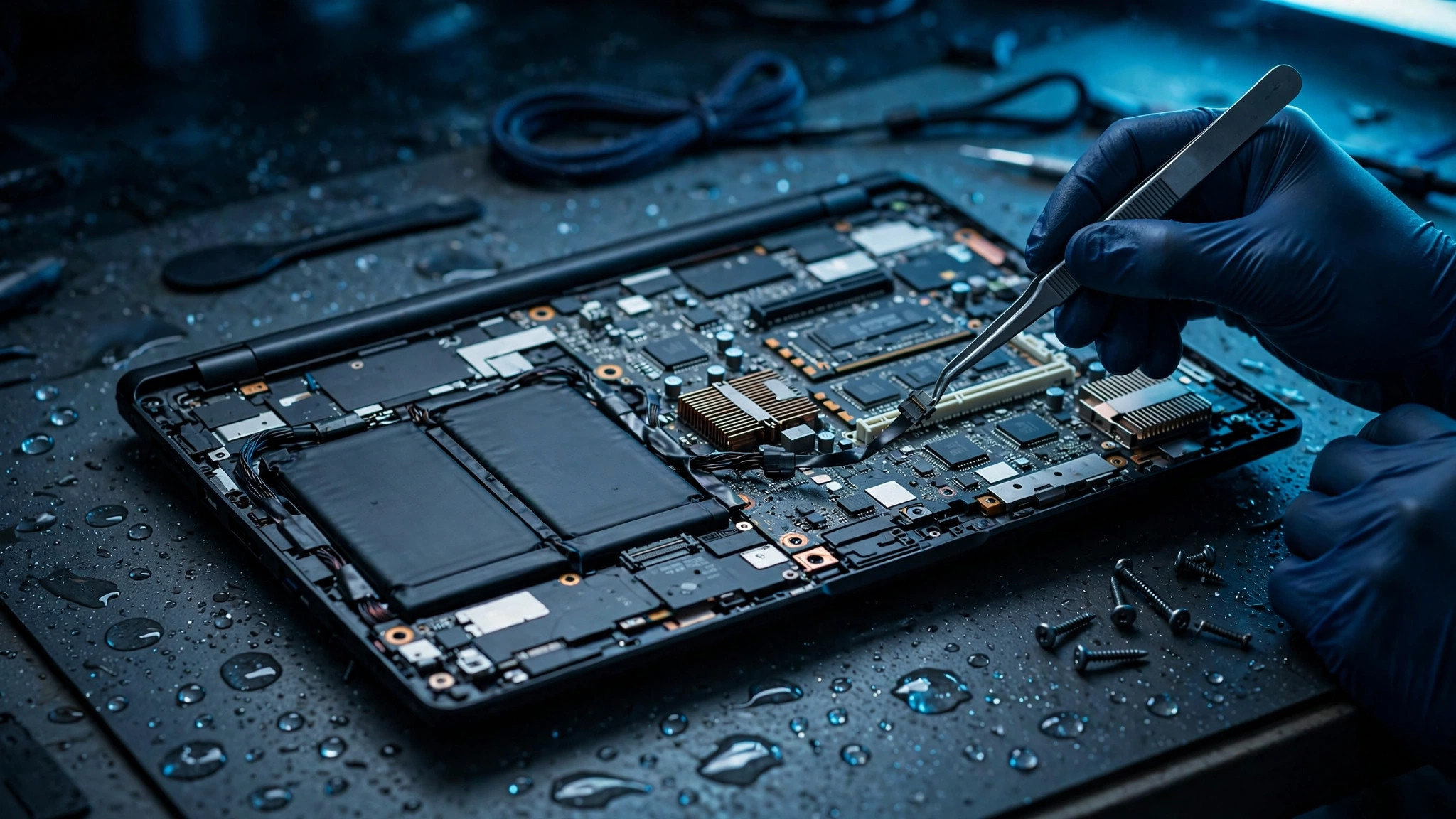
Quick answer: what should you do first when your Dell laptop gets wet?
Cut the power immediately — and don't turn it back on. Hold the power button to force a shutdown, unplug the charger and every USB accessory, then leave the machine somewhere ventilated and get it professionally checked as soon as possible. The real danger isn't the water you can see on the surface — it's the water that has seeped into the motherboard, under the keyboard, and inside the ports. You can't wipe that away.
What makes Dell laptops different?
Generally speaking, Dell laptops are among the more repair-friendly brands:
- Relatively easy to open: on most models, removing the bottom-cover screws gets you inside — no brutal prying, so checking the internals is fairly straightforward.
- Fairly uniform screws: on some models the screws are consistent in size and spec, which makes reassembly less of a memory test — though it still varies by model, so every screw position needs to be noted.
- Internal batteries are common on business models: many Dells use a built-in battery, which means you can't just pop the battery out to cut power like the old days — you have to open the bottom cover and disconnect the battery cable first.
Easy to open is a plus, not a guarantee — ribbon cables are thin, connectors are small, and inexperience can still break things.
5 emergency steps right after the spill
| Step | What to do |
|---|---|
| 1. Power off now | Hold the power button for a forced shutdown — don't wait for a normal shutdown (too slow) |
| 2. Unplug everything | Charger, mouse, USB drives, HDMI… disconnect them all |
| 3. Mop up surface water | Gently blot water off the keyboard and chassis with a dry cloth or tissue — be gentle |
| 4. Leave it ventilated | Place it somewhere dry and ventilated, keyboard facing up; don't flip it around and shake it |
| 5. Don't delay — book a technician | Water damage is a race against time: the sooner it's opened and treated, the better the chances of saving it |
Teardown essentials
If it has to be opened, remember two rules:
1. Disconnect power before anything else. The first thing after opening the bottom cover is disconnecting the battery cable (especially on Dells with internal batteries). A powered motherboard plus water means short circuits and corrosion, fast.
2. The keyboard is usually hit first. Water seeps through the key gaps, and right below sit the motherboard and the battery. Expect water marks under the keyboard — sometimes the keyboard itself needs replacing.
Once open, clean the affected areas with an electronics-safe cleaner (such as isopropyl alcohol), then inspect every board for oxidation and discolouration. This step needs sharp eyes and steady hands — miss one spot and the trouble comes back later.
Also check the ports: USB and charging sockets are classic hiding spots for trapped water — invisible from the outside, only visible once opened. Shine a torch in there during inspection; don't just scan the big flat surfaces.
Never do these
- ❌ Turning it on "to see if it still works": the most fatal move. Electricity plus water equals short circuits — one test can turn a salvageable machine into a dead one.
- ❌ Plugging in the charger: "let it charge while it dries" is the worst idea — charging pushes current straight into wet circuits.
- ❌ Blasting it with a hair dryer: high heat warps plastic parts, damages the battery, and can push water deeper into crevices.
- ❌ Flipping it upside down and shaking hard: water will flow into areas that were dry before, spreading the damage.
- ❌ Burying it in rice: more psychological comfort than real fix — the water inside won't walk itself out.
Why a dry surface doesn't mean you're safe
Many people assume a dry surface means the crisis is over. The real damage happens in the days after:
- Corrosion: water — especially coffee, soup, or soft drinks — corrodes solder joints and copper traces on the motherboard. It boots today; it may not boot next week.
- Mineral residue: when the water dries, minerals and sugars stay behind, leaving conductive residue that can short circuits.
- Hong Kong's humidity: humidity here stays high year-round, so moisture evaporates slowly and corrosion gets more time to eat into the circuitry.
That's why a water-damaged machine must be opened and cleaned. Wiping the surface is first aid, not treatment.
DIY vs professional repair
| DIY | Professional repair | |
|---|---|---|
| Tools | Screwdriver set and electronics cleaner are a must | All included, nothing to buy |
| Power cut | Internal batteries can only be disconnected after opening — easy to tear a ribbon cable if you're not used to it | Familiar process: power off first, then work |
| Cleaning | Surface is easy; under the boards and inside connectors is hard to reach | Stripped down and cleaned piece by piece, oxidation spots checked |
| Diagnosis | You can see water marks, but may not spot corrosion | Knows how to read discoloured solder joints and oxidised copper |
| Risk | A bad job can make things worse, and may affect warranty | Experienced — knows what to touch and what not to |
| Best for | Out-of-warranty machines, people with teardown experience | Machines still worth something, people who don't want to gamble |
FAQ
Q: How quickly does a water-damaged Dell need attention to be salvageable?
A: The sooner the better. The longer water sits on the motherboard, the worse the corrosion. Ideally it should be opened and treated the same day — the longer you wait, the slimmer the chances.
Q: If the keyboard got wet, does it have to be replaced?
A: Not necessarily. It depends on how much water got in and how fast it was treated — sometimes a thorough clean and a pass on testing is enough. But if keys are dead, sticky, or the ribbon connector has corroded, replacement is the safer call.
Q: It still boots after the spill — does that mean it's fine?
A: No. Booting only means it hasn't shorted yet; corrosion may already be underway. Get it opened and checked anyway — don't gamble on luck.
Q: Dell bottom covers are easy to open — can I just open it and dry it myself?
A: Easy to open doesn't mean easy to fix. How to cut power, how to clean, how to judge whether corrosion has set in — that's the hard part. If you've never done it, don't.
Q: Can I use a fan to dry it out first after the spill?
A: Yes. A fan (cool air) is a relatively safe way to help surface moisture evaporate — but remember, it's only a stopgap. The water inside and the corrosion risk are still there, and it doesn't replace an opened-up inspection.
Q: Is water damage covered under warranty?
A: Generally speaking, liquid damage counts as accidental damage and most manufacturer warranties don't cover it. Check the terms before sending it in.
Don't panic — just find the right people
Whether it's spilt coffee, soup, or getting caught in the rain, the process is the same: cut the power, don't switch it on, and get it checked as soon as possible. ComputerKing has experience with water-damaged machines: teardown and power disconnection, deep cleaning, component-by-component inspection, step by step. We offer on-site pickup and walk-in service at our stores, with transparent quotes explained before any work begins.
📞 WhatsApp 2115 9219 to book, or visit our Shatin / Wan Chai stores.
*Last updated: 2 October 2026. Written by the ComputerKing computer care specialist team.*
Frequently Asked Questions
Dell liquid damage handling?
Power off, flip to drain, don't power on, bring in ASAP. 24-hour golden window.
Does Dell have liquid indicators?
Yes, color-changing stickers on the board. Don't try to claim warranty.
Latitude vs XPS liquid damage?
Latitude is sturdier. XPS is thin — liquid reaches the board fast.
Data recovery from wet Dell?
Soldered SSD: repair board first. Removable: extract directly.