Hardware Repair · May 5, 2026 · Hardware Expert
Computer Won't Turn On? Start with the Simplest Power Troubleshooting
Pressing the power button with no response — is it the PSU or the motherboard? Often the problem is simpler than you think. Follow these steps to check.
Stay Calm: Common Causes of "Won't Power On" with Statistics
"I press the power button and nothing happens — the machine seems dead." This is one of the top 3 inquiries ComputerKing receives daily. A computer that won't turn on has many possible causes, from the embarrassingly simple (not plugged in) to the worst-case (dead motherboard).
According to ComputerKing repair center statistics, we handled over 2,800 "completely won't power on" repair cases in 2025-2026. Here's the breakdown:
| Fault Cause | Share | Repair Cost Range | DIY Feasibility |
|---|---|---|---|
| PSU failure | 38% | $300-$800 (replace PSU) | ★★★ (Desktop) / ★☆☆ (Notebook) |
| Power cable / power strip | 14% | $0-$100 | ★★★★★ |
| Motherboard failure | 18% | $800-$3,000 | ★☆☆ |
| RAM poor contact / faulty | 12% | $0-$600 | ★★★★ |
| Power button / front panel | 7% | $50-$200 | ★★★ |
| CPU failure | 5% | $800-$4,000 | ★☆☆ |
| Short circuit protection (metal debris) | 3% | $0 (inspection & cleaning) | ★★★★ |
| Static electricity lock | 3% | $0 (discharge only) | ★★★★★ |
In other words, over half of cases (PSU + power cable/strip = 52%) are power-related, not a dead motherboard. So don't panic just yet.
Identify the Symptom First: Three Paths to the Right Fix
"Won't turn on" can mean a power issue, a display issue, a peripheral issue, or a damaged Windows installation. They look similar but need completely different handling. After pressing the power button, answer three questions: any lights? Any fans spinning? Any brand or Windows logo on screen?
| What you see | Check first | Don't do yet |
|---|---|---|
| No lights, no fans | Wall socket, power strip, power cable, PSU (Steps 1–2 below) | Open the PSU |
| Lights/fans on, screen fully black | Monitor power, input source, signal cable (see no-display guide) | Repeated forced shutdowns |
| Brand/Windows logo appears, but Windows won't load | Unplug peripherals, WinRE Startup Repair (see below) | Reinstall Windows immediately |
| Burning smell or strange noises | Cut power immediately, stop trying | Repeated power attempts |
Step 1: Check Power — Start With the Simplest
The golden rule of troubleshooting is checking the simplest, cheapest things first. Here's the power check checklist:
- Is the power cable firmly plugged in? (People really do miss this — several cases each month are just loose cables)
- Is the power strip switched on? Some strips have individual switches that can get accidentally turned off
- Does the wall socket have power? The simplest test: plug in a phone charger
- Is the notebook charger LED lit? If not, try a different wall socket
- Is there a voltage selector switch (110V/220V) on the back of the PSU? Some older PSUs have this — accidentally switching it can cause damage
Hong Kong Note: Some older Hong Kong buildings have limited electrical circuit capacity. If your power strip has too many high-power devices (computer + monitor + printer + speakers + others), it may trip the circuit breaker. Check your electrical panel.
Step 2: PSU Testing — The Most Common Desktop Culprit (38%)
The desktop PSU is the most common failure point. If pressing the power button produces absolutely zero response (no lights, no fan spin, no beeps), it's usually the PSU.
DIY Testing Methods (Desktop):
1. Paperclip test (ATX PSU): Short the green wire (PS_ON#) to any black wire (COM) on the 24-pin connector. The PSU fan should spin. If it doesn't, the PSU is dead.
2. Swap test: If you have a spare PSU or can borrow one, swap in a known-good unit. This is the most reliable method.
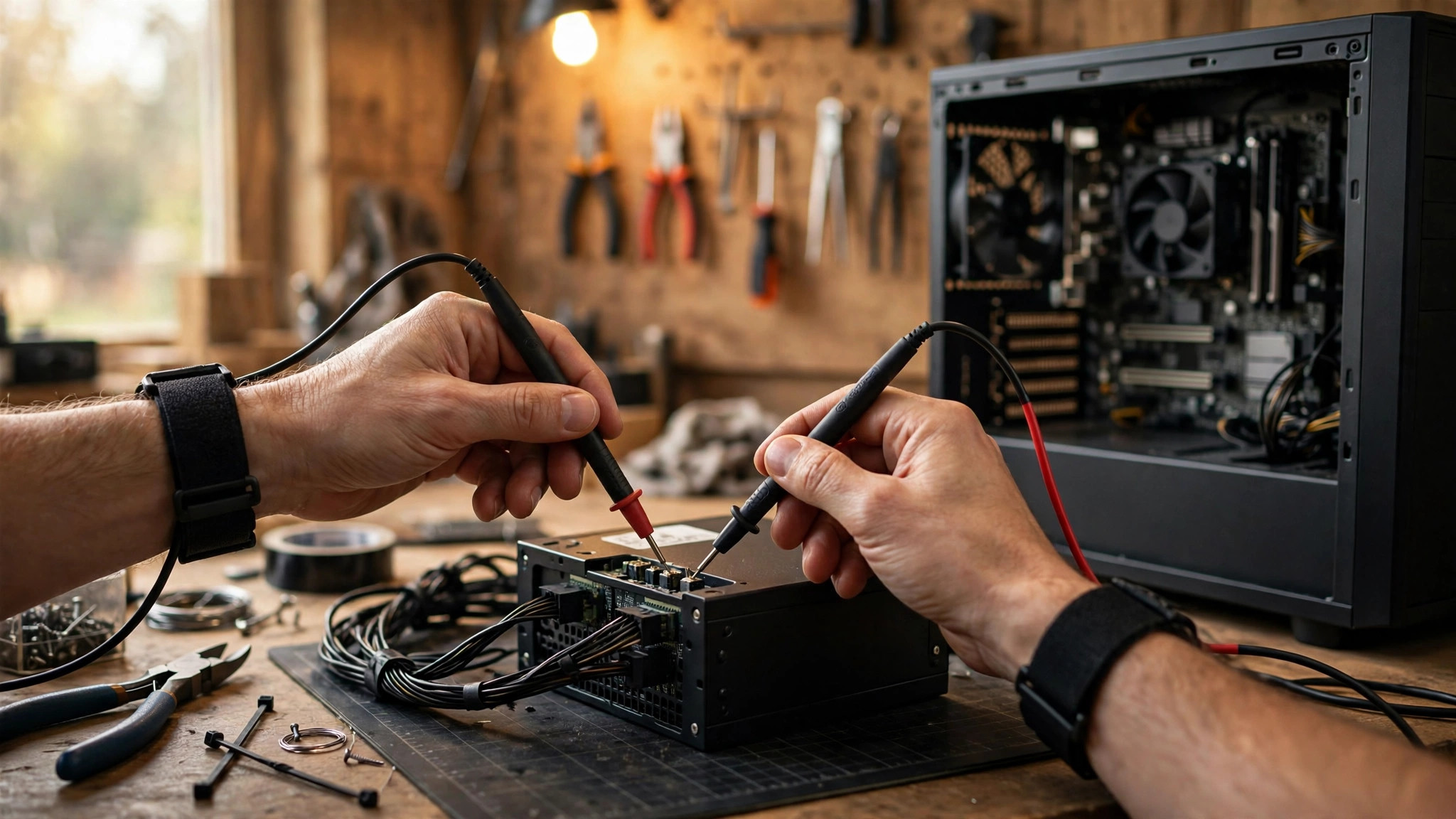
3. Multimeter test: Measure voltage on each output rail (+12V, +5V, +3.3V). Deviation exceeding ±5% indicates a faulty PSU.
⚠️ Warning: PSUs contain high-voltage capacitors that can retain dangerous charge even after being unplugged! Do not open the PSU case unless you have relevant experience.
Notebook Charger Testing:
- Check the charger LED indicator (most notebook chargers have one)
- Use a multimeter to verify output voltage matches the charger label
- Try a universal notebook adapter (the adjustable-voltage type) for testing
Step 3: The Power Button — An Overlooked Small Component
The case power button can fail! Especially after several years of use. Symptom: pressing the button does nothing, but the motherboard standby LED is lit.
Test method: Use a small screwdriver to briefly short the power switch pins on the motherboard (the two pins where the case button cable connects). If it powers on, the case button is faulty. Replace the button for around $20, or simply connect the reset button cable to the power switch pins and use the reset button to power on.
Step 4: Hardware Conflicts and Short Circuits — Remove Everything Non-Essential
Sometimes newly installed hardware causes a short circuit, and the motherboard refuses to power on to prevent further damage. Try removing all non-essential hardware:
- USB devices (except keyboard/mouse)
- External hard drives
- PCIe cards (except graphics card)
- Extra RAM (leave only one stick)
- All HDD/SSD SATA data cables (leave power cables)
Keep only: CPU + one RAM stick + motherboard (use onboard graphics output, if available). If it powers on like this, add components back one by one to identify the problematic hardware.
Step 5: RAM Troubleshooting — Test Each Stick and Each Slot
Faulty RAM or RAM slots can prevent the computer from powering on entirely. If you have multiple RAM sticks:
- Use one stick in slot 1, test boot
- Same stick in slot 2, test boot
- Switch to the second stick, repeat
This identifies which stick is faulty and/or which slot is faulty. RAM with a lifetime warranty can be exchanged one-for-one with the distributor.
Clean RAM gold contacts: Gently rub the metal contacts (gold fingers) with an eraser, then reseat firmly. Oxidized contacts cause poor connections. Remember to blow away eraser debris after cleaning!
Step 6: Notebook-Specific Issues — Static Electricity and Battery
Notebooks have two unique "won't power on" situations:
Completely dead battery: When a lithium battery drops to 0V, some notebooks won't power on even with the charger connected (because the power circuit routes through the battery). Try removing the battery (if removable) and powering on with charger only. If it works, replace the battery.
Static buildup: Less common in Hong Kong's humid weather but frequent in dry winter months. Solution:
1. Remove battery (if removable)
2. Unplug charger
3. Hold the power button for 30-60 seconds (discharge static)
4. Reconnect charger (leave battery out for now)
5. Try powering on
This often fixes the issue at zero cost.
Windows Logo Appears But Won't Boot? Try WinRE Startup Repair
If the machine has power, passes POST, shows the Windows logo and then blue-screens, spins, or reboot-loops, the problem is usually not hardware — it's a damaged Windows boot. Don't reinstall just yet. Try Startup Repair inside the Windows Recovery Environment (WinRE):
Troubleshoot → Advanced options → Startup Repair → Restart
Startup Repair automatically diagnoses and fixes common boot problems (e.g., corrupted system files). Per Microsoft's official guidance, this is the least disruptive recovery option — reinstalling should be the last resort.
⚠️ BitLocker note: If BitLocker is enabled, some WinRE options will ask for the BitLocker recovery key. Don't try random codes from the internet, and don't reset the whole machine out of impatience — find the correct key for this device first.
Pro Tip: The Motherboard Standby LED Is Your Best Friend
ComputerKing Hardware Expert Tip: Most modern motherboards have a standby LED (usually a small green or amber light) that illuminates whenever the PSU is supplying standby power. If this LED is lit:
- ✅ PSU is delivering power to the motherboard → PSU isn't completely dead
- ✅ Motherboard is receiving standby power → motherboard isn't completely dead
- The problem could be: power button, RAM, CPU, or other motherboard sections
>
If you don't see this LED:
- ❌ PSU may be dead
- ❌ Or power cable / power strip issue
- ❌ Or motherboard standby circuit is fried
>
This LED is your first diagnostic checkpoint.
If the Motherboard Is Truly Dead
If everything above has been tried and failed, and the PSU is confirmed working, it's 90% the motherboard. For desktops, replace the motherboard (used same-model $300-$800, new $800-$2,000). For notebooks, it's more complicated — motherboard replacement can cost $1,500-$4,000, sometimes close to half the price of a new machine.
Our recommendation:
- Notebook purchased within the last 3 years, mid-to-high-end → worth replacing motherboard
- Notebook over 5 years old or entry-level → better to buy a new machine
- Desktop → motherboard replacement is usually worth it, unless it's an 8+ year-old system
When to Stop: Don't Keep Trying If You See These
- Burning smell, smoke, or abnormal heat: shut down immediately and unplug all external power.
- Hard drive making rhythmic clicking or scratching sounds: don't scan, repair, or reinstall — every power-on can make data harder to recover.
- Liquid damage, drops, or lightning strike: looking fine outside doesn't mean it's safe inside.
- Your data matters more than the machine: don't make "does it boot" the only goal — protect the data first.
- Different symptoms on every boot attempt: could be unstable power, RAM, or motherboard — go straight to hardware diagnostics.
FAQ
Q: The computer powers on but there's no beep and no display. What now?
A: Power on (fans spin, lights on) but no display is a different problem. See our Computer Powers On But No Display article. If you used to hear beeps and now don't, the motherboard speaker may have come loose or the motherboard isn't passing POST.
Q: My new build won't power on — is the hardware incompatible?
A: Possible. The most common compatibility issues: CPU doesn't match motherboard BIOS version (e.g., B550 board with Ryzen 5000 needs BIOS update), RAM XMP speed too high for the board, PSU wattage insufficient. Use PC Part Picker to check compatibility and ensure BIOS is updated to the latest.
Q: Can a dead motherboard also kill the CPU and RAM?
A: Possible but not common. If the motherboard VRM shorts, it could damage the CPU. RAM is relatively less likely to be killed by the motherboard. Generally though, a dead motherboard usually only affects the motherboard itself — the CPU and RAM are usually fine.
Q: After a power trip at home, my computer won't turn back on. What happened?
A: Most likely the PSU was damaged by the power surge, or the motherboard protection circuit triggered. Try unplugging the power cable for 10 minutes then reconnecting (to let protection circuits reset). If it still won't power on, the PSU is almost certainly dead. These cases spike during Hong Kong summer thunderstorm days — we recommend using surge-protected power strips.
Q: Fans spin but the screen is fully black — is the graphics card dead?
A: Not necessarily. Check the monitor input source (HDMI/DisplayPort), both ends of the signal cable, the monitor itself, and the RAM first — don't condemn the graphics card on a black screen alone.
Q: Will Windows Startup Repair delete my files?
A: Startup Repair fixes boot problems; it's not designed to delete personal files. But any repair carries risk — back up first if you can.
Q: Is "Reset this PC" with "keep my files" completely safe?
A: Not zero-risk. Microsoft notes that reset can keep personal files, but apps and settings will be removed; back up important data separately beforehand.
Q: The screen asks for a BitLocker recovery key — can I skip it?
A: Most WinRE options on a BitLocker-enabled device require the correct key. Without it, don't guess or reset the machine to bypass — you could lose data.
Q: My computer holds very important data — should I keep trying to power it on?
A: If there are strange noises, liquid damage, drops, burning smells, or a suspected drive failure, stop repeated power attempts. Clarify how important the data is first, then choose a data-preservation-first approach.
Q: Pressing power does nothing at all — is the PSU definitely dead?
A: Not necessarily. The wall socket, power strip, power cable, notebook charger, battery, power button, or motherboard could all cause similar symptoms. Rule out external power first, then check hardware.
Don't Want to DIY? We Offer an Initial Evaluation
ComputerKing provides initial evaluation for power-on faults (quote before work):
- 🔌 PSU testing: Professional PSU tester and spare PSU cross-testing
- 🔍 Hardware diagnostics: POST code analyzer, component-by-component troubleshooting
- 💡 Quote before repair: We diagnose first, provide a quote, and you decide
Most "won't power on" cases are actually PSU or contact issues — repair costs of $300-$800 typically resolve them. Don't assume you need a new computer just yet.
📞 WhatsApp 2115 9219 to book an initial evaluation, or visit our Sha Tin / Wan Chai stores.
*Last updated: October 5, 2026. Written by the ComputerKing Hardware Team based on 2,800+ power-on fault repair cases.*
Frequently Asked Questions
Fans spin but the screen is fully black — is the graphics card dead?
Not necessarily. Check the monitor input source (HDMI/DisplayPort), both ends of the signal cable, the monitor itself, and the RAM first — don't condemn the graphics card on a black screen alone.
Will Windows Startup Repair delete my files?
Startup Repair fixes boot problems; it's not designed to delete personal files. But any repair carries risk — back up first if you can.
Is "Reset this PC" with "keep my files" completely safe?
Not zero-risk. Microsoft notes that reset can keep personal files, but apps and settings will be removed; back up important data separately beforehand.
The screen asks for a BitLocker recovery key — can I skip it?
Most WinRE options on a BitLocker-enabled device require the correct key. Without it, don't guess or reset the machine to bypass — you could lose data.
My computer holds very important data — should I keep trying to power it on?
If there are strange noises, liquid damage, drops, burning smells, or a suspected drive failure, stop repeated power attempts. Clarify how important the data is first, then choose a data-preservation-first approach.
Pressing power does nothing at all — is the PSU definitely dead?
Not necessarily. The wall socket, power strip, power cable, notebook charger, battery, power button, or motherboard could all cause similar symptoms. Rule out external power first, then check hardware.