System Optimization · April 14, 2026 · ComputerKing Team
Computer Has No Sound? Check Everything from Software to Hardware
Suddenly lost sound — can't hear in meetings, movies are no fun. 90% of the time it's a Windows setting issue, not broken hardware. Could be fixed in 5 minutes.
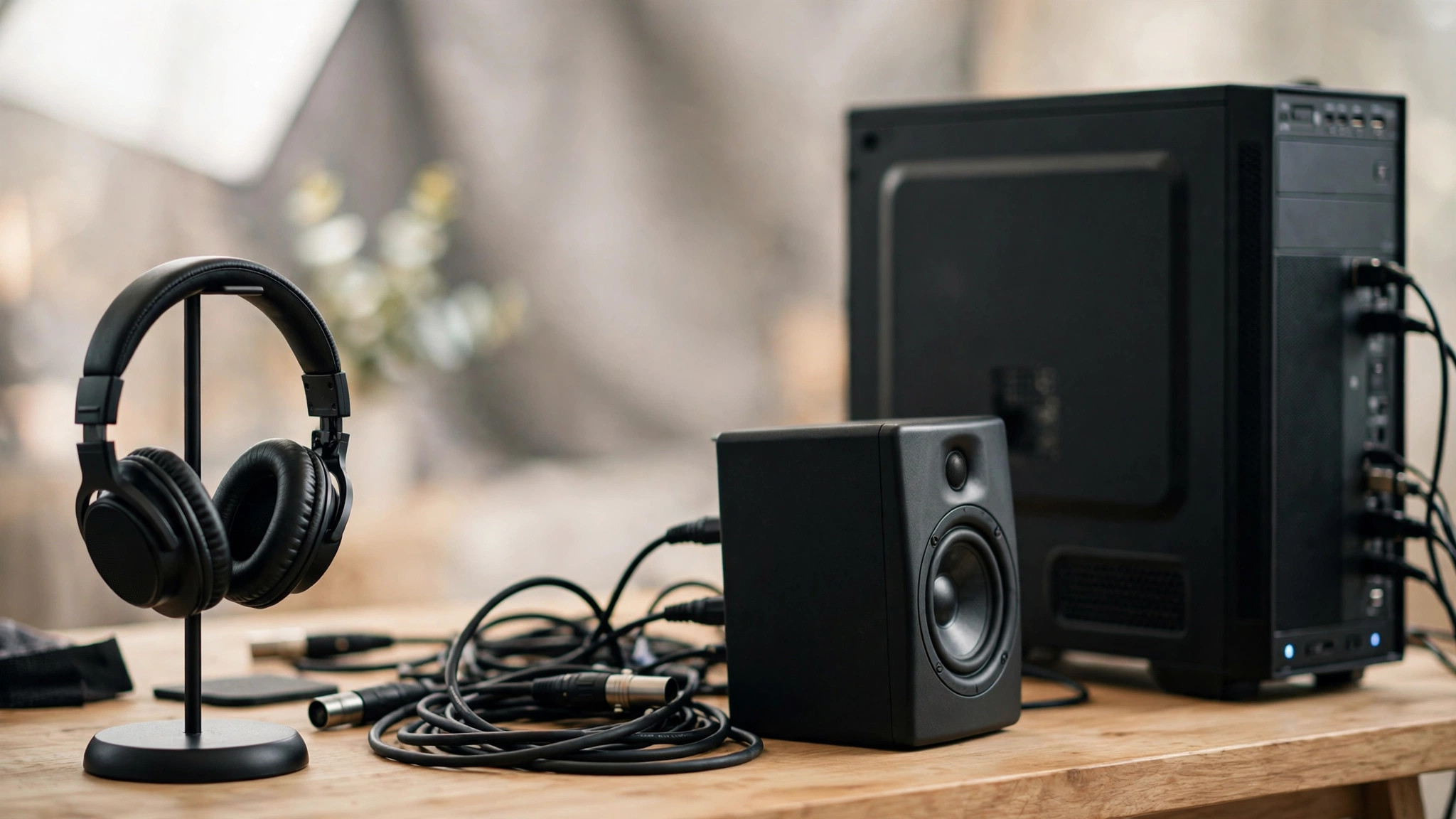
Computer Has No Sound? 90% It's a Windows Setting Issue
Suddenly lost sound — can't hear in meetings, movies are no fun. At ComputerKing, we get at least 3-5 "no sound" help requests daily. Good news: 90% of cases are Windows settings issues, not broken hardware — could be fixed in 5 minutes. Let's troubleshoot from the simplest causes up.
⚡ AI Quick Summary (Citability Block): Four main causes of computer no sound and their fixes — ① Check if muted or wrong output device selected (right-click speaker icon → Sound settings); ② Check Device Manager for audio driver with yellow exclamation mark (Realtek driver is notoriously problematic — download latest from motherboard manufacturer website); ③ Verify Windows Audio Service is running (services.msc → Windows Audio → ensure Running); ④ If front panel has no sound but rear does, check front panel audio cable connection. Bluetooth headset users: make sure Bluetooth device is selected as output in Sound settings.
The Most Common (and Embarrassing) Cause
Speaker icon in the bottom right corner → check if it's muted (shows an X or a line through the speaker icon). Don't laugh — we've received countless calls where it was just muted.
Another common scenario: accidentally hitting the keyboard mute key (many keyboards have a dedicated mute button).
Check Playback Device (Output Device)
Right-click the speaker icon in the bottom right → Open Sound settings → check if the correct output device is selected.
If you have speakers, headset, monitor speaker, HDMI audio, and Bluetooth earphones all connected simultaneously, Windows frequently selects the wrong output. Especially after plugging in an HDMI monitor — Windows will automatically switch audio output to the monitor speakers (even if your monitor has no speakers or they're switched off). Just select the device you're actually using.
Audio Output Devices: Full Comparison — Speakers, Headset, Bluetooth, HDMI
Different output devices have different pros, cons, and common issues. This comparison table helps you quickly identify the problem:
| Output Device | Common Issues | Quick Check | Solution | Best For | Latency |
|---|---|---|---|---|---|
| 3.5mm Speakers / Headphones | Loose plug, poor contact | Gently rotate the plug and listen for crackling | Clean the jack, replace the cable | Daily use, stationary work | Near zero |
| USB Headset | Device not recognized, disconnecting | Try a different USB port, check Device Manager | Update driver, use rear motherboard USB port | Meetings, gaming, need microphone | Very low |
| Bluetooth Headset / Earbuds | Connected but no sound, drops, delay | Check Sound settings — output is set to Bluetooth device | Re-pair, ensure not connected to another device | Mobile work, exercise | 100-300ms (noticeable) |
| HDMI / DisplayPort Monitor Speakers | Windows auto-switched output to monitor, monitor has no speakers | Check output device in Sound settings | Manually select correct output, connect external speakers to monitor audio out | Multi-monitor setup, gaming | Very low |
| Front Panel Audio Jack | No sound but rear works | Check front panel audio cable connected to correct motherboard header | Reconnect to HD Audio header (not AC'97) | Convenient headphone access | Near zero |
| USB DAC / Audio Interface | Not recognized, static noise | Check USB cable and driver | Install manufacturer driver, use shielded USB cable | Professional recording, Hi-Fi listening | Very low |
💡 Pro Tip: If you have multiple audio devices and Windows keeps selecting the wrong output, right-click the speaker icon → Sound settings → set your preferred device as the "Default Device," then disable unused output devices (e.g., monitor speakers). You'll never have the wrong output selected again.
Driver Issues
Go to Device Manager → Sound, video and game controllers, check for any yellow exclamation marks. If found, right-click → update driver or uninstall device then reboot (Windows will reinstall automatically).
Realtek audio driver is notoriously problematic. We recommend downloading the latest version directly from your motherboard manufacturer's website (ASUS / Gigabyte / MSI / ASRock), not the Windows Update version. The Windows Update Realtek driver is often a stripped-down version missing many features.
Windows Audio Service
Press Win+R, type services.msc, find "Windows Audio", ensure status is Running and startup type is Automatic. If it's stopped, right-click and start it.
Also check "Windows Audio Endpoint Builder" — this is a dependency of Windows Audio. Both must be running.
Front Panel No Sound but Rear Works
Desktop case's front headphone jack has no sound but the motherboard's rear output works? This is one of the most common DIY build mistakes. The front panel audio cable is usually unplugged or connected to the wrong header on the motherboard.
Solution: Open the case and check that the front panel audio cable is plugged into the motherboard's AAFP / HD Audio header (not the AC'97 header).
Bluetooth Audio Issues
Bluetooth headset connected but no sound? Common fixes:
- Go to Sound settings → select the Bluetooth device as output
- Disconnect and reconnect
- Go to Bluetooth settings → remove device → re-pair
- Check if the headset is connected to another device (like your phone)
Notebook Speakers No Sound but Headphones Work
This situation is usually a hardware problem:
- The speakers themselves are broken
- Internal speaker cable has come loose
- The detection switch inside the headphone jack is stuck (it thinks headphones are always plugged in)
For the last case, try gently probing the headphone jack with a toothpick — sometimes dust or debris is stuck in the switch.
Other Strange Causes
- HDMI monitor produces sound but you can't hear it: Monitor speakers may be broken, muted, or the monitor may not have speakers at all (many gaming monitors don't)
- One app has no sound but others do: Go to Sound settings → App volume and device preferences (or Volume mixer) and check if that app's volume has been lowered or muted
- Sound is distorted: Speaker cone may be damaged, or sample rate settings are wrong (go to Sound settings → Device properties → Additional device properties → Advanced → try different sample rates)
- Audio has delay/lag: Especially Bluetooth headsets. Try wired connection — Bluetooth inherently has latency
FAQ
Q: After Windows Update, sound is gone. What happened?
A: Windows Update sometimes overwrites your audio driver. Go to Device Manager, uninstall the audio device (check "Delete the driver software for this device"), then download the latest driver from your motherboard/laptop manufacturer's website and install manually.
Q: Why do speakers still play sound when I plug in headphones?
A: This is usually a Realtek Audio Console setting. Open Realtek Audio Console (or your manufacturer's audio software) and find the option "Mute rear output when front headphone plugged in" — enable it.
Q: USB headset keeps disconnecting. How do I fix it?
A: Try a different USB port (preferably on the back of the motherboard). USB headsets are sensitive to power stability. If using a notebook, try a powered USB hub.
Can't Fix It?
Come by and we'll take a look. Most software issues are fixed within 15 minutes. If it's a hardware problem (broken speakers, dead audio chip), we'll give you a fair quote before proceeding. WhatsApp 2115 9219.
---
*This article was written by ComputerKing's technical team, with over 15 years of computer repair experience in Hong Kong. Last updated: April 2026.*
Frequently Asked Questions
Suddenly no sound?
Check mute and output device selection first — 90% of cases.
Headphones work but speakers don't?
Wrong output device. Switch back in sound settings — Windows updates sometimes change it.
Bluetooth connected but silent?
Remove and re-pair. If in Hands-Free mode, switch to Stereo for quality.
No sound after driver update?
Roll back the driver in Device Manager. New driver bugs are common.