Hardware Repair · April 17, 2026 · Hardware Expert
Computer Powers On But No Display? Check Monitor, Cable, and Graphics Step by Step
Case lights on, fans spinning, but monitor is black. Don't immediately assume the graphics card is dead — often it's a simple issue.
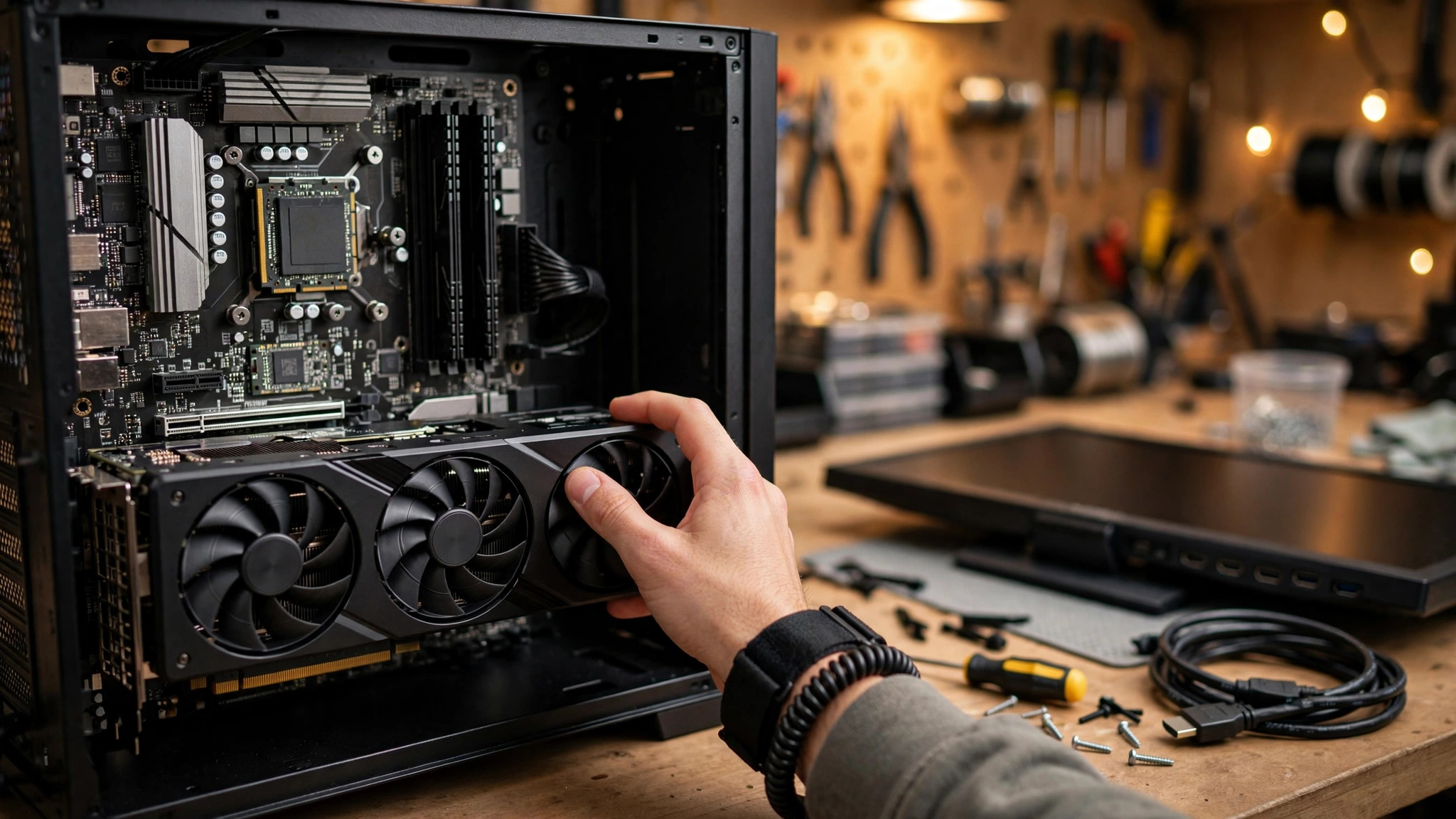
The Most Common SOS: "Computer Turns On But No Display"
"The machine is on, fans are spinning, motherboard light is on, but the monitor shows nothing." This is one of the most frequent inquiries ComputerKing receives daily.
The good news: more than half of these cases aren't hardware failures — they're simple connection or setting issues.
According to ComputerKing repair center statistics, we handled over 2,200 "powers on but no display" repair cases in 2025-2026. Here's the breakdown:
| Fault Cause | Share | Typical Symptoms | Repair Cost |
|---|---|---|---|
| Cable / Monitor issue | 28% | Swapping cable/monitor fixes it | $0-$100 |
| RAM poor contact | 24% | No beep, fans spin but no display | $0 (clean gold contacts) |
| Graphics card fault | 18% | Black screen during gaming, screen artifacts | $300-$3,000 |
| Motherboard problem | 13% | Everything tried, still no display | $800-$2,500 |
| BIOS/CMOS issue | 8% | No display after installing new hardware | $0 (Reset BIOS) |
| CPU issue | 5% | Relatively rare, usually dead CPU | $800-$4,000 |
| Backlight dead (Notebook) | 4% | Faint image visible with flashlight | $800-$2,500 panel replacement |
Step 1: Check Cable and Monitor — 28% of Cases Solved Here
This step sounds basic, but you'd be amazed how many cases end right here:
- Is the HDMI/DisplayPort cable firmly connected? Check both ends
- Is the monitor plugged in and powered on? (Is the monitor's power LED lit?)
- Is the monitor's input source set correctly? (HDMI 1 vs. HDMI 2 vs. DisplayPort)
- For notebooks: did it switch to external display mode? Press Win+P several times to cycle
Try:
1. Swap to a different cable (cables do fail!)
2. Try a different port (motherboard HDMI vs. graphics card HDMI)
3. If you have another monitor or TV, connect to that
If a different cable or monitor works — congratulations, you just saved hundreds.
Step 2: Listen to the Beeps — Motherboard POST Codes Tell You the Problem
During boot, the motherboard runs POST (Power-On Self-Test). If it detects a problem, it communicates via beep patterns:
| Beep Pattern | Common Meaning | Next Step |
|---|---|---|
| 1 short beep | POST passed normally ✅ | Problem isn't with motherboard/RAM/CPU |
| Continuous long beeps | RAM problem | Remove RAM, clean gold contacts, test individually |
| 1 long 2 short | Graphics card problem | Reseat graphics card, check power cables |
| 1 long 3 short | Keyboard controller problem | Disconnect keyboard and retry |
| Continuous short beeps | Motherboard or PSU problem | Check motherboard power delivery |
| No beep at all | Motherboard not POSTing / speaker not connected | Hardest case, possibly dead motherboard |
Note: Different motherboard brands (ASUS, Gigabyte, MSI, ASRock) may have slightly different beep codes. Also, many newer motherboards don't include a speaker — you need to connect a small buzzer to hear the beeps.
Step 3: Clean RAM Gold Contacts — Classic Method That Really Works
This old trick has saved countless machines. When RAM metal contacts (gold fingers) oxidize, poor contact prevents the motherboard from detecting RAM and it won't display.
Steps:
1. Unplug power cable
2. Remove RAM (release both side clips)
3. Use an eraser (plain white eraser works) to gently rub both sides of the metal contacts to remove oxidation
4. Blow away eraser debris (don't use your mouth — moisture from breath)
5. Reseat RAM firmly (should click, both clips secured)
Then test each RAM stick in each slot. Try different slots too — sometimes it's the slot, not the RAM.
Step 4: Reset BIOS / Clear CMOS
Incorrect BIOS settings (e.g., incompatible RAM speed or display output) can cause no display.
Clear CMOS method:
1. Unplug PSU power cable
2. Locate the silver coin battery (CR2032) on the motherboard
3. Remove the battery
4. Wait 30-60 seconds
5. Reinsert the battery
6. Reconnect power cable and try booting
Some higher-end motherboards have a dedicated "Clear CMOS" button or jumper, which is more convenient. After reset, BIOS returns to factory defaults — previously configured settings (boot order, RAM XMP profile) will be lost and need to be reconfigured.
Step 5: If You Have Integrated Graphics — Use It to Rule Out the Graphics Card
If you're using a discrete graphics card but your CPU has integrated graphics (most Intel CPUs do; AMD CPUs with "G" suffix do):
1. Remove the discrete graphics card
2. Connect monitor cable to the motherboard's HDMI/DisplayPort
3. Try booting
If you get a display → graphics card is dead.
If still no display → problem isn't with the graphics card, continue troubleshooting.
Step 6: Remove Everything, Add Back One by One — The Ultimate Method
This is the final troubleshooting method when everything above fails:
1. Remove everything except: CPU + one RAM stick + motherboard + PSU (use onboard graphics output)
2. If it displays → add components back one by one (drive, graphics card, other RAM, USB devices) to identify the problematic hardware
3. If still no display → swap to a different RAM stick and different PSU
This method will identify any hardware causing the problem.
Notebook-Specific No-Display Scenarios
Notebooks have two unique no-display situations not found on desktops:
Backlight failure: The LCD panel's backlight LED or inverter has died — the panel actually has an image but no backlight. Test method: shine a flashlight (phone flashlight works) close to the screen and look for a very faint image. If visible → replace panel ($800-$2,500).
Output switched to external only: Somehow switched to external display only mode. Press Win+P several times (even though you can't see what you're doing), wait a few seconds between presses. Or connect an external monitor to see if there's output.
Pro Tip: Debug LEDs on Graphics Cards and Motherboards
ComputerKing Hardware Expert Tip: If your computer "powers on but no display," look for debug LEDs on your motherboard. Most mid-to-high-end motherboards have four debug LEDs (CPU, DRAM, VGA, BOOT). During boot, they light up and turn off sequentially — the LED that stays lit indicates where the problem is. Stuck on VGA LED = graphics card problem, stuck on DRAM LED = RAM problem, stuck on CPU LED = CPU problem. These debug LEDs can save you tons of troubleshooting time. Also, some graphics cards have status LEDs — if your GPU has PCIe power connectors and you forgot to plug them in, the LED will glow red or white to alert you.
FAQ
Q: Computer beeps but no display. Monitor is confirmed working (tested on another machine). What now?
A: A beep means POST passed — motherboard, RAM, and CPU should be fine. The problem is likely the graphics card (if discrete) or the motherboard's display output. If using a discrete GPU, try switching to integrated graphics (see Step 5). If already using integrated graphics, try a different cable and port. If still nothing, the motherboard display output may be faulty.
Q: After moving house / transporting my computer, there's no display. Why?
A: Vibration during transport caused hardware to come loose. Most commonly: graphics card unseated, RAM unseated, or CPU cooler loosened. Reseat all hardware: graphics card, RAM, all power cables. Large heavy graphics cards and tower air coolers are most prone to shifting during transport.
Q: Monitor shows "No Signal" then goes black. How is this different from "powers on but no display"?
A: Monitor showing "No Signal" means the monitor itself is working correctly but isn't receiving a signal. The problem is definitely on the computer side (graphics card, cable, motherboard). If the monitor shows no response at all (no power LED, nothing), then the monitor itself is dead.
Q: New build powers on but no display. What should I do?
A: Most common causes for new builds: CPU incompatible with motherboard BIOS version (e.g., B550 board with Ryzen 5000 may need BIOS update), RAM XMP speed too high for board, GPU PCIe power cables not connected (many people miss this!), motherboard standoffs incorrectly installed causing short circuit. Try clearing CMOS and booting with just one RAM stick + integrated graphics.
ComputerKing Diagnostic Service
"No display" causes range from $0 (swap a cable) to $3,000 (replace graphics card). We provide:
- 🔍 Quick diagnosis: Using POST code analyzer and spare parts cross-testing
- 💰 Quote after diagnosis: Diagnostic fee deductible from repair cost
- ⚡ Same-day repair: Most issues resolved same day
📞 WhatsApp 2115 9219 to book, or visit our Sha Tin / Wan Chai stores.
*Last updated: July 29, 2026. Written by the ComputerKing Hardware Team based on 2,200+ "no display" diagnostic and repair cases.*
Frequently Asked Questions
Powers on but no display?
Check monitor cable, try another port. If discrete GPU, try integrated graphics.
Monitor says 'no signal'?
Loose cable, wrong input source, or GPU issue. Test in order: cable → input → different PC.
Intermittent display?
Usually loose cable or GPU. Try a new cable; if not, GPU or monitor issue.
External monitor not detected?
Try Win+P display modes. Check cable/adapter — some USB-C ports don't support video.