Computer Repair · October 21, 2026 · ComputerKing Team
Chrome's New Suspicious-Site Warnings: Tell Suspicious from Dangerous — and Never Paste a ClickFix Command
In October 2026 Google added two-tier site warnings to Chrome: suspicious sites get a pop-up prompt, dangerous sites get the full red screen. This guide shows how to turn on Enhanced Protection, what to do when a warning appears, and why no legitimate fix ever asks you to paste a command into your PC.
Key Takeaway
In October 2026 Google added a new layer of protection for Chrome users with Enhanced Protection turned on: the browser now warns you before loading a site it considers suspicious, and it checks commands you copy that look like ClickFix scam instructions. This guide explains the difference between the suspicious and dangerous warnings, how to turn the protection on, and what to do when a warning appears.
Introduction
You have probably seen it before: you click a link and Chrome throws up a warning that the site may be a problem. Until now there were mostly two outcomes — nothing, or a full red screen saying the site is dangerous. Google has now added a middle step. If you have Enhanced Protection switched on, Chrome will show a dedicated suspicious-site warning when a site looks like trouble but Google is not yet confident enough to call it dangerous, giving you a chance to back out first.
That small change matters a lot in Hong Kong, because the most common scams today do not break into your computer — they trick you into opening the door yourself. Fake antivirus pop-ups that push downloads, fake browser-update pages, or a page that tells you to copy a command and paste it into your computer to fix a problem. Paste that command and you have effectively let the attacker in yourself.
Section 1: What the News Says
Based on reporting from October 20–21, 2026, Google is rolling out the following changes, all of which apply only to users with Enhanced Protection enabled:
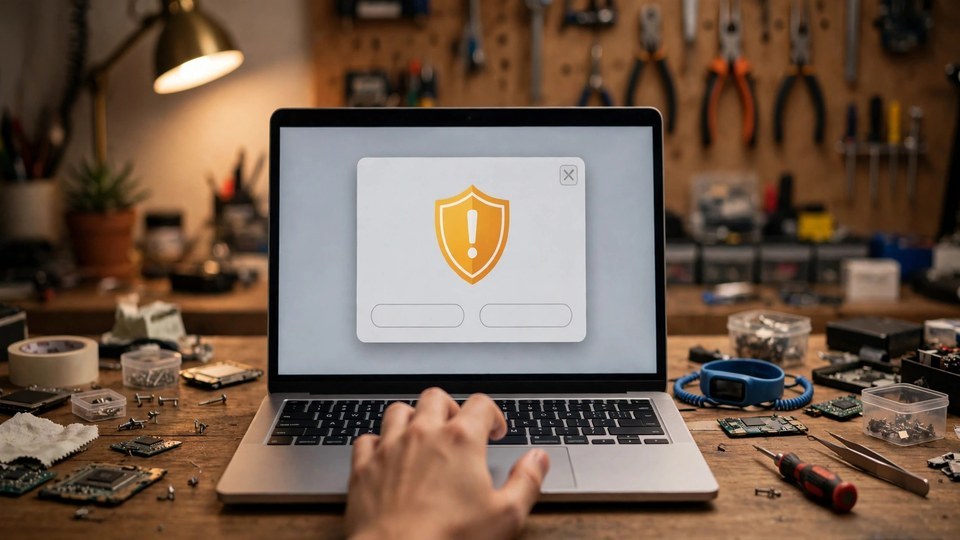
- Suspicious-site warning: when a site shares traits with known phishing, malware, or scam pages, but Google does not have enough confidence to declare it definitely harmful, you get a suspicious warning. The page behind it is darkened and a pop-up asks you to decide.
- Dangerous-site warning: unchanged. When Google is highly confident a site is harmful, the full-screen red warning covers the page. The message is simple: do not go in.
- Gemini-assisted scam detection: reporting says Google uses Gemini models to help identify scams, including fake antivirus and fake browser-update schemes.
- ClickFix clipboard checks: if you copy something that looks like a ClickFix command, Chrome strips personal information from it first, sends it to Safe Browsing for analysis, and warns you if the verdict is dangerous.
One clarification matters. Reports mention Google's claim that Enhanced Protection users are ten times safer. That figure is Google's own, and its method compares how many warnings each group of users sees — it is not a guarantee that your chance of being scammed drops by exactly that amount. Turning the protection on is good, but it is not invincibility, and the judgment steps below still apply.
Section 2: Suspicious vs Dangerous — What to Do
If you see a suspicious warning
- First reaction: pause. Do not click through out of habit. This warning means the site resembles known scams. It does not mean the site has been proven safe.
- Ask yourself three questions: did you type this address yourself, or did you arrive via a link in a text message, email, or WhatsApp message? Is the site asking you to download something, log in, or pay? Is the address spelled exactly like the official site you know?
- If any answer is uncertain, go back. If you genuinely need the site, type the official address yourself or use the official app instead of following that link.
- Only use the Mark as safe option if you are confident the site is legitimate — for example, a company internal system that Chrome has misjudged. Do not click it just because you are in a hurry.
If you see the full red dangerous warning
- Do not enter. There is no second answer. This level means Google is highly confident the site is harmful — it may be a phishing page or distribute malware.
- If someone sent you the link, let them know Chrome flagged it as dangerous so they do not click it either.
If a page tells you to copy and paste a command
This is the most dangerous pattern of all, so learn to recognise it: a page claims your computer has a problem and tells you to press a few keys, copy a command, and paste it into the Run box or a terminal to fix it. No matter how official the page looks, legitimate antivirus software and browser updates never ask you to do this. The correct response is to paste nothing, close the tab, and if you are worried the machine really has a problem, run a scan with the antivirus you already have installed, or have the machine checked — never follow the web page's instructions.
Section 3: How to Turn On Enhanced Protection
Chrome's default is Standard Protection. To get the new warnings, switch to Enhanced Protection manually:
1. Open Chrome and go to Settings.
2. Go to Privacy and security, then Security.
3. Under Safe Browsing, select Enhanced Protection.
Know the trade-off before you switch. Enhanced Protection sends more browsing data to Google Safe Browsing, including the addresses of flagged sites and a small sample of page content, plus the suspicious clipboard content mentioned above (with personal information stripped first). If that data sharing bothers you, staying on Standard Protection is a valid choice — you just will not get the new suspicious-site warnings or the ClickFix checks. There is no single right answer; it depends on how you weigh the two.
One more thing: you need an up-to-date Chrome to get the full set of features. Check for updates in Settings while you are there. An old browser is itself a security hole.
Section 4: Protecting Family and the Office
- Teach family one rule: when the browser shows a warning, stop. Do not click continue, do not paste commands. Most scams rely on that one rushed moment.
- Work computers: follow your company's IT policy and do not change browser protection levels on your own. If a link looks suspicious, ask IT first rather than testing it yourself.
- Regular habits: every so often, confirm Chrome is up to date and review your extensions — remove any you do not recognise.
- If you already pasted a command or visited a suspicious site: do not be embarrassed. Do three things immediately — disconnect from the network, change your important passwords from a different, clean device, and have the machine checked for anything suspicious that may have been installed. The sooner you act, the smaller the damage.
Sources
1. GigaguideTech — Chrome Suspicious Site Warning: How the New Alert Works (reported October 20, 2026) — cited for the two-tier warning system, the suspicious warning layout (pop-up over a darkened page), and the Mark as safe option.
2. AndroidPure — Chrome Enhanced Protection Adds Softer Warnings for Suspicious Sites (reported October 21, 2026) — cited for the ClickFix clipboard check flow, the Enhanced Protection settings path, and the explanation of Google's ten-times figure.
3. RocketNews — Chrome will now show a warning before you visit suspicious sites (reported October 2026) — cited for the suspicious warning being a lower-confidence verdict and the dangerous warning covering the page in red.
Related Articles
- Got a Financial Document ZIP on WhatsApp? Don't Open It — One Click Can Hand Over Your Whole PC
- Don't Hand Out Mac Full Disk Access Carelessly! Apple Is Tightening It Because of AI Agents
Frequently Asked Questions
What is the difference between a suspicious warning and a dangerous warning?
A suspicious warning means Chrome thinks the site resembles known scams but is not certain — you get a pop-up over a darkened page and decide. A dangerous warning means Chrome is highly confident the site is harmful and covers the page in red: do not enter. Suspicious means pause and think; dangerous means stop.
How do I get the new suspicious-site warnings?
Turn on Chrome's Enhanced Protection: Settings > Privacy and security > Security > Enhanced Protection. The default Standard Protection does not include these new warnings, and you also need Chrome updated to the latest version.
A web page told me to copy a command and paste it into my computer to fix a problem. Is it real?
No. That is the classic ClickFix scam pattern. Legitimate antivirus software and browser updates never ask you to copy commands into the Run box or a terminal. Paste nothing, close the tab, and scan with the antivirus you already have installed or have the machine checked.
Does Enhanced Protection make me completely safe?
No. Google's ten-times figure is its own claim, measured by warnings shown rather than harm prevented. The feature is one extra net, not a guarantee — the final protection is still your own judgment: do not click unknown links, do not paste commands, and do not download from untrusted pages.