Data Recovery · October 27, 2026 · ComputerKing Team
Your First Backup Drive: How to Choose the Capacity, Format It, and Run Your First Full Backup
Before buying a backup drive, measure your data and leave room for versions. Get the format right (APFS for Time Machine on Mac, NTFS for File History on Windows), copy existing files off before formatting, allow time for the first full backup, and test-restore one unimportant file before calling it a backup.
Key Summary
- Before buying a backup drive, measure how much data you actually have: check storage usage on your Mac or in Windows Settings. Do not guess.
- Capacity rule: a backup drive must not just barely fit your current data; it needs room for version history. Apple officially recommends a Time Machine drive at least twice the size of your Mac's built-in storage.
- Pick the wrong format and backup will not even start: Time Machine on Mac needs APFS, File History on Windows needs NTFS, and exFAT is only for sharing files between the two systems. Formatting erases everything on the drive, so copy any existing files off it first.
- Allow time for the first full backup, keep the drive connected and powered, and do not unplug it halfway. Even after the report says it finished, restore one unimportant file as a test before you call it a backup.
- The first thing to check when a new drive arrives is not the backup itself, but whether your computer recognises the drive, shows the right capacity, and reads and writes normally. A faulty drive makes every backup a fake backup.
Introduction
Everyone can recite a backup strategy: 3-2-1, version history, an offline drive. But when it comes to actually doing it, many people get stuck on the very first step: which drive should I buy? How big? Does it need formatting? Which format? And what do I do for the first backup? No strategy article answers these one by one, so the result is a strategy that is fully understood and a computer that is still not backed up.
This article covers only one workflow: your first backup drive, from measuring your data, to choosing a drive, to formatting it, to running and verifying the first backup. The strategy itself is in our Hong Kong backup strategy guide, deeper restore verification is in our restore verification guide, and version retention is in our version history guide. This article does not repeat those; it links to them where relevant. There are no customer cases in this article; everything described is general practice. All charges require an individual quote; this article gives no price estimates.
1. Before You Buy: Measure How Much You Have
Do not choose a capacity by feel. Check the number first. Mac users can check storage usage in System Settings; Windows users can check it in Settings under Storage. Both will tell you how much is used and how much is left. Write down the "used space" figure. That is the starting point for choosing a capacity, not the finish line.
Why only a starting point? Because a backup drive has to hold not just your current data, but also the version history that builds up afterwards. Time Machine keeps hourly versions for the past 24 hours, daily versions for the past month, and then weekly versions. File History also keeps older versions on a regular basis. The more versions there are, the more space they take. If you buy a drive that just barely fits your current data, the first backup may squeeze in, but within a month or two it will start deleting the oldest versions, or the backup itself may fail.
The capacity rule is simple: Apple officially recommends a Time Machine backup drive at least twice the size of your Mac's built-in storage. Windows has no official multiplier to follow, but the principle is the same: the backup drive must be clearly larger than your current data, with room for versions and future growth. For example, if you currently use 400 GB, a 500 GB drive is marginal; go one size up to leave version room. Actual capacities and prices are as published by the shop; this article gives no estimates.
2. Which Type of Drive: External Hard Drive or External SSD
The two common types of backup drive differ in ways that matter for your use:
| Comparison | External hard drive (HDD) | External SSD |
|---|---|---|
| Capacity for the same money | Usually larger, good for large amounts of data | Smaller for the same money |
| First full backup speed | Slower; allow more time for large amounts of data | Faster |
| Carrying and shock resistance | Has moving parts inside, higher risk from drops and knocks | No moving parts, relatively sturdier to carry |
| Suits which user | Stays at home or in the office, rarely moved | Carried around often, or you want the first backup done faster |
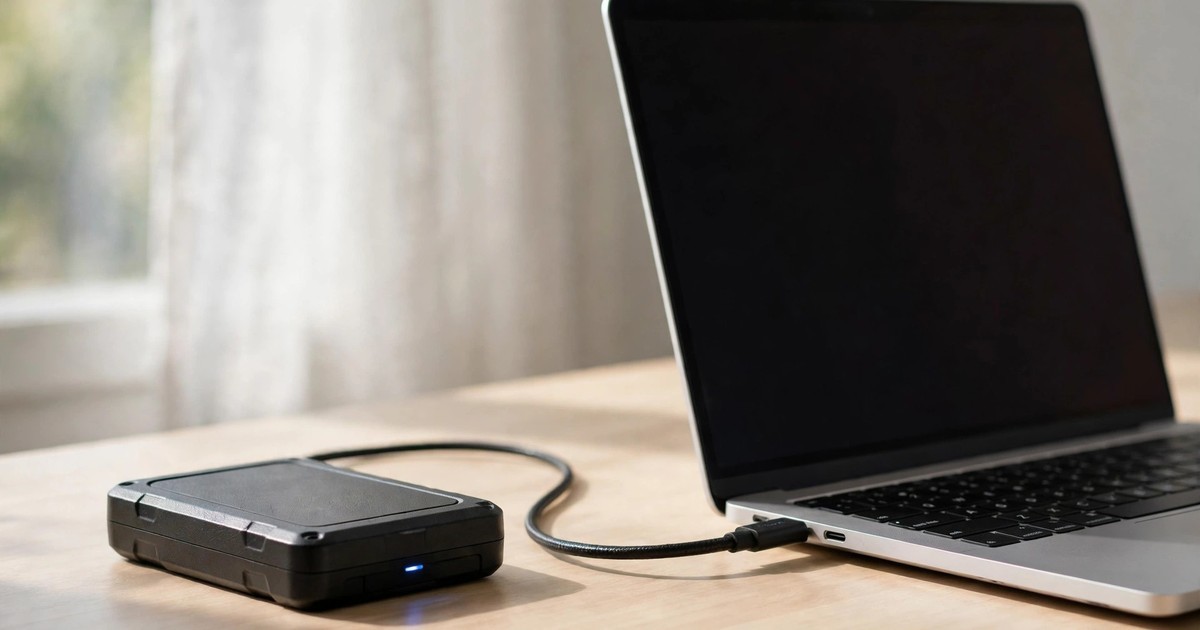
There is one more thing to check before buying: the connector. Check which ports your computer has and whether the cable that comes with the drive fits. Do not buy first and discover afterwards that it does not plug in and needs an extra adapter. Connector types and speed specifications change often, so check the shop page against your own computer's ports rather than relying on memory.
3. Formatting: The Wrong Format Means Backup Will Not Even Start
This is where most beginners get caught. A drive bought off the shelf may not be formatted for your backup tool, so the first job after buying is often to format it once. Before formatting, remember one thing: formatting erases everything on the drive. If the drive already contains files, copy them somewhere else first; after formatting, they are gone.
Which format to choose depends on your system and your backup tool:
| Use | Format to use | Why |
|---|---|---|
| Mac + Time Machine | APFS | A Time Machine backup drive must be in APFS format; the wrong format will not start a backup |
| Windows + File History | NTFS | A File History backup drive must be in NTFS format |
| Sharing files between Mac and Windows, ordinary file storage only | exFAT | Both systems can read and write it, but note: exFAT is not a backup drive format for Time Machine or File History |
The formatting steps are broadly the same everywhere: on a Mac, select the drive in Disk Utility, click Erase, and choose APFS; on Windows, select the drive in File Explorer or Disk Management, format it, and choose NTFS as the file system. Before doing it, double-check that you have selected the right drive, and do not format a different drive that still has data on it. After formatting, open the drive again and confirm the capacity shown is correct and that it is empty, then move on to the next step.
4. Running the First Backup: Mac and Windows, One Each
Mac: Time Machine
1. Connect the backup drive, go to "System Settings → General → Time Machine", and add a backup disk.
2. Select the APFS drive you just formatted. The system will ask whether to turn on encryption. Encryption protects the data if the drive is lost and someone else picks it up, but you must remember the password yourself; if you lose it, even you cannot open the drive.
3. The first full backup will then begin. The first backup covers the whole computer, and how long it takes depends on how much data you have. Allow time for it, keep the drive connected and powered, and do not unplug it halfway.
4. After it finishes, check the Time Machine menu once for the latest backup time and confirm it is recent, not days old.
Windows: File History
1. Connect the backup drive, go to File History in Settings or Control Panel, and add a drive.
2. Select the NTFS drive you just formatted and turn File History on.
3. Check which folders are included in the backup: File History backs up common personal folders by default. If your important files live in other folders, confirm whether they are covered; if not, add them.
4. The first backup likewise needs time. Keep the drive connected and do not unplug it halfway; when it finishes, check the latest backup time.
One point applies to both systems: during the first backup, it is best not to do a large amount of writing on the computer at the same time, such as moving tens of gigabytes of files onto it. That makes the backup take longer and can muddy which version is which.
5. After the First Backup: Three Checks Before It Counts
A backup report that says "complete" does not mean the backup can be restored. After the first backup, do all three of these:
First, check the latest backup time: is it today or recent? If it stopped days ago, find out why immediately; do not wait until something goes wrong to discover it.
Second, actually restore one unimportant file as a test: create a test text file, let it back up, delete it, then restore it with Time Machine or File History and confirm it opens. This step must use an unimportant file; never test with an important one. Deeper restore verification is covered in our restore verification guide.
Third, check how much space is left on the backup drive: if the first backup has already eaten most of the drive, version room will run out fast, and you should consider a larger drive sooner rather than waiting for backups to fail.
6. Mistakes: The Five Easiest Mistakes With a First Backup Drive
First, buying just barely big enough. Fitting your current data does not mean the backup works; once version room runs out, old versions get deleted and the point of the backup is weakened.
Second, formatting with the wrong format. Using the factory format straight out of the box to start Time Machine or File History, and spending hours before realising the format is the problem.
Third, not copying existing files off before formatting. If the drive already has files on it, one format wipes them all. Copy them off first, every time.
Fourth, using the backup drive as everyday storage. Fill it with movies, photos and games and there is no room left for versions; when something goes wrong and you want a version from three months ago, it is already gone.
Fifth, treating an unfinished first backup as a backup. Unplugging halfway through the first full backup, or not noticing that it failed, and then believing you are backed up. Wait for the completion report, then add one actual restore test, before you can say you have a backup.
7. What Comes Next: Three Steps After the First Drive
Once the first drive is done, the strategy has only just started. There are three more steps:
First, add a cloud copy offsite: put your most important files in the cloud as well, so that you have the "offsite" part of 3-2-1. See our backup strategy guide for details.
Second, consider an offline drive rotation: an offline drive plugged in once a week and unplugged right after backup is the most effective single defence against ransomware. See the offline drive section of our backup strategy guide.
Third, run a restore drill every month: restore one or two files in practice each month to confirm the backup still works. That habit matters more than buying a more expensive drive.
Summary
For your first backup drive, remember four things. First, measure before you buy, and leave room for versions; a Time Machine drive should be at least twice your Mac's built-in storage. Second, get the format right: APFS for Time Machine on Mac, NTFS for File History on Windows, and copy existing files off before formatting. Third, allow time for the first full backup, keep the drive connected and powered, and test-restore one unimportant file afterwards. Fourth, a backup drive is for backup only; do not use it as everyday storage.
If a drive you bought is not recognised by your computer, errors during formatting, or the first backup keeps failing, you are welcome to come to ComputerKing for a free initial check, and our technicians will look at whether it is a drive problem, a connector problem, or a settings problem. Inspection and repair charges require an individual quote; this article gives no estimates.
Q: How do I know how much data I have before buying a backup drive?
A: On a Mac, check storage usage in System Settings; on Windows, check Storage in Settings. Write down the "used space" figure as the starting point for choosing a capacity. A backup drive must hold your current data plus room for versions, so do not buy one that just barely fits.
Q: How big should a Time Machine backup drive be?
A: Apple officially recommends at least twice the size of your Mac's built-in storage, so there is enough room for version history. Windows has no official multiplier, but the principle is the same: the drive must be clearly larger than your current data, with room for versions and future growth.
Q: Does a new external drive need formatting?
A: Often, yes. A factory format may not suit your backup tool: Time Machine on Mac needs APFS, File History on Windows needs NTFS. Always copy any existing files off the drive first, because formatting erases everything on it.
Q: Which format should I use to share one drive between Mac and Windows?
A: For ordinary file storage that both systems read and write, exFAT works on both. But note: exFAT is not a backup drive format, so do not use it to start Time Machine or File History; for a backup drive, choose APFS or NTFS according to your system.
Q: How long does the first full backup take?
A: It depends on how much data you have; the more data, the longer it takes. The first backup covers the whole computer, so allow time, keep the drive connected and powered, and do not unplug it halfway. Avoid doing a large amount of writing on the computer at the same time, or the backup will take even longer.
Q: If the backup report says complete, does that mean I have a backup?
A: No. The report only says the copying finished; it does not prove the backup can be restored. After the first backup, actually restore one unimportant file as a test; only if it opens does it count. Deeper restore verification is covered in our restore verification guide.
Q: Can I use my backup drive as everyday storage as well?
A: No. Fill it with movies, photos and games and there is no room left for versions; old versions get deleted, and when you need a version from months ago, it is gone. Apple also recommends a Time Machine drive be used for Time Machine only, and that advice is worth following on every platform.
Q: What should I do if my computer does not recognise a drive I just bought?
A: First check the connector and cable fit, try another port, and see whether the system recognises the drive at all. If it still does not show up, do not keep formatting it or running write-based repairs; stop using it and seek a check. A faulty drive makes every backup a fake backup.
Sources
- Apple Support: Back up your Mac with Time Machine: https://support.apple.com/en-us/104984
- Microsoft Support: Backup, restore, and recovery in Windows: https://support.microsoft.com/en-US/Windows/Experience/Backup-Recovery/backup-restore-and-recovery-in-windows
- Related article: Hong Kong backup strategy guide: https://www.computerking.hk/blog/backup-strategy-hk
- Related article: Restore verification guide: https://www.computerking.hk/blog/backup-strategy-verify-restore-guide
- Related article: Version history and retention guide: https://www.computerking.hk/blog/backup-version-history-retention-guide
Frequently Asked Questions
How do I know how much data I have before buying a backup drive?
On a Mac, check storage usage in System Settings; on Windows, check Storage in Settings. Write down the "used space" figure as the starting point for choosing a capacity. A backup drive must hold your current data plus room for versions, so do not buy one that just barely fits.
How big should a Time Machine backup drive be?
Apple officially recommends at least twice the size of your Mac's built-in storage, so there is enough room for version history. Windows has no official multiplier, but the principle is the same: the drive must be clearly larger than your current data, with room for versions and future growth.
Does a new external drive need formatting?
Often, yes. A factory format may not suit your backup tool: Time Machine on Mac needs APFS, File History on Windows needs NTFS. Always copy any existing files off the drive first, because formatting erases everything on it.
Which format should I use to share one drive between Mac and Windows?
For ordinary file storage that both systems read and write, exFAT works on both. But note: exFAT is not a backup drive format, so do not use it to start Time Machine or File History; for a backup drive, choose APFS or NTFS according to your system.
How long does the first full backup take?
It depends on how much data you have; the more data, the longer it takes. The first backup covers the whole computer, so allow time, keep the drive connected and powered, and do not unplug it halfway. Avoid doing a large amount of writing on the computer at the same time, or the backup will take even longer.
If the backup report says complete, does that mean I have a backup?
No. The report only says the copying finished; it does not prove the backup can be restored. After the first backup, actually restore one unimportant file as a test; only if it opens does it count. Deeper restore verification is covered in our restore verification guide.
Can I use my backup drive as everyday storage as well?
No. Fill it with movies, photos and games and there is no room left for versions; old versions get deleted, and when you need a version from months ago, it is gone. Apple also recommends a Time Machine drive be used for Time Machine only, and that advice is worth following on every platform.
What should I do if my computer does not recognise a drive I just bought?
First check the connector and cable fit, try another port, and see whether the system recognises the drive at all. If it still does not show up, do not keep formatting it or running write-based repairs; stop using it and seek a check. A faulty drive makes every backup a fake backup.